

Username Availability Check
The Advanced Username Manager plugin features a powerful real-time username availability checker that provides instant feedback as users type. This creates a smooth, user-friendly experience and helps users choose valid usernames quickly.
How It Works
Section titled “How It Works”The username availability system operates in real-time using AJAX technology:
- User Types - As the user types in the “New Username” field, the plugin monitors each keystroke
- Instant Check - After a brief pause, the system checks if the username is available
- Immediate Feedback - Visual indicators and messages show if the username is available or taken
- Smart Suggestions - If the username is taken, the system offers alternative suggestions
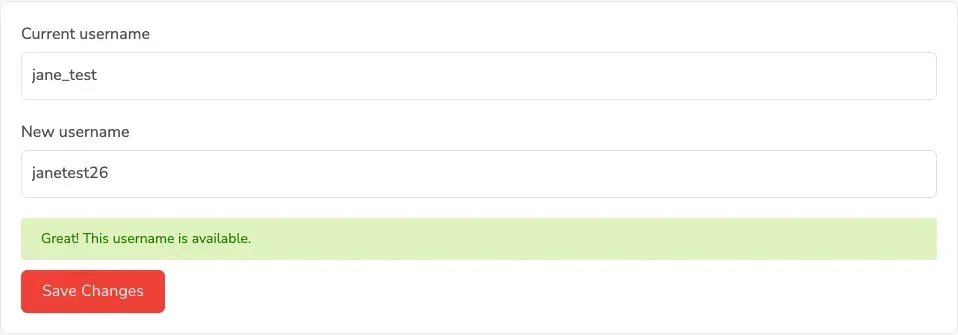
Real-Time Availability Check
Section titled “Real-Time Availability Check”When Username is Available
Section titled “When Username is Available”If you enter a username that’s not already in use:
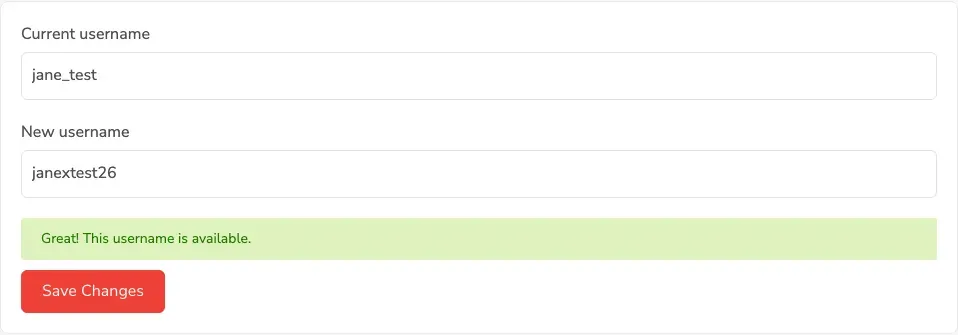
Visual Indicators:
- Green checkmark icon ✓
- Success message: “Great! This username is available.”
- The Save Changes button becomes enabled
- Input field border turns green
What This Means:
- The username is not in use by any other account
- You can proceed to save this username
- The username meets all validation requirements
When Username is Taken
Section titled “When Username is Taken”If you enter a username that already exists:
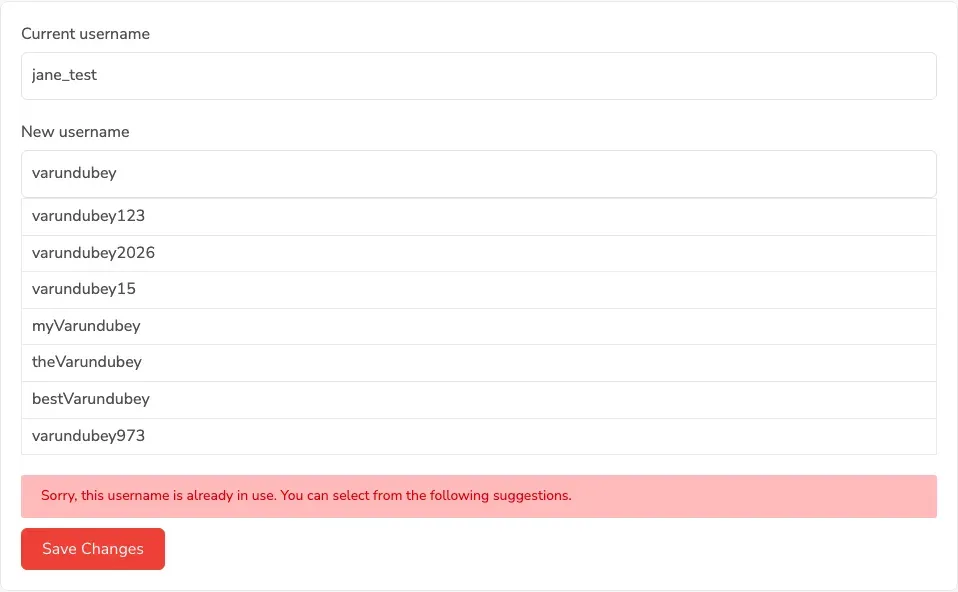
Visual Indicators:
- Red X icon ✗
- Error message: “Sorry, this username is already in use. You can select from the following suggestions.”
- List of suggested alternative usernames appears
- The Save Changes button stays disabled
- Input field border turns red
What This Means:
- Another user account is already using this username
- You need to choose a different username
- Check the suggestions below for alternatives
Username Suggestions
Section titled “Username Suggestions”When a username is already taken, the plugin automatically generates intelligent suggestions based on your chosen username.
How Suggestions Work
Section titled “How Suggestions Work”The system creates variations of your desired username using different strategies:
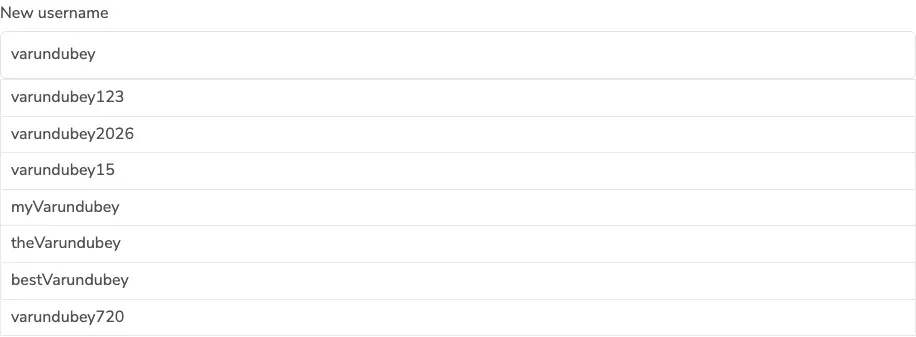
Suggestion Strategies:
The plugin generates up to 7 alternative usernames using these approaches:
- Fixed Number Suffix - Appends
123to your username (e.g.,johndoe123) - Year Suffix - Appends the current year (e.g.,
johndoe2026) - Day Suffix - Appends the current day of the month (e.g.,
johndoe15) - Prefix Variations - Adds common prefixes with capitalization:
myJohndoe,theJohndoe,bestJohndoe
- Random Number - Appends a random 3-digit number (e.g.,
johndoe547)
Using Suggestions
Section titled “Using Suggestions”Suggestions appear as clickable options below the input field:
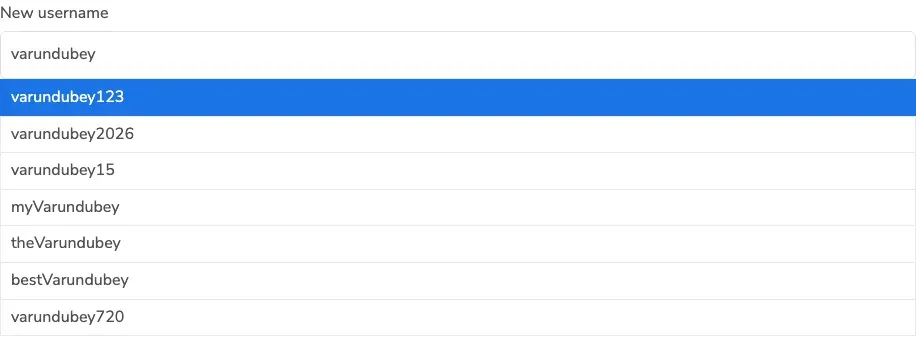
To Use a Suggestion:
- Review the suggested usernames in the list
- Click on any suggestion you like
- The suggestion automatically fills the “New Username” field
- The availability check runs again for the selected suggestion
- If available, the Save Changes button becomes enabled
Benefits:
- No need to think of alternatives yourself
- Quick one-click selection
- Saves time and reduces frustration
- Suggestions are generated based on your desired username
Validation Rules
Section titled “Validation Rules”The availability checker also validates usernames against several rules:
Minimum Length Requirement
Section titled “Minimum Length Requirement”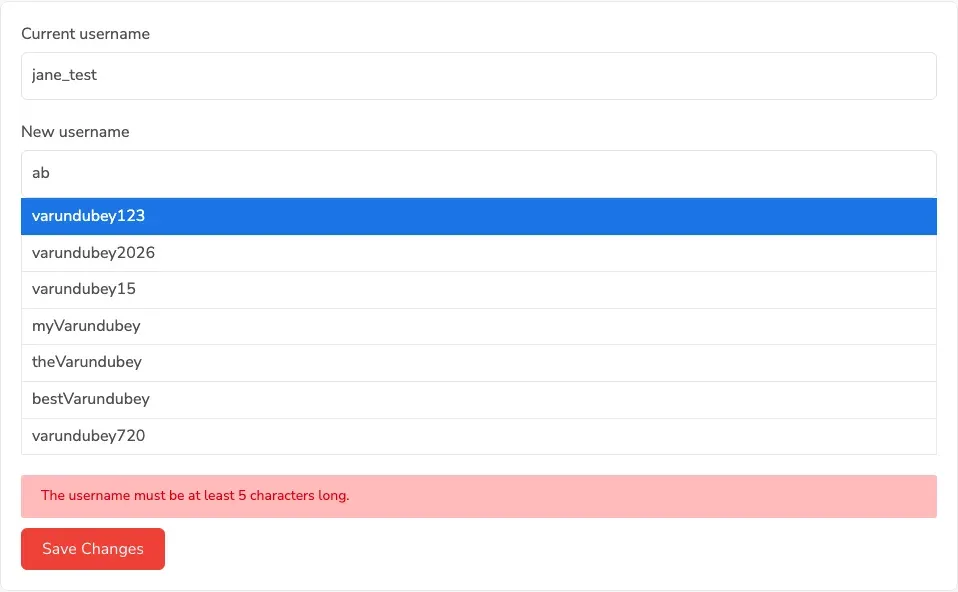
What It Checks: Username must have at least the minimum number of characters set by the administrator.
Example Error Message:
“The username must be at least 5 characters long.”
How to Fix:
- Add more characters to your username
- Check the minimum length requirement for your site
Maximum Length Requirement
Section titled “Maximum Length Requirement”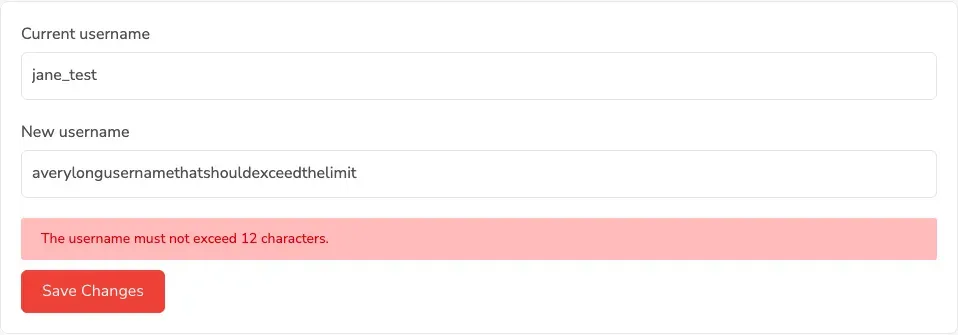
What It Checks: Username cannot exceed the maximum number of characters set by the administrator.
Example Error Message:
“The username must not exceed 12 characters.”
How to Fix:
- Shorten your username
- Remove extra characters to fit the limit
Valid Characters Only
Section titled “Valid Characters Only”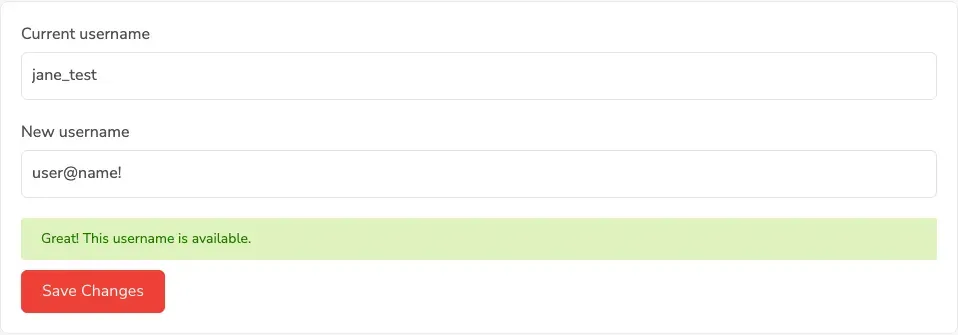
What It Checks: Usernames can only contain letters, numbers, underscores, and hyphens.
Example Error Message:
“Sorry, this username is invalid because it uses illegal characters. Please enter a valid username.”
Allowed Characters:
- Letters: a-z, A-Z
- Numbers: 0-9
- Underscore: _
- Hyphen: -
Not Allowed:
- Spaces
- Special characters: @, #, $, %, &, *, etc.
- Emojis or Unicode characters
Must Be Different from Current Username
Section titled “Must Be Different from Current Username”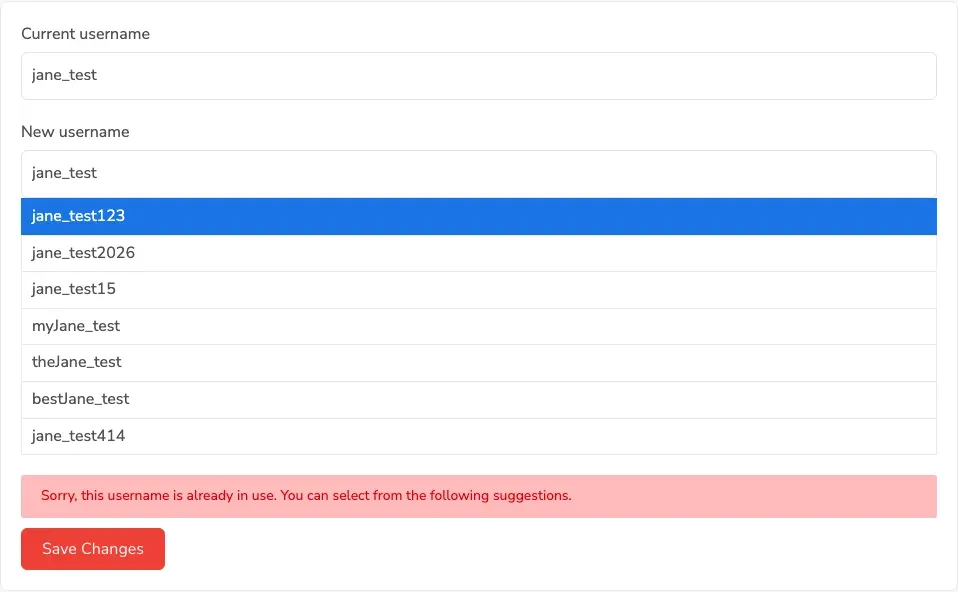
What It Checks: The new username must be different from your current username.
Example Error Message:
“Please enter a different username!”
How to Fix:
- Choose a completely different username
- Even small changes (like adding numbers) make it valid
Technical Details
Section titled “Technical Details”AJAX-Based Checking
Section titled “AJAX-Based Checking”The availability check uses AJAX (Asynchronous JavaScript and XML) technology:
How It Works:
- User types in the “New Username” field
- JavaScript detects the input and waits 500 milliseconds (debounce)
- If user continues typing, the timer resets
- When user pauses typing, an AJAX request sends the username to the server
- Server checks the database for existing usernames
- Server responds with availability status and suggestions (if needed)
- JavaScript updates the page with results (no page reload required)
Benefits:
- No page refreshes needed
- Instant feedback
- Smooth user experience
- Reduces server load with debouncing
Security
Section titled “Security”The availability checker includes security measures:
Nonce Verification:
- Each request includes a WordPress nonce token
- Prevents unauthorized or malicious requests
- Validates the request is from an authentic form
Data Sanitization:
- All usernames are sanitized before checking
- Prevents SQL injection attacks
- Ensures only safe characters are processed
Rate Limiting:
- The debounce delay prevents excessive server requests
- Protects against spam or DOS attacks
- Optimizes server performance
Performance Optimization
Section titled “Performance Optimization”The plugin is optimized for fast availability checks:
Debouncing
Section titled “Debouncing”What It Is: A technique that delays the availability check until the user pauses typing.
Default Delay: 500 milliseconds (half a second)
Benefits:
- Reduces unnecessary server requests
- Prevents checking every single keystroke
- Improves server performance
- Creates a smoother user experience
Database Optimization
Section titled “Database Optimization”Efficient Queries:
- Uses WordPress’s built-in
username_exists()function - Leverages database indexes for fast lookups
- Minimal server load per check
Caching
Section titled “Caching”Smart Caching:
- Recent checks can be cached temporarily
- Reduces duplicate database queries
- Improves response time for popular username patterns
User Experience Tips
Section titled “User Experience Tips”For Site Administrators
Section titled “For Site Administrators”To create the best user experience:
-
Set Reasonable Length Limits
- Don’t make minimum too high (5-6 characters is good)
- Don’t make maximum too low (12-15 characters works well)
- Consider your community’s needs
-
Test the Experience
- Try changing usernames yourself
- Note how quickly suggestions appear
- Verify error messages are clear
-
Educate Users
- Add help text near the form
- Explain the username requirements
- List the allowed characters
For End Users
Section titled “For End Users”To choose a good username:
-
Start with Your Preferred Choice
- Type your ideal username first
- Check if it’s available
-
Be Flexible
- Have 2-3 backup options ready
- Use suggestions if your first choice is taken
-
Consider Future Changes
- Remember the cooldown period
- Choose a username you’ll want to keep
- Think about how it represents you
-
Use Suggestions Wisely
- Don’t just click the first suggestion
- Choose one that still represents you well
- Consider how it looks and sounds
Common Scenarios
Section titled “Common Scenarios”Scenario 1: Popular Username
Section titled “Scenario 1: Popular Username”Situation: You want a common username like “admin” or “john”
What Happens:
- Almost certainly taken
- Multiple suggestions will appear
- You’ll need to choose a variation
Best Practice:
- Add numbers that mean something to you
- Include your last name or initials
- Consider adding a unique word
Scenario 2: Unique Username
Section titled “Scenario 2: Unique Username”Situation: You have a very unique or creative username idea
What Happens:
- Likely available immediately
- Green checkmark appears quickly
- You can save right away
Best Practice:
- Verify spelling carefully
- Make sure it’s something you want long-term
- Check it meets length requirements
Scenario 3: Typo in Username
Section titled “Scenario 3: Typo in Username”Situation: You accidentally mistype your desired username
What Happens:
- Availability check runs on the mistyped version
- May show as available even though you didn’t want it
- Could lead to saving the wrong username
Best Practice:
- Double-check spelling before clicking Save
- Review the “Current Username” vs “New Username” fields
- Take your time entering the new username
Troubleshooting
Section titled “Troubleshooting”Availability Check Not Working
Section titled “Availability Check Not Working”Problem: No feedback appears when typing a username.
Solution:
- Check if JavaScript is enabled in your browser
- Disable browser extensions (especially ad blockers)
- Clear browser cache and reload the page
- Check browser console for JavaScript errors
- Try a different browser
Suggestions Not Appearing
Section titled “Suggestions Not Appearing”Problem: When a username is taken, no suggestions show up.
Solution:
- Wait a few seconds for suggestions to load
- Check your internet connection
- Verify the plugin is updated to the latest version
- Contact site administrator if problem persists
Slow Availability Checks
Section titled “Slow Availability Checks”Problem: It takes several seconds to check username availability.
Solution:
- Check your internet connection speed
- Wait for server response (especially on busy sites)
- Contact site administrator if consistently slow
- Server may be under heavy load
False Availability
Section titled “False Availability”Problem: System says username is available but shows error when saving.
Solution:
- Someone may have taken the username between check and save
- Try the username again or choose another
- This is rare but can happen on very busy sites
Related Documentation
Section titled “Related Documentation”- Shortcode Usage - Learn how to add the username form
- General Settings - Configure length requirements
- BuddyPress Integration - BuddyPress username changes
- Troubleshooting - Fix common issues