

Placing Blocks
Placing Blocks
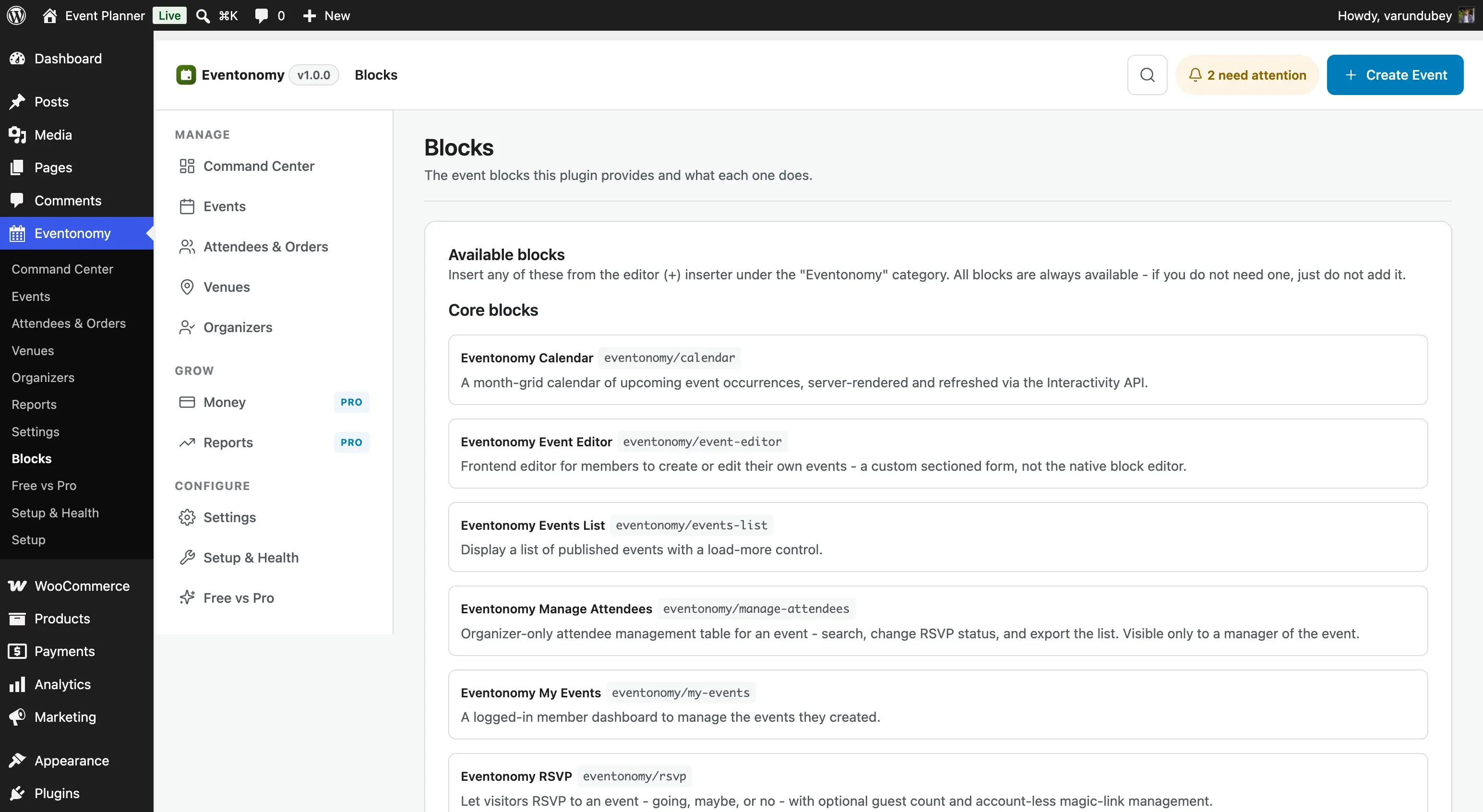
Section titled “Placing Blocks”Eventonomy ships nine blocks in the Free plan (and nine more in Pro, under the separate eventonomy-pro/ prefix). You add them to any WordPress page or post with the Block Editor, just like any core Gutenberg block.
What You Will Learn
Section titled “What You Will Learn”- What each Free block does and where to place it
- How to find the blocks in the Block Editor
- Shortcode equivalents for classic-editor or page-builder use (every placeable Free block, plus every Pro block when Pro is active)
- Which blocks Pro adds
Finding the Blocks
Section titled “Finding the Blocks”- Open any page or post in the Block Editor.
- Click the + button (or press
/). - Search for Eventonomy; all blocks appear together under the Eventonomy category.
Free Blocks
Section titled “Free Blocks”| Block | Best placed on | What it does |
|---|---|---|
eventonomy/calendar |
Events page | Month calendar. Each day cell lists that day’s events, and each one links straight to the event. |
eventonomy/events-list |
Events page | Grid, list, or upcoming events with a Load more control. |
eventonomy/upcoming |
Home page, sidebar | A compact “next N events” teaser list. |
eventonomy/search-filter |
Events page | Search box, category chips, date range - and the view switcher. |
eventonomy/single-event |
Single-event template | Full event detail: image, dates, venue, organizer, description. |
eventonomy/rsvp |
Single-event template or any page | The RSVP form (going / maybe / no / guests). |
eventonomy/manage-attendees |
Single-event page | Attendee list with check-in controls, visible to event organizers only. |
eventonomy/my-events |
Manage Events page | Member dashboard: overview, their events, create/edit, attending, venues & organizers, and profile. |
eventonomy/event-editor |
Any page | Event creation/editing form (used inside the my-events dashboard). |
The view switcher lives in Search & Filter, not Events List. If you want visitors to flip between Grid, List, Month and Upcoming, the Search & Filter block has to be on the page. Events List renders whichever view is active.
Shortcodes
Section titled “Shortcodes”If you use the Classic Editor or a page builder that does not support Gutenberg blocks, every block has an equivalent shortcode:
| Shortcode | Equivalent block |
|---|---|
[eventonomy_calendar view="month"] |
eventonomy/calendar |
[eventonomy_events per_page="6" view="list" category="music"] |
eventonomy/events-list |
[eventonomy_upcoming count="3"] |
eventonomy/upcoming |
[eventonomy_event id="42"] |
eventonomy/single-event |
[eventonomy_my_events] |
eventonomy/my-events |
[eventonomy_search] |
eventonomy/search-filter |
[eventonomy_submit event_id="0" redirect_url="/events/"] |
eventonomy/event-editor |
[eventonomy_rsvp id="42"] |
eventonomy/rsvp |
[eventonomy_manage_attendees id="42"] |
eventonomy/manage-attendees |
Pro shortcodes
Section titled “Pro shortcodes”With Eventonomy Pro active, its blocks have shortcodes too:
| Shortcode | Equivalent block |
|---|---|
[eventonomy_checkin id="42"] |
eventonomy-pro/checkin |
[eventonomy_week] |
eventonomy-pro/week-view |
[eventonomy_day] |
eventonomy-pro/day-view |
[eventonomy_map per_page="20"] |
eventonomy-pro/map-view |
[eventonomy_analytics] |
eventonomy-pro/organizer-analytics |
[eventonomy_follow type="event" id="42"] |
eventonomy-pro/follow-button |
[eventonomy_discovery per_page="12"] |
eventonomy-pro/discovery-feed |
[eventonomy_photo_grid per_page="12"] |
eventonomy-pro/photo-grid |
Recommended Page Setup
Section titled “Recommended Page Setup”The activation wizard creates the two required pages automatically. If you need to set them up manually:
Events page - Create a page, add the eventonomy/search-filter block at the top, then eventonomy/events-list below it, and (if you want the Month view) eventonomy/calendar below that. This is exactly what Eventonomy builds for you on activation, and it is what makes the view switcher work: search, browsing and view switching in one place.
Manage Events page - On a fresh install this is created for you at /manage-events/. To set it up manually, create a page and add only the eventonomy/my-events block. That block contains the full dashboard shell. Mark this page as requiring login with your membership plugin or a redirect rule.
Pro Blocks
Section titled “Pro Blocks”Pro - Eventonomy Pro adds nine additional blocks:
| Block | What it does |
|---|---|
eventonomy-pro/week-view |
7-column hour-grid week calendar |
eventonomy-pro/day-view |
Single-day hour-grid calendar |
eventonomy-pro/map-view |
Events plotted on a map (requires Maps & geocoding) |
eventonomy-pro/checkin |
Door check-in scanner (QR / manual) |
eventonomy-pro/discovery-feed |
Personalized event feed for members (needs Settings → Features → Discovery) |
eventonomy-pro/follow-button |
Follow an organizer to see their events in the discovery feed |
eventonomy-pro/organizer-analytics |
Per-event metrics for organizers (needs Settings → Features → Analytics) |
eventonomy-pro/photo-grid |
Event photo gallery grid |
eventonomy-pro/member-events |
A member’s events by bucket, for the BuddyPress profile tab (needs BuddyPress and the BuddyPress integration enabled) |
Five of the nine register unconditionally. Map View, Discovery Feed, Organizer Analytics, and Member Events only appear in the inserter once the setting or integration named above is switched on. Maps & geocoding, Discovery and Analytics are all off by default, so a fresh Pro install starts with five.
What’s Next?
Section titled “What’s Next?”Learn how to manage events, set statuses, and keep your event list organized.