

Outbound Webhooks
Outbound webhooks are how BuddyNext tells the rest of your tools when something happens in your community. You give BuddyNext a web address to notify, pick the events you care about, and from then on BuddyNext sends a secure message to that address within seconds of each event - no plugin to build, no code to write.
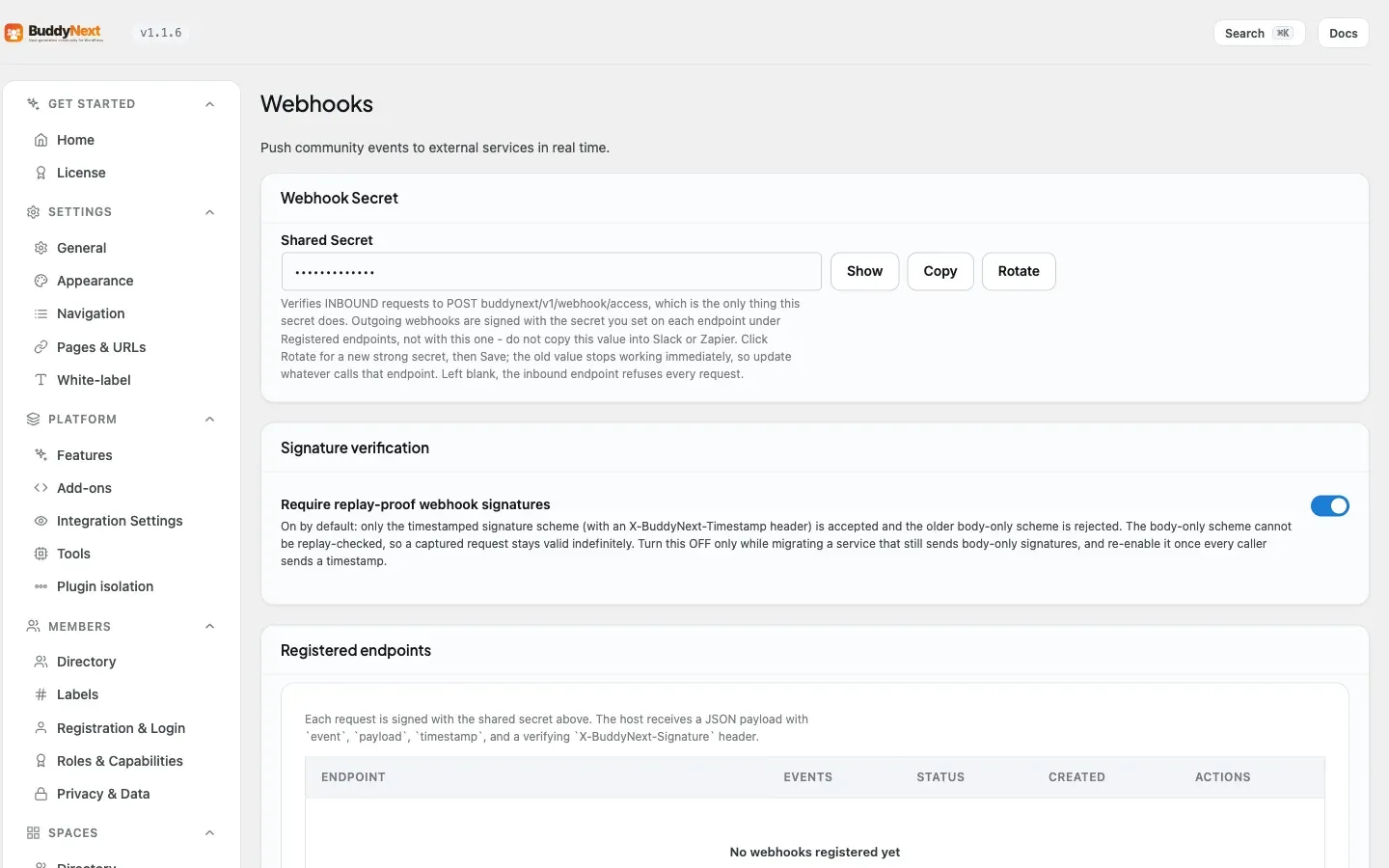
Why use it
Section titled “Why use it”Your community is busy all day: a member registers, someone follows another member, a post goes up, a member joins a space. On their own, those moments stay inside BuddyNext. Webhooks let you carry them out to the other tools you already run, the instant they happen, so those tools can do something useful with them.
This is the easiest way to connect BuddyNext to your wider setup without any development work. Common things owners do with it:
- Kick off a Zapier, Make, or n8n automation the moment a new member registers.
- Add new members to a CRM or email list automatically.
- Post a note in Slack or Discord when someone publishes a post or comment.
- Trigger any custom workflow on a system you run yourself.
The payoff for you as the owner: your community data flows into the systems you already rely on instead of sitting in a silo. You set up the connection once, and every event you subscribed to is delivered for you - kept in a log, and retried automatically if a delivery does not get through, rather than quietly lost.
How it works (for owners)
Section titled “How it works (for owners)”Webhooks are managed inside BuddyNext and are available to administrators only. You add one or more destinations, and BuddyNext takes care of securing each message, delivering it, retrying if needed, and keeping a record.
Add a destination
Section titled “Add a destination”To start receiving events, tell BuddyNext where to send them. When you add a destination you provide three things:
- The web address. This is where BuddyNext sends each event. It has to be a secure (https) address - plain, unsecured addresses are not accepted.
- The events you want. Pick the specific events this destination should receive, or leave the selection empty to receive every event.
- A signing secret (optional). This is a private key that lets the receiving tool confirm each message really came from your site. If you do not provide one, BuddyNext creates a secret for you and shows it once at that moment.
Warning: Your signing secret is shown only once, right after you add the destination. Copy it somewhere safe immediately. BuddyNext cannot show the original secret again later, and there is no “rotate secret” option - to change it, delete the destination and add it again.
Events you can subscribe to
Section titled “Events you can subscribe to”You can subscribe a destination to any of the community events below. If you leave a destination’s event selection empty, it receives all of them - including any new event types added in future versions.
| Event | Sent when |
|---|---|
| Member registered | A new member registers. |
| Member verified | A member’s account is verified. |
| Ability granted | A capability is granted to a member. |
| Ability revoked | A capability is removed from a member. |
| Post created | A member creates a post. |
| Post deleted | A post is deleted. |
| Comment created | A comment is added. |
| Reaction added | A member reacts to a post. |
| Member followed | One member follows another. |
| Connection accepted | A connection request is accepted. |
| Space joined | A member joins a space. |
| Space left | A member leaves a space. |
| Member suspended | A member is suspended. |
| Member unsuspended | A member’s suspension is lifted. |
A separate test event is sent only when you test a destination (see Test a destination).
What member data leaves your site
Section titled “What member data leaves your site”Some events carry a member’s personal details in the message body, including their email address, so the receiving tool can act on them (for example, adding a new member to your CRM or email list). This is the point of the feature, and it only happens for destinations you add yourself, but it does mean member data leaves your site and travels to whatever address you configure.
Two things follow from that. Send events only to endpoints you trust and control, over https so the data is encrypted in transit. And if you are subject to GDPR, CCPA or similar rules, list these destinations in your own records of where member data is shared - BuddyNext hands the data to the address you chose, but what that third party then does with it is between you and them.
How the message keeps it secure
Section titled “How the message keeps it secure”Every message BuddyNext sends carries a digital signature based on your signing secret. The receiving tool uses that same secret to confirm two things: the message genuinely came from your site, and nothing in it was changed along the way. Each message also includes the event name and the time it was sent, so your tool always knows what happened and when.
If you are wiring this into a popular automation service like Zapier, Make, or n8n, this verification is usually handled for you - you paste in the same signing secret and the service checks each message automatically. If you have a developer connecting a custom system, the technical details of the signature live in the separate Developer Guide.
Tip: Because each message includes the time it was sent, a receiving tool can choose to ignore very old messages if it wants extra protection against replays. BuddyNext leaves that choice to the receiving side.
Delivery and retries
Section titled “Delivery and retries”A delivery counts as successful when your destination confirms it received the message. If it does not, BuddyNext does not give up at once - it tries the same delivery again a few times, waiting a little longer between each attempt (up to three tries, starting after about five minutes and roughly doubling the wait each time). As soon as one attempt succeeds, the retries stop. If every attempt fails, the delivery is marked as failed.
What happens to a destination that keeps failing
Section titled “What happens to a destination that keeps failing”A destination that keeps failing is switched off on its own. After three failed deliveries in a row, BuddyNext deactivates it and stops sending new events there, so it is not wasting time on an address that is no longer answering.
Note: Deactivation is silent - there is no email or alert when it happens, and there is no “reactivate” button. To bring a switched-off destination back, fix the receiving address, then delete the destination and add it again.
The delivery log
Section titled “The delivery log”Every attempt - success or failure, test or real event - is recorded. For each destination you can open its delivery log to see what was sent, when, which event it was, and how the destination responded. Use it to confirm events are landing and to work out why a destination stopped responding.
Test a destination
Section titled “Test a destination”Before you rely on a destination, send it a test. BuddyNext delivers a test event exactly the way a real event would be sent, so you can confirm the receiving tool accepts it and recognizes it as genuine. The test reports success only when your destination confirms it received the message, and the test is written to the delivery log like any other delivery.
Remove a destination
Section titled “Remove a destination”Removing a destination stops all future deliveries to it straight away and removes its delivery log along with it.
Settings and usage
Section titled “Settings and usage”| Setting | What it does | Default |
|---|---|---|
| Web address | Where each event is sent. Must be a secure (https) address; unsecured addresses are rejected. | None - required for each destination |
| Events | The events this destination receives. Leave empty to receive every event. | Empty (all events) |
| Signing secret | The private key used to secure each message. Created for you and shown once if you do not provide one. | Created for you |
| Number of destinations | How many destinations you can add. | 1 on the free plan |
| Retry attempts | How many times a failed delivery is retried before it is given up. | 3, with a growing wait between tries |
| Auto-switch-off threshold | Failures in a row before a destination is switched off. | 3 |
Free vs Pro
Section titled “Free vs Pro”The free plan lets you add one outbound webhook destination. That is enough to connect your community to a single automation - one Zapier flow, one CRM sync, or one Slack channel.
Pro removes the limit, so you can add as many destinations as you need and send the same events out to several systems at once. See Unlimited Webhooks for details.
Good to know
Section titled “Good to know”- Destinations must use a secure (https) address. An unsecured address is rejected when you try to add it.
- Managing webhooks is for administrators only. Members cannot see or change destinations.
- Leaving a destination’s event selection empty subscribes it to every event - including new event types added in future versions.
- The signing secret is shown only when you add the destination and cannot be displayed again or rotated; delete and re-add to change it.
- A switched-off destination is not deleted - it stays in your list as inactive until you remove it or re-add it.
- Removing a destination also removes its delivery log.
Related
Section titled “Related”- Integrations Overview - how every companion plugin connects.
- Webhooks REST Contract - the signature and payload details for developers.
- Unlimited Webhooks - the Pro upgrade that removes the one-destination limit.