

Content Drip
Content Drip (Pro)
Section titled “Content Drip (Pro)”Pro feature. Available in Learnomy Pro.
Turn the extension on first. Content Drip ships switched off, like almost every Pro extension. Go to LMS Settings > Modules, find Content Drip, and enable it. Until you do, its menu items and settings do not appear at all, which reads as a missing feature rather than an unflipped switch.
Content Drip lets you schedule when individual lessons become available to students. Instead of releasing the entire course at once, you control the unlock timing lesson by lesson.
Free already releases lessons on a fixed date. Every lesson has an Available date field in the free plugin – see Sections and Lessons. Pro adds the other two rules (a per-student countdown after enrollment, and unlocking after a prerequisite lesson), the whole-course schedule table, and the student-facing “unlocks on” messaging. If a fixed release date is all you need, you do not need Pro.
Overview
Section titled “Overview”Content Drip has two screens. The Pro Tools -> Content Drip hub shows the whole schedule for a course in one table, so you can see at a glance what unlocks when. The rules themselves are set per lesson, in the Release schedule card of the lesson editor. Lessons without a rule are available immediately after enrollment.
Go to Learnomy → Pro Tools, then click the Content Drip card to get started.
Setting up a drip schedule
Section titled “Setting up a drip schedule”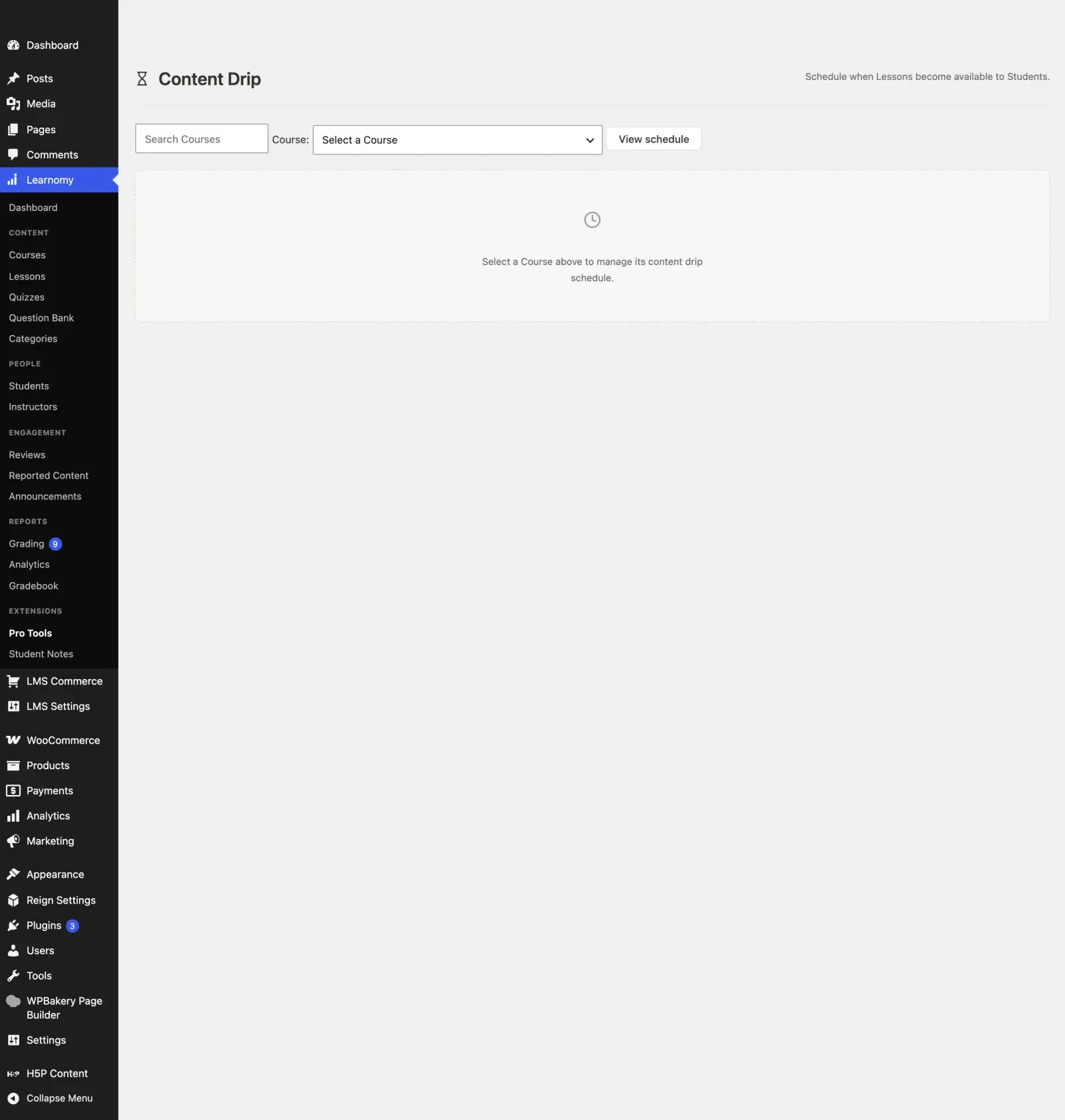
Step 1 – select a course
Section titled “Step 1 – select a course”The Content Drip page opens with a course selector at the top.

- Open the Course dropdown.
- Select the course you want to schedule.
- Click View schedule.
Step 2 – review the lesson schedule
Section titled “Step 2 – review the lesson schedule”The lesson schedule table appears once you select a course.

The table has four columns:
- Lesson – the lesson title.
- Drip Type – the unlock rule in effect, or “Immediate” if no rule is set.
- Value – the specific value for the rule (number of days, a fixed date, or a prerequisite lesson name).
- Status – “Available” (no rule) or “Dripped” (a rule is active).
Step 3 – set the rule on the lesson
Section titled “Step 3 – set the rule on the lesson”The schedule table is read-only. You set the rule on the lesson itself.
Open the lesson in the lesson editor and find the Release schedule card. If the lesson is brand new, save it once first – the card needs a saved lesson to attach the rule to.
Pick one of four release modes:
| Mode | What you enter | When the lesson unlocks |
|---|---|---|
| Immediate (unlock on enrollment) | nothing | As soon as the student enrolls. This is the default. |
| After enrollment | Days after enrollment (a whole number, default 7) | That many days after this student enrolled, so each student gets their own schedule |
| On a fixed date | Release date (a date picker) | On that date, for every student at once, whenever they enrolled |
| After completing a prerequisite | the prerequisite lesson, from a dropdown of the other lessons in this course | As soon as that student marks the prerequisite complete |
Click Save schedule. The lesson now shows as “Dripped” in the schedule table.
Each lesson has at most one rule. Choosing a different mode replaces the previous one; choosing Immediate removes the rule and the lesson goes back to being available on enrollment.
Which mode to choose. Use After enrollment for an evergreen course people join any time – everyone gets the same paced experience. Use On a fixed date for a cohort that starts together, like a live class. Use After completing a prerequisite when the order matters more than the calendar.
The locked-lesson experience for students
Section titled “The locked-lesson experience for students”When a student opens a course and a lesson is not yet unlocked by its drip rule, that lesson is inaccessible. In the curriculum list on the course page the lesson row shows a lock indicator. Clicking the lesson title does not open the player.
If the rule type is Days after enrollment or Fixed date, the lesson player shows the date when the lesson will unlock so the student knows when to return.
If the rule type is After completing lesson, the player tells the student which lesson they need to complete first.
Lessons with no drip rule, or whose rule conditions are already satisfied, open normally.
How scheduling works
Section titled “How scheduling works”Whether a lesson is locked or unlocked for a given student is evaluated live against your drip rules every time they open the course, so it is always current.
At the moment a student enrolls, Learnomy also works out when each dripped lesson in that course will unlock for them, so it can fire the normal “lesson unlocked” notification at the right time. On a large enrollment – a bulk CSV import or a cohort with hundreds of members enrolling into a course with many dripped lessons – computing and writing that schedule for everyone at once could slow down the enrollment request itself. To avoid that, this step runs in the background via Action Scheduler immediately after enrollment, instead of inline as part of it, and writes the schedule in a single batch. Enrollment completes at normal speed regardless of how many lessons are dripped or how many students are enrolling at once.
- Content Drip rules apply to enrolled students only. Non-enrolled visitors and admins can always access all lessons regardless of drip rules.
- The prerequisite rule type checks whether the prerequisite item (lesson or quiz) has a completed progress record. Graded attempts count as completed for quizzes.
- The “Days after enrollment” calculation is based on the student’s enrollment timestamp in UTC. A student who enrolled at 11 PM will have their Day 1 unlock happen at the same clock time the following day.
- Drip rules survive course updates. If you change a lesson’s title, its existing drip rule is unaffected.
- There is no bulk-assign tool in the current admin view. To schedule many lessons at once, use the REST API with a scripted loop.