Collections
Included in Free - This feature is available in the free version of MediaVerse.
Save and curate media from anyone on your site into personal boards - like Pinterest boards, but for your community’s photos and videos.
What You Can Do
Section titled “What You Can Do”- Save any public media item to a personal collection with one click
- Create multiple collections for different themes or moods (e.g., “Travel Inspiration”, “Black and White”)
- Curate manually by hand-picking individual photos, or let smart rules auto-fill a collection
- Smart collections stay fresh automatically - tag a rule once and the collection updates itself
- Share collections publicly or keep them private
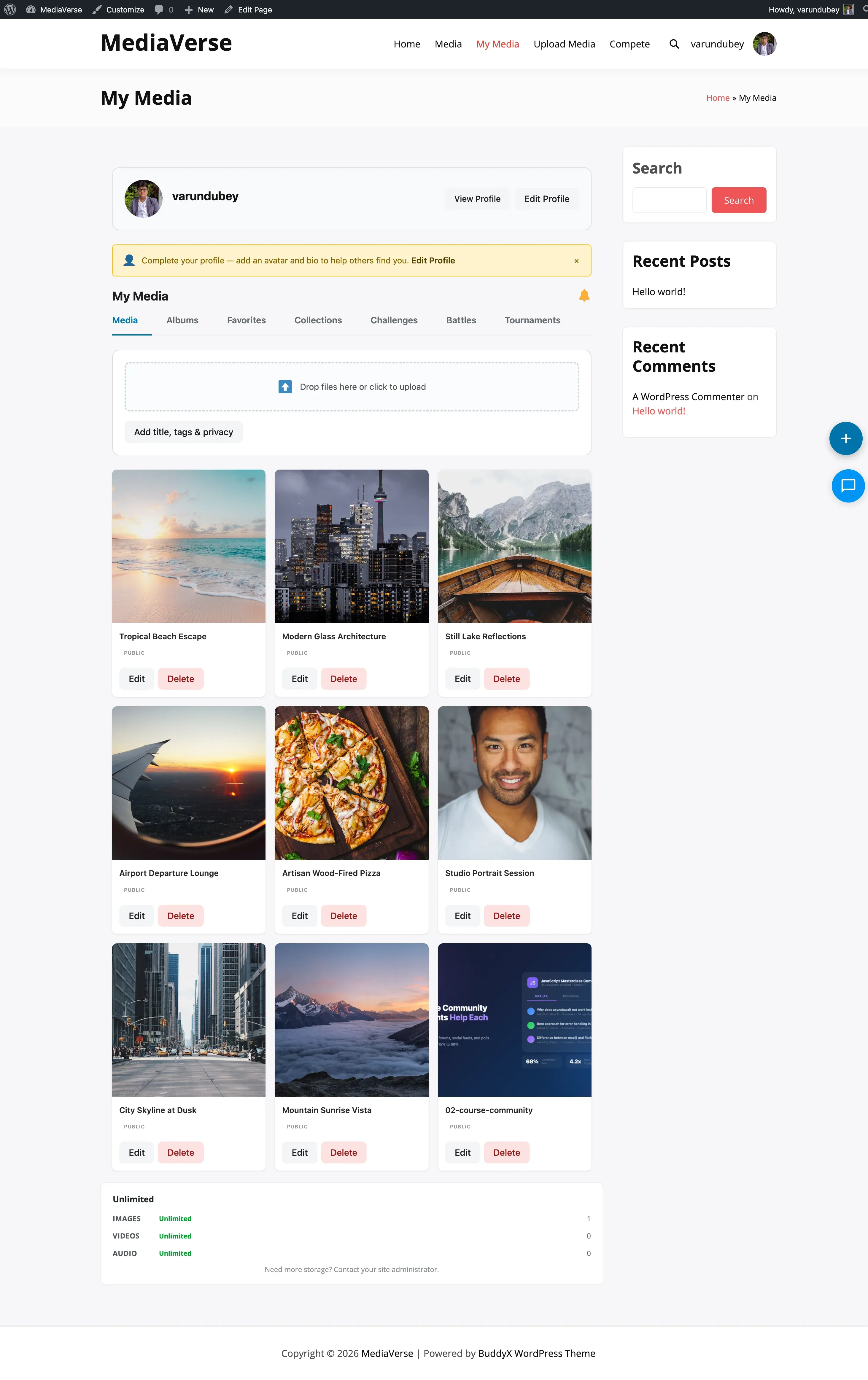
- Browse your saved collections from your media dashboard
How It Works (for Users)
Section titled “How It Works (for Users)”- When you find a photo you love, click the Save button (bookmark icon) below it
- Choose an existing collection from the dropdown, or click New Collection to create one
- Give your new collection a name and choose a privacy level, then click Create
- The photo is added instantly - you’ll see the bookmark icon turn solid to confirm
- Find all your collections under My Media > Collections in your dashboard
- To manage a collection, open it and click Edit to rename it, reorder items, or remove ones you no longer want
- To share a collection, copy the link from the collection page
For Site Owners
Section titled “For Site Owners”- Collections are available to all users with upload access once MediaVerse is activated
- To embed a collection on any page, use
[mvs_collection id="456"]or the MediaVerse: Collection Viewer block - Smart collections are especially useful for curated showcase pages - create a smart collection filtered by a tag and embed it on your homepage
- Manage all collections from Media > Collections in wp-admin
- Use the Collection Settings meta box on any collection post to switch between manual and smart mode and configure smart rules
Collection Types
Section titled “Collection Types”| Type | Description |
|---|---|
| Manual | You add specific media items by hand. Items are stored in the wp_mvs_favorites table with the collection ID. |
| Smart | Rules-based. The collection resolves its item list dynamically at request time based on criteria like tag, category, media type, or date range. |
Displaying a Collection
Section titled “Displaying a Collection”Shortcode:
[mvs_collection id="456"][mvs_collection id="456" columns="3" per_page="20"]| Attribute | Default | Description |
|---|---|---|
id |
(required) | Collection post ID |
columns |
3 |
Grid columns to display |
per_page |
20 |
Maximum number of media items to show |
If no id is provided, the shortcode outputs an error message. If the collection post is not published, the shortcode shows “Collection not found.”
REST API Endpoints for Collections
Section titled “REST API Endpoints for Collections”| Method | Endpoint | Description |
|---|---|---|
GET |
/mvs/v1/collections |
List collections |
POST |
/mvs/v1/collections |
Create collection |
GET |
/mvs/v1/collections/{id} |
Get collection with resolved items |
PUT |
/mvs/v1/collections/{id} |
Update collection |
DELETE |
/mvs/v1/collections/{id} |
Delete collection |
Creating a Smart Collection via API
Section titled “Creating a Smart Collection via API”curl -X POST https://yoursite.com/wp-json/mvs/v1/collections \ -H "X-WP-Nonce: YOUR_NONCE" \ -H "Content-Type: application/json" \ -d '{ "title": "Nature Photos", "type": "smart", "rules": { "tags": ["nature", "landscape"], "media_type": "image" }, "privacy": "public" }'Collection Meta Box
Section titled “Collection Meta Box”In the WordPress admin, each mvs_collection post has a Collection Settings meta box that lets you set the collection type and define smart rules without using the API.