

Installation & First-Run Setup
Install
Section titled “Install”Pick whichever method fits your workflow.
Upload via WordPress admin
- Download the ZIP from your Wbcom Designs account.
- Go to Plugins → Add New → Upload Plugin.
- Choose the ZIP and click Install Now, then Activate.
FTP / SFTP
- Extract the ZIP locally.
- Upload the
buddypress-sticky-post/folder towp-content/plugins/. - Activate from Plugins.
WP-CLI
wp plugin install /path/to/buddypress-sticky-post.zip --activateVerify activation
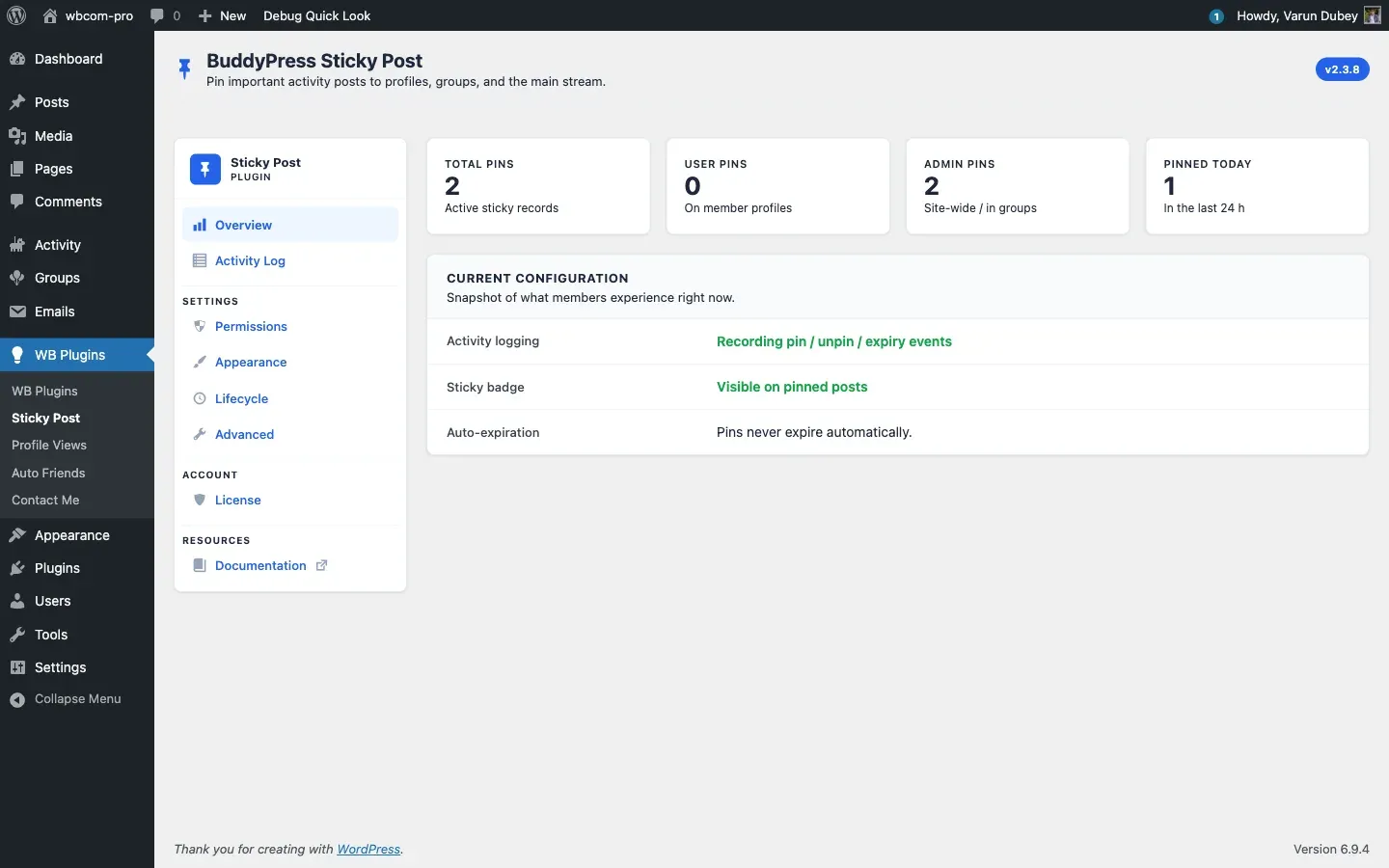
Section titled “Verify activation”After activation you should see WB Plugins → Sticky Post in the admin sidebar. The Overview tab loads with four counters (Total Pins, User Pins, Admin Pins, Pinned Today) and the current configuration snapshot.
First-run checklist
Section titled “First-run checklist”Five minutes to a working setup.
- Activate your license — open License, paste the key from your Wbcom Designs account, click Activate License. Updates and support stay paused until this step is done. See License Activation.
- Pick who can pin — open Permissions, tick the roles allowed to pin on their own profile. Site administrators can always pin sitewide; that does not need a checkbox. See Permissions Tab.
- Set pin caps — same Permissions tab, set Per user (default 1) and Per admin (site-wide) (default 0 = unlimited). See Pin Quotas.
- Decide the badge — open Appearance, confirm Show sticky badge is on, set the ribbon color. Without the badge, pinned posts look identical to regular ones. See Appearance Tab.
- Check logging — open Lifecycle, confirm Enable logging is on (it is by default) to keep a pin/unpin audit trail. See Activity Log.
Upgrading from 2.2.x or earlier
Section titled “Upgrading from 2.2.x or earlier”The 2.3.x series introduced custom database tables ({prefix}bpsp_sticky_posts and {prefix}bpsp_activity_logs) and migrated option-based pin storage to them.
- Back up your database.
- Upload the new version and activate. The activation routine creates the tables, migrates existing pins, and sets
bpsp_migration_completed. - Open Advanced → Database Health to confirm both tables show All tables present and in use.
If the health check shows a missing table, deactivate and reactivate the plugin to recreate it.
Theme compatibility
Section titled “Theme compatibility”Tested out of the box with: Reign, BuddyX, BuddyX Pro, BuddyBoss Theme, Flavor, OneCommunity. The pin button and ribbon render through the standard BuddyPress activity hooks, so any well-behaved BuddyPress theme should work. If your theme overrides activity templates, see Overrides.
What to read next
Section titled “What to read next”- Pin Activities — how members and admins actually pin posts.
- Pin Scopes — sitewide vs personal vs group, with examples.
- Common Issues — Pin button missing, sticky not staying, etc.