

Managing Certificates
The Certificates tab lets instructors and admins design and manage certificate templates from the frontend dashboard. Students receive certificates when they complete a course or pass a quiz.
Screenshots
Section titled “Screenshots”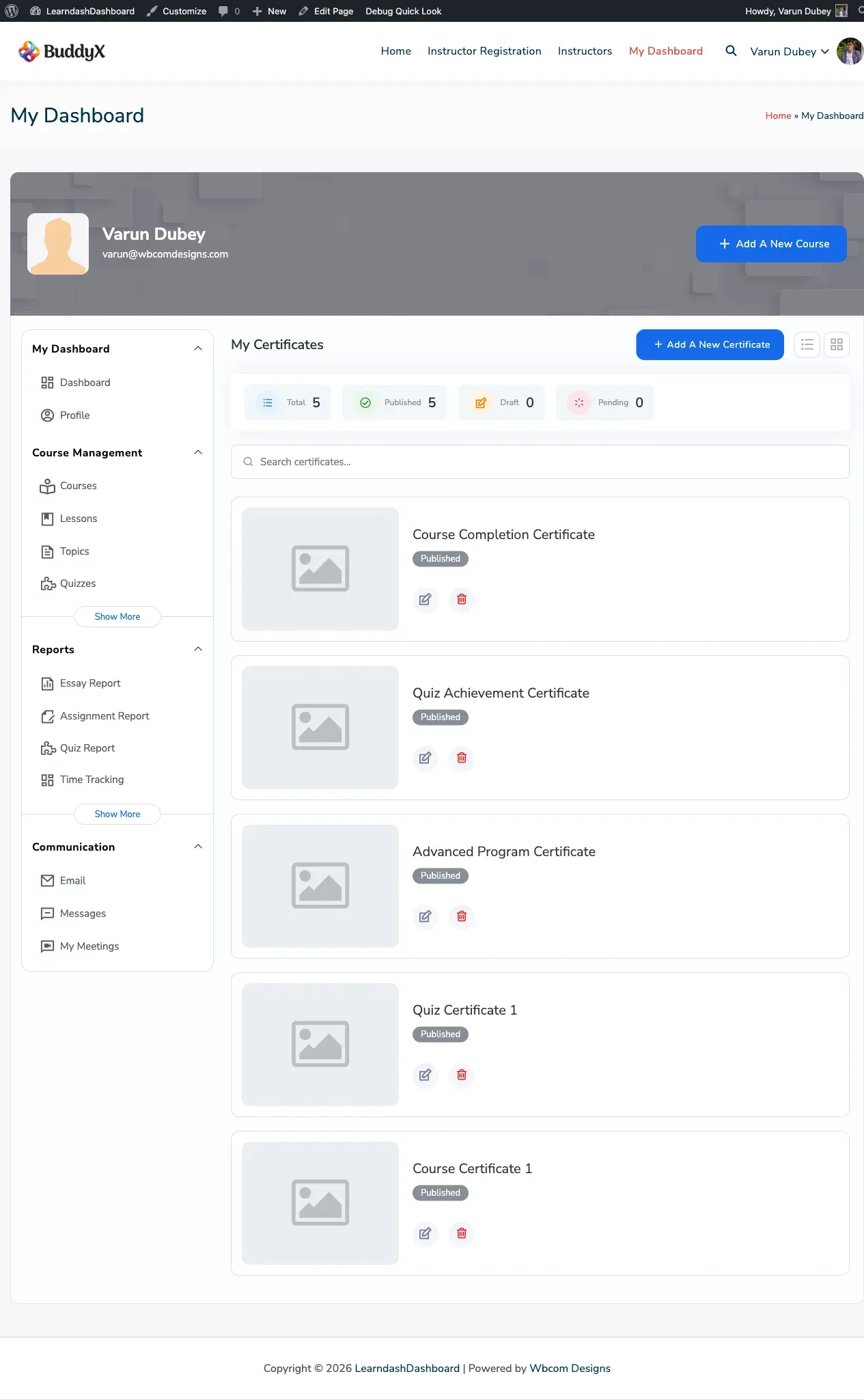
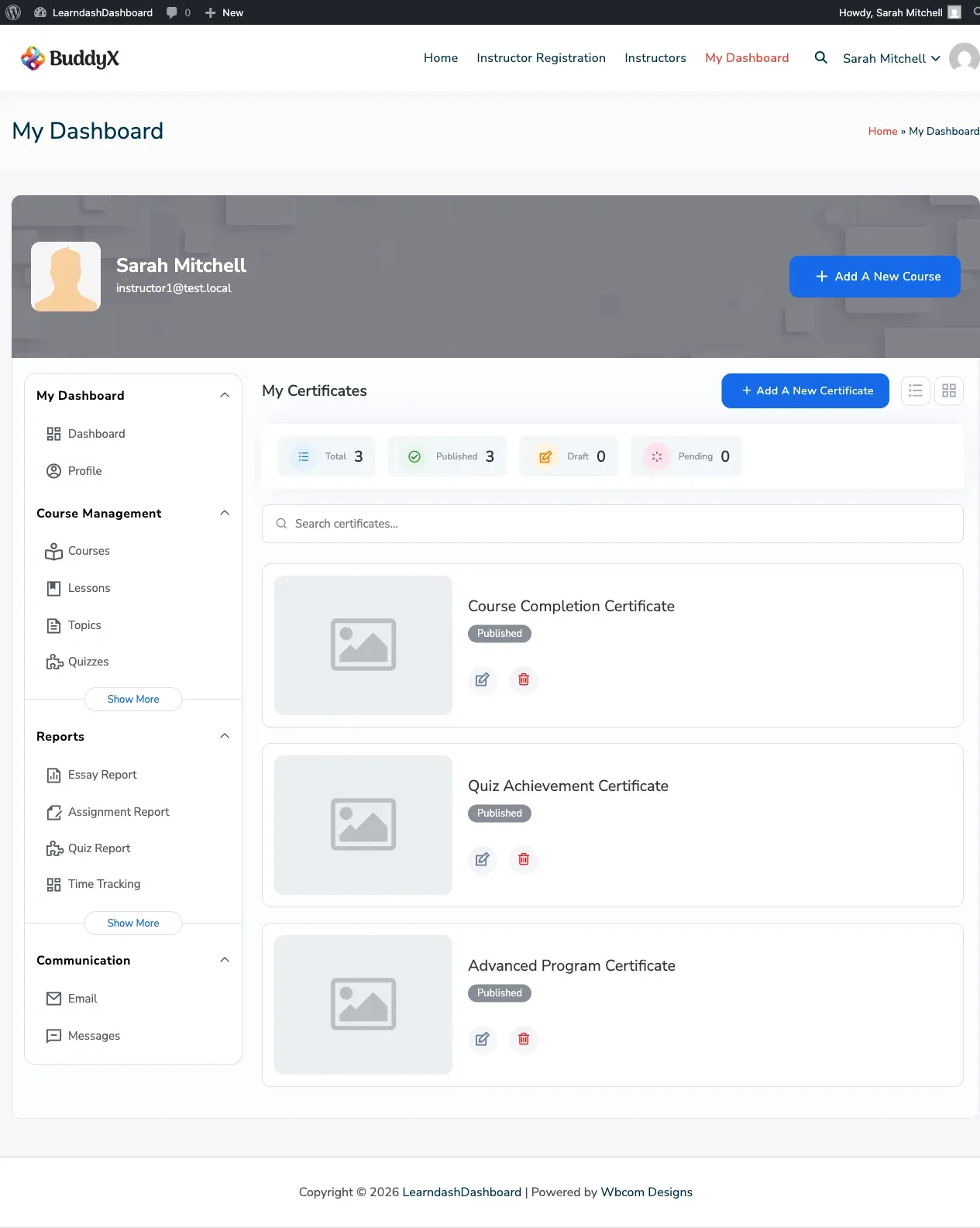
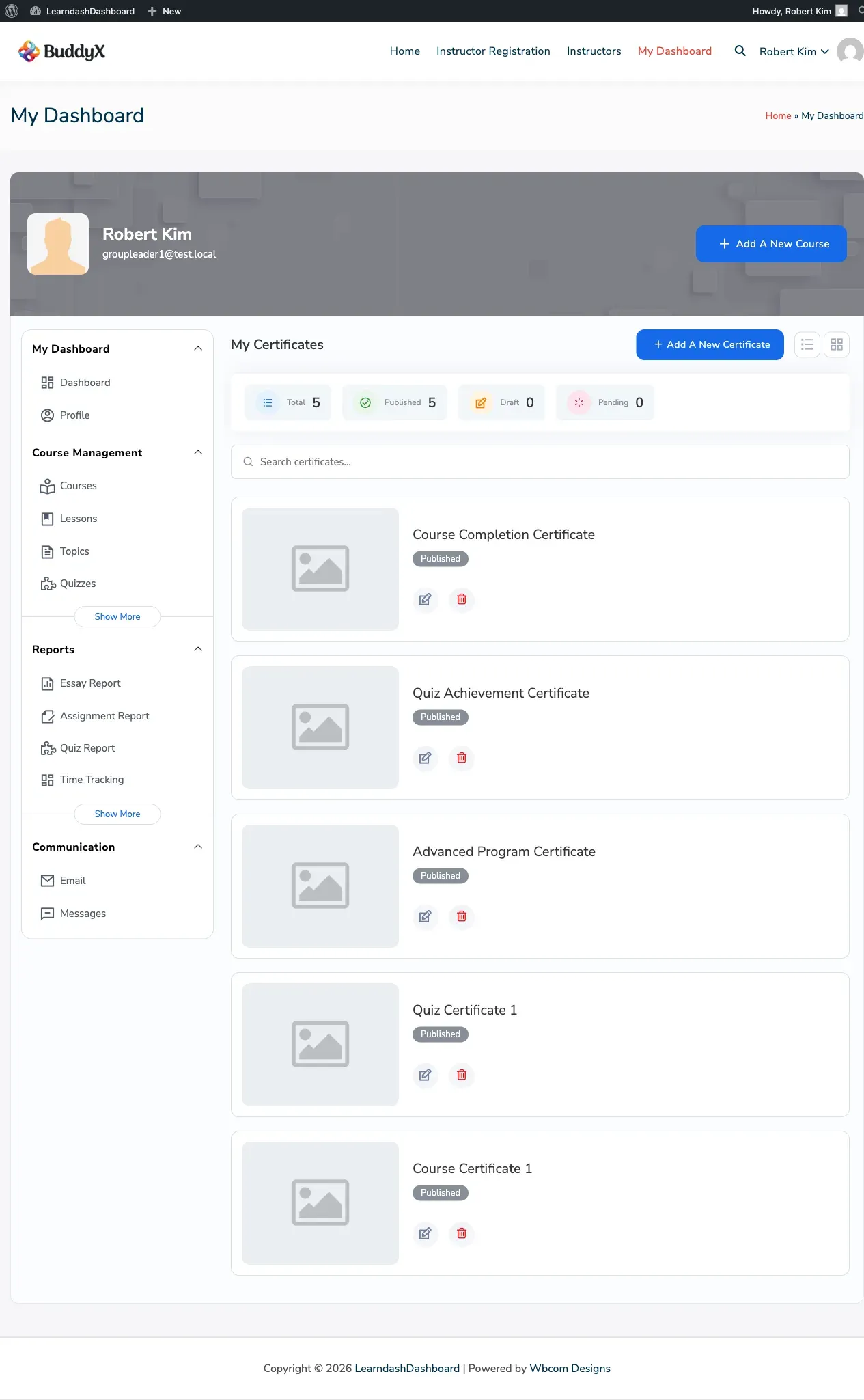
Who Can Do What
Section titled “Who Can Do What”| Action | Admin | Instructor | Group Leader | Student |
|---|---|---|---|---|
| View certificate list | Yes | Own only | Assigned (read-only) | No |
| Create certificate | Yes | Yes | No | No |
| Edit certificate | Yes | Own only | No | No |
| Delete certificate | Yes | Own only | No | No |
| View earned certificates | — | — | — | Own only |
Students view their earned certificates through My Dashboard > My Certificates, not through this tab.
Viewing Your Certificates
Section titled “Viewing Your Certificates”Go to My Dashboard > Certificates. Each certificate card shows:
- Certificate title
- Publication status: Published, Draft, or Pending
- Action buttons: View, Edit, Delete
Use the search field to filter by title. The list shows 7 certificates per page.
Creating a Certificate
Section titled “Creating a Certificate”-
Go to My Dashboard > Certificates.
-
Click Add New Certificate.
-
Fill in the Post Data tab:
Field Required Description Certificate Title Yes The name of the certificate Certificate Content No The certificate layout and text Featured Image No A background or decorative image -
Use the content editor to design the certificate. You can include dynamic information using these placeholders:
Placeholder What it shows {user_login}Student’s username {display_name}Student’s display name {first_name}Student’s first name {last_name}Student’s last name {course_title}The course name {quiz_title}The quiz name {certificate_link}A direct link to the certificate {site_title}Your site name {date Y-m-d}The completion date {total_points}Total quiz points earned {percentage}The student’s score as a percentage -
In the Settings tab, configure PDF options such as page orientation, size, and background image (if available).
-
Click Save Certificate.
Awarding a Certificate When a Student Completes a Course
Section titled “Awarding a Certificate When a Student Completes a Course”- Go to My Dashboard > Courses.
- Open the course edit form.
- Click the Settings tab.
- In the Course Certificate field, select your certificate template.
- Click Save Course.
Students receive the certificate when they complete all steps in the course.
Awarding a Certificate When a Student Passes a Quiz
Section titled “Awarding a Certificate When a Student Passes a Quiz”- Go to My Dashboard > Quizzes.
- Open the quiz edit form.
- Click the Settings tab.
- In the Certificate field, select your certificate template.
- Set the Passing Score — students must meet or exceed this score to earn the certificate.
- Click Save Quiz.
Previewing a Certificate
Section titled “Previewing a Certificate”- Find the certificate in your listing.
- Click the View icon (the eye icon) on the certificate card.
This opens the certificate page. Placeholders show example values since no real completion record exists during a preview.
Editing a Certificate
Section titled “Editing a Certificate”- Click the Edit icon on the certificate card.
- Update the title, content, or settings.
- Click Save Certificate.
Changes apply to certificates generated from this point forward. Certificates already issued to students are not affected.
Deleting a Certificate
Section titled “Deleting a Certificate”- Click the Delete icon on the certificate card.
- Confirm the deletion.
The certificate template moves to the trash. Courses or quizzes that used it will no longer award a certificate until you assign a new one.