

New-Member Onboarding Wizard
BuddyNext greets every new member with a short welcome wizard the moment they finish signing up. In a few clicks the member fills out their profile, joins a space, follows a few people, and picks how they want to be notified. By the time they reach the feed they already have something to read and people to talk to.
What it is
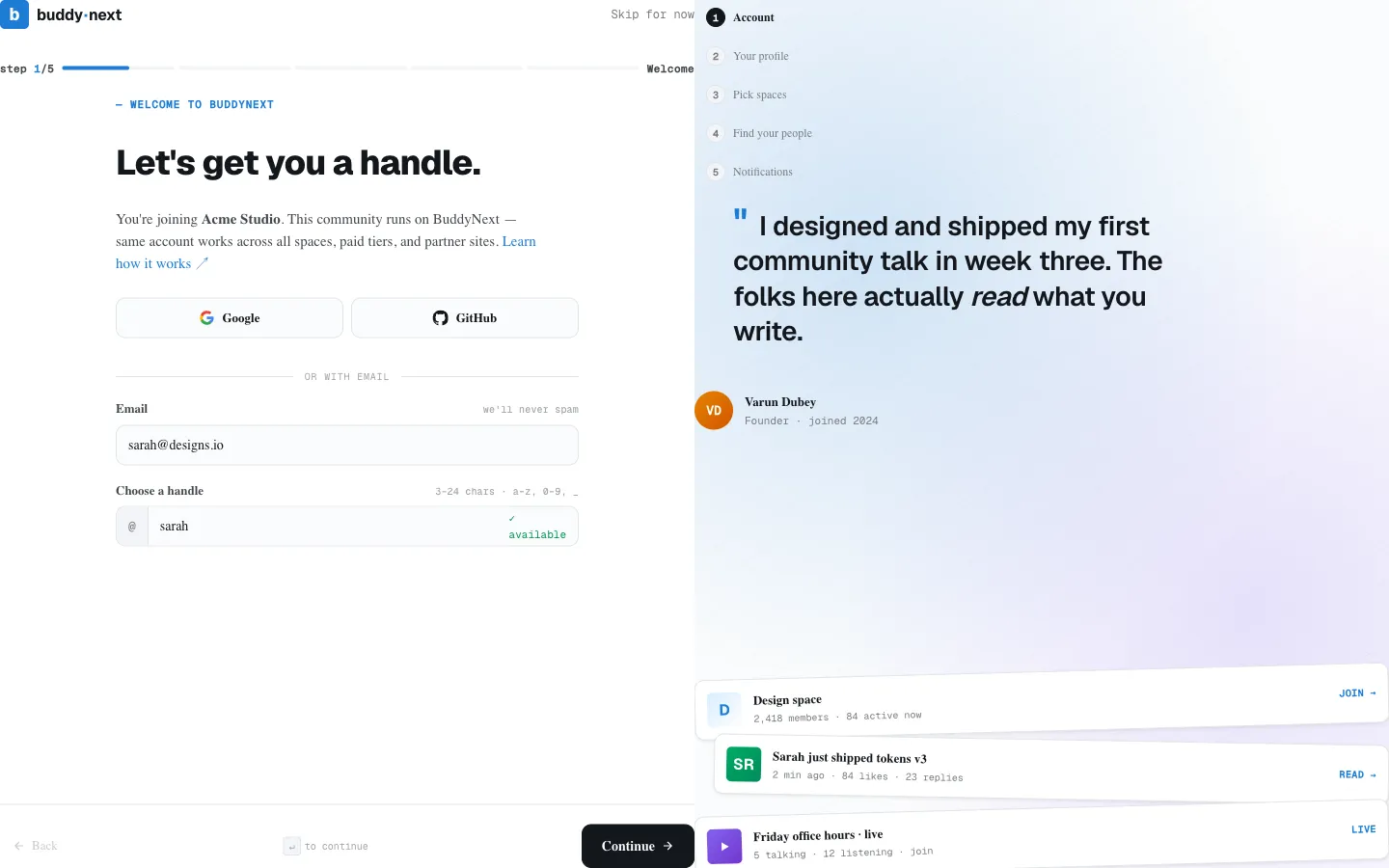
Section titled “What it is”The onboarding wizard is a guided first-session flow that opens right after a new member registers (or right after they verify their email, if email verification is turned on). It has up to six steps - profile, interests, spaces, follows, notifications, and an optional membership offer - and the Interests step appears only when your community has space categories set up, so a community with none shows one fewer. For the member-facing walkthrough of every screen, see The Member Journey, Screen by Screen:
- Profile - set a display name, write a short bio, claim a username/handle, and upload an avatar.
- Interests - pick topics from your community’s space categories; these personalize the member’s suggestions and feed (see Member Interests).
- Spaces - join suggested spaces with one click.
- Follows - follow suggested members.
- Notifications - choose how to be notified (email, in-app, push).
The member can move forward and back through the steps, or skip the wizard entirely at any point. When they finish, BuddyNext lands them on their own profile - the thing they just built.
Why it matters
Section titled “Why it matters”A new member who lands on an empty feed with no connections usually leaves and does not come back. The wizard exists to prevent exactly that. A member who completes a profile, joins at least one space, and follows a few people is far more likely to return, post, and stay engaged. Those three actions turn a blank account into a live, connected member in under a minute.
The whole flow works out of the box with no setup on your side. You do not configure anything for each new person - the wizard runs on its own, and members who do not finish get a gentle reminder later (see Reminder emails below).
For members: how to complete onboarding
Section titled “For members: how to complete onboarding”You will see the wizard automatically after you join. Here is what each step does.
Step 1 - Profile
Section titled “Step 1 - Profile”| Field | What it does |
|---|---|
| Display name | The name shown across the community. |
| Bio | A short line about you, shown on your profile. |
| Username / handle | Your unique profile address. A live check tells you instantly whether the handle is available before you continue. |
| Avatar | Upload a profile photo. |
A live preview updates as you type so you can see how your profile will look.
Step 2 - Interests
Section titled “Step 2 - Interests”Your community’s topics appear as tappable chips - pick the ones you care about, or skip. Your picks shape who and what BuddyNext suggests to you from your very first session, and you can change them any time on your profile.
Step 3 - Spaces
Section titled “Step 3 - Spaces”You will see a set of suggested spaces. Tap Join on any that interest you - each one joins instantly, right there in the wizard. You can join as many or as few as you like. The wizard only suggests open spaces here; private spaces use a request-to-join flow from the spaces directory instead.
Step 4 - Follows
Section titled “Step 4 - Follows”Suggested members are listed here. Tap Follow to start following anyone. Following someone means their posts show up in your feed, so picking a few here gives you a feed worth reading from your very first visit.
Step 5 - Notifications
Section titled “Step 5 - Notifications”Choose how the community reaches you. Toggle each delivery channel on or off:
| Channel | What it controls |
|---|---|
| In-app | Notifications inside the community (the bell icon). |
| Notifications sent to your inbox. | |
| Push | Browser or device push notifications. |
Step 6 - Membership
Section titled “Step 6 - Membership”The final step is an optional upgrade offer: the Pro plan, its benefits, and its price, next to a clear Maybe later - continue free button. It appears only when the site has membership plans configured, and nobody is forced to pay to finish onboarding - a member can continue on the free path with one click and upgrade later from their settings. For the member-facing walkthrough of this and every other screen, see The Member Journey, Screen by Screen.
Skipping
Section titled “Skipping”You are never forced through the wizard. A Skip option is available on every step. Skipping closes the wizard and marks onboarding as done, so it will not reappear on your next visit.
Finishing
Section titled “Finishing”When you reach the end and finish, BuddyNext saves everything you entered, joins the spaces and follows the people you picked, applies your notification choices, and sends you to your profile. Onboarding is now marked complete and the wizard will not show again.
Note: You can change anything you set here later. Nothing in the wizard is permanent - edit your profile, leave a space, unfollow someone, or adjust notification channels at any time from your account.
For owners: setup
Section titled “For owners: setup”The wizard is on by default and needs no configuration to work. The settings below let you turn it on or off and understand the supporting pieces.
Turning the wizard on or off
Section titled “Turning the wizard on or off”The wizard is controlled by the Member onboarding flow feature.
- Go to BuddyNext > Platform > Features.
- Find Member onboarding flow and toggle it on or off.
When the feature is on, any logged-in member who has not yet finished (or skipped) the wizard is sent to it on their next page view. When it is off, no member is ever redirected to onboarding.
Note: The wizard only applies to new members. When you switch the feature on, BuddyNext records that moment and only redirects people who registered at or after it. Your existing community is never pulled back into a welcome flow they have already moved past.
Default notification channels
Section titled “Default notification channels”Step 5 starts every member with sensible defaults: in-app and email notifications on, push off. Members change these in the wizard, and can adjust them later from their notification preferences. The wizard only writes the channels a member actually changes, so any other per-event preferences they set elsewhere are preserved.
Reminder emails
Section titled “Reminder emails”Some members start onboarding and do not finish. BuddyNext automatically follows up with two friendly reminder emails:
| Timing | What it does |
|---|---|
| +24 hours after registration | First reminder to finish setting up their profile. |
| +72 hours after registration | Second reminder. |
Both emails are scheduled the moment a member registers. As soon as the member completes onboarding, both pending reminders are cancelled, so anyone who finishes never receives them. If a reminder does come due, BuddyNext re-checks first and skips the send for any member who has already finished. This re-engages the people who drifted off without pestering the ones who completed the flow.
Note: The reminder email is titled “Finish setting up your {site name} profile” and links the member straight back into the wizard. You can edit its subject, preview text, and body from your email template settings, where it is listed as the Onboarding Nudge template.
Good to know
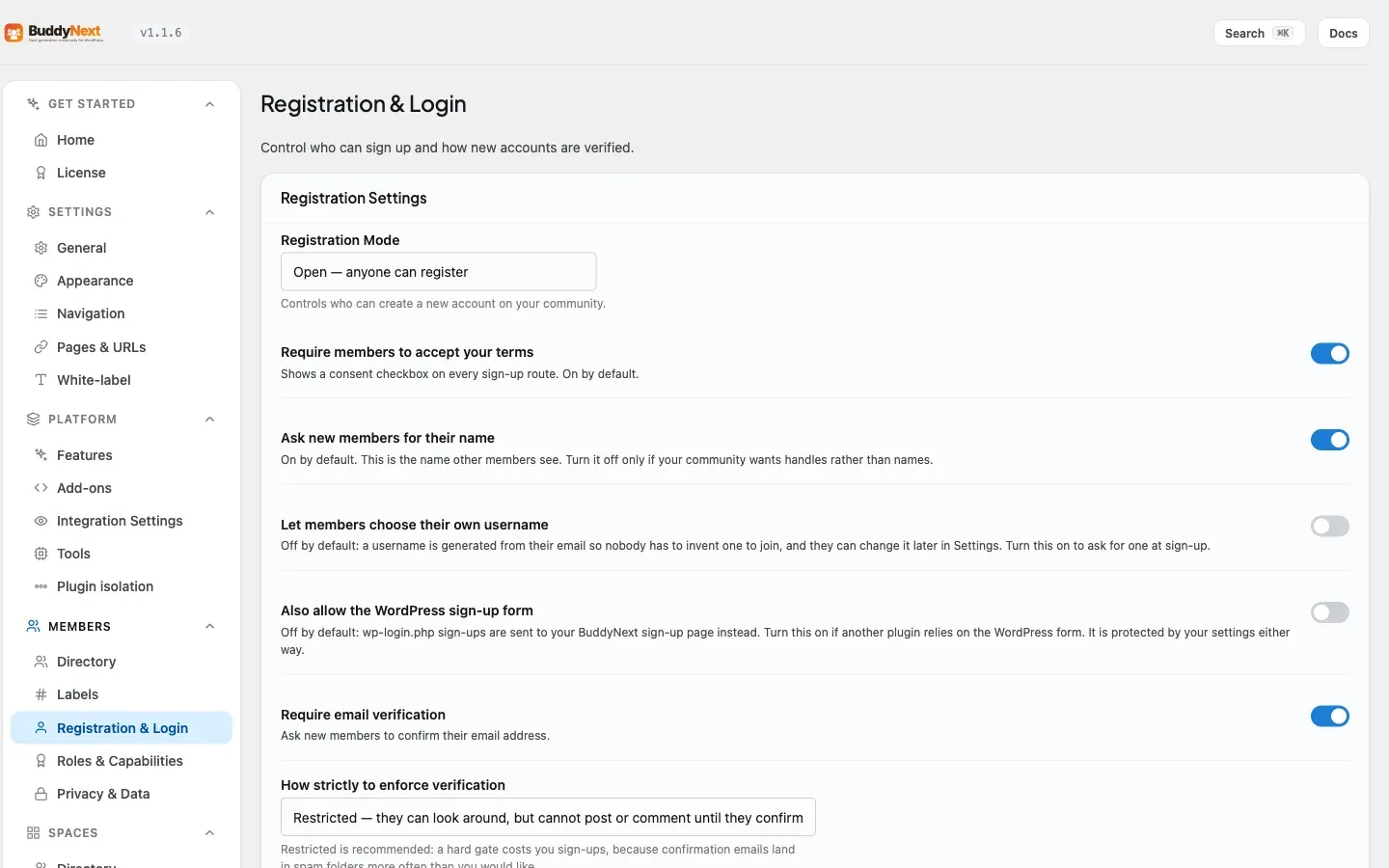
Section titled “Good to know”- When it appears. Self-registration sends a new member into the wizard right away. When email verification is on, the member is sent into the wizard after they verify their address. Members created another way (for example by an admin) are routed to it on their next visit while the feature is on.
- Already done. Once a member finishes or skips, the wizard never shows again. Re-opening the page just sends them on to their profile.
- Guests cannot access it. Onboarding is for signed-in members only. Logged-out visitors are not shown the wizard.
- It is reliable. Finishing saves every step together, so a member’s choices are kept even if their connection drops during the redirect.
Related
Section titled “Related”- Member Interests - the interests picked in the wizard’s Interests step
- Notification Preferences - the channels the Notifications step sets
- Email Verification - the gate that can run before onboarding starts
- Membership Plans - the optional upgrade offer in the final step