

Application Pipeline
Pro feature - Requires WP Career Board Pro.
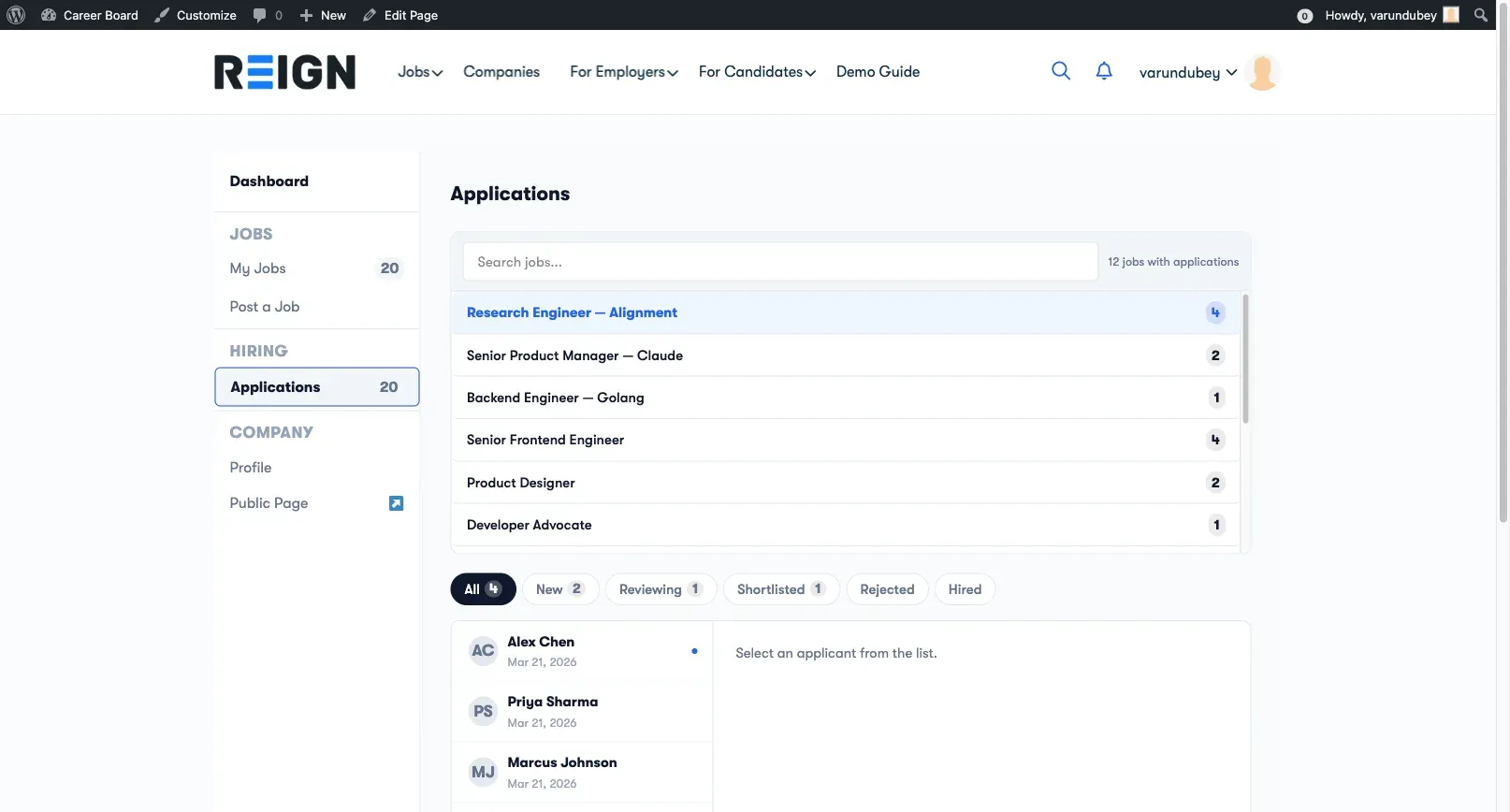
The Application Pipeline replaces the free version’s status system (Submitted / Reviewing / Shortlisted / Rejected / Hired) with a fully customizable ATS-style stage workflow and a visual Kanban board.
Free vs Pro
Section titled “Free vs Pro”| Free | Pro | |
|---|---|---|
| Application stages | Fixed: Submitted, Reviewing, Shortlisted, Rejected, Hired | Any custom stages you define |
| Pipeline view | List + Board (Kanban) | List + Board (Kanban) |
| Terminal outcomes | Rejected / Hired | Hired / Rejected (configurable, per-board) |
| Stage history | No | Yes |
The List and Board (Kanban) views both ship in the free version - see Review Applications. What Pro adds is the ability to define and rename the stages those board columns represent, instead of the fixed five statuses.
Default Stages
Section titled “Default Stages”When you first enable the Pipeline, these stages are created automatically:
- Submitted (starting stage)
- Screening
- Interview
- Offer
- Hired (terminal - outcome: Hired)
- Rejected (terminal - outcome: Rejected)
You can rename, add, reorder, or delete any of these.
Configuring Your Stages
Section titled “Configuring Your Stages”Go to WP Career Board → Boards, then open the board you want to configure and click the Stages tab.
Adding a Stage
Section titled “Adding a Stage”- Click + Add Stage
- Enter the stage name (e.g., “Technical Test”)
- Choose a color for the stage badge
- Toggle Terminal stage on if this is a final outcome
- If terminal, select the outcome: Hired or Rejected
- Click Save
Stage Colors
Section titled “Stage Colors”Choose colors that give instant visual meaning:
- Green tones → positive stages (Offer, Hired)
- Red tones → rejections
- Blue/gray tones → neutral stages (Screening, Interview)
Terminal Stages
Section titled “Terminal Stages”When you move a candidate to a terminal stage:
- Their application status is automatically set to Closed
- If outcome is Hired - the job’s hired counter increments
- If outcome is Rejected - the candidate receives a rejection email (if enabled)
You must have at least one Hired terminal stage and one Rejected terminal stage.
Reordering and Deleting
Section titled “Reordering and Deleting”- Reorder: Drag and drop stage rows - order determines Kanban column order (left to right)
- Delete: If applications are in that stage, you’ll be asked to move them to another stage first
Using the Kanban Board
Section titled “Using the Kanban Board”- Open Employer Dashboard → Applications
- Select a job, then click the Board option in the List / Board toggle
Each column is a stage. Drag applicant cards between columns to move candidates through your pipeline. Click any card to open the full application details.
Bulk Moving
Section titled “Bulk Moving”In list view, select multiple candidates with checkboxes, then use the Move to Stage dropdown to move all at once.
Per-Board Stages
Section titled “Per-Board Stages”If you use the Multi-Board Engine, each board has its own stage configuration. Go to WP Career Board → Boards, select the board, and configure its stages independently.