

Run a membership content library with Learnomy
Run a membership content library with Learnomy
Section titled “Run a membership content library with Learnomy”Who this is for
Section titled “Who this is for”You run a growing library of courses and want students to pay for ongoing access instead of one course at a time. Members subscribe once and unlock whatever is included in their plan, new lessons keep the subscription valuable, and you handle upgrades, pauses, and failed payments without manually emailing anyone. You do not sell courses individually as your main model, though you can still mix in one-time purchases for anyone who would rather buy a single course outright.
What you’ll use
Section titled “What you’ll use”| Feature | Free or Pro | Reference |
|---|---|---|
| Membership plans | Free | Membership Plans |
| Members-only and hybrid pricing models | Free | Pricing and Access Models |
| Subscriptions list and admin actions | Free | Subscriptions |
| Checkout and the Test gateway | Free | Checkout and Purchase Flow, Payment Gateways |
| Pause, plan changes with proration, and dunning | Pro | Subscription Lifecycle: Pauses, Plan Changes, Dunning and Refunds |
| Gift codes and team seats | Pro | Gift Codes and Team Seats |
| REST API (also powers the mobile app) | Free | REST API and App |
| Installable app with offline support | Free (beta) | PWA and Offline Mode |
| MRR, churn, and cohort retention | Pro | Membership Analytics |
The walkthrough
Section titled “The walkthrough”Phase 1 - Set up your plans
Section titled “Phase 1 - Set up your plans”-
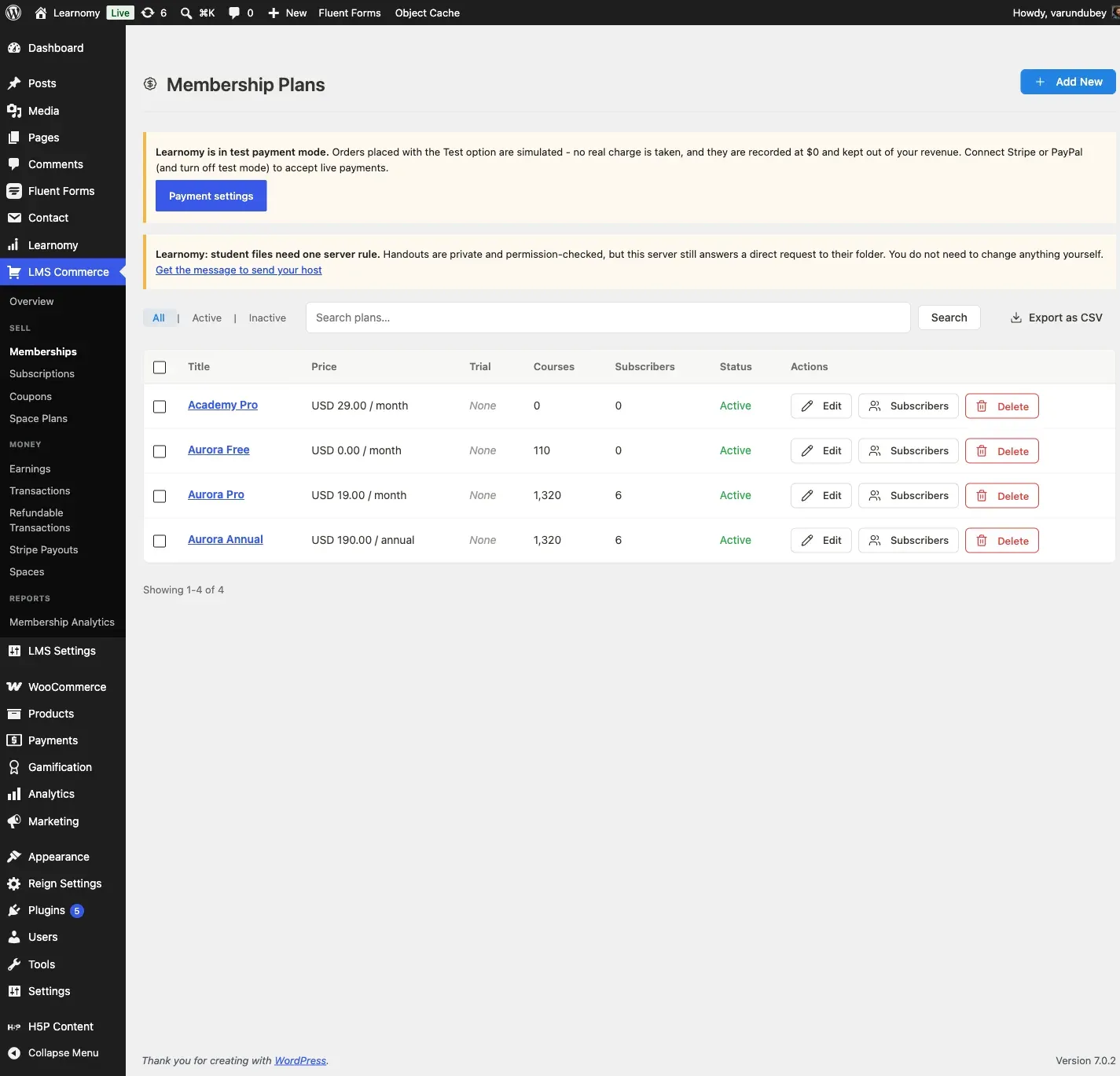
Go to LMS Commerce > Memberships. If you have no plans yet, Learnomy shows four starter templates – Monthly Basic, Yearly Premium, Free Trial, and Custom – that pre-fill the editor. Every field stays editable after you pick one. See Membership Plans.
-
Decide on your plan structure:
Your options here:
- Single plan - one all-access plan at one price. Simplest to explain and to support, and the right starting point if your library is small or your audience does not need a cheaper entry point.
- Tiered plans - two or more plans that unlock different slices of the catalog, or the same catalog at different billing cadences. Pick this once you have enough content to justify a free or cheap entry tier alongside a paid one, or you want to offer both a monthly and an annual rate as separate plans.
For a membership content library, tiered plans usually win once the catalog is big enough to support a free-to-paid ladder. The model site runs three plans this way: Aurora Free ($0/month, a slice of the catalog), Aurora Pro ($19/month, the full catalog), and Aurora Annual ($190/year, the same full catalog as Pro at roughly 17% off the monthly rate). Aurora Pro and Aurora Annual are two separate plans rather than one plan using the Pricing mode: Monthly + Yearly toggle inside a single plan editor – either approach works, but two plans let each billing cadence show its own title and description on the pricing page.
-
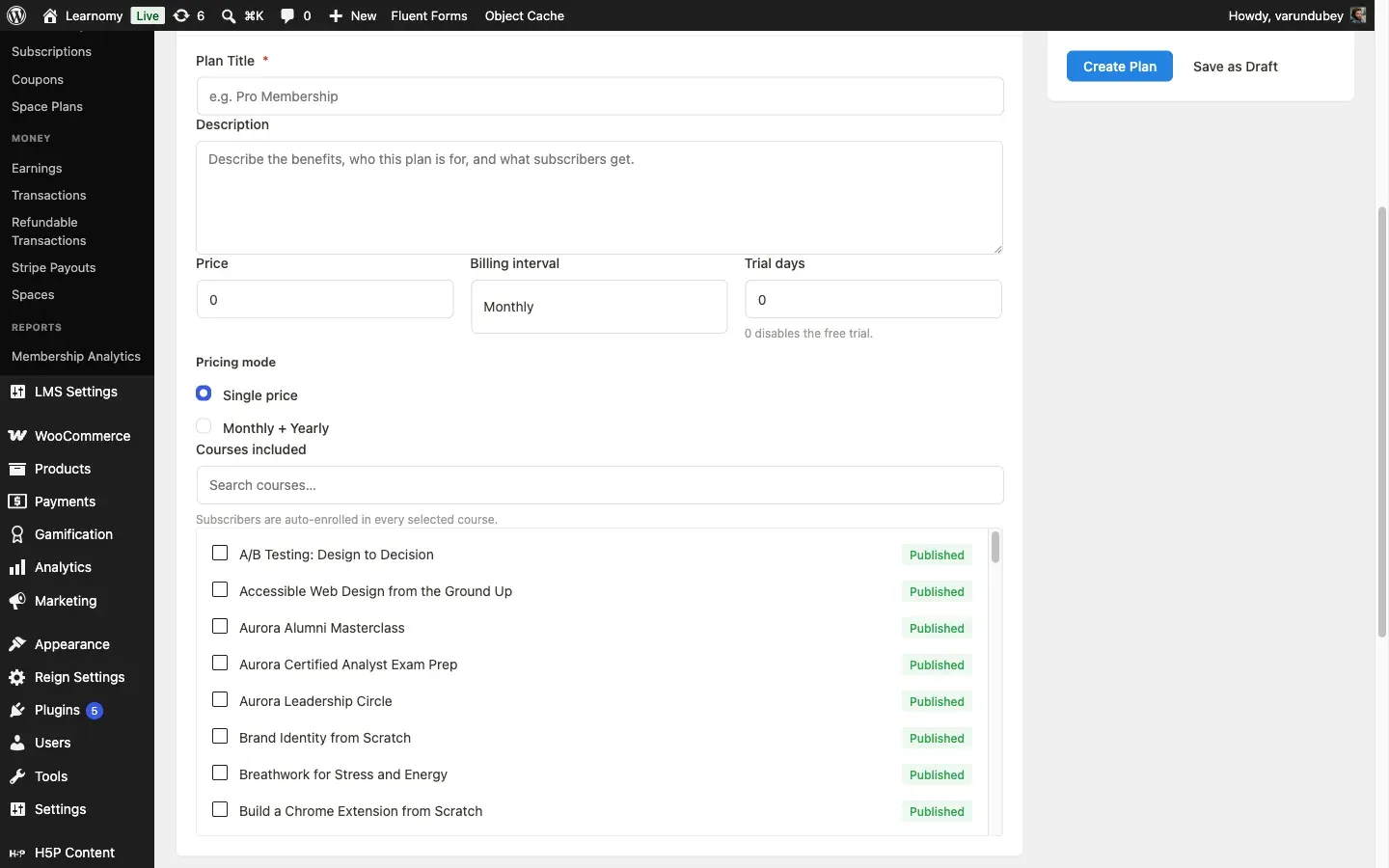
In the plan editor’s Essentials accordion, set the Price, Billing interval (Daily, Weekly, Monthly, or Yearly), and use the Courses included checklist to attach every course this plan should unlock. Subscribers are auto-enrolled in every checked course the moment they subscribe. Leave every course unchecked if you want the plan to grant a general kind of access without pre-enrolling anyone in anything specific.
-
Decide on a trial:
Your options here:
- No trial (0 days) - the member is billed from day one. Pick this when you already offer a free tier or a free course that lets people try your teaching before they pay, since a trial and a free tier do the same convincing job.
- A trial of N days - the member gets full access for N days before the first charge. Pick this when you have no free tier and want to lower the friction of a first-time subscription; the built-in templates default to 14 days.
Aurora Academy runs all three plans with no trial, because Aurora Free already gives a prospective member a real, ongoing taste of the catalog. If you don’t have an equivalent free tier, add a trial instead. Trial days only apply to new subscriptions – changing the setting never affects members who already subscribed.
-
Open LMS Settings > Settings > Payments and confirm a gateway is enabled for checkout. Learnomy supports Test, Stripe, PayPal, and WooCommerce; build and demo with Test (DEVELOPMENT ONLY, completes every checkout instantly with no real charge), then switch to Stripe or PayPal before you go live. See Payment Gateways.
Phase 2 - Configure what happens after someone joins
Section titled “Phase 2 - Configure what happens after someone joins”-
Every course you sell can use one of eight pricing models; the full enumeration with how to set each one lives in Pricing and Access Models and is walked end to end in Solo Creator Academy, Phase 2. A membership library leans on two of them in particular:
Your options here:
- Members only - the course has no price of its own and no Buy button. The only way in is a membership plan that includes it. Pick this for content you want reserved for subscribers, with no way to buy around the membership.
- One-time or members - the course keeps a real price and a Buy button, but a matching membership plan also unlocks it. Pick this for flagship courses you still want to sell individually to people who will never subscribe, while members get it included.
Aurora’s catalog mixes both: most paid courses use One-time or members so a non-member can still buy one course outright, while a smaller set (for example “Build a Full-Stack App with Next.js”) is Members only, reserved for subscribers as a membership-exclusive perk. Free courses stay outside the membership question entirely – anyone signed in enrolls in those at no cost, member or not.
-
Set what happens on a failed renewal payment. Two settings work together:
Your options here (grace period, Free, in LMS Settings > Settings > Payments > Failed payments):
- 0 days - access is cut off the moment the paid period ends.
- 1-90 days (7 by default) - the member keeps access for that many days after a renewal fails, while the gateway retries the card.
Your options here (Pro dunning cadence, in LMS Settings > Memberships Pro > Billing & retries):
- Conservative - retries at 14, 28, and 56 days. Best for an audience with a lot of international cards, where a failure is often a temporary bank hold rather than real non-payment.
- Standard - retries at 7, 14, and 28 days. The default, and a reasonable middle ground for most sites.
- Aggressive - retries at 3, 7, and 14 days. Use this if you would rather resolve or lose a past-due member quickly.
- Off - no retries; the subscription cancels on the first failed charge.
Aurora Academy runs the default grace period (7 days) with the Standard dunning cadence, so a failed charge gets retried at 7, 14, and 28 days before Learnomy gives up and cancels. Without Membership Pro active, there is no automatic retry at all – the subscription simply goes past-due for the grace period and then expires. See Subscription Lifecycle.
-
Decide whether to turn on gift codes (Pro, LMS Settings > Settings, the membership gifting toggle). When it’s on, members can buy seats of a plan as a gift and hand out claim codes, or you can issue codes by hand from the admin for comp memberships. Aurora Academy has this on: the admin has issued three Aurora Pro gift codes, two already claimed. See Gift Codes and Team Seats.
Phase 3 - Test it as a student
Section titled “Phase 3 - Test it as a student”-
Log out, then log back in as a student who is not yet a member. Open /membership/ and confirm all active plans show with their price, trial (if any), and feature list.
-
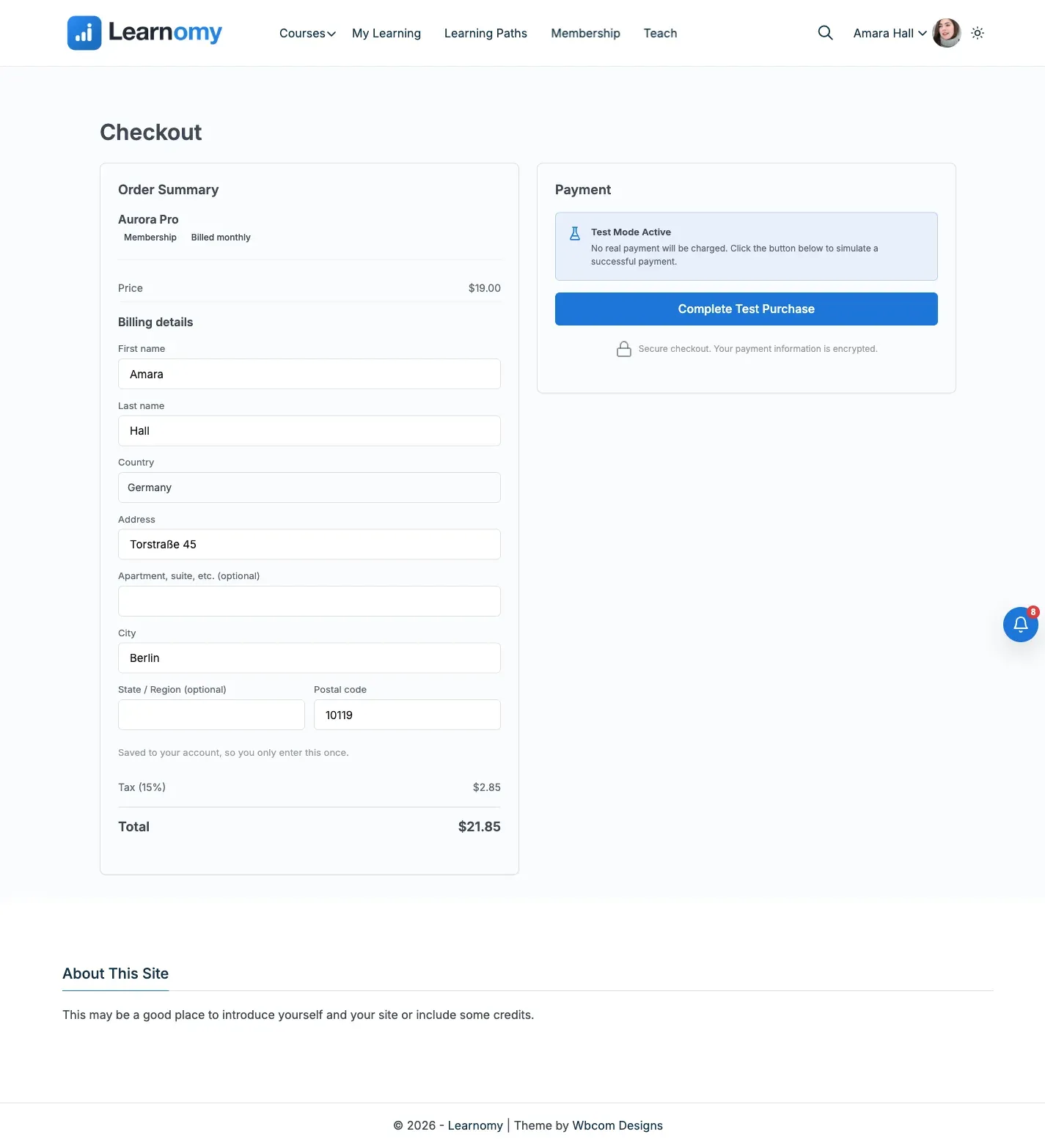
Click a plan’s subscribe action. You land on checkout showing the plan name, “Membership” as the item type, the price and interval, and (with the Test gateway enabled) a Test Payment option. Click Complete Test Purchase – no card is charged, and Learnomy creates the subscription and enrolls the member in every course the plan includes immediately.
-
Open Account > Manage Membership (
/account/membership/). This is the member’s own subscription control panel: plan name and status, the current billing period, next payment amount, which gateway they pay through, every course the plan unlocks, and an Invoices table with a downloadable PDF receipt per payment.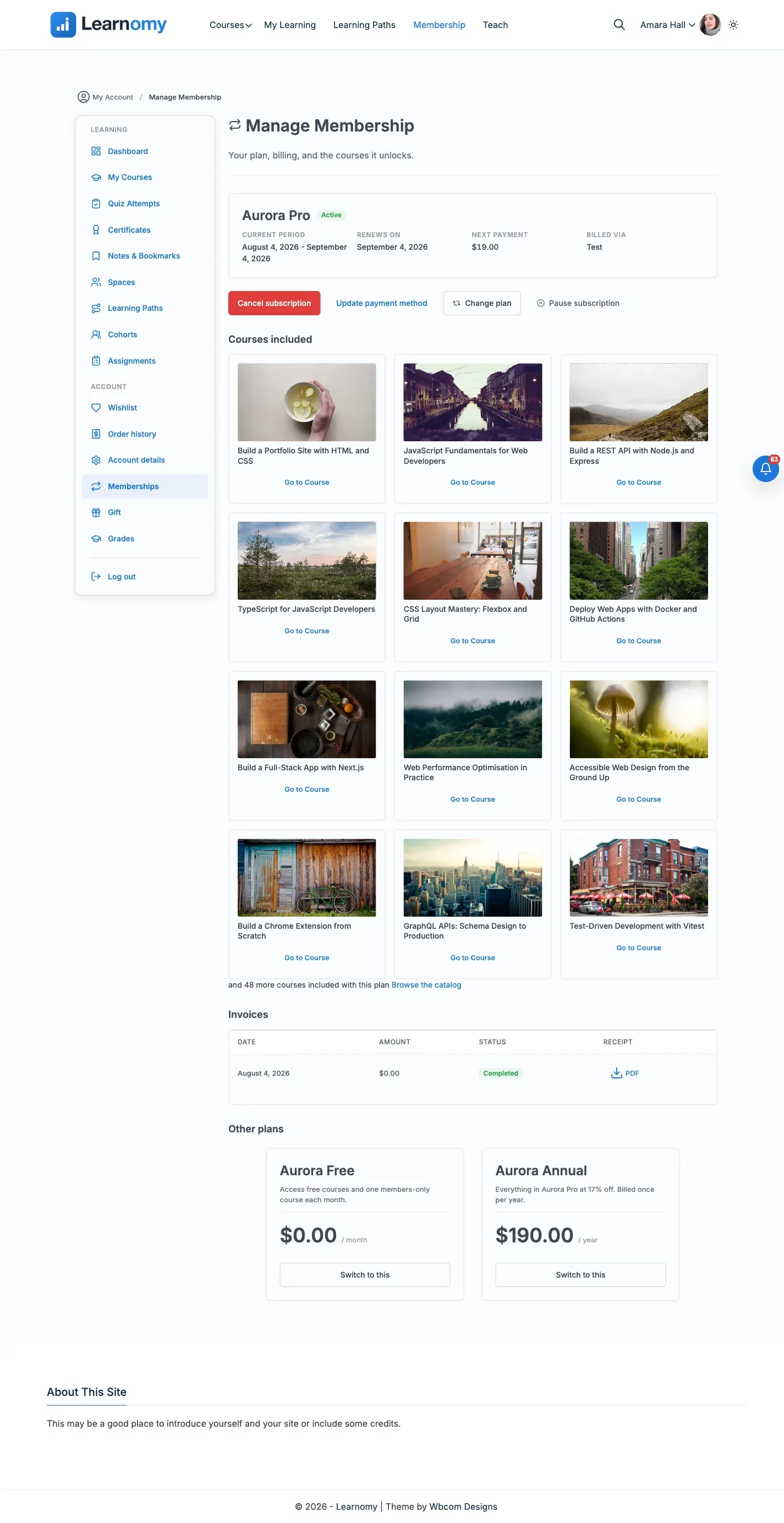
-
The page also offers Cancel subscription, Resume subscription, and Update payment method on every install, Free or Pro. Cancel subscription sets cancel-at-period-end: the member keeps access until the current period runs out, then loses it. Resume subscription appears once a cancellation is pending and clears the cancel flag. Update payment method opens the gateway’s hosted portal to update card details (Stripe and PayPal only). None of the three needs Membership Pro.
-
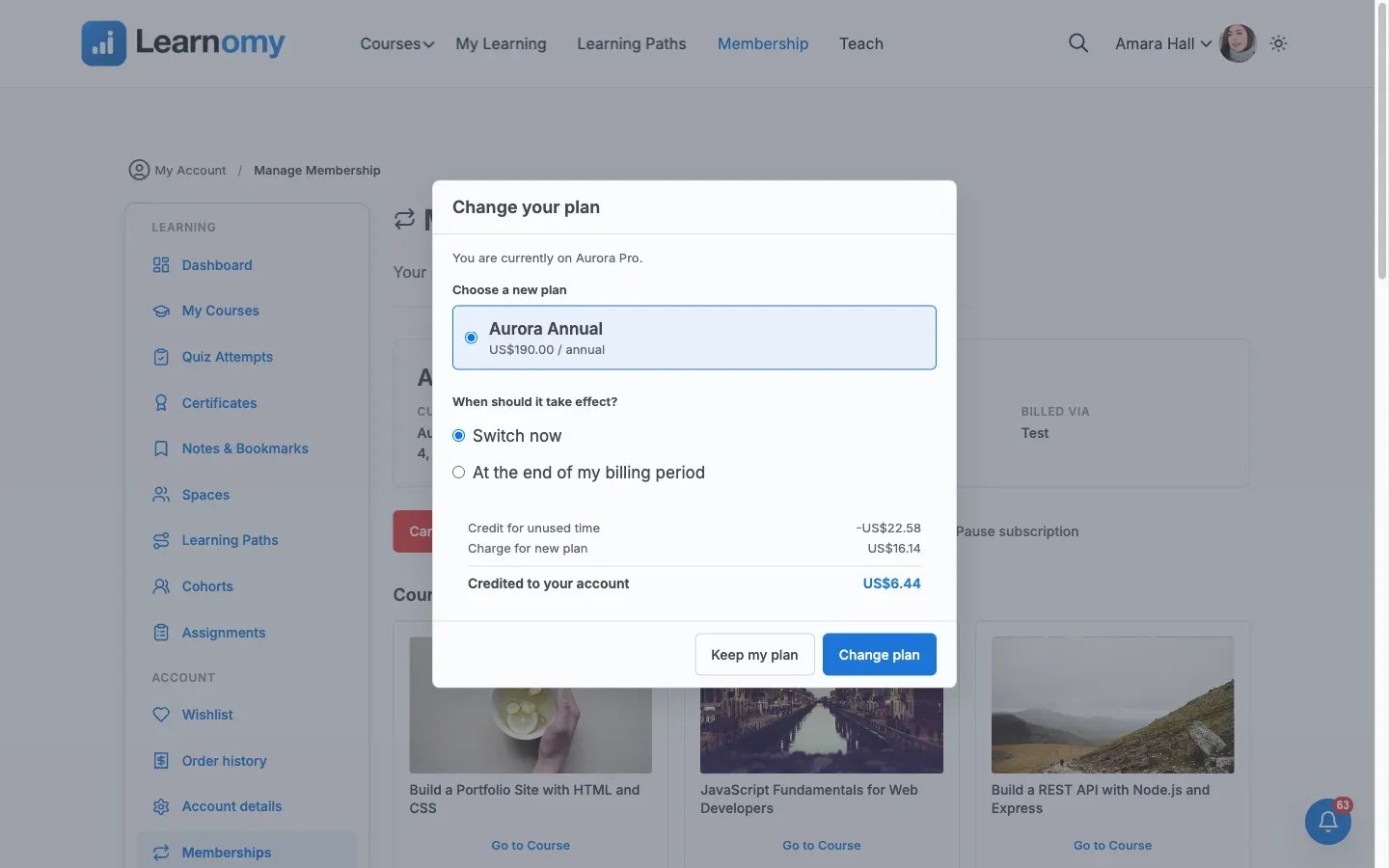
With Membership Pro active, the same page adds Change plan and Pause subscription. Click Change plan, pick a different plan, and Learnomy shows a live quote before anything is charged: a credit for the unused time on the current plan, a charge for the new plan, and the two netted into a single “Due today” or “Credited to your account” figure. This quote is calculated fresh every time – Learnomy does not keep a browsable history of past plan changes anywhere in the admin or the member’s account, so the quote screen is the only place these numbers are ever shown on screen. The underlying change is still fully recorded (each plan change, its credit, charge, and net amount are written to the database), so support can always look up what happened even though there is no UI page to browse that history yet. Pause subscription stops billing without canceling: access pauses immediately and resumes, with the paid time preserved, either when the member clicks Resume or on an auto-resume date you set. Without Membership Pro, neither action is available – a member can only cancel or update payment details.
Phase 4 - Go live
Section titled “Phase 4 - Go live”-
Switch LMS Settings > Settings > Payments from the Test gateway to Stripe or PayPal with live keys, the same way you would for one-time course sales. Membership checkout uses the same gateway configuration as course checkout.
-
If you are using Stripe or PayPal for recurring billing, there is nothing extra to configure per plan. Learnomy creates the matching recurring product on the gateway (a Stripe Price, a PayPal billing plan) from the price and interval you already set - there is no Price ID or Plan ID to paste, and no “Payment Provider Mapping” accordion.
Verify it works
Section titled “Verify it works”- Log in as a student who is not yet subscribed
(
?autologin=aurora_s_0on the model site). Confirm the members-only course “Build a Full-Stack App with Next.js” (/courses/aurora-fullstack-nextjs/) shows no Buy button, since nothing short of membership unlocks it. - Subscribe to Aurora Pro at
/membership/, complete the Test Payment checkout, and open the members-only course again. It now shows Enrolled with a 0% progress bar, unlocked automatically by the new subscription. - Open Account > Manage Membership and click Cancel subscription,
then confirm. The status changes from “Active” to “Ending
”, the Cancel subscription action is replaced with Resume subscription, and the current billing period stays visible with its original end date. - Reopen the members-only course. It still shows Enrolled: a cancel-at-period-end subscription keeps every course it granted until the period actually ends, exactly as documented in Subscriptions.
On the model site this was exercised end to end as student aurora_s_0:
subscribed to Aurora Pro ($19/month) through the Test gateway, confirmed
the members-only course “Build a Full-Stack App with Next.js” unlocked on
enrollment, canceled at period end from /account/membership/, and
confirmed the plan status read “Ending September 4, 2026” with the course
still showing Enrolled immediately afterward.
See it on the model site
Section titled “See it on the model site”-
Plans: LMS Commerce > Memberships lists Aurora Free ($0), Aurora Pro ($19/month, no trial), and Aurora Annual ($190/year, no trial).
-
A fresh join:
?autologin=aurora_s_0now holds an Aurora Pro subscription set to cancel at the end of the current period, created during this guide’s capture walk. -
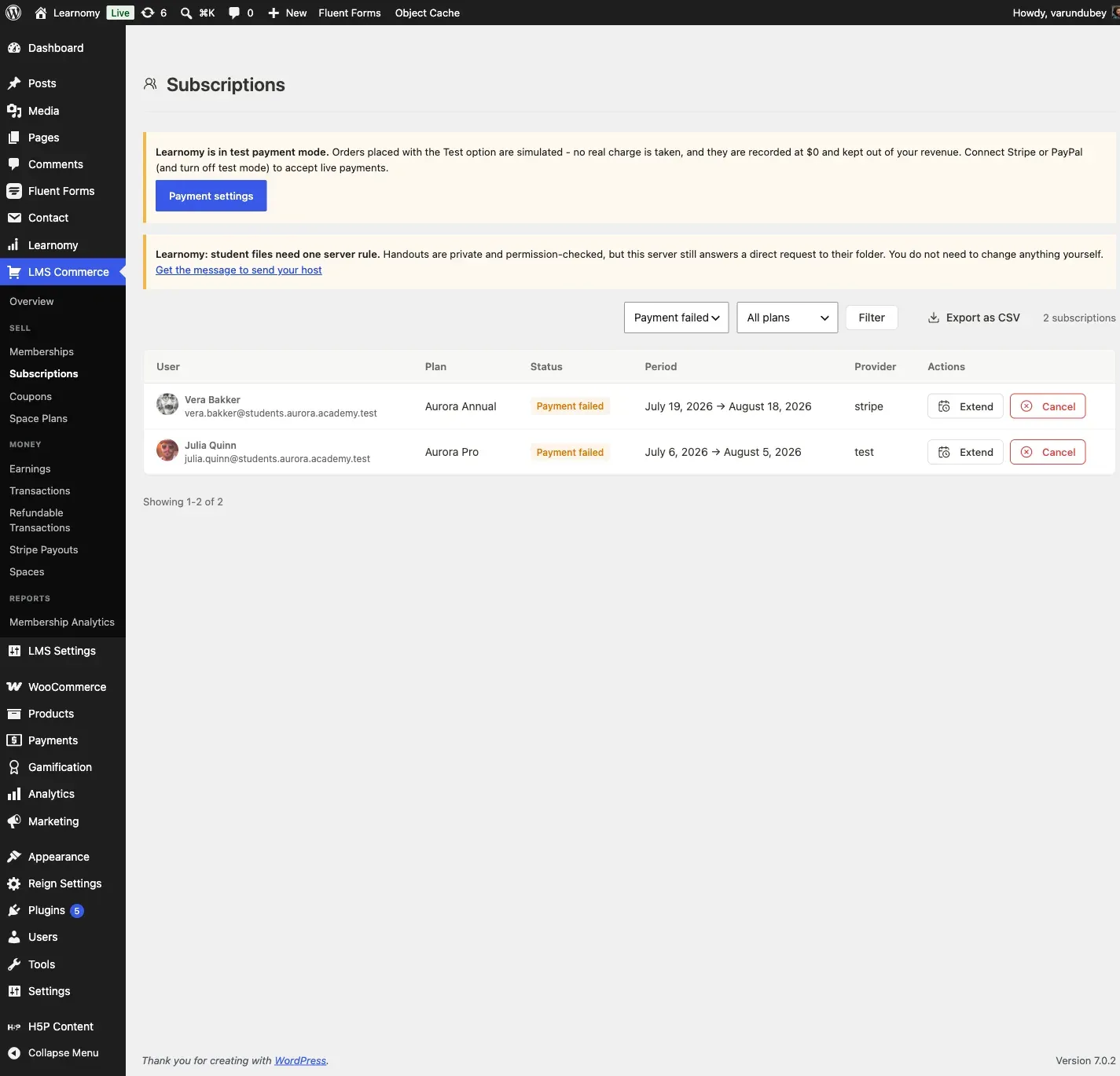
Payment failed (dunning): LMS Commerce > Subscriptions, filtered to status Payment failed, shows Vera Bakker (Aurora Annual, Stripe) and Julia Quinn (Aurora Pro, Test) both past-due, each with three scheduled dunning retries on the Standard cadence (7/14/28 days out).
-
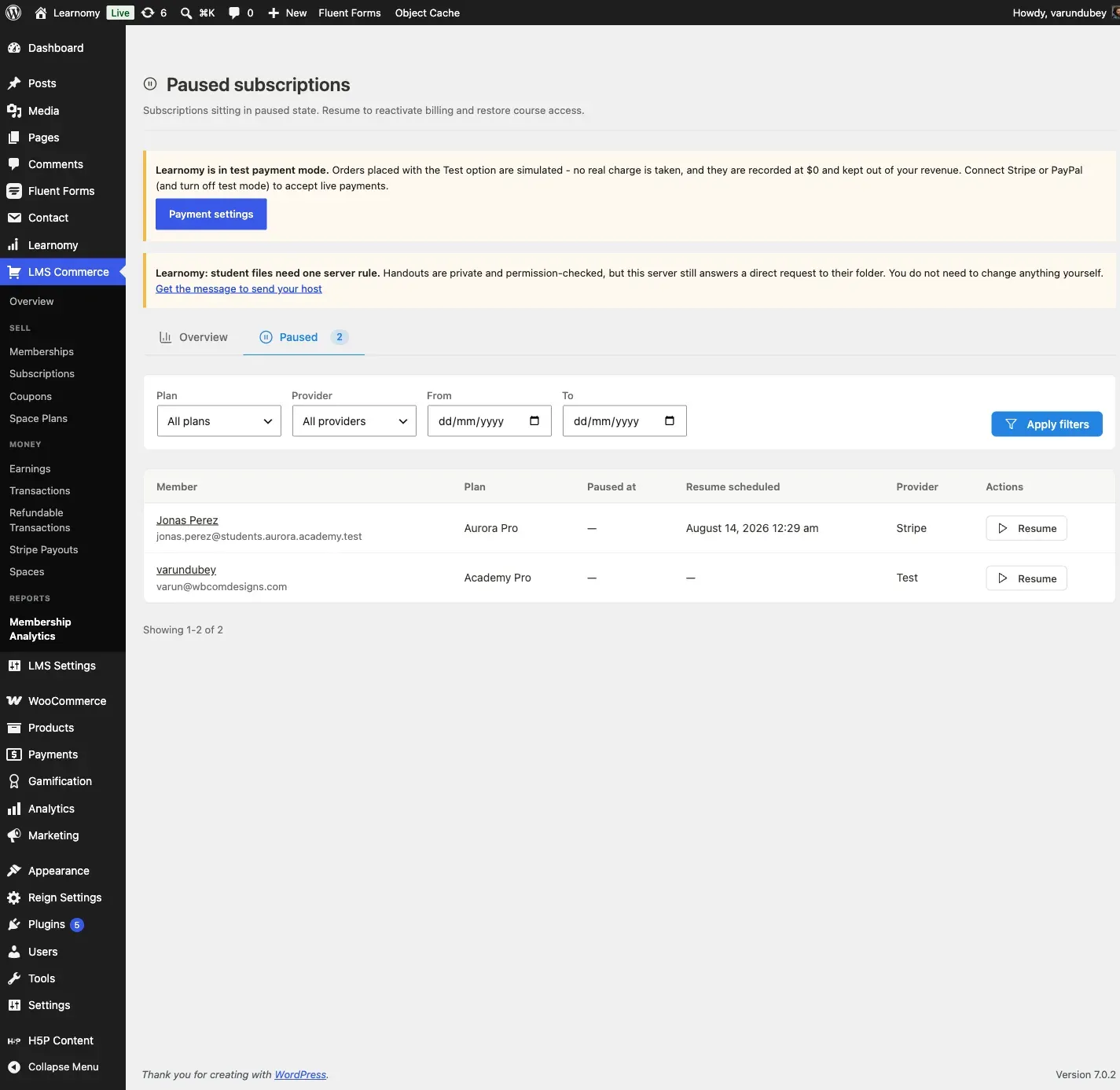
Paused with an auto-resume date: LMS Commerce > Membership Analytics > Paused shows Jonas Perez’s Aurora Pro subscription paused, with Resume scheduled for August 14, 2026 and a manual Resume action available to the admin.
-
A completed upgrade with proration: Vita Chen’s subscription moved from Aurora Pro to Aurora Annual mid-cycle, crediting $18.37 of unused time against a $15.10 charge for the new plan (a net $3.27 credit), applied immediately.
-
Gift codes: three Aurora Pro codes issued from the admin, two already claimed by students, one still available – see Account > Gift while logged in as the buyer, or Gift Codes and Team Seats.
-
Membership Analytics: LMS Commerce > Membership Analytics totals monthly and annual recurring revenue and churn rate across every plan on the Overview tab, with cohort retention and lifetime-value data available through Export CSV in the page header.
-
Offline access: Enable PWA is on by default at LMS Settings > Settings, so a member can install the academy to their home screen and keep reading a cached lesson while offline; progress made offline syncs once they reconnect.