

Commission Setup
Set up revenue sharing so your instructors automatically earn a percentage of every course sale. Once configured, commissions are calculated and recorded without any manual effort.
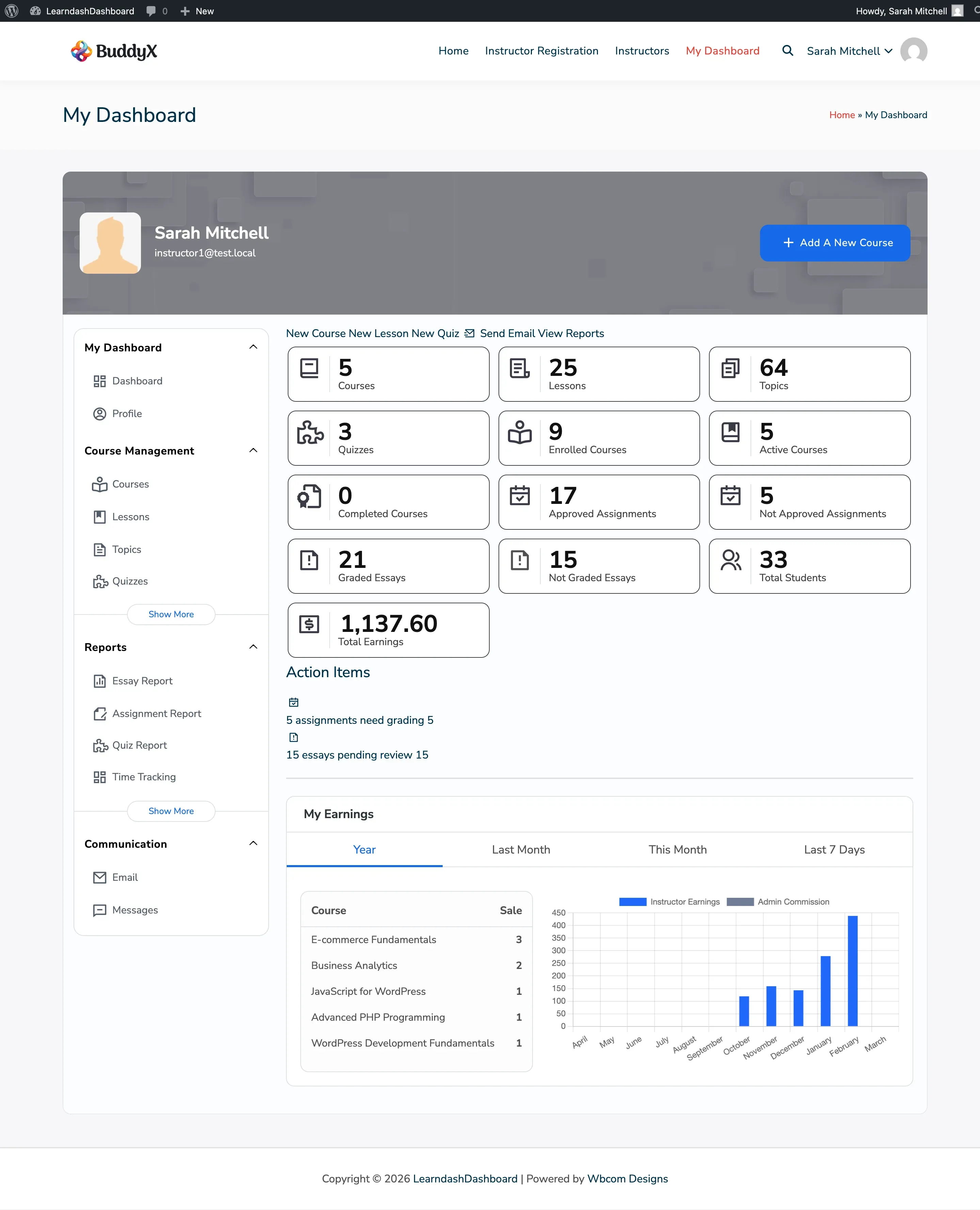
Screenshots
Section titled “Screenshots”Admin view
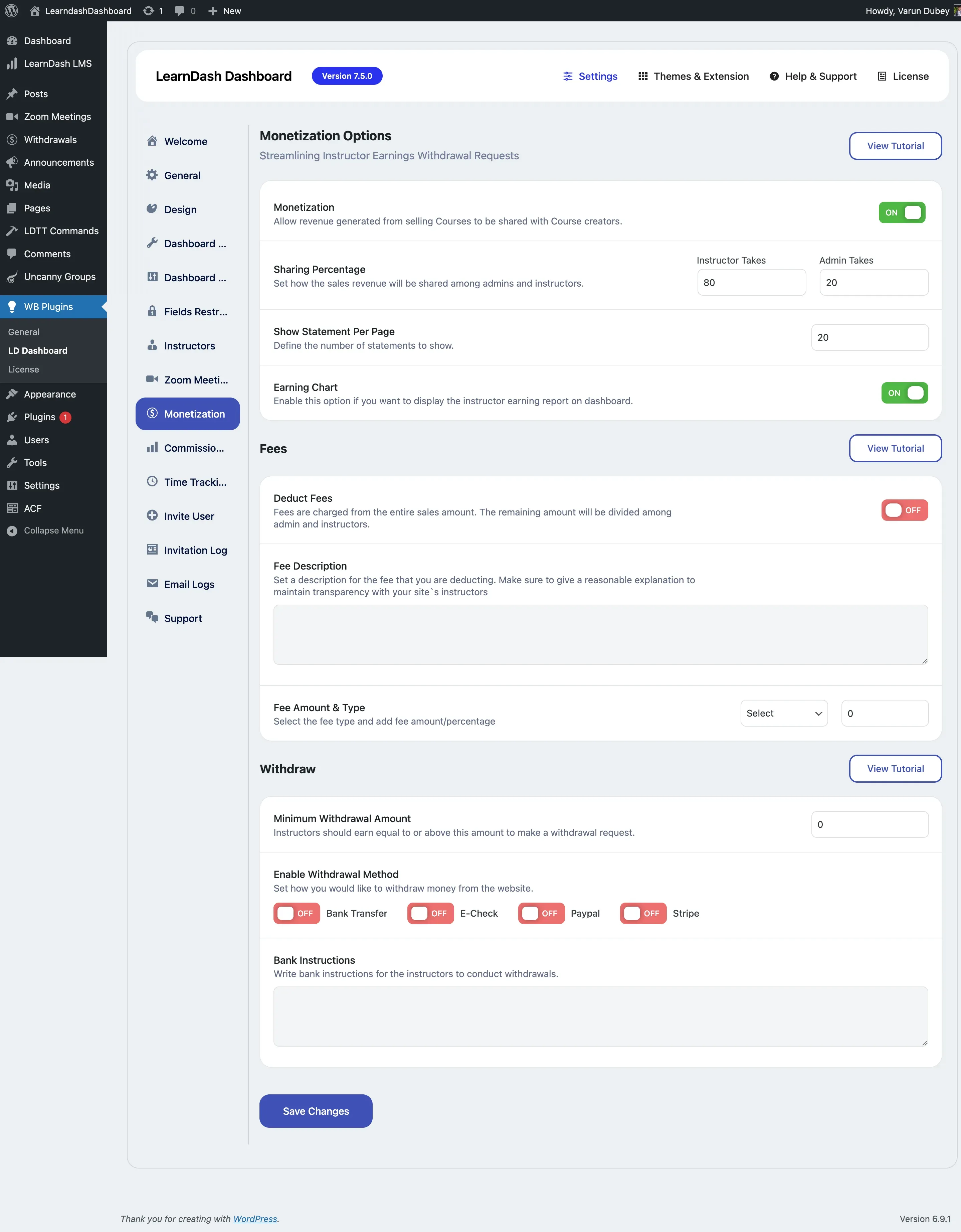
Enable Monetization
Section titled “Enable Monetization”- Go to WordPress Admin > LearnDash Dashboard > Settings > Monetization
- Check Monetization to turn on revenue sharing
- Click Save Changes
All commission options become visible after you enable monetization.
Set the Revenue Split
Section titled “Set the Revenue Split”Decide how each course sale is divided between your instructors and the platform.
- Instructor Takes — the percentage paid to the instructor
- Admin Takes — the percentage kept by the platform
Both values must add up to 100.
Add a Platform Fee (Optional)
Section titled “Add a Platform Fee (Optional)”A platform fee is deducted from the sale price before the revenue split is applied.
- Check Deduct Fees to enable fee deduction
- Enter a Fee Description — instructors will see this text to understand the deduction
- Choose Fee Type: percentage or fixed amount
- Enter the Fee Amount
Example: A $100 course with a 10% platform fee leaves $90. If the instructor takes 70%, they earn $63.
WooCommerce Integration
Section titled “WooCommerce Integration”If you sell courses through WooCommerce, an additional toggle appears:
- Enable Selling through WooCommerce — tracks commissions from WooCommerce course purchases
Instructors can filter their earnings by which payment method was used.
Earnings Display Options
Section titled “Earnings Display Options”- Earning Chart — shows a visual earnings chart on the instructor’s dashboard
- Show Statement Per Page — controls how many earnings rows appear per page in the instructor’s history table
Payout Methods
Section titled “Payout Methods”Choose which payout options instructors can select when requesting a withdrawal:
- Bank Transfer
- E-Check
- PayPal
- Stripe
Set a Minimum Withdrawal Amount so instructors must accumulate a minimum balance before requesting a payout.
Add Bank Instructions text to guide instructors on how bank transfers work on your platform.
All Monetization Settings Reference
Section titled “All Monetization Settings Reference”| Setting | Description | Default |
|---|---|---|
| Monetization | Enable or disable the entire revenue sharing system | Off |
| Instructor Takes | Percentage of each sale paid to the instructor | — |
| Admin Takes | Percentage of each sale kept by the platform | — |
| Show Statement Per Page | Number of earnings rows per page in the instructor’s history table | 20 |
| Earning Chart | Show a visual earnings chart on the instructor’s dashboard | Off |
| Deduct Fees | Enable platform fee deduction before the revenue split | Off |
| Fee Description | Text shown to instructors explaining the fee deduction | — |
| Fee Type | Whether the fee is a percentage or a fixed amount | Percentage |
| Fee Amount | The fee value (percentage or fixed amount) | — |
| Minimum Withdrawal Amount | Minimum balance required before an instructor can request a payout | — |
| Bank Transfer | Allow bank transfer as a payout method | Off |
| E-Check | Allow e-check as a payout method | Off |
| PayPal | Allow PayPal as a payout method | Off |
| Stripe | Allow Stripe as a payout method | Off |
| Bank Instructions | Guidance text for instructors about bank transfer details | — |