

Member Directory
The member directory is the page where everyone in your community can be browsed, searched, and filtered in one place. It is the “find people” surface of your site, and lives at your members URL (for example, /members).
Why use it
Section titled “Why use it”A community is only as useful as the connections people make in it. Without a directory, members have no way to discover each other - they can only meet people who happen to post in the same place at the same time. The directory turns your whole membership into something people can actually browse: a new member can look up the colleague who invited them, a mentor can find mentees, and anyone can scan the room to see who else is here.
For the owner, the directory is the front door to your people. It gives the community a sense of scale and life (“there are real members here”), and it is where member types, follow, and connect all come together in one place. Turn it on and members find each other without you having to introduce anyone.
How it works (for members)
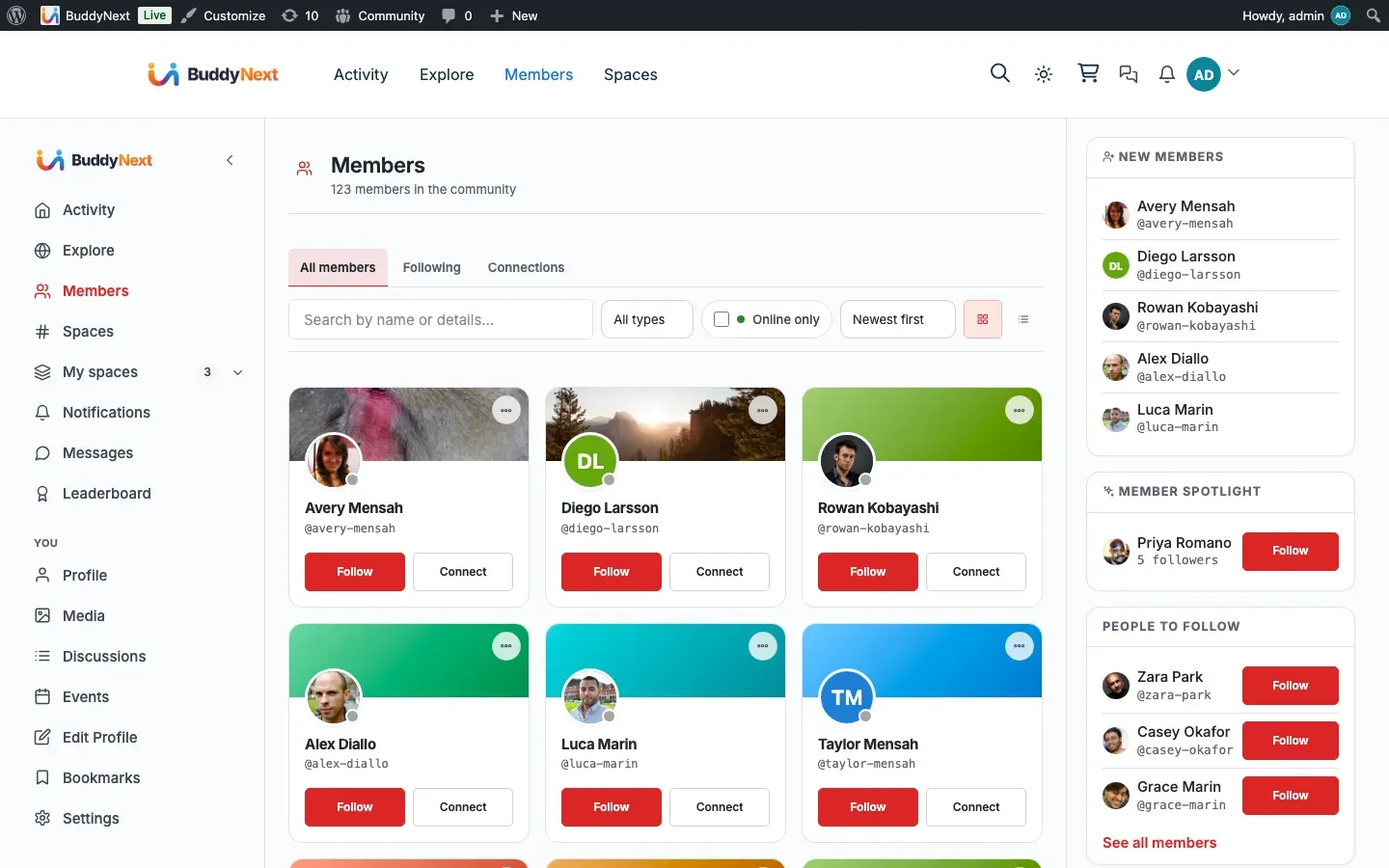
Section titled “How it works (for members)”The directory renders as a grid of member cards. Each card shows the member’s avatar, name, member type badge (if they have one), an online indicator, and follower and mutual-connection counts, plus the actions a viewer can take on that person.
Members can:
- Browse the grid and page through it. The directory loads more members as needed, so a community of thousands stays fast.
- Search by name or profile details using the search box. Results update as you type (after a short pause), with no page reload. Search looks across a person’s name, username, and the profile details they have filled in - their bio and headline, plus any fields the owner made searchable, such as skills or role - so you can find someone even when you only remember what they do, not their name. The directory search and the site-wide search look at the same details, so a person who turns up in one turns up in the other.
- Filter by member type using the member-type dropdown in the toolbar - for example, show only Students or only Mentors. See Member Types for how those are set up.
- Sort the list - Last Active (added in 1.1.1), newest members, or alphabetically. Last Active puts the people who are actually around at the top, which is usually what someone browsing a directory wants.
- Show online members only with the online toggle.
- Act on a member directly from their card - Follow, send a Connect request, or accept/decline a pending request, all inline without leaving the page. See Following and Connections for how those relationships work.
- Open the card menu (the kebab) to Mute, Block, or Report a member. See Blocking and Muting and Reporting and Moderation.
Setting it up (for owners)
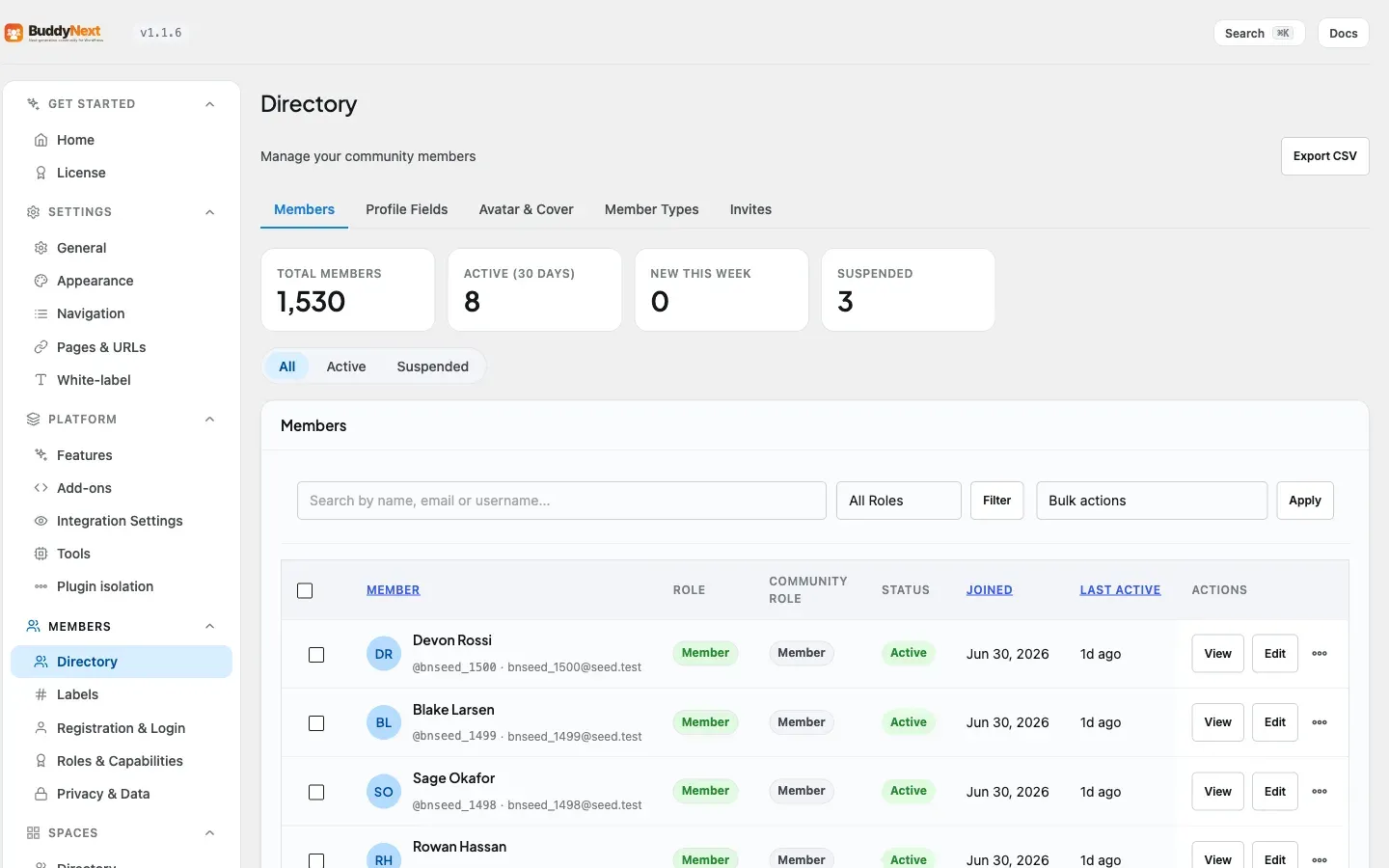
Section titled “Setting it up (for owners)”The directory works out of the box once BuddyNext is active - your members URL renders the grid with no configuration. You place it where you want it using one of the two blocks below, and you shape who appears in it through member privacy and member types rather than a long settings panel.
The Member Directory block
Section titled “The Member Directory block”Add the Member Directory block to any page or post to render a static grid of member cards followed by a “Browse all members” link. The block itself does not include search, filters, or live loading - it is a preview you can place on a custom landing page. The full filterable directory, with search and filters, lives at the /members hub route.
The block still has these display options in the editor:
| Setting | What it controls | Default |
|---|---|---|
| Items per page | How many member cards load per page before the next set is fetched | 24 |
| Layout | Grid or list presentation of the cards | Grid |
The block also supports the standard WordPress block controls for background and text color, font size, and padding and margin spacing.
The Member Card block
Section titled “The Member Card block”Add the Member Card block to show a single member - avatar, name, and a follow button - which is useful in a sidebar, a widget area, or anywhere you want to feature one person.
| Setting | What it controls | Default |
|---|---|---|
| User | The member shown on the card | None (pick a user) |
Shaping who appears
Section titled “Shaping who appears”You do not manage the directory roster from a settings screen. Who shows up is driven by:
- Member privacy - a member who opts out of the directory is excluded from it. See Privacy and Visibility.
- Member types - define types like Student or Mentor to give the directory its member-type filter. See Member Types.
Good to know
Section titled “Good to know”- The directory is viewer-aware. What each person sees is filtered to them. Members who are suspended, shadow-banned, or who have opted out of the directory are excluded for everyone. People you have blocked (or who have blocked you) do not appear in your view of the directory, and you do not appear in theirs. This keeps the directory clean and safe without the owner curating it by hand.
- Badges and counts only appear once there is data to show. A brand-new member with no member type assigned shows no type badge; mutual-connection counts appear once connections exist. On a fresh site the directory can look sparse until members join, set up profiles, and connect.
- Search is privacy-safe. It matches names, usernames, bios, headlines, and the profile fields marked searchable - and it honours each field’s visibility while doing so. A Public searchable field is matched for anyone; a Members-only one is matched only for signed-in members; fields limited to followers, connections, or the member alone are never matched by anyone. See Custom Profile Fields.
- The online filter survives your other choices. Ticking “online only” and then sorting or switching a filter keeps the online filter applied, and it stays in the page address so a reload or a shared link keeps it too. (Before 1.0.8 the first sort or filter click quietly dropped it while the checkbox stayed ticked.)
- First paint is server-rendered. The grid is drawn on the server on the first load, so it is visible immediately and to search engines, and the live search/filter/sort behavior layers on top once the page is interactive.
Free vs Pro
Section titled “Free vs Pro”The core directory - browse, search by name, filter by member type, sort, online-only, and the directory and member-card blocks - is included in BuddyNext free.
Advanced directory filters are a Pro addition. Pro adds the ability to filter the directory by finer criteria such as membership plan, editorial label, join date, and recently-active status, so owners of larger communities can slice their membership more precisely. Editorial badges shown on cards (Verified, Expert, Staff) come from Member Labels, which is also Pro - see Member Labels.
Related
Section titled “Related”- Member Types - the categories the directory filters by
- Following Members - the follow action on each member card
- Connecting With Members - the connect action on each member card
- Custom Profile Fields - which fields directory search can match