

Broadcast Email
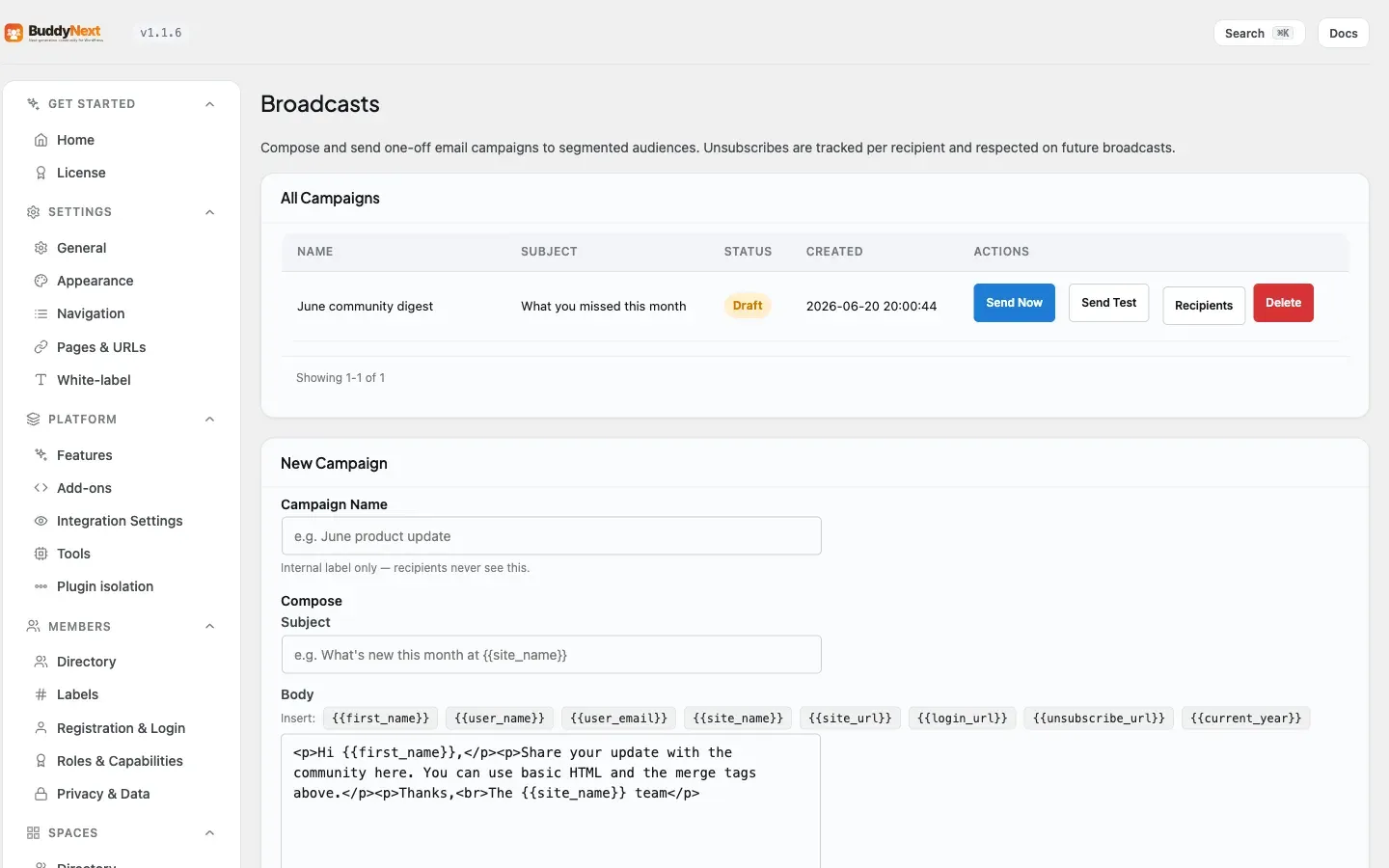
Broadcast email is a Pro feature that lets you send a one-off email campaign to your members. You write a campaign once - name, subject, and body - pick which members should receive it, send yourself a test, then dispatch it to everyone in the segment. Members can unsubscribe from your broadcasts at any time and manage their email preferences.
Why use it
Section titled “Why use it”In-app notifications only reach members who are already on your site. Broadcast email reaches them in their inbox, where you can announce a launch, share an update, welcome a wave of new joiners, or bring lapsed members back. It is the difference between hoping people notice something on the feed and putting it directly in front of them.
Common reasons owners send a broadcast:
- Announce a new space, feature, or event to the whole community.
- Welcome everyone who joined in the last week.
- Re-engage members who haven’t been active recently.
- Send a targeted message to one space, or to members carrying a particular label.
Because you choose the segment, you can keep messages relevant instead of emailing the entire membership every time. That keeps your unsubscribe rate low and your sends welcome.
How it works (for members)
Section titled “How it works (for members)”From a member’s side, a broadcast is an email they receive, plus the ability to stop receiving them.
Unsubscribing from a broadcast
Section titled “Unsubscribing from a broadcast”Every broadcast carries a one-click unsubscribe link unique to that member. Clicking it records their choice and stops future broadcasts from reaching them - no login or form required.
Managing email preferences
Section titled “Managing email preferences”Members can also stop every broadcast at once, rather than unsubscribing campaign by campaign. There are two ways to the same switch:
- From any broadcast email. The footer carries two links: unsubscribe from this campaign, and unsubscribe from all broadcast email. Neither needs a login.
- From their account. Settings > Notifications, in the Channels card, has a Newsletters and announcements switch. Turning it off stops all broadcast email.
When a member has opted out, they are skipped when a campaign is dispatched, so they are never emailed against their preference. This also applies to drip sequences - a member who has opted out of all broadcast email stops receiving drip steps too.
Tip: Give members the all-broadcasts option and take it seriously. A per-campaign unsubscribe that keeps sending the next newsletter is the fastest way to get marked as spam, which damages delivery for every email your site sends, including password resets.
Note: The unsubscribe link in a sent email is signed with a secure token tied to that member and campaign. The link only works with its token attached - that is what proves the request is genuinely from the recipient and lets the unsubscribe happen without a login.
Setting it up (for owners)
Section titled “Setting it up (for owners)”Broadcasts live under the BuddyNext admin menu on the Broadcast Campaigns page. All campaign actions require administrator access (manage options).
Creating a campaign
Section titled “Creating a campaign”Open the Broadcast Campaigns page and fill in the New Campaign form:
- Campaign Name - an internal name so you can find the campaign in your list. Members never see it.
- Compose - the subject line and the message body. The composer accepts HTML for headings, links, and formatting, and supports merge tags such as
{{first_name}}and{{site_name}}. - Segment - who should receive it (see the segment table below).
- Schedule (optional) - a date and time to send automatically, interpreted in your site’s timezone. Leave it blank to keep the campaign as a draft you send manually.
- Use Create Campaign to save it. With no schedule the campaign starts as a draft; with a schedule set it is queued to send at that time.
Choosing a recipient segment
Section titled “Choosing a recipient segment”A segment decides which members a campaign goes to. Pick one of these:
| Segment | Who it reaches |
|---|---|
| All users | Every registered member. |
| By space | Members of one or more spaces you choose. |
| By tag | Members carrying a tag you choose. Enter several tags and a member matches if they carry any of them, not all of them. |
| By activity level | Members active within a number of days you set. |
| By join date | Members who joined within a date range you set. |
| By member label | Members carrying a Pro member label you choose (for example, Verified or Staff). |
Sending a test
Section titled “Sending a test”Before dispatching, use Send Test on the campaign. It emails a copy to your own admin address, with the subject prefixed so you can tell it apart, so you can confirm the formatting and links look right before any member receives it.
Dispatching
Section titled “Dispatching”When the campaign is ready, use Send Now. This queues a recipient for every member in the segment and begins sending in batches in the background, so a large send does not block your admin screen or time out. The campaign moves to a sending state and then to sent as the batches complete. You can also set a send time when creating or editing the campaign; a background task promotes scheduled campaigns and dispatches them once their time arrives.
Viewing recipients
Section titled “Viewing recipients”Each campaign has a Recipients view that breaks delivery down by status - how many recipients are queued, sent, unsubscribed, or bounced - so you can confirm a send went through and see how many opted out. It shows per-status counts rather than a per-member list.
Settings
Section titled “Settings”| Setting | What it controls | Default |
|---|---|---|
| Campaign Name | Internal label for the campaign. | Empty (you set it per campaign) |
| Email Subject | Subject line members see. | Empty (you set it per campaign) |
| Email Body | The HTML message body. | Empty (you set it per campaign) |
| Segment | Which members receive the campaign. | All users |
| Member all-broadcasts opt-out | Set by each member; excludes them from all broadcasts. | Off (member receives broadcasts) |
Good to know
Section titled “Good to know”- Include the unsubscribe link. The per-member unsubscribe link is what makes the unsubscribe work and is expected on every bulk email. Make sure your campaign body includes the unsubscribe placeholder so each member gets their own working link; a delivered system footer also carries it when the body does not.
- Open and click tracking is not available yet. The current scope delivers your campaign and tracks per-recipient delivery status (queued, sent, unsubscribed). It does not yet report email opens or link clicks. This is current scope, not a fault - plan your measurement around delivery and unsubscribes for now.
- Dispatch is one-way per campaign. Once a campaign is sending or sent, sending it again is refused so members are not emailed twice from the same campaign. Create a new campaign to send again.
- Empty segments send nothing. If a segment resolves to zero members (for example, a space with no members), no emails go out - the send is refused with a notice that the audience resolved to zero recipients, and the campaign is not marked sent, so you can fix the segment and try again. You must also pick an explicit segment: a campaign with no segment is refused rather than sent to everyone by accident.
- Unsubscribing is idempotent. Clicking an unsubscribe link more than once is safe - the member stays unsubscribed and nothing breaks on the repeat click.
- Sending happens in the background. Large sends are processed in batches by a recurring background task rather than all at once, which is what keeps big campaigns reliable.
Free vs Pro
Section titled “Free vs Pro”Broadcast email is a Pro feature. BuddyNext Free sends transactional and notification email tied to community activity (for example, a notification that someone followed you). The ability to compose a standalone campaign, target it to a segment, send a test, dispatch it in batches, and give members per-campaign and all-broadcasts unsubscribe controls is part of Pro.
Related
Section titled “Related”- Drip Sequences - an automated timed series rather than a one-off send.
- Notification Preferences - where members manage the broadcast opt-out.
- Grow with Email - use broadcasts and drips together.