

Bulk Moderation
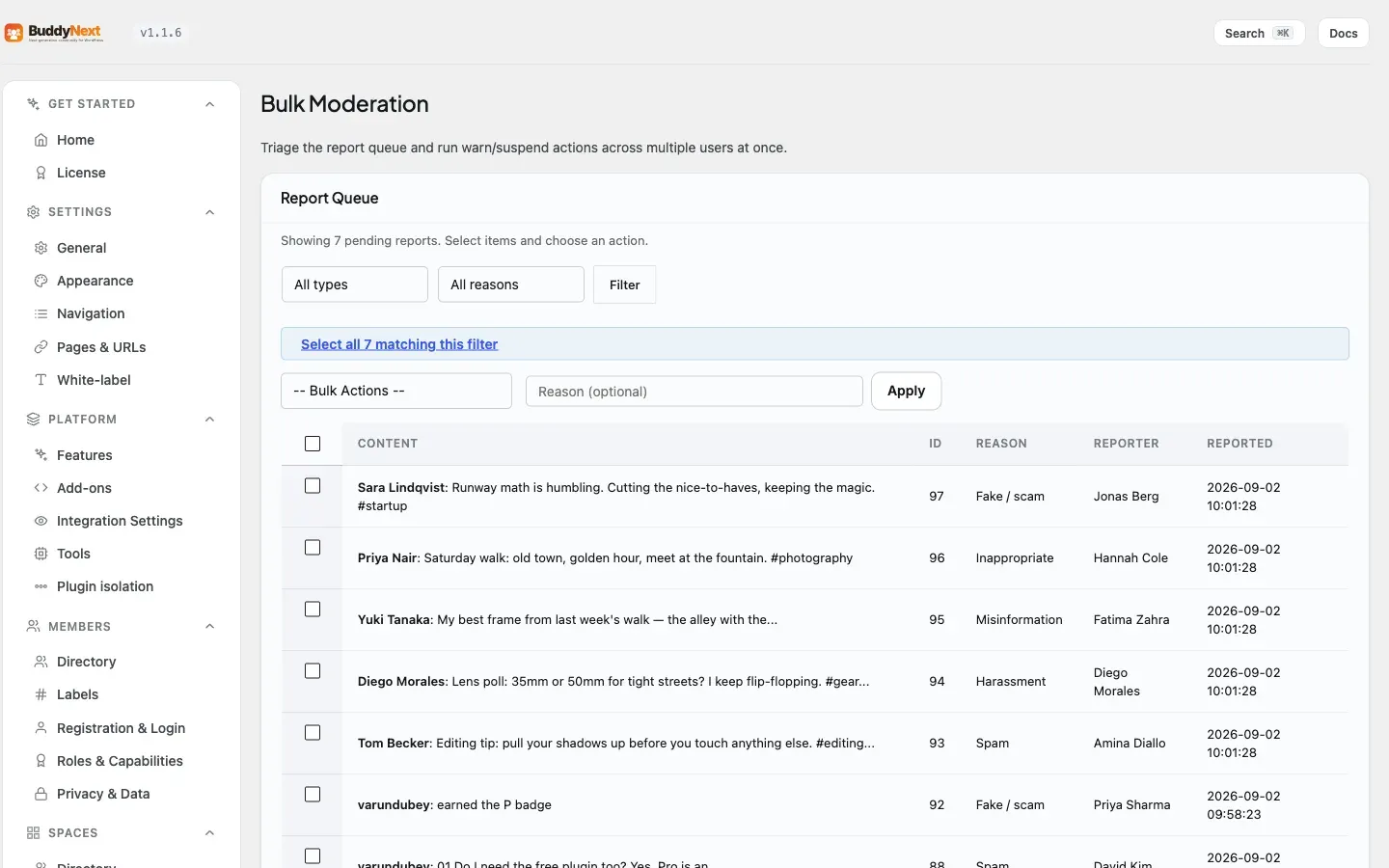
Bulk Moderation is a Pro admin page that lets you act on many moderation items at once: select multiple reports and dismiss or remove them together, or enter a list of user IDs and warn or suspend all of them in a single submit. Every action reports back how many succeeded and how many failed.
Why use it
Section titled “Why use it”Moderating a busy community one report at a time does not scale. A spam wave can drop fifty near-identical reports into your queue in minutes, and clicking through each one individually is slow and demoralizing. Bulk Moderation lets a moderator clear the obvious cases in a couple of clicks - select the spam reports, remove them all, done - and spend their attention on the cases that actually need judgment.
The same applies to people, not just posts. When you need to warn a group of accounts that crossed a line, or suspend a set of accounts caught in coordinated abuse, you paste their IDs and act on all of them at once instead of opening each profile in turn. At community scale, the time this saves is the difference between staying on top of moderation and falling behind it.
How it works (for moderators)
Section titled “How it works (for moderators)”The page has two sections: a queue of pending reports at the top, and a bulk user-actions panel below it.
Bulk action on reports
Section titled “Bulk action on reports”- Open BuddyNext > Moderation > Bulk (or the Bulk Moderation page under the BuddyNext menu). The pending report queue loads with a checkbox on each row.
- Optionally narrow the queue with the type and reason filters above the table.
- Tick the reports you want to act on, or use the select-all checkbox in the header to select every report on the current page. When you select the whole page, a banner offers “Select all N matching this filter” so you can act on every matching report across all pages, not just the visible 25.
- Choose an action - Dismiss or Remove Content - and optionally type a reason.
- Apply, and confirm the count in the prompt. A small selection is applied immediately and the page reloads with a summary; a large selection (more than 50 items) is queued and processed in the background, and the notice tells you how many were queued - they clear from the queue as the jobs run.
Dismiss closes the reports as no action needed. Remove takes down the reported content. Both run through the same underlying moderation actions the single-item queue uses, so the result is identical to handling each report by hand - just faster.
Bulk action on users
Section titled “Bulk action on users”- Scroll to the Bulk User Actions panel on the same page.
- Enter a comma-separated list in the Members field - usernames, emails, or numeric IDs.
- Type a reason.
- For a suspension, set the duration in days.
- Choose Warn Users or Suspend Users.
Warn sends each user a warning. Suspend suspends each user for the duration you set. As with reports, these call the same warn and suspend actions used for single members elsewhere in moderation.
The success and failure summary
Section titled “The success and failure summary”After any bulk action, the page returns a notice that tells you exactly how many items went through and how many did not - for example, “Dismissed: 12 succeeded, 0 failed.” Each item is handled on its own, so one bad entry does not stop the rest. If you paste a user ID that does not exist, or a report that was already handled by another moderator, that one item is counted as failed with a reason while every valid item still completes. You always know precisely what the action did.
Setting it up (for owners)
Section titled “Setting it up (for owners)”There is nothing to configure to use Bulk Moderation. The page is available to administrators as soon as BuddyNext Pro is active. Access is restricted to users who can manage the site, and every action is protected against cross-site request forgery, so only your trusted moderators can run bulk actions.
| Setting | What it does | Default |
|---|---|---|
| Reports per page | How many pending reports the queue shows per page before pagination kicks in. | 25 |
| Suspension duration (days) | Days a bulk suspension lasts, entered at action time. | 7 |
Reworked in 1.0.4
Section titled “Reworked in 1.0.4”- Queue rows show content, not IDs. Each reported item displays its author and an excerpt (“Yuki: Weekend trail was brutal…”) instead of a raw object reference, with system-generated reports labeled as such - you judge the content at a glance.
- Bulk member actions take names. The Members field accepts usernames, emails, or IDs, comma-separated. No more looking up numeric user IDs before you can warn or suspend.
Good to know
Section titled “Good to know”- The queue is paginated and filterable. The report queue shows 25 reports per page, with filters for object type and reason. Select-all ticks the current page; a “Select all N matching this filter” banner then lets you act on every matching report across all pages. This keeps the page fast even when the queue is thousands of reports deep.
- Large batches run in the background. A selection of 50 items or fewer is applied inline; anything larger is split into background jobs (via Action Scheduler) so a big cleanup can’t stall on a request timeout. The page reports how many were queued, and the reports clear as the jobs complete.
- It delegates to the same moderation actions. Bulk dismiss, remove, warn, and suspend all route through the same underlying actions that power single-item moderation. There is no separate “bulk” code path that could behave differently - a bulk remove is just many individual removes, each fully wired, with one combined result.
- It is concurrency-safe. Because each item is processed independently and reported on its own, a report another moderator already resolved, or a member already actioned, simply lands in the failed list with a reason while the rest of your selection completes.
Free vs Pro
Section titled “Free vs Pro”Bulk Moderation is a Pro feature. The free plugin includes the report queue and single-item moderation actions (dismiss, remove, warn, suspend) - you act on one item at a time. Pro adds the bulk page that applies those same actions to many reports or many users in one submit. For AI-assisted scoring of content and the automated review of the report queue, see AI Feed and Moderation. For keyword, link, and rate-limit rules that act automatically, see Auto-Moderation.
Related
Section titled “Related”- Moderation Queue - the single-item queue these actions batch.
- Auto-Moderation Rules - rules that flag content before you review it.
- AI Feed and Moderation - AI scoring of the report queue.
- User Moderation - the warn and suspend actions applied in bulk.