

My Assignments
Overview
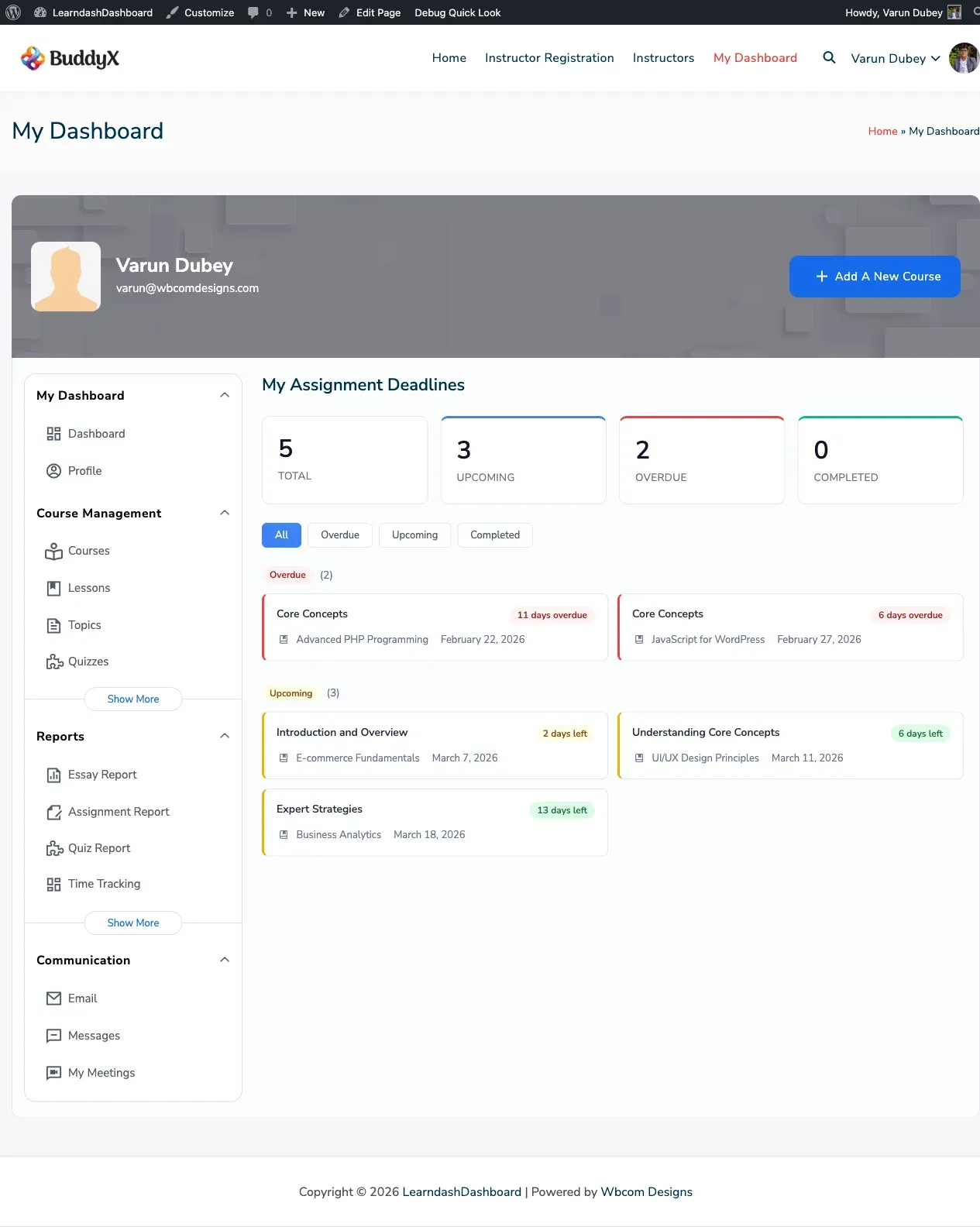
Section titled “Overview”The My Assignments section helps you stay on top of all your assignment deadlines. At a glance, you can see what’s overdue, what’s coming up, and what you’ve already submitted.
Screenshots
Section titled “Screenshots”How It Looks
Section titled “How It Looks”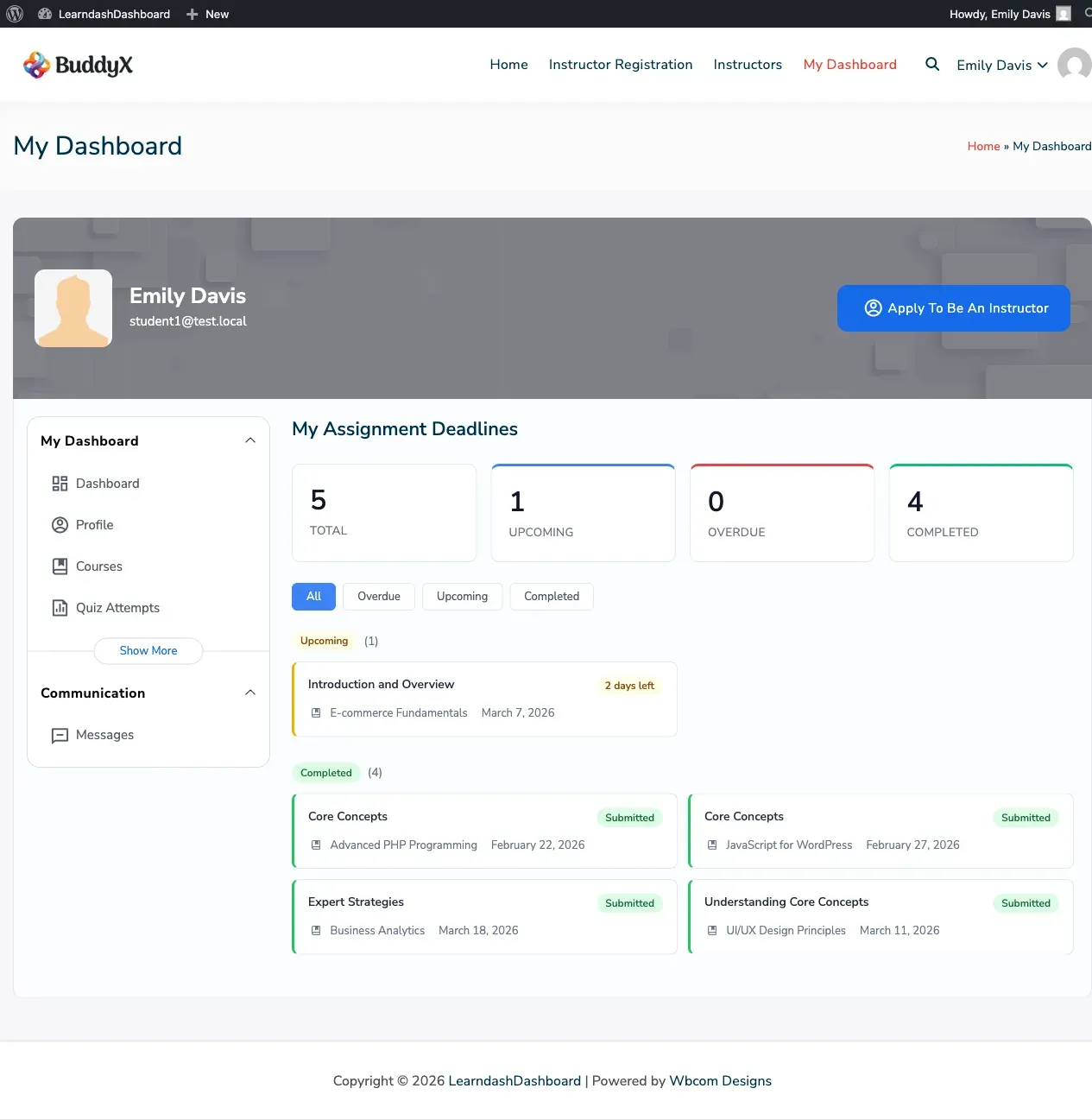
How to Access
Section titled “How to Access”Click My Assignments in your dashboard sidebar.
The Summary Tiles
Section titled “The Summary Tiles”Four tiles at the top give you a quick count of your assignment status:
- Total — All assignments across your courses
- Upcoming — Assignments with deadlines still in the future
- Overdue — Assignments that are past due and not yet submitted
- Completed — Assignments you’ve already submitted
Filtering Your Assignments
Section titled “Filtering Your Assignments”Click any of the four filter buttons — All, Upcoming, Overdue, or Completed — to show only that group of assignments.
Understanding Each Assignment Card
Section titled “Understanding Each Assignment Card”Each assignment is shown as a card with:
- The lesson or topic name (click to go directly to it)
- The course it belongs to
- The deadline date
- A deadline badge showing how much time you have left (or how overdue it is)
Deadline Badge Colors
Section titled “Deadline Badge Colors”| Badge | Meaning |
|---|---|
| Red | Assignment is past due |
| Yellow | Deadline is within the next 3 days |
| Green | More than 3 days remaining |
| Green (Submitted) | You’ve already submitted this assignment |
How to Submit an Assignment
Section titled “How to Submit an Assignment”You submit assignments from within the course itself — go to the relevant lesson or topic and upload your file there. Click the lesson or topic title on the assignment card to go straight to it.
Your instructor controls which file types and sizes are accepted.
Checking Instructor Feedback
Section titled “Checking Instructor Feedback”Once your instructor reviews your submission, any feedback they leave will be visible in your course. Check back on the lesson or topic page after submission for comments or a grade.
Why Don’t I See All My Assignments?
Section titled “Why Don’t I See All My Assignments?”Only assignments with a deadline set by your instructor appear here. If a lesson doesn’t have a deadline configured, it won’t show up in this section.
If you have no assignments with deadlines, the section shows: “No assignment deadlines found.”