

White Label
White Label (Pro)
Section titled “White Label (Pro)”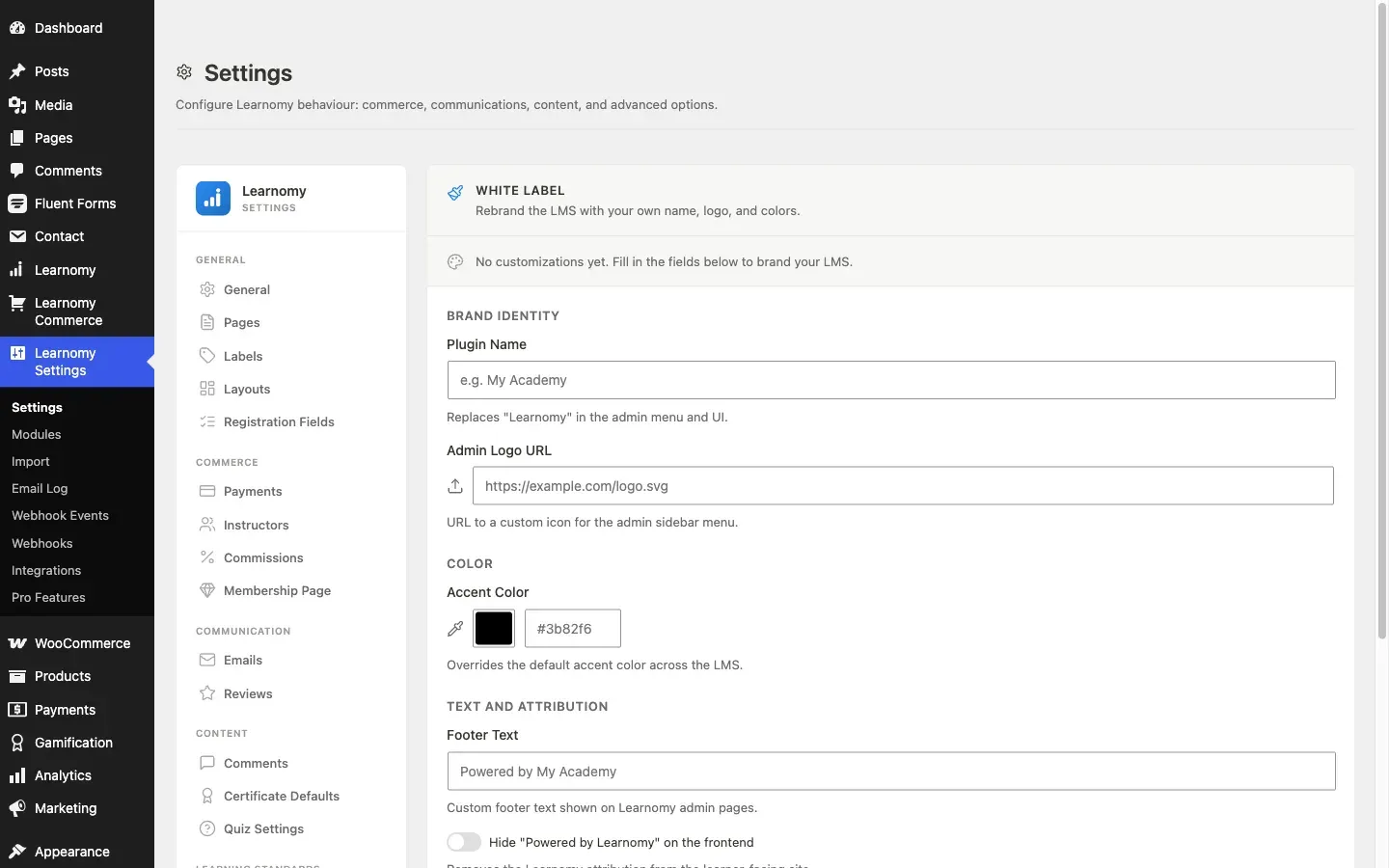
Pro feature. Available in Learnomy Pro.
Turn the extension on first. White Label ships switched off, like almost every Pro extension. Go to LMS Settings > Modules, find White Label, and enable it. Until you do, its menu items and settings do not appear at all, which reads as a missing feature rather than an unflipped switch.
The White Label extension lets you replace Learnomy’s name, icon, and accent color with your own brand across every admin page the plugin creates. Students see a custom attribution on the frontend. The settings are saved once and apply everywhere automatically.
Overview
Section titled “Overview”White Label settings live in LMS Settings > White Label. The section appears in the settings sidebar under the Pro nav group after the extension is enabled.
If none of the fields are filled in yet, the card shows “No customizations yet. Fill in the fields below to brand your LMS.”
How to use it
Section titled “How to use it”Step 1 - decide how far to take it
Section titled “Step 1 - decide how far to take it”Renaming the plugin changes the admin menus your team sees. Hiding the frontend attribution changes what learners see. They are independent, so you can do one without the other.
Step 2 - set the name and logo
Section titled “Step 2 - set the name and logo”Enter the Plugin Name you want in place of “Learnomy” in the admin menus, and paste an Admin Logo URL if you have one. Upload the logo to the media library first and copy its URL - there is no picker on this field.
Step 3 - set the accent colour
Section titled “Step 3 - set the accent colour”The accent colour applies everywhere the LMS uses its highlight colour: buttons, links, progress bars, tab indicators. Use your brand’s primary colour, not a shade of it, or the contrast on buttons will suffer.
Step 4 - handle the attribution
Section titled “Step 4 - handle the attribution”Set the Footer Text you want on admin pages, and switch on Hide “Powered by Learnomy” on the frontend if your agreement allows it.
Step 5 - save and check both sides
Section titled “Step 5 - save and check both sides”Save, then reload wp-admin to confirm the menus renamed, and open a course as a learner to confirm the frontend matches. Branding that only landed on one side is the usual mistake.
Settings
Section titled “Settings”Go to LMS Settings > Settings and open White Label in the sidebar. Every field below lives on that one card.
Brand Identity
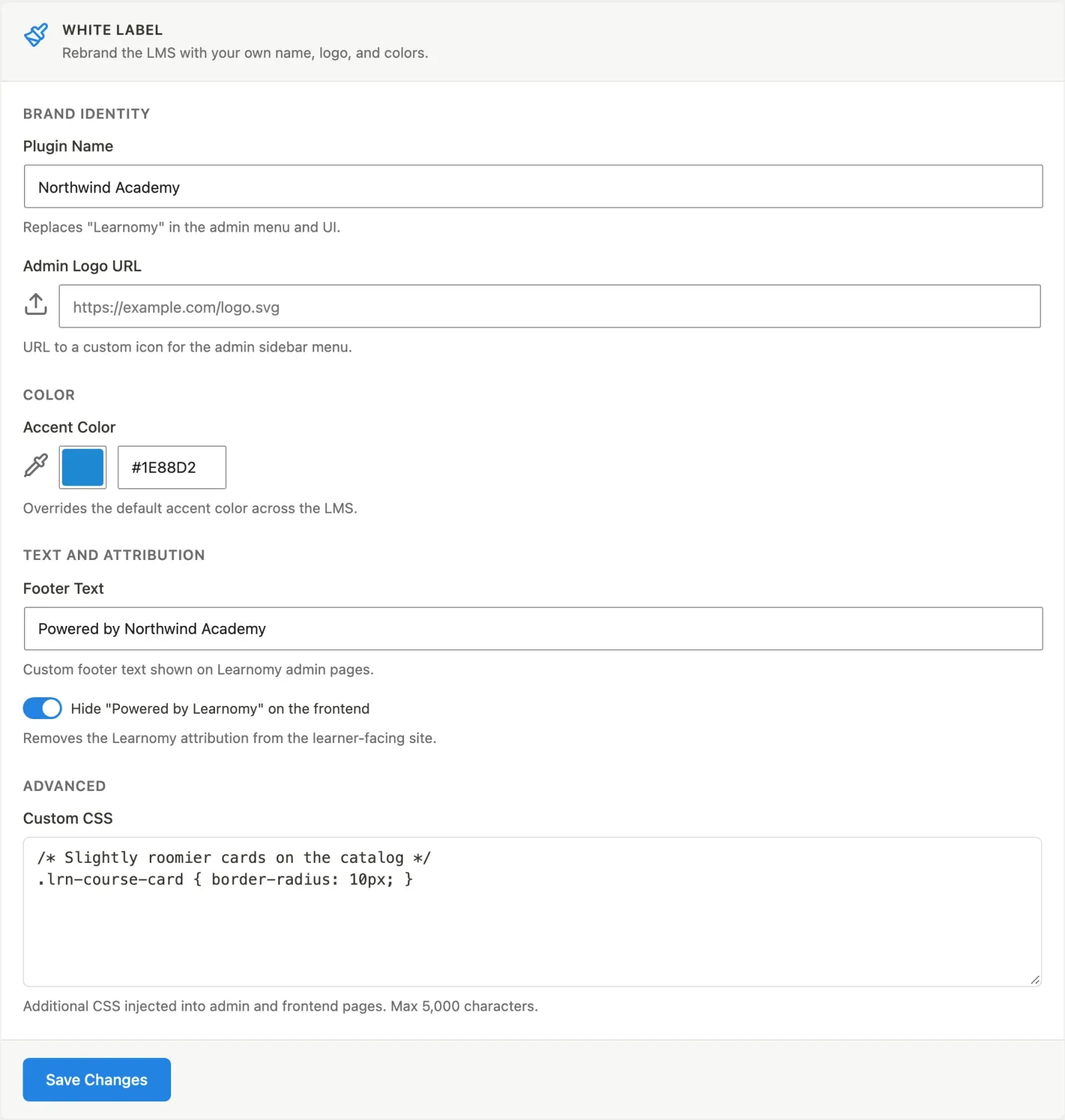
Section titled “Brand Identity”Plugin Name - replaces the word “Learnomy” in the admin sidebar menus. For example, enter “My Academy” and the three menus rename to “My Academy”, “My Academy Commerce”, and “My Academy Settings”. The “Commerce” and “Settings” suffixes are preserved; only the “Learnomy” token is replaced.
Admin Logo URL - paste the URL of a custom icon image (SVG or PNG recommended). This replaces the default icon in the WordPress sidebar next to the menu label. The image must be hosted somewhere accessible; the field accepts any public URL.
Accent Color - pick a hex color using the color swatch or type it directly into the hex field. The chosen color overrides --lrn-accent and --lrn-accent-hover across both the admin and frontend. The hover variant is automatically darkened by 15% from the base color.
Clearing this field restores the default accent color.
Text and Attribution
Section titled “Text and Attribution”Footer Text - the text shown in the WordPress admin footer on Learnomy pages. For example, “Powered by My Academy”. Leave blank to show the default WordPress footer text on Learnomy pages.
Hide “Powered by Learnomy” on the frontend - a toggle. When on, the Learnomy attribution is removed from learner-facing pages.
Advanced
Section titled “Advanced”Custom CSS - a textarea for additional CSS injected into both admin and frontend pages. Maximum 5,000 characters. Use this for minor style tweaks that the accent color alone does not cover.
Saving changes
Section titled “Saving changes”Click Save Changes at the bottom of the card. A status message (“Changes saved.”) confirms success. If the save fails, a “Save failed. Please try again.” message appears.
Settings are stored in a single WordPress option (learnomy_pro_white_label) and read on every page load, so changes take effect immediately without a cache clear.
Scope of branding
Section titled “Scope of branding”The white label extension rebrand applies to the three Learnomy top-level menus:
| Original label | After white label with name “Acme” |
|---|---|
| Learnomy | Acme |
| LMS Commerce | Acme Commerce |
| LMS Settings | Acme Settings |
The custom icon applies to all three menu items. The accent color and custom CSS apply to every admin and frontend page the plugin renders.
- The plugin name field only replaces the “Learnomy” token in labels. If a label does not contain the word “Learnomy”, the entire label is replaced with the plugin name instead.
- The accent color is applied via a CSS custom property (
--lrn-accent). It takes effect on every element that uses this token, including buttons, links, progress bars, and tab indicators. - Custom CSS is stripped of HTML tags before saving. It is not sanitized for valid CSS; take care with untrusted input.
- There is no media-library picker for the admin logo URL field in this release. Upload your logo to the WordPress media library, copy its URL, and paste it in.
- To remove a branding value, clear the field and save. The extension falls back to the Learnomy defaults.