

Managing Quizzes
The Quizzes tab lets instructors and admins create and manage LearnDash quizzes from the frontend dashboard. You can attach quizzes to a course, to a specific lesson, or to a topic.
Screenshots
Section titled “Screenshots”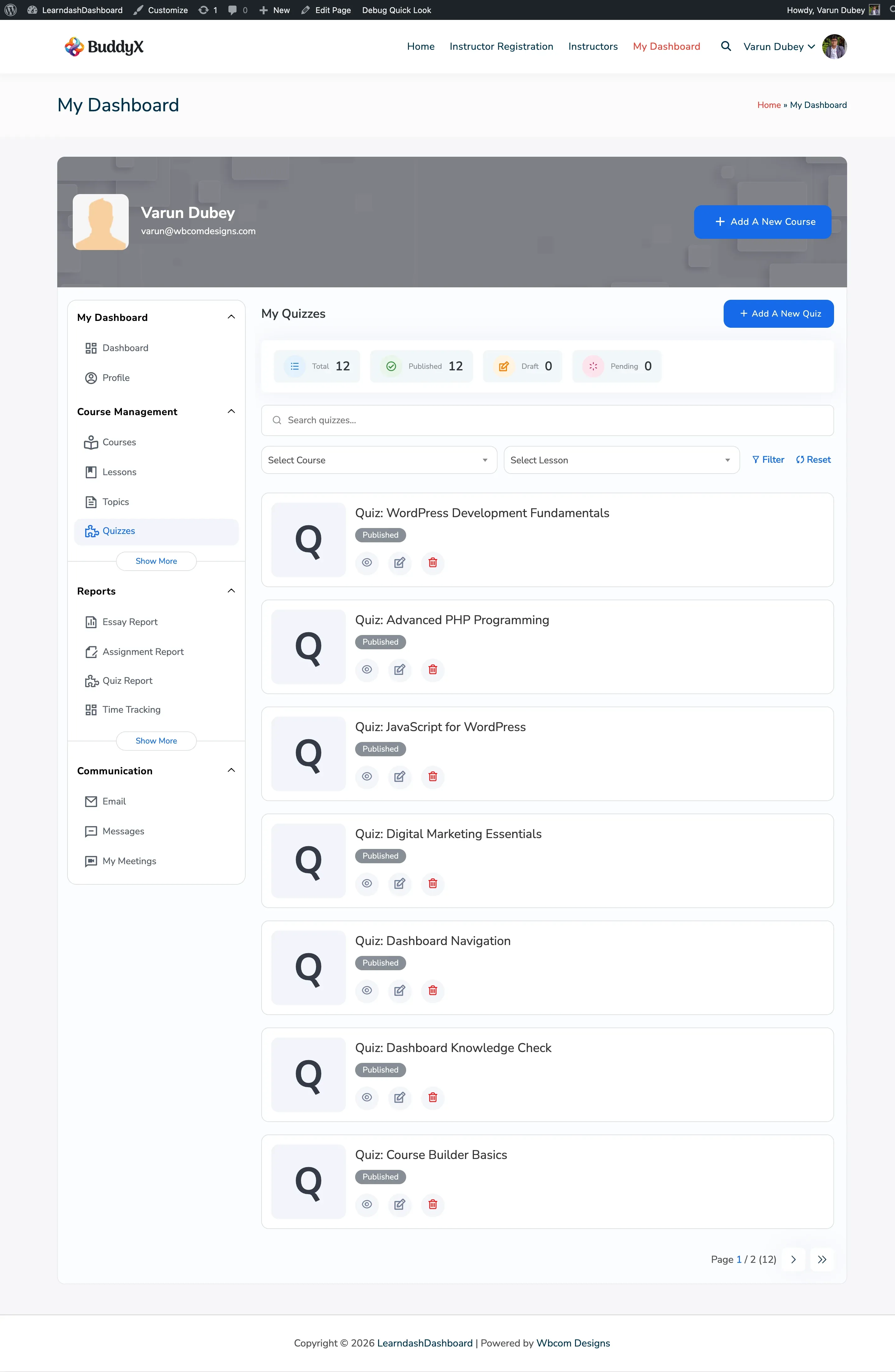
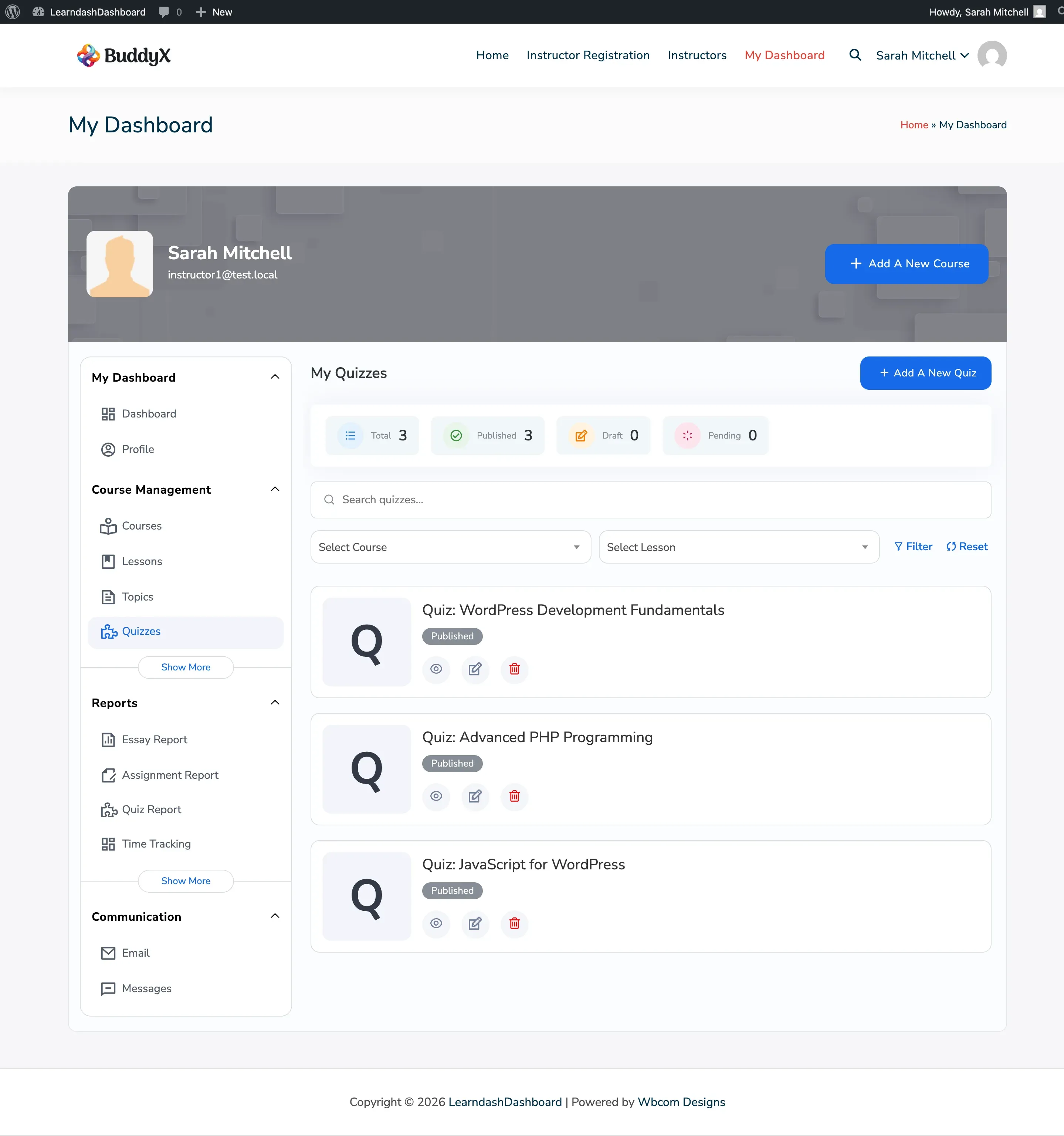
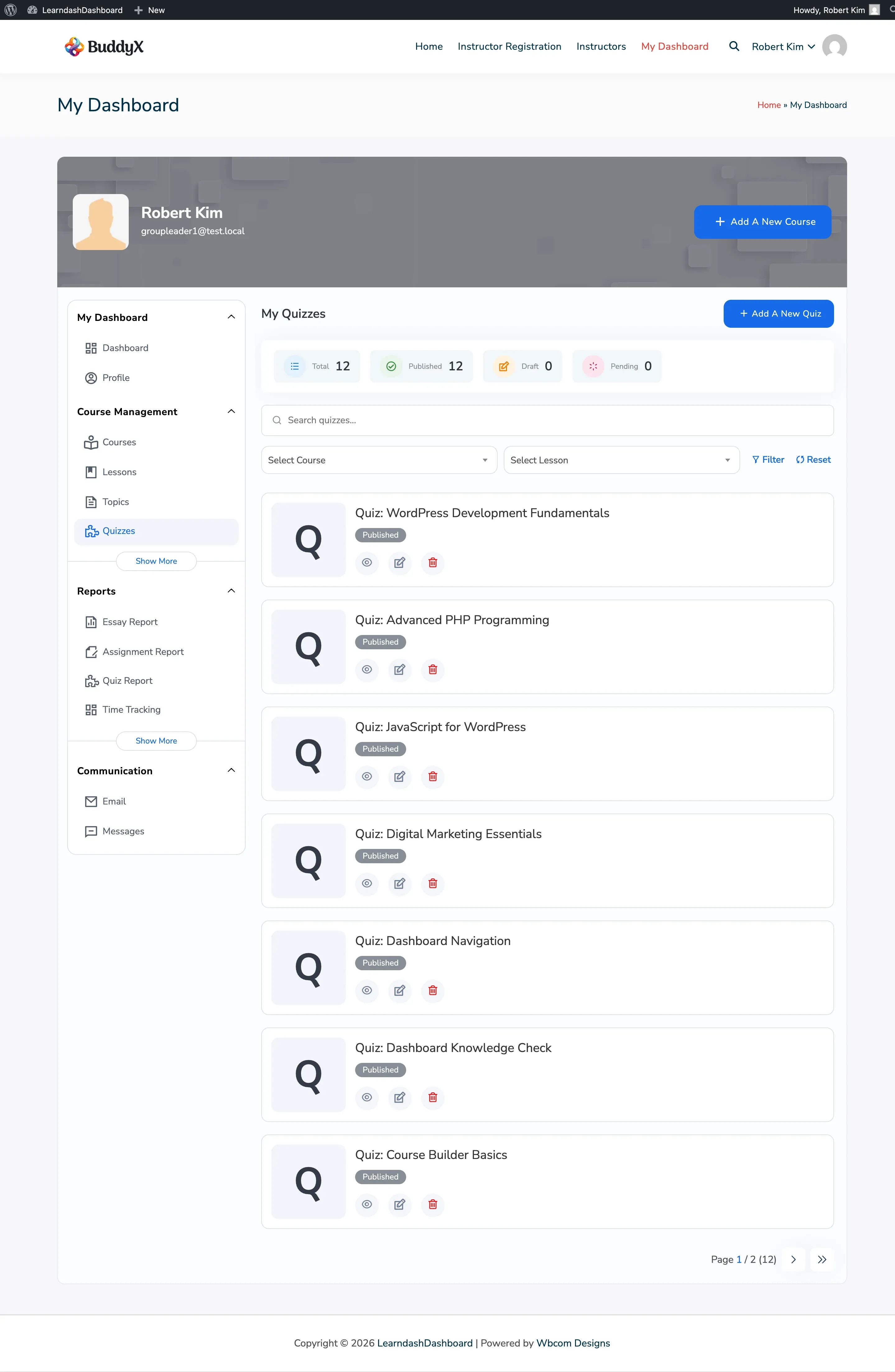
Who Can Do What
Section titled “Who Can Do What”| Action | Admin | Instructor | Group Leader |
|---|---|---|---|
| View quizzes | All quizzes | Own quizzes only | Assigned quizzes (read-only) |
| Create quiz | Yes | Yes | No |
| Edit quiz | Yes | Own quizzes only | No |
| Delete quiz | Yes | Own quizzes only | No |
Each quiz card shows an access badge: Your Content, Shared, or View Only.
Viewing Your Quizzes
Section titled “Viewing Your Quizzes”Go to My Dashboard > Quizzes. Each quiz card shows:
- Quiz title
- Publication status: Published, Draft, or Pending
- Action buttons: View, Edit, Delete, and Edit with Elementor (if active)
Use the course filter to show all quizzes in a course (including lesson and topic quizzes). Select a lesson from the filter to narrow further. The list shows 7 quizzes per page.
Creating a Quiz
Section titled “Creating a Quiz”-
Go to My Dashboard > Quizzes.
-
Click Add New Quiz.
-
Fill in the Post Data tab:
Field Required Description Quiz Title Yes The name of your quiz Status No Published, Pending, or Draft Quiz Content No Instructions or intro text students see before starting Featured Image No The quiz thumbnail -
Switch to the Settings tab and configure your quiz options:
Passing and Scoring
Section titled “Passing and Scoring”| Field | Description |
|---|---|
| Passing Score | Minimum percentage a student must score to pass |
| Show Points | Display the point value of each question |
| Question Randomization | Shuffle question order for every attempt |
| Random Questions Count | How many questions to show from the full question pool |
| Question Completion | Require students to answer every question before submitting |
Time Limit
Section titled “Time Limit”| Field | Description |
|---|---|
| Time Limit | Turn on a countdown timer for the quiz |
| Time Limit (minutes) | How many minutes students have to complete the quiz |
Attempts and Retries
Section titled “Attempts and Retries”| Field | Description |
|---|---|
| Retry Restriction | Limit how many times a student can retake the quiz |
| Allowed Attempts | The maximum number of attempts |
| Retake Delay | How long a student must wait before retrying |
Display and Behavior
Section titled “Display and Behavior”| Field | Description |
|---|---|
| Quiz Auto-Start | Begin the quiz immediately when the page loads |
| Quiz Resume | Let students continue an in-progress quiz where they left off |
| Show Answer | Display correct answers after the student submits |
| Show Points Breakdown | Show a detailed score breakdown per question |
| Quiz Materials | Add reference resources students can view during the quiz |
Question Display
Section titled “Question Display”| Field | Description |
|---|---|
| Questions Per Page | Show questions one page at a time (0 shows all at once) |
| Question Overview Table | Display a summary table of all questions |
| Custom Question Ordering | Manually arrange questions using the quiz builder |
| Leaderboard | Show a leaderboard of top scores |
Results
Section titled “Results”| Field | Description |
|---|---|
| Result Page | Send students to a custom page after they submit |
| Certificate | Award a certificate when a student passes |
| Prerequisites | Require students to pass another quiz first |
- Use the Quiz Builder section to add and arrange questions.
- Click Save Quiz.
Adding Questions to a Quiz
Section titled “Adding Questions to a Quiz”Questions are created on the dedicated Questions tab. From a quiz edit form, you can also add questions directly using the Quiz Builder.
- Open the quiz edit form.
- Scroll to the Quiz Builder section in the Post Data tab.
- Add new or existing questions.
- Drag to reorder them.
- Click Save Quiz.
Editing a Quiz
Section titled “Editing a Quiz”- Use the course or lesson filter to locate the quiz.
- Click the Edit icon on the quiz card.
- Update any settings across the Post Data and Settings tabs.
- Click Save Quiz.
Deleting a Quiz
Section titled “Deleting a Quiz”- Click the Delete icon on the quiz card.
- Confirm the deletion.
The quiz moves to the trash. Student attempt records are kept and are not deleted.