

Auto-Captions
Requires MediaVerse Pro - This feature is available exclusively in the Pro version.
MediaVerse Pro transcribes video and audio files using the OpenAI Whisper API and attaches the result as a WebVTT caption file. Captions are served with the media player and can be edited via the REST API.
Requirements
Section titled “Requirements”- An OpenAI API key with access to the Whisper transcription endpoint
- The media file must be a supported audio or video format (MP3, MP4, M4A, WAV, WEBM, OGG)
Enabling Auto-Captions
Section titled “Enabling Auto-Captions”Go to Media > Settings > Video and configure the following options.
| Option | Option Key | Default | Description |
|---|---|---|---|
| Auto-Generate Captions | mvs_pro_captions_auto |
0 |
Automatically transcribe each uploaded video or audio file |
| Caption Language | mvs_pro_captions_language |
(auto) | Optional source-language hint passed to the provider |
| Caption Provider | mvs_pro_captions_provider |
whisper |
Transcription provider |
The OpenAI API key is read from the free plugin’s existing OpenAI API Key setting (the mvs_openai_api_key option, configured under Media > Settings > AI & Moderation). There is no separate Pro Whisper key field - captions reuse the same key as the rest of the AI features.
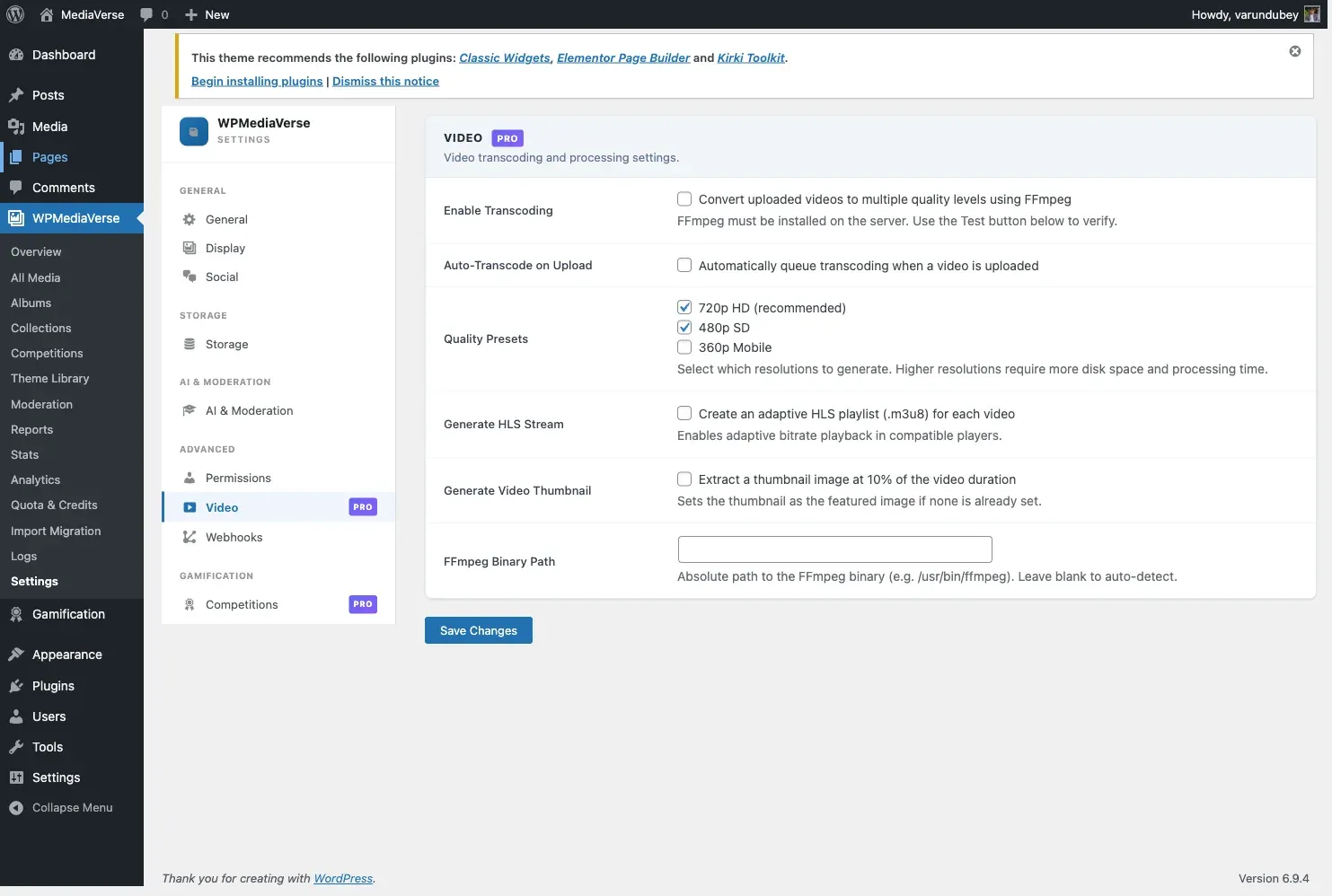
When Auto-Generate Captions is on, MediaVerse Pro queues a transcription job via Action Scheduler immediately after a file is stored. The caption file is saved once the Whisper API responds.
Caption File Storage
Section titled “Caption File Storage”WebVTT files are stored at:
/wp-content/uploads/mvs-captions/{media_id}.vttIf cloud storage is active, the VTT file is also uploaded alongside the media file.
REST API
Section titled “REST API”Base URL: /wp-json/mvs-pro/v1/
GET /media/{id}/captions
Section titled “GET /media/{id}/captions”Retrieve the caption file content and metadata for a media item.
Response:
{ "status": "complete", "language": "en", "vtt_url": "https://example.com/wp-content/uploads/mvs-captions/123.vtt", "generated_at": "2025-03-28T10:00:00Z"}status can be none, pending, complete, or failed.
POST /media/{id}/captions/generate
Section titled “POST /media/{id}/captions/generate”Queue Whisper transcription for the media item. Requires ownership or admin (manage_mvs_settings). No body is required.
curl -X POST https://yoursite.com/wp-json/mvs-pro/v1/media/123/captions/generate \ -H "X-WP-Nonce: NONCE"Response: 202 Accepted with the current status object.
GET /media/{id}/captions/status
Section titled “GET /media/{id}/captions/status”Poll the transcription job status for a media item.
Response: 200 OK with { "status": "pending" | "complete" | "failed" | "none" }.
PUT /media/{id}/captions
Section titled “PUT /media/{id}/captions”Replace the caption content with edited VTT text. Use this to correct transcription errors.
Body (JSON):
{ "content": "WEBVTT\n\n00:00:00.000 --> 00:00:04.000\nHello and welcome.\n\n00:00:04.500 --> 00:00:09.000\nToday we are covering...", "language": "en"}Response: 200 OK with the updated caption metadata.
DELETE /media/{id}/captions
Section titled “DELETE /media/{id}/captions”Remove the caption file and reset the caption status to none.
Response: 204 No Content.
WebVTT Format
Section titled “WebVTT Format”MediaVerse Pro always stores captions in WebVTT format. Caption content you submit through the API must begin with the WEBVTT header - content that does not start with that header is rejected. There is no automatic SRT-to-VTT conversion; convert SRT to WebVTT before uploading.
Example VTT file:
WEBVTT
00:00:00.000 --> 00:00:04.000Hello and welcome to this video.
00:00:04.500 --> 00:00:09.000Today we are covering the main topic.
Editing Captions
Section titled “Editing Captions”To correct a transcription, replace the stored VTT through the REST API with PUT /media/{id}/captions, passing the edited WebVTT content in the content field (see the REST API section above). The content must begin with the WEBVTT header.