

Setup Wizard
After you activate MediaVerse, a short wizard guides you through the only settings you need to make your first upload possible. The whole thing takes about two minutes.
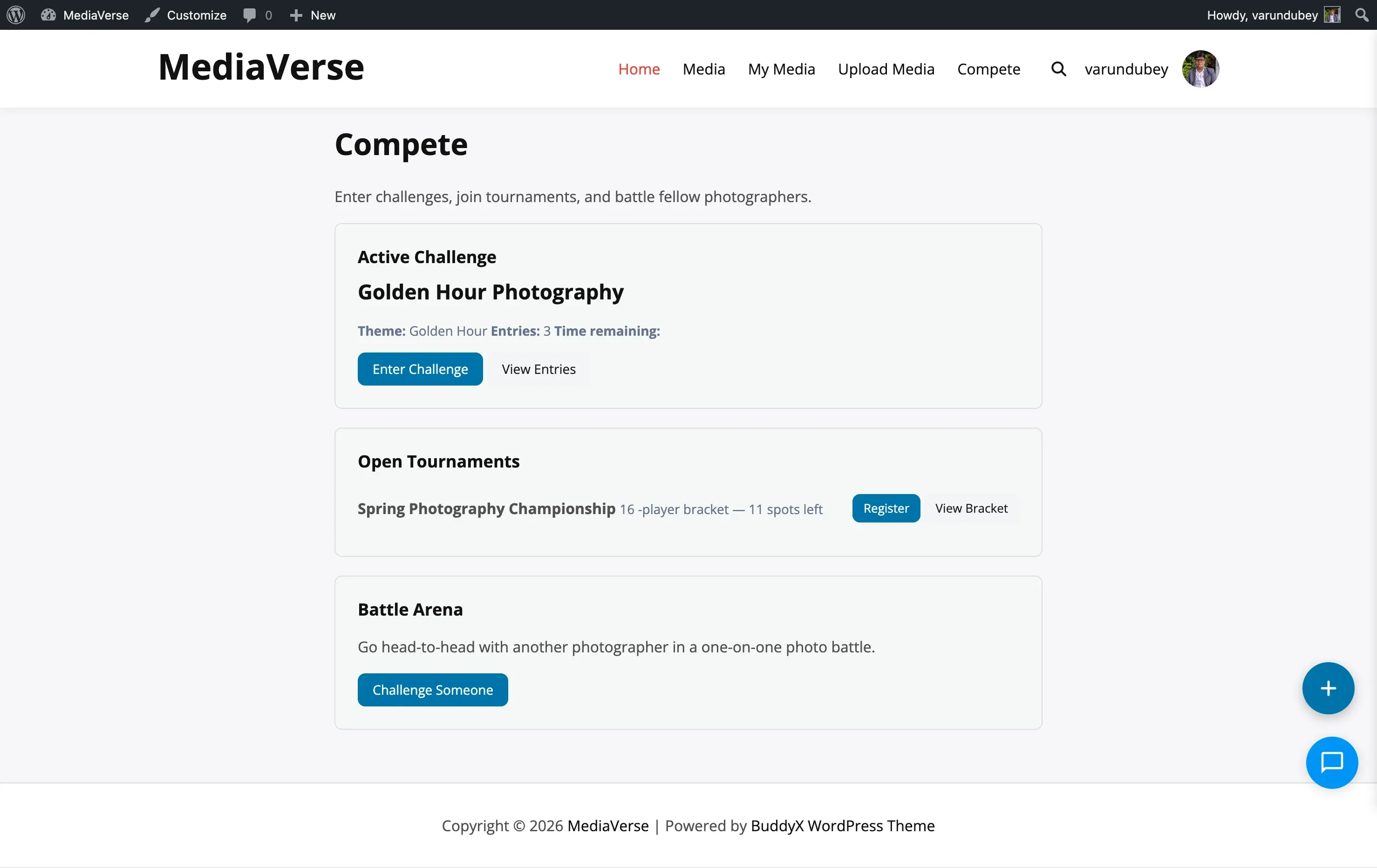
Step 1: Welcome
Section titled “Step 1: Welcome”A quick overview of what MediaVerse does - uploads and albums, the social layer (reactions, comments, favorites, follows), AI moderation and privacy controls, and optional BuddyPress integration. Click Let’s Get Started to continue, or Skip setup to jump straight to the dashboard.
Step 2: Pages
Section titled “Step 2: Pages”The wizard confirms the three frontend pages that were created automatically on activation:
| Page | Default slug | Purpose |
|---|---|---|
| Explore Media | /explore-media/ |
Public gallery where visitors browse all media |
| My Media | /my-media/ |
Personal dashboard for users to manage their uploads |
| Upload Media | /upload-media/ |
Frontend upload form, linked from the Explore page header |
If any page is missing, the wizard flags it and asks you to reactivate the plugin. Click Continue when the pages are in place.
Step 3: Display
Section titled “Step 3: Display”Configure how media appears on your site.
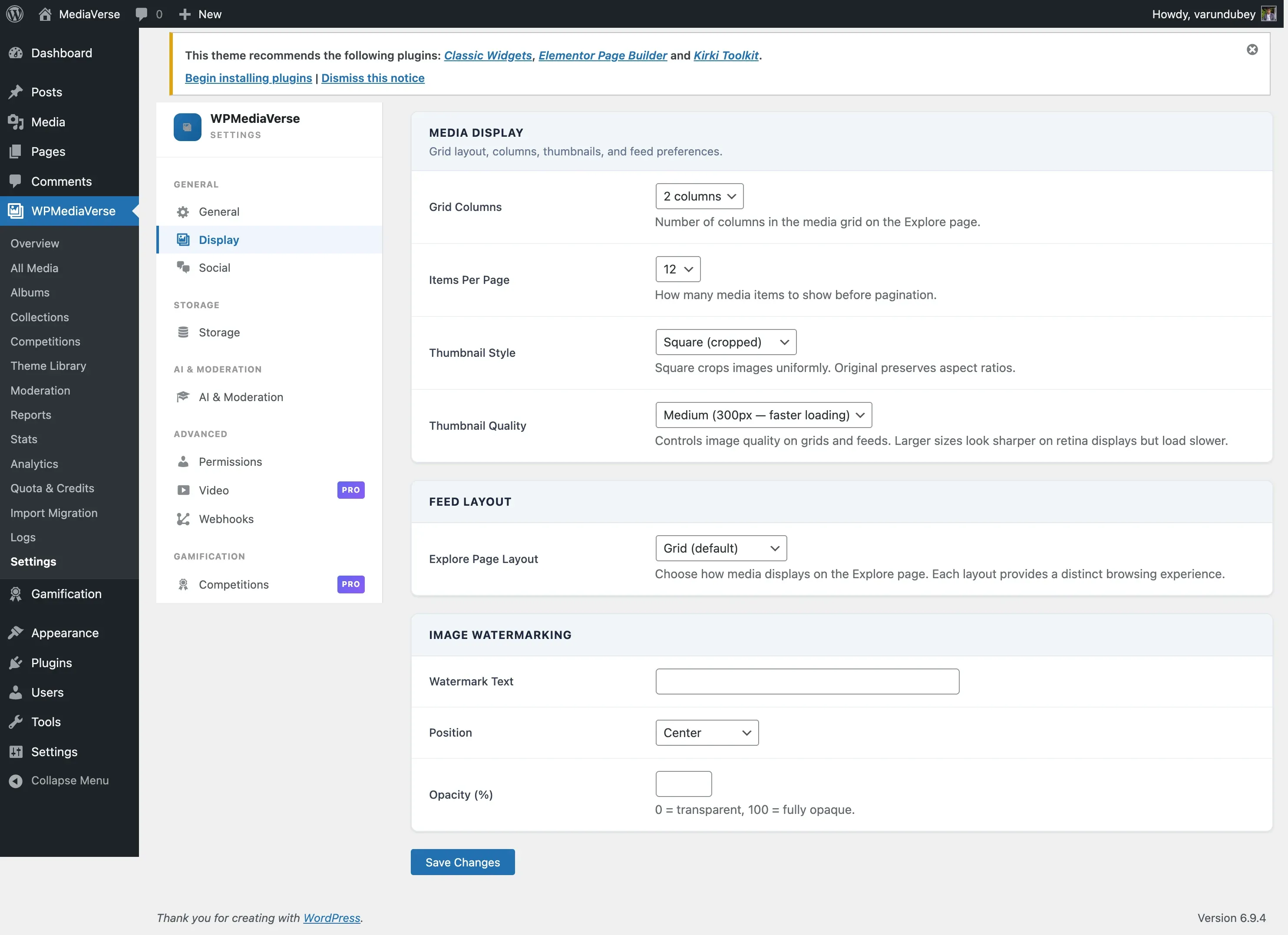
| Option | Choices | Default |
|---|---|---|
| Grid Columns | 2, 3, 4 | 3 |
| Items Per Page | 12, 24, 48 | 24 |
| Thumbnail Style | Square (cropped), Original proportions | Square |
You can change these any time later under Media > Settings.
Step 4: Done
Section titled “Step 4: Done”The wizard marks setup as complete (the mvs_setup_complete option) and redirects you to the Media Overview dashboard.
From here you can:
- Upload your first media file
- Configure AI moderation settings
- Set up BuddyPress integration (if BuddyPress is active)
Role Capabilities
Section titled “Role Capabilities”The wizard itself does not configure roles. On activation, MediaVerse adds default media capabilities to the Administrator, Editor, Author, Contributor, and Subscriber roles. You can review and change these at any time in Media > Settings.
Skipping the Wizard
Section titled “Skipping the Wizard”You can skip the wizard at any step using the Skip setup link, which takes you to the dashboard. Once setup is marked complete, the wizard no longer runs automatically on subsequent visits.