

Edit a Space from the Front-End
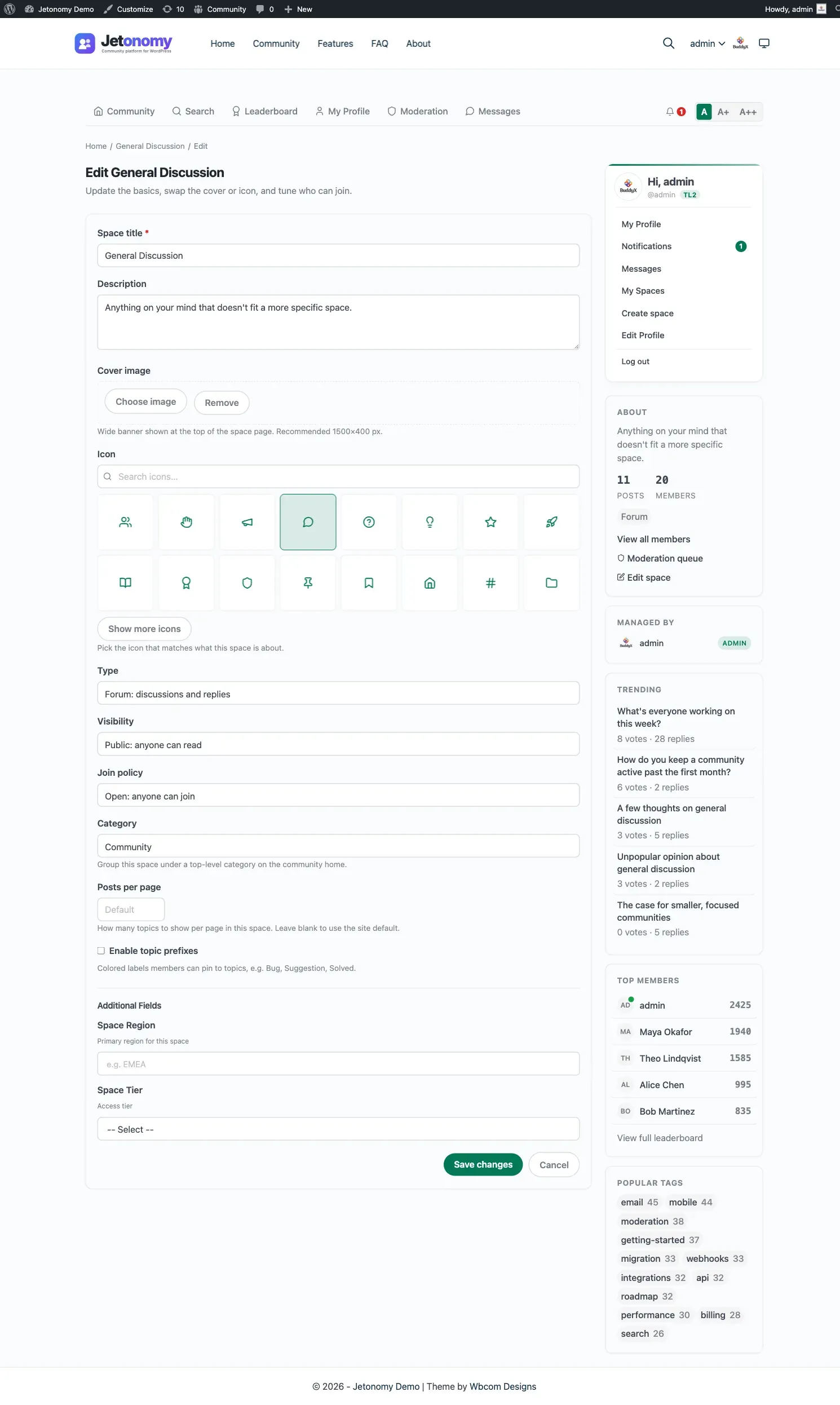
Since Jetonomy 1.4.0, space owners and moderators can edit their space directly from the front-end. They click an Edit space button in the space header and adjust the title, description, cover image, icon, type, visibility, join policy, moderation approval, category, posts-per-page, and prefixes without ever loading wp-admin.
What You Will Learn
Section titled “What You Will Learn”- Where the Edit space button appears and who sees it
- Every field you can change from the front-end
- How the cover image upload works without wp-admin permissions
- The safety rules that prevent a space from being orphaned by accident
- The difference between handing a space over and deleting it, and what gates each
- When to use the front-end editor versus the wp-admin one
Where The Edit Button Appears
Section titled “Where The Edit Button Appears”The Edit space button lives in the top right of every space header, just above the post listing. It is conditional: only members with the right role inside that space see it.
The roles that see the button:
- Space admin - the member who created the space, plus anyone they promote to admin
- Space moderator - members promoted by a space admin
- Site administrator - sees the button in every space
Regular members and guests never see the button. If a member loses their moderator role mid-session, the button disappears on the next page load.
The button leads to a dedicated page at /community/s/<slug>/edit/. The URL is permission-checked on every request, so typing it directly without the right role returns a 403.
What You Can Edit
Section titled “What You Can Edit”Every space setting that is editable in wp-admin is editable from the front-end. The two editors are kept in lockstep release after release.
| Field | What it controls |
|---|---|
| Title | The display name shown everywhere the space appears |
| Slug | The URL segment under /community/s/. Changing it sets up a redirect from the old slug |
| Description | The one-line summary shown on the space card and header |
| Cover image | A wide banner image shown above the space header |
| Icon | The Lucide icon shown next to the title |
| Category | Which community category the space belongs to |
| Type | Forum, Q&A, Ideas, or Feed |
| Visibility | Public, Private, or Hidden |
| Join policy | Open, Approval Required, or Invite Only |
| Require moderator approval for new posts | When checked, new posts are held in the moderation queue until a moderator approves them |
| Posts per page | A number from 1 to 100; leave blank to use the site default |
| Post prefixes | Optional tags shown in front of post titles (e.g. “Bug”, “Idea”) |
Changing the type after creation is supported but rarely a good idea. Switching a Q&A space to a Forum keeps every existing post but stops showing the “Mark as answer” affordance. The editor warns you before saving a type change.
The Visual Icon Picker
Section titled “The Visual Icon Picker”The icon picker is the same one used on the Create Space page. 16 default Lucide icons up front, 8 more behind a “Show more” button, and a search field that filters the full Lucide catalogue by name.
Changing the icon takes effect immediately on save. Cached pages and listings pick up the new icon on the next refresh. There is no manual cache flush needed.
Cover Image Upload
Section titled “Cover Image Upload”The cover image field accepts a standard image file. Recommended dimensions are around 1600 x 400 pixels - that is guidance for how the banner is cropped, not an enforced limit.
Uploads go into the standard WordPress media library at /wp-content/uploads/YYYY/MM/, the same place every other site image lives. The space stores only the resulting image URL, so the upload is reusable like any other attachment. The upload endpoint is gated by the logged-in member’s edit permission in the space rather than by WordPress’s upload_files capability, so a space owner can set a cover without site-wide media upload rights.
There is a Remove cover link below the upload field that clears the image reference from the space. Removing a cover only clears the reference; it does not delete the underlying attachment from the media library.
Role-Protection Rules
Section titled “Role-Protection Rules”The front-end editor is intentionally cautious about anything that could leave a space without an owner.
- No self-demote. A space admin cannot demote themselves if they are the only admin. The role dropdown skips the “moderator” and “member” options in that case and shows a tooltip explaining why.
- No last-admin-out. A space admin cannot delete or archive the space if they have set themselves to leave it. The flow forces a transfer-to-another-admin step first.
- No silent ownership transfer. Promoting another member to admin happens on the Members tab, not on the Edit space page. The editor never moves ownership in the background.
These rules exist because the most common community support ticket pre-1.4.0 was “I accidentally demoted myself and now nobody can edit the space.” The front-end editor blocks that path entirely.
Danger Zone: Handing Over vs Deleting (1.9.4+)
Section titled “Danger Zone: Handing Over vs Deleting (1.9.4+)”The bottom of the Edit space page has a Danger zone, kept outside the form so a stray Enter in a text field can never trigger it. It holds up to two actions, and which ones you see depends on your community’s settings and on whether the space has another admin.
Archive and hand over
Section titled “Archive and hand over”Archives the space and passes ownership to another of its admins. Every topic and reply is kept - members do not lose anything they posted.
This option only appears when the space has another admin to hand over to. If you are the only admin, there is nobody to receive it, and the button is not shown rather than shown-and-failing.
Use it when:
- A space has run its course but the content is still worth keeping
- A seasonal event ends and you want last year’s discussion to remain readable
- You are stepping away and someone else should own the space
Note: This is not reversible from the front end. There is no Unarchive button in the space editor - a site administrator can reopen the space from wp-admin → Jetonomy → Spaces.
Delete permanently
Section titled “Delete permanently”Removes the space and every post, reply, vote, flag and subscription in it. This cannot be undone.
Because it destroys other members’ contributions and not just your own, it is gated twice:
- The site owner has to allow it. The button only appears if Let space admins permanently delete a space and everything in it is enabled under Jetonomy → Settings → Permissions, or if you are a site administrator. On communities where that setting is off, space admins do not see this option at all.
- You have to type the space’s name. A plain confirm dialog is too easy to click through for something with no undo, so the confirm button stays disabled until the typed name matches exactly.
Use it when:
- The space was created by mistake and has no real content
- The content must be removed for legal or moderation reasons
- You are cleaning up after a spam attack
Deleting a large space is queued rather than done in one go, so a space with thousands of topics drains in the background instead of timing out. You are returned to the community home page once it starts.
If you are unsure, hand the space over instead. A handover keeps everything; a delete keeps nothing.
Front-End Edit vs wp-admin Edit
Section titled “Front-End Edit vs wp-admin Edit”Both editors produce identical results. They share the same model, the same validation, and the same hooks.
| Situation | Use front-end | Use wp-admin |
|---|---|---|
| You’re a space owner without admin access | Yes | Not available |
| You’re a site admin already in the community | Yes, faster | Either |
| You want to change advanced access rules | Not supported | wp-admin only |
| You want to bulk-edit multiple spaces | Not supported | wp-admin only |
| You want to change Pro extensions config | Not supported | wp-admin only |
| You want to fix a typo in the description | Yes, fastest | Either |
The front-end editor covers the day-to-day fields a space owner touches. The wp-admin editor adds bulk tools and a handful of advanced settings that only site administrators ever need to change.
What’s Next?
Section titled “What’s Next?”If you give space-creation permission to a wider group, expect those members to want a single place to see every space they run or belong to. The My Spaces page does exactly that.