

Saved Jobs
Save any job listing to your personal list so you can come back to apply when ready.
Saving a Job
Section titled “Saving a Job”You can bookmark a job from two places:
From the job listings grid:
- Click the bookmark icon in the top-right corner of any job card
From the job detail page:
- Click the Save Job button on the listing page
Both require you to be logged in. Any logged-in user can save jobs - a dedicated Candidate role is not required. If you are not logged in, clicking the bookmark will prompt you to register or log in.
Viewing Your Saved Jobs
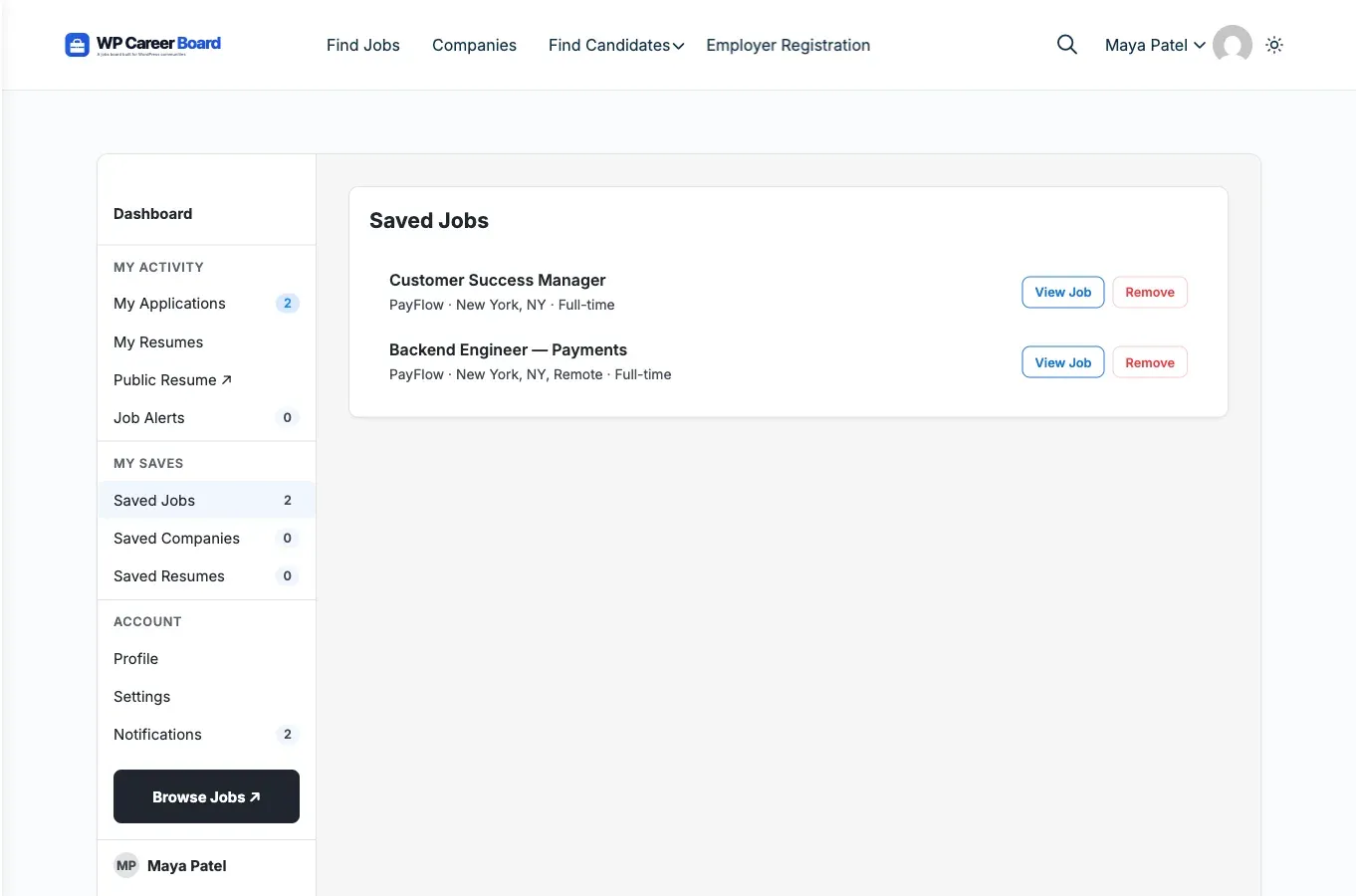
Section titled “Viewing Your Saved Jobs”- Open the Candidate Dashboard
- Click the Saved Jobs tab
You will see all your bookmarked jobs listed with:
- Job title and company name
- Location and job type
- Date saved
- A Remove button
Removing a Saved Job
Section titled “Removing a Saved Job”Click Remove on any saved job to delete it from your list. This does not affect any application you may have already submitted.
Applying from Saved Jobs
Section titled “Applying from Saved Jobs”Saved jobs include a direct Apply Now link so you can apply without going back to the main listings page.
Tip: Use Saved Jobs as your personal shortlist. Browse the board first, bookmark the ones that interest you, then review your list and apply to the best matches.
Saved Companies and Saved Resumes
Section titled “Saved Companies and Saved Resumes”The dashboard groups all your bookmarks under a MY SAVES section in the sidebar:
- Saved Jobs - jobs you bookmarked (covered above).
- Saved Companies - bookmark a company from its profile to follow it. They appear under Candidate Dashboard → Saved Companies.
- Saved Resumes - when WP Career Board Pro is active and public resumes exist, you can bookmark other candidates’ resumes. This tab is hidden on Free-only sites.
All three lists are available to any logged-in user.
There is no limit to how many jobs, companies, or resumes you can save.