

Vendor Profile & Portfolio
Your vendor profile is your marketplace identity. A complete, professional profile builds trust with buyers and helps you stand out. The portfolio section lets you showcase your best work.
Setting Up Your Profile
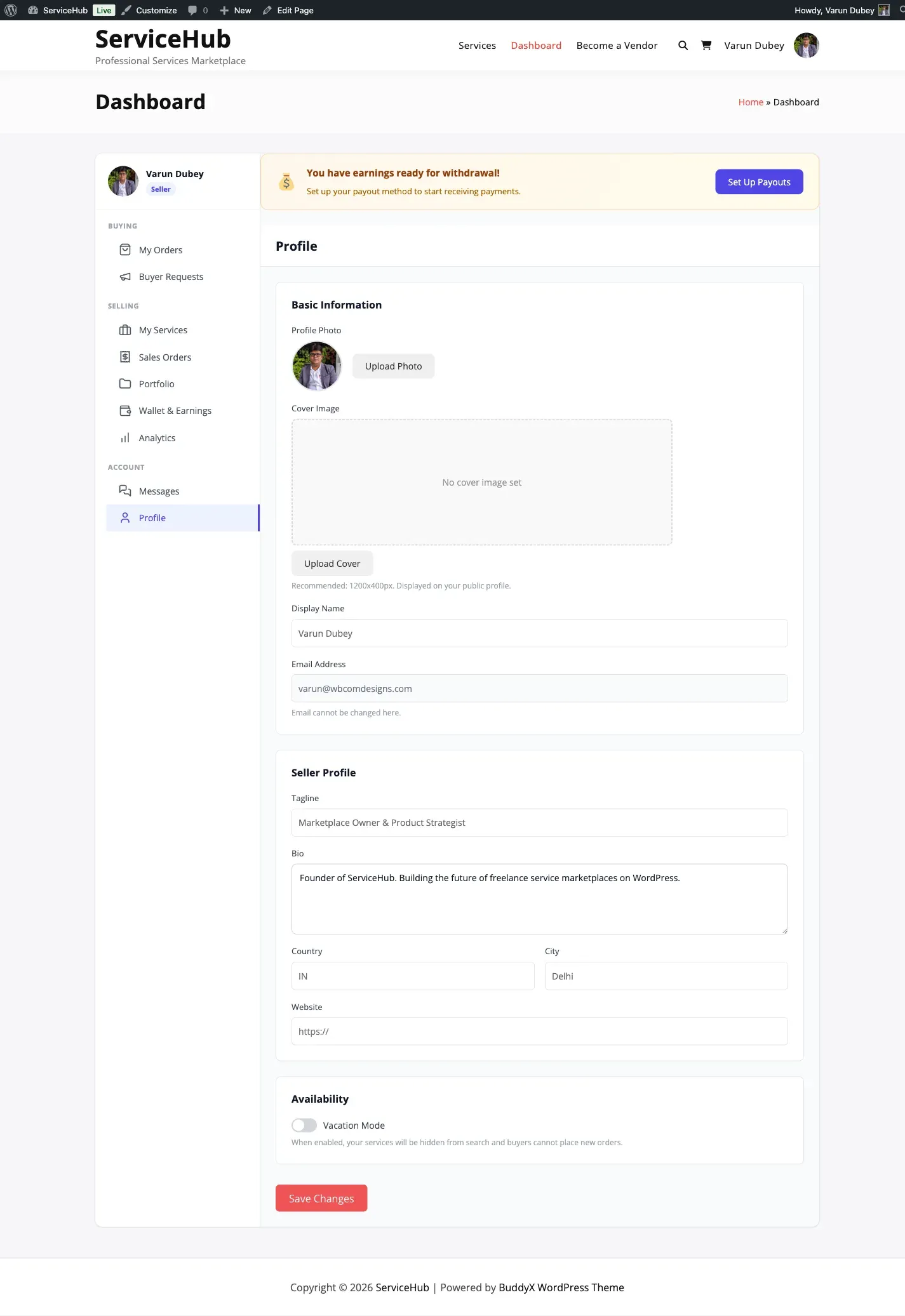
Section titled “Setting Up Your Profile”Go to Dashboard > Profile to edit your information.
What to Fill In
Section titled “What to Fill In”- Display Name – Your public vendor name. This appears on your services, in search results, and on your profile page.
- Tagline – A one-line description of what you do (e.g., “WordPress Developer & Theme Customizer”).
- Bio – Tell buyers about your background, experience, and what makes you great at what you do.
- Avatar – Your profile photo. Use a high-quality image (400x400px minimum).
- Cover Image – A banner image that appears at the top of your profile page.
- Country and City – Helps buyers find local vendors and understand your timezone.
- Timezone – Lets buyers know your working hours.
- Website – Link to your portfolio site or business website.
- Social Links – Add your LinkedIn, Twitter, GitHub, or other professional profiles.
Your Stats (Automatic)
Section titled “Your Stats (Automatic)”These numbers appear on your profile and update automatically as you complete orders:
- Total orders received
- Successfully completed orders
- Average star rating
- Number of reviews
- Average response time
- On-time delivery rate
- Verification tier (Basic, Verified, or Pro)
Intro Video
Section titled “Intro Video”Add a YouTube or Vimeo link to your profile and buyers see your introduction right on your profile page. A 60-90 second video of you explaining what you do converts far better than text alone: buyers meet the person before they buy.
Paste the video URL in the Intro video field of your profile settings. The player embeds automatically; no upload or hosting needed.
Building Your Portfolio
Section titled “Building Your Portfolio”Your portfolio showcases previous work to potential buyers. Think of it as your visual resume.
Adding Portfolio Items
Section titled “Adding Portfolio Items”-
Go to Dashboard > Portfolio.
-
Click Add Portfolio Item.
-
Fill in the details:
- Title – The project name.
- Description – What you did and why it matters.
- Images/Media – Upload screenshots, photos, or samples of the work.
- External URL – Link to the live project (if applicable).
- Tags – Keywords describing the work.
- Related Service – Optionally link this item to one of your services.
-
Toggle Featured to highlight your best pieces.
-
Save the item.
Portfolio Limits
Section titled “Portfolio Limits”- You can have up to 50 portfolio items (your admin may have set a different limit).
- Up to 6 items can be marked as featured. Featured items appear first and are shown prominently on your profile.
Organizing Your Work
Section titled “Organizing Your Work”Drag and drop to reorder your portfolio items. Put your strongest work first – featured items are displayed prominently on your vendor profile and in vendor cards across the marketplace.
How Buyers See Your Profile
Section titled “How Buyers See Your Profile”Your profile appears in several places:
Vendor Profile Page
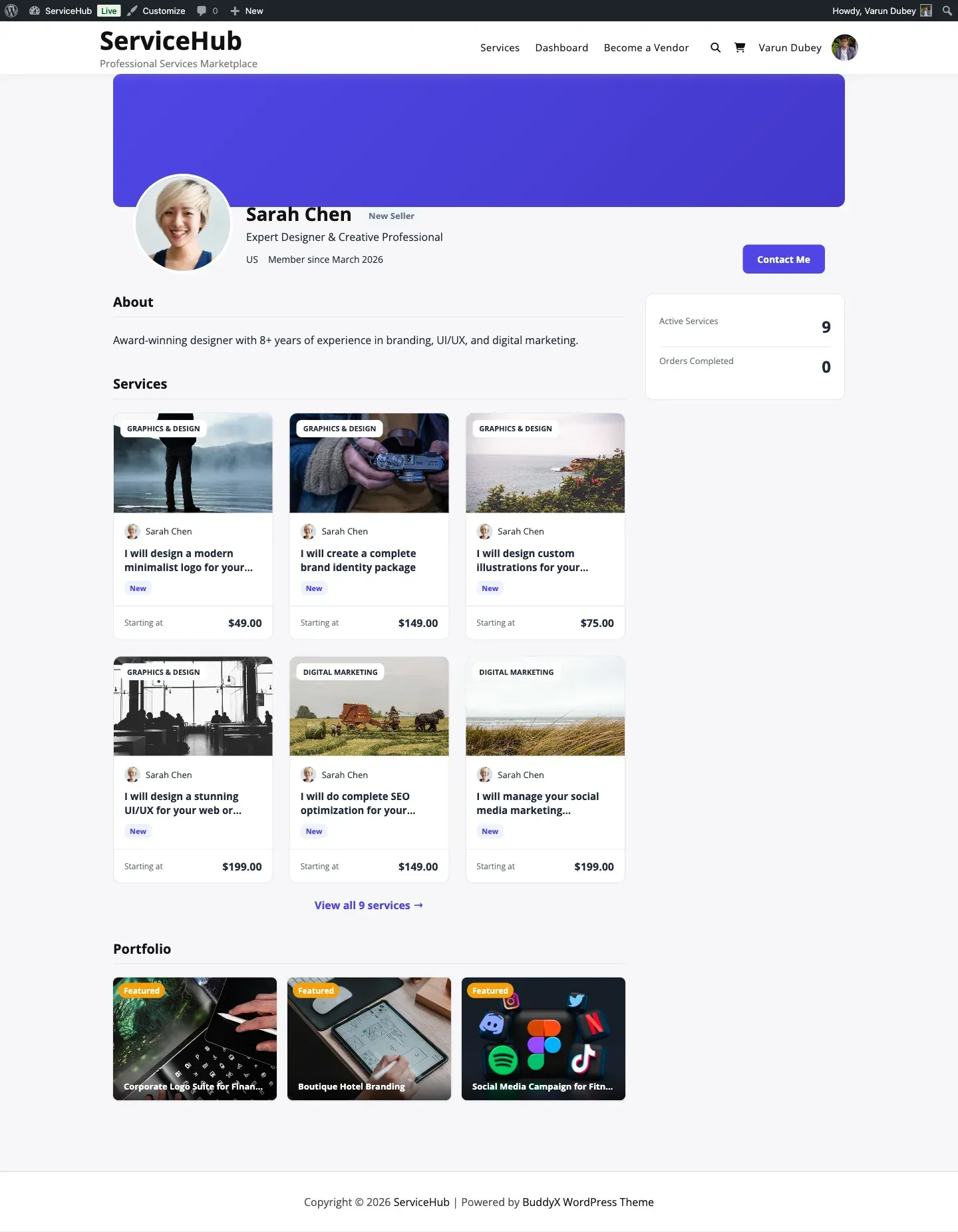
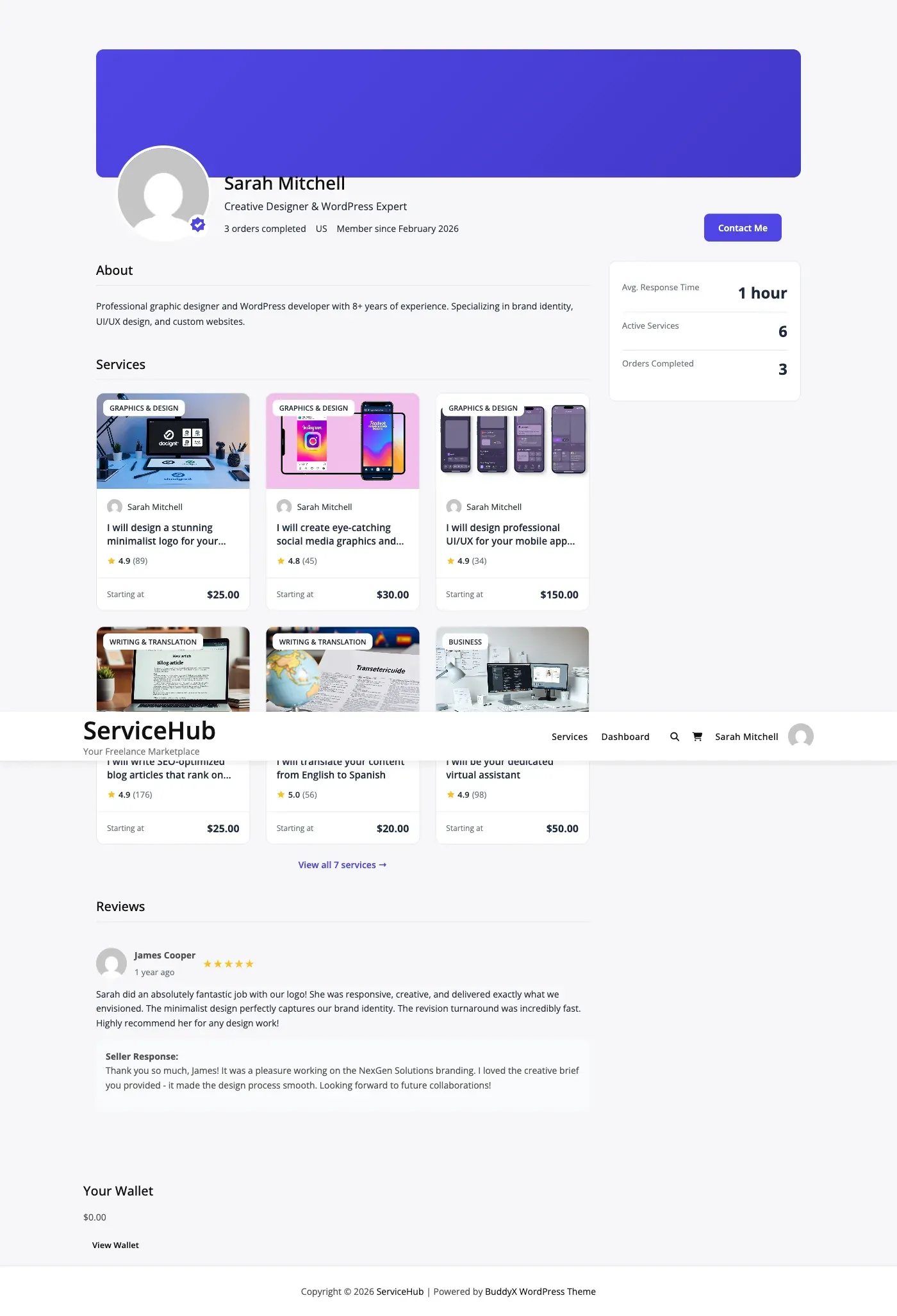
Section titled “Vendor Profile Page”This is your full public page, showing your cover image, avatar, bio, location, social links, all your services, portfolio gallery, reviews, and statistics.
Service Pages
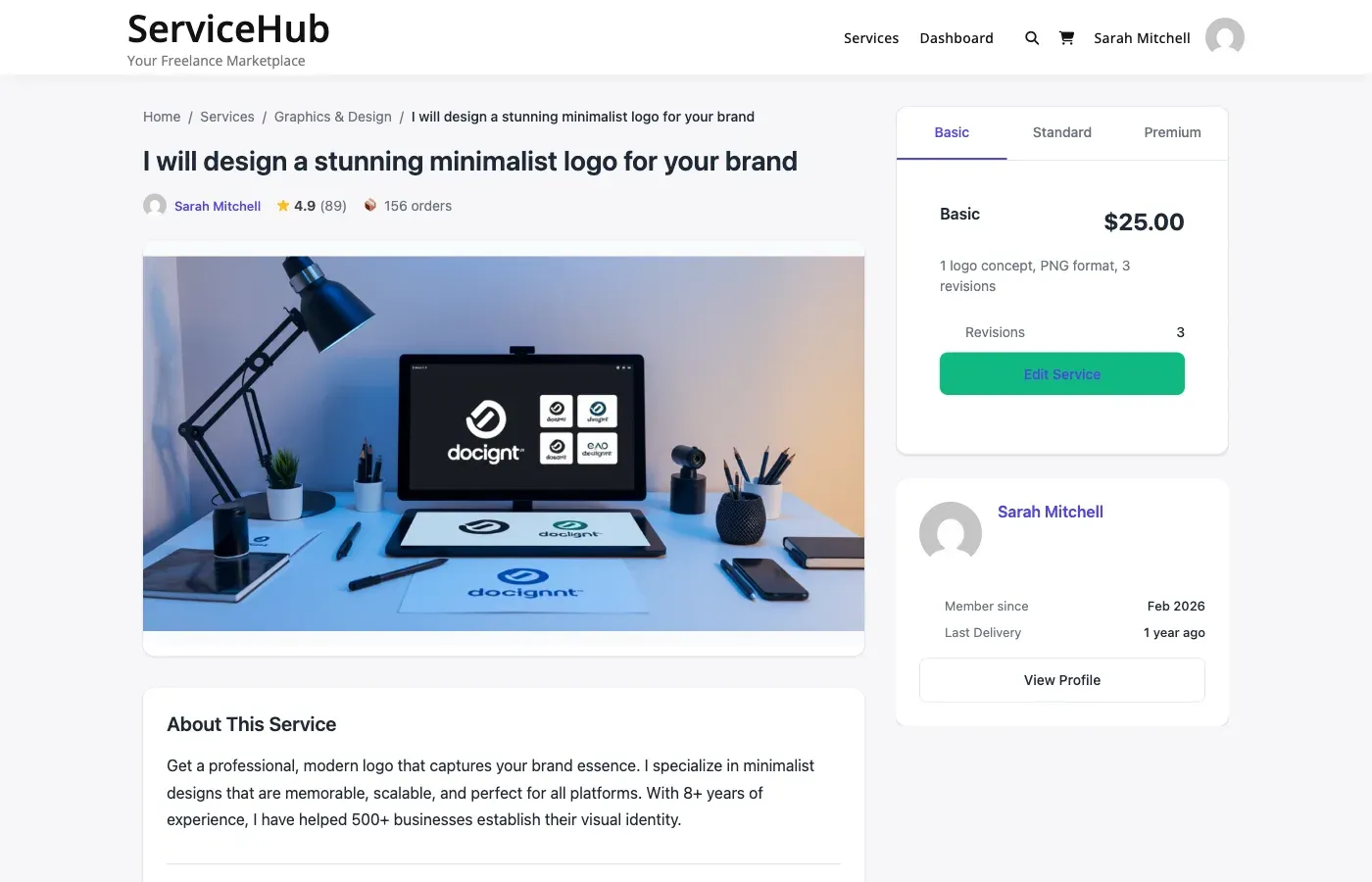
Section titled “Service Pages”A summary of your profile appears in the sidebar of each service page – your avatar, name, rating, response time, and a link to your full profile.
Search Results
Section titled “Search Results”Your avatar, name, tagline, rating, and review count appear on vendor cards in marketplace search results and listing pages.
Verification Status
Section titled “Verification Status”Your verification tier is displayed as a badge on your profile and services:
- Basic – All new vendors start here.
- Verified – Your email or identity has been verified.
- Pro – Premium verification status.
Higher verification tiers help build buyer confidence. See Seller Levels for details on how to advance.
Tips for a Strong Profile
Section titled “Tips for a Strong Profile”- Use a professional photo – A clear, friendly headshot works best.
- Write a compelling bio – Focus on your expertise and what buyers can expect.
- Fill in your location – Many buyers prefer working with vendors in specific regions or timezones.
- Showcase 5-10 portfolio items – Quality over quantity. Feature your very best work.
- Keep it updated – Add new portfolio pieces as you complete projects. Remove outdated work.
- Link your professional profiles – Active social links add credibility.