

Creating Custom Fields
Accessing the Field Builder
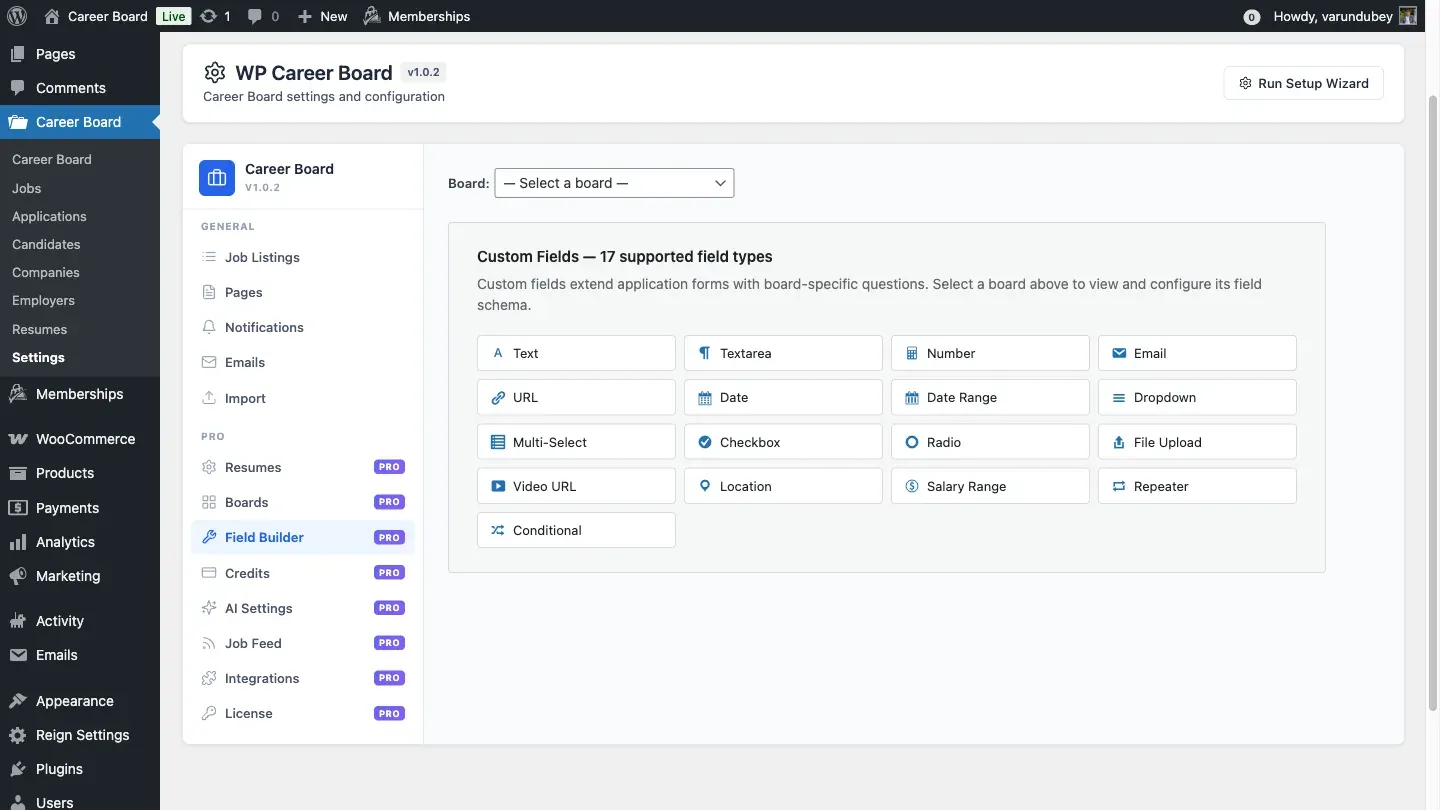
Section titled “Accessing the Field Builder”Go to WP Career Board -> Settings in wp-admin, then open the Field Builder tab. The direct URL is wp-admin/admin.php?page=wcb-settings&tab=field-builder.
If you have not created a board yet, the page shows an empty state with a “Create a Board” button. Job and company fields are organized per board, so create a board first, then return to the Field Builder.
Selecting a Board
Section titled “Selecting a Board”At the top of the Field Builder you choose a Board from the selector. The board you pick determines which job and company fields you are editing. Candidate fields and resume fields are global and apply regardless of the selected board.
Entity Type Tabs
Section titled “Entity Type Tabs”Inside the builder there are four entity tabs:
- Job Fields - fields added to job listings (per board)
- Company Fields - fields added to company profiles (per board)
- Candidate Fields - fields added to candidate profiles (global)
- Resume Fields - fields added to resumes (global)
Creating a Field Group
Section titled “Creating a Field Group”Before adding fields, create a group to hold them:
- Click Add Group
- Enter a group label (e.g., “Basic Info” or “Compensation Details”)
- Click Create Group
The group appears as a collapsible section. You can create multiple groups to organize related fields. Rename a group with the Rename button or remove it with Delete Group.
Adding a Field to a Group
Section titled “Adding a Field to a Group”- Expand the group where you want to add the field
- Click + Add Field
- Configure the field:
| Setting | Description |
|---|---|
| Label | The label shown on the form and public page |
| Field Type | One of 17 types - see the Field Types Reference |
| Visibility | Public, Employer Only, or Admin Only |
| Required | Toggle on if the field must be filled in |
- Click Add Field
Note: The add and edit form collects the label, type, visibility, and required toggle. A unique field key is generated automatically by the server and stays fixed across edits, so stored values remain linked even if you rename the field.
Editing and Deleting Fields
Section titled “Editing and Deleting Fields”- Click Edit on any field to change its label, type, visibility, or required state
- Click the delete (x) button to remove the field definition
Note: Deleting a field removes the field definition from the form. Values already stored in
wcb_field_valuesare not deleted - they remain in the table keyed by their field key.
Field and Group Order
Section titled “Field and Group Order”Each group and field has a sort_order value, and a POST /wcb/v1/fields/reorder REST route is available for reordering. New fields are added to the end of their group.
Where Fields Appear
Section titled “Where Fields Appear”After saving, fields are injected automatically into the matching form through filters:
- Job Fields -> the job posting form (
wcb_job_form_fieldsfilter); job values are saved onwcb_job_created/wcb_job_updatedand appended to the job REST response (wcb_job_response) - Company Fields -> the company profile form (
wcb_company_form_fieldsfilter) - Candidate Fields -> the candidate profile form (
wcb_candidate_form_fieldsfilter) - Resume Fields -> the resume form (
wcb_resume_form_fieldsfilter)
REST API Reference
Section titled “REST API Reference”The Field Builder admin UI is driven entirely by the wcb/v1 REST API. The same routes are available for automation and integrations:
| Method | Route | Purpose |
|---|---|---|
| GET | /wcb/v1/fields/groups |
List groups for a board and entity type (board_id, entity_type query params) |
| POST | /wcb/v1/fields/groups |
Create a group |
| PUT | /wcb/v1/fields/groups/{id} |
Update a group |
| DELETE | /wcb/v1/fields/groups/{id} |
Delete a group |
| GET | /wcb/v1/fields/groups/{group_id}/fields |
List fields in a group |
| POST | /wcb/v1/fields/groups/{group_id}/fields |
Add a field to a group |
| PUT | /wcb/v1/fields/{id} |
Update a field |
| DELETE | /wcb/v1/fields/{id} |
Delete a field |
| POST | /wcb/v1/fields/reorder |
Reorder fields |
All field-builder routes require the wcb/manage-boards ability (granted to administrators and employers).