

Stripe Payments
Stripe is the payment gateway BuddyNext Pro uses to take real payments for memberships. You connect your Stripe account once, and from then on members can buy a plan with a card, manage their own billing, and have their access kept in sync automatically as payments succeed or fail.
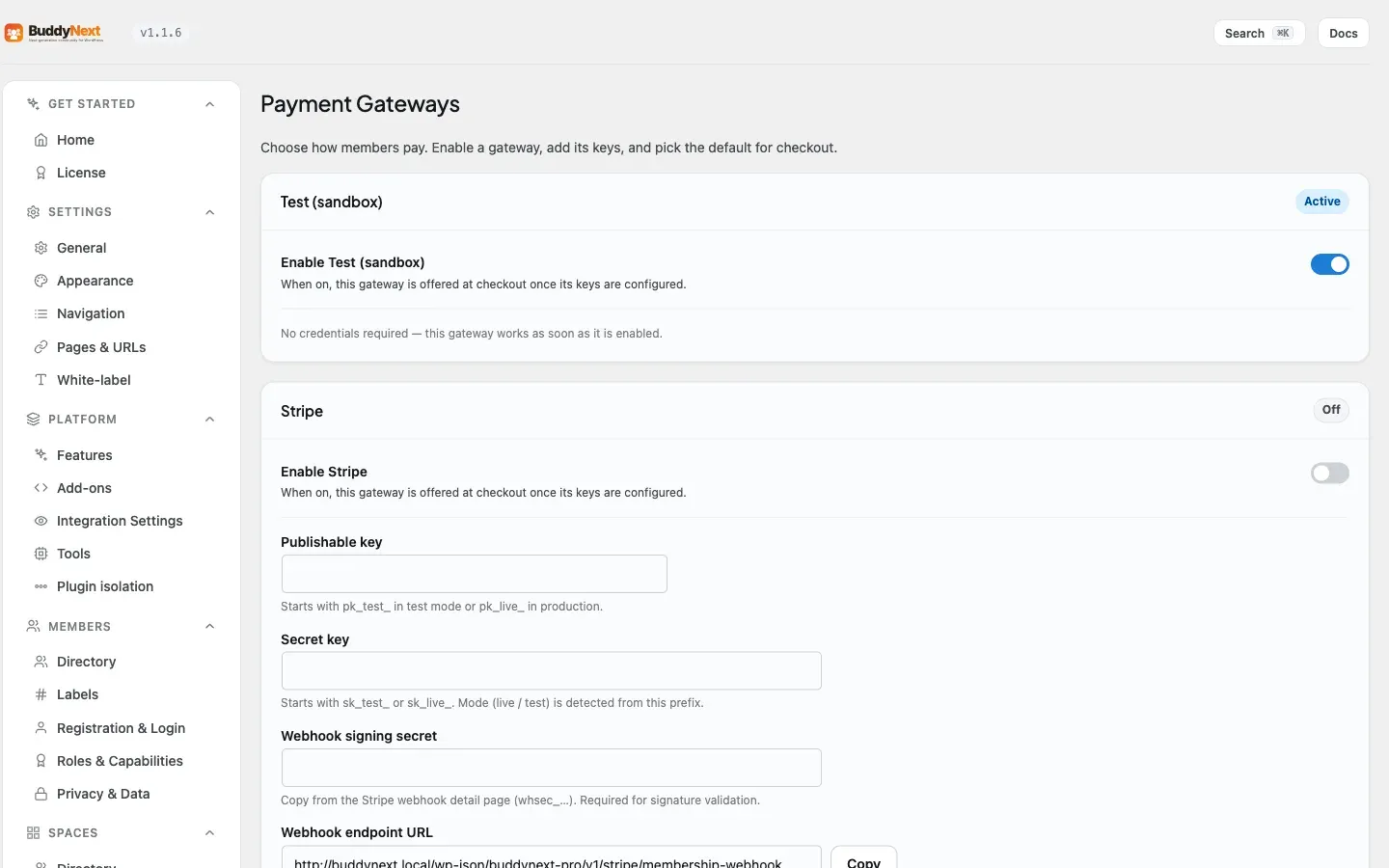
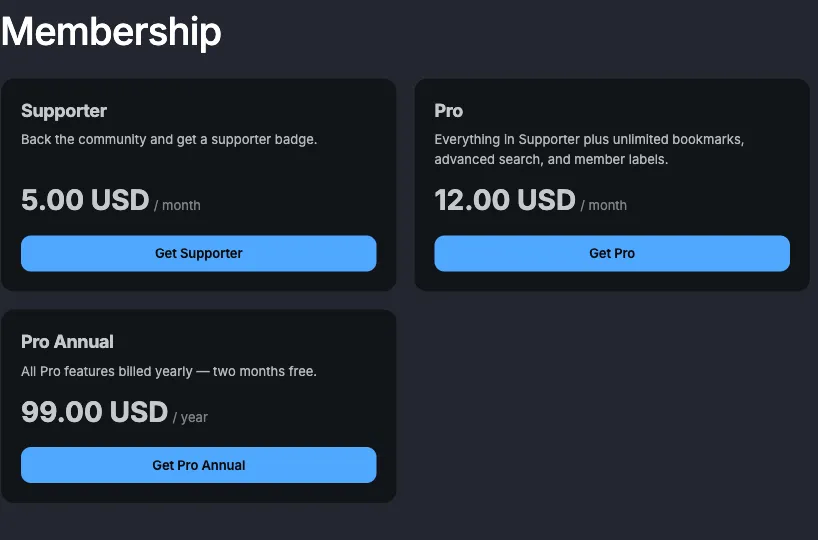
Before you start: BuddyNext is built to work with whichever gateway you connect. Alongside Stripe it ships a PayPal gateway, a Points gateway, an Offline gateway (bank transfer, cheque, or cash - you record the payment yourself), and a Test sandbox so you can try the checkout flow without real money - all configured on the same Payment Gateways tab. This page covers Stripe.
Why use it
Section titled “Why use it”Membership plans and gated spaces define who gets access. Stripe is what turns that into income, and it takes most of the hard work off your plate. With Stripe connected, a member who hits a paywall can pay on the spot and get in immediately, with no admin in the loop.
For the owner, Stripe handles the tricky parts of taking money: card entry, fraud checks, receipts, renewals, retries on failed cards, and refunds. BuddyNext keeps each member’s subscription and access current alongside Stripe, so a lapsed card automatically marks the member past due and a cancellation re-locks the content. You set a price once on the plan, and BuddyNext sets up the matching product and price in Stripe for you.
For the member, it is the familiar Stripe checkout plus a self-service billing page where they can update their card, switch plans, cancel, and download invoices without ever sending you a support ticket.
How it works (for members)
Section titled “How it works (for members)”A member never sees keys or settings. Their flow is:
- They reach a paywall - on a gated space or a locked post - and choose to upgrade.
- They are taken to Stripe Checkout, the hosted payment page, where they enter card details.
- On success, Stripe sends BuddyNext a confirmation and access opens right away. The member lands back on your site.
- Later, a returning subscriber can open the billing portal to update their card, change plan, cancel, or view past invoices.
Renewals happen on their own. Each time Stripe charges the card successfully, the member’s access is extended to the new period end. If a charge fails, the member is marked past due until the card is fixed; if they cancel, access is removed at the gate.
Setting it up (for owners)
Section titled “Setting it up (for owners)”Requirements
Section titled “Requirements”- A Stripe account.
- Your Stripe publishable key and secret key (both found in your Stripe dashboard).
- A webhook added in your Stripe dashboard that points back to BuddyNext (covered below). This step is required - without it, Stripe payments will not sync access back to your members.
- At least one membership plan with a price set on it (see Membership Plans and Gated Spaces).
Step 1: Enter your keys
Section titled “Step 1: Enter your keys”Open BuddyNext settings and go to the Monetization section, Payment Gateways tab. Find the Stripe section, paste your publishable key and secret key, then save.
| Setting | What it does | Default |
|---|---|---|
| Publishable key | Your Stripe publishable key. Stripe gives you a test version while you are setting up and a live version once you are ready. This one is safe to be public; it is used to load the card form. | Empty |
| Secret key | Your Stripe secret key. Like the publishable key, it comes in a test and a live version. BuddyNext keeps it masked on screen. Whether you are in test or live mode is detected automatically from this key. | Empty |
| Webhook signing secret | A short secret Stripe gives you when you create the webhook in Step 2. It lets BuddyNext confirm that incoming updates genuinely came from Stripe. Kept masked on screen. | Empty |
Note: Stripe’s mode is read automatically from your secret key prefix - an
sk_live_key is live, ansk_test_key is test. There is no separate mode switch to set: the mode simply follows the keys you save. If you enable the gateway while it still holds test keys, the Payment Gateways tab warns you, so you never think you are taking real payments when you are not.
The gateway status badge
Section titled “The gateway status badge”The Payment Gateways tab shows a status badge for each gateway. It is not just checking that you typed something into the key fields - it actually asks the payment provider whether the credentials work. The badge reads:
| Badge | What it means |
|---|---|
| Connected | The keys work. The provider answered. |
| Not working | The keys are filled in but the provider rejected them. The reason is shown next to the field that is wrong. |
| Needs setup | Required fields are still empty. |
| Off | The gateway is switched off. |
If it says Connected but you have not finished the webhook step, the badge tells you that too. Trust the badge over the fact that the fields look full - a typo in a secret key looks exactly like a correct one.
Step 2: Add the webhook in Stripe
Section titled “Step 2: Add the webhook in Stripe”A webhook is how Stripe tells your site when a payment succeeds, renews, or fails, so access stays in sync. The Payment Gateways tab shows a webhook address for you to copy. In your Stripe dashboard, under Developers then Webhooks, add a new endpoint and paste in that address.
When Stripe asks which events to send, choose the subscription and invoice events. After Stripe creates the endpoint, it shows you a signing secret - copy that back into the Webhook signing secret field on the Stripe tab and save.
Warning: Set the webhook up before you go live. The webhook is how Stripe tells your site about renewals, cancellations, and failed payments - without it, those never reach your members and subscriptions drift out of sync with what Stripe thinks. BuddyNext does have a safety net for the moment of purchase (when a buyer returns from Stripe, the site checks the payment directly rather than waiting for a webhook that may never arrive, so a first purchase is not lost), but that net only covers that one moment. It is not a substitute for the webhook.
Step 3: Price your plans
Section titled “Step 3: Price your plans”You set the price on the membership plan itself - there is no Stripe price to copy across. When a plan is ready to sell, BuddyNext sets up the matching product and price in your Stripe account from the plan’s price, currency, and billing interval, and remembers it so it is only created once. If that price is later removed in Stripe, BuddyNext recreates it on the next checkout.
This keeps test and live separate: your test price and your live price are tracked on their own, so switching from test keys to live keys creates a fresh live price without disturbing your test setup.
How a member’s access stays in sync
Section titled “How a member’s access stays in sync”Once the webhook is connected, BuddyNext keeps each member’s access current automatically as their Stripe subscription changes. You do not manage any of this by hand:
- When a member subscribes (or their subscription is updated), BuddyNext records it and grants the plan’s access while the subscription is active or in its trial.
- When a subscription is cancelled, BuddyNext removes the plan’s access and re-locks gated spaces and protected content. A member who cancels part-way through a period they have already paid for keeps access until that period ends, and is not told their membership will renew - Stripe reports such a subscription as still active with a cancel-at-period-end flag, and BuddyNext reads the flag rather than the status alone (1.1.5).
- When a subscription is paused at Stripe, access ends at the end of the paid period rather than being ignored (1.1.5).
- When a renewal payment succeeds, BuddyNext extends access to the new billing period - this is how renewals keep access alive.
- When a payment fails, BuddyNext marks the member past due so you can see who needs to fix their card.
BuddyNext links each Stripe customer to the matching member on your site. The first time it sees a new customer, it matches them by email, so every update after that resolves to the right member instantly.
Refunds, whole or partial (1.1.5)
Section titled “Refunds, whole or partial (1.1.5)”Refund an order from the Orders view of the Subscriptions tab. Leave the amount blank to refund everything still outstanding, or type a smaller figure to refund part of it.
The distinction decides what happens to access:
- A partial refund adjusts the price and leaves the membership alone. The member keeps what they paid for. Use it for a goodwill gesture, a pro-rata adjustment, or a disputed extra.
- A full refund ends access, exactly as it always did.
Only a paid order can be refunded, and refunds accumulate: BuddyNext tracks how much of an order has already been returned and will not let the total exceed what was charged, so two partial refunds cannot quietly over-refund an order. The money is returned through the gateway that took it.
Free trials start at the provider (1.1.5)
Section titled “Free trials start at the provider (1.1.5)”If a plan advertises a free trial, the trial is now created at the payment provider rather than only being recorded locally. Previously a plan could promise a trial and still charge the card in full on day one, because the trial length never reached Stripe.
A gateway that cannot start a trial now declines the sale rather than charging. That is deliberate: refusing a sale is recoverable, and charging someone who was promised a free trial is not.
Hosted checkout
Section titled “Hosted checkout”When a member buys a plan, BuddyNext creates a Stripe Checkout session and sends them to Stripe’s hosted payment page. The session carries the plan and member identity so the webhook can grant the right access on completion. Any BuddyNext coupon or tax is applied to the price before checkout, so Stripe is charged the final amount - discounts are handled by BuddyNext, not by a Stripe coupon. After paying, the member is returned to the My Membership page with a confirmation; if they cancel at Stripe, they land back on the pricing page. Both pages are provisioned automatically when Monetization is enabled (see Membership Plans).
Customer billing portal
Section titled “Customer billing portal”Returning subscribers can open the Stripe billing portal from your site. The portal is Stripe’s own self-service page where members update their card, switch plan, cancel, and view invoices. BuddyNext generates a fresh, single-use portal link each time it is requested.
Good to know
Section titled “Good to know”- A few things need to be in place before the live path works. Stripe keys, the webhook plus its signing secret, and a priced plan all have to be set up. If any is missing, the paywall falls back to a plain call-to-action or a friendly “not configured” notice rather than a broken checkout. This is expected, not a fault.
- An expired Pro license never blocks Stripe. A Pro license controls update downloads only; your payment features keep working regardless.
- The card form loads from Stripe. As Stripe’s terms require, the card form comes straight from Stripe’s own servers. Nothing card-related is ever stored on your site.
- Mode follows your key, with no toggle to set. Stripe reads live or test straight from your secret key prefix; there is no separate mode switch. The Payment Gateways tab warns you if the gateway is enabled while still using test keys, so you always know whether you are taking real payments.
- Stripe never flags your site as failing. Stripe sends many kinds of updates; BuddyNext quietly accepts the ones it does not need, so your webhook always reports healthy.
Free vs Pro
Section titled “Free vs Pro”Membership gating exists at the model level in the platform: a space can require an ability, and the paywall can point members to an external page to upgrade. Stripe payments - taking the card, hosted checkout, the billing portal, automatic price provisioning from the plan, and the subscription lifecycle synced from Stripe webhooks - are part of BuddyNext Pro. See Membership Plans and Gated Spaces for how access is defined, and Content Protection for locking individual posts and pages behind the same memberships.
Related
Section titled “Related”- Payment Gateways - the shared gateway model and the other gateways.
- Membership Plans - define the plans Stripe charges for.
- Coupons and Tax - discounts and tax applied before Stripe is charged.
- Content Protection - lock posts behind the plans Stripe sells.