

Space Types and Privacy
Every space has one of three privacy types - Open, Private, or Secret. The type decides who can see the space, how a member joins, and whether non-members can read its content. Owners pick a type when they create a space and can change it later.
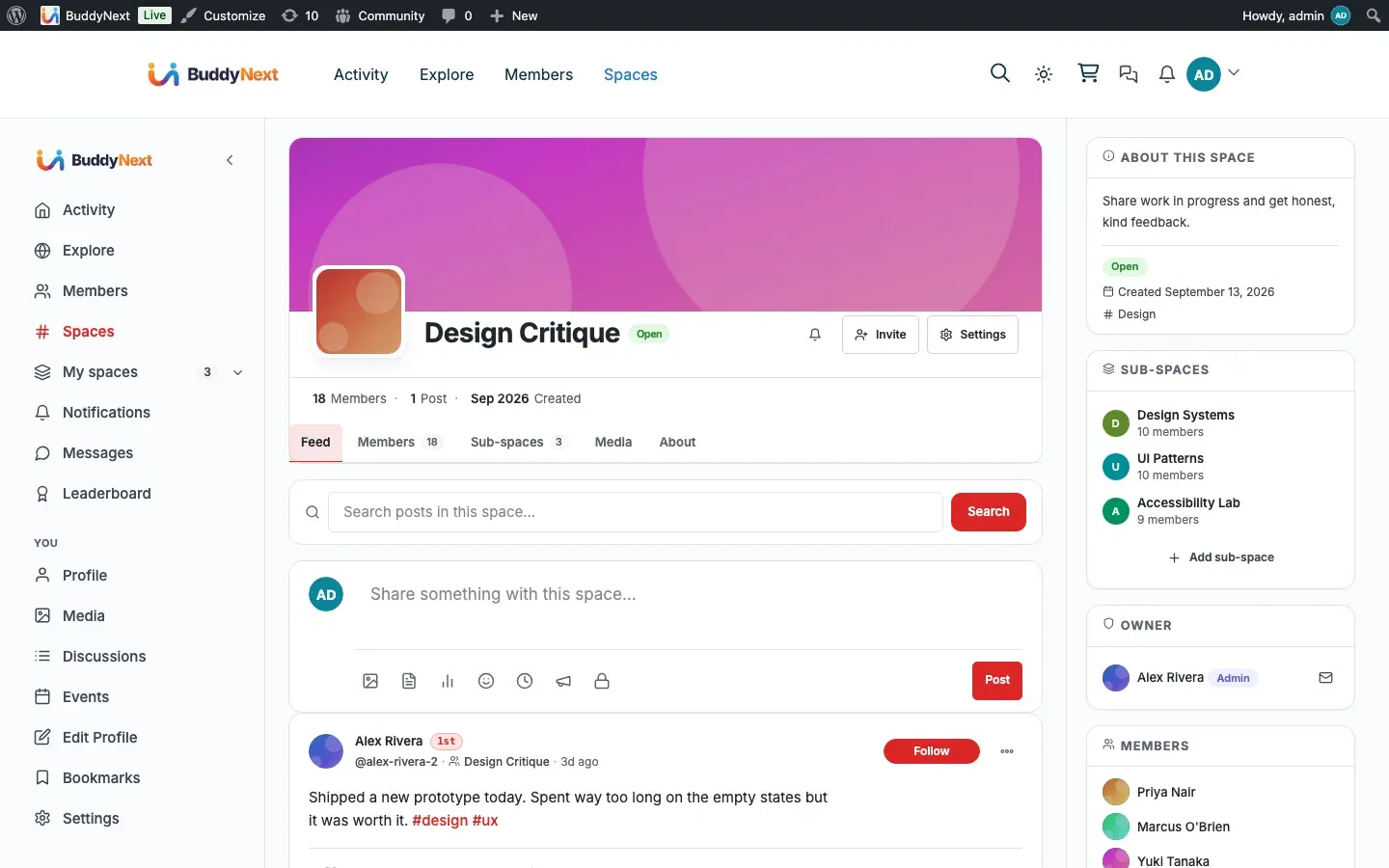
Why it matters
Section titled “Why it matters”Not every group should work the same way. A welcome lounge wants everyone to walk in and start talking. A members-only working group wants to vet who joins before they see the discussion. A leadership channel should not show up anywhere at all unless you are invited. One privacy model cannot serve all three.
The three types cover that range without adding complexity:
- Open removes friction - instant join, public content, maximum reach.
- Private adds a gate - the space is visible and discoverable, but the owner approves each member and the content stays members-only.
- Secret adds invisibility - the space does not appear anywhere and is reachable only by invitation.
Choosing the right type is the single most important decision when starting a space, because it sets both how easy the space is to find and how protected its conversation is.
The three types compared
Section titled “The three types compared”| Open | Private | Secret | |
|---|---|---|---|
| Visibility | Public | Listed | Hidden |
| Listed in the directory | Yes | Yes | No |
| Join method | Join instantly (or request, if the owner requires approval) | Request to join (owner approves) | Invite only |
| Content visible to non-members | Yes | No (gated) | No (hidden entirely) |
Anyone can find the space in the directory, read its feed, and join with a single click. There is no approval step. Use Open for general-interest spaces, public announcements, and anything you want to grow as large as possible.
An open space can optionally vet who joins. Switch on Require approval to join in the space’s Permissions settings and the space stays fully readable to everyone, but a Join click becomes a request that the owner or a moderator approves. This toggle is offered on Open spaces only, because it is the only type where it does anything: private spaces already queue every join, and secret spaces are invite only. See Managing Space Members.
Private
Section titled “Private”The space is listed in the directory so members can find it and see who runs it, but the feed and member content are gated. A non-member can still open the space’s About tab and read its name, description, house rules, and moderator list, so they know who is in charge and what the rules are before deciding to ask for a place. The feed stays locked until they are approved.
Clicking join sends a request that the owner or a moderator approves or declines; the member can cancel a pending request while they wait. Use Private when membership should be vetted but the group’s existence is not a secret - paid cohorts (in Pro), regional chapters, or topic groups that want quality over quantity.
Secret
Section titled “Secret”The space does not appear in the directory or in any public space list, so non-members cannot discover it. There is no join button. The only way in is an invite from the owner, after which the invited member confirms to join. Use Secret for private teams, staff-only channels, and anything that should be invisible to people who were not specifically invited.
Note: A member invited to a secret space still confirms the invite to become a member - there is no silent auto-add. Until they accept, they are recorded as invited, not active.
How a member joins each type
Section titled “How a member joins each type”- Open - the member sees a Join button and clicks it. They become an active member immediately and can post right away. If the owner has switched on Require approval to join, the click files a request instead and the member waits for a decision.
- Private - the member sees a Request to join button. After requesting, they appear in the owner’s pending list and wait for approval. They can withdraw the request before it is answered.
- Secret - the member cannot reach the space on their own. The owner sends an invite, and the member accepts it to join.
A member can leave any space from its page regardless of type. An owner can also ban a member from a space; a banned member cannot rejoin until they are unbanned.
Setting it up (for owners)
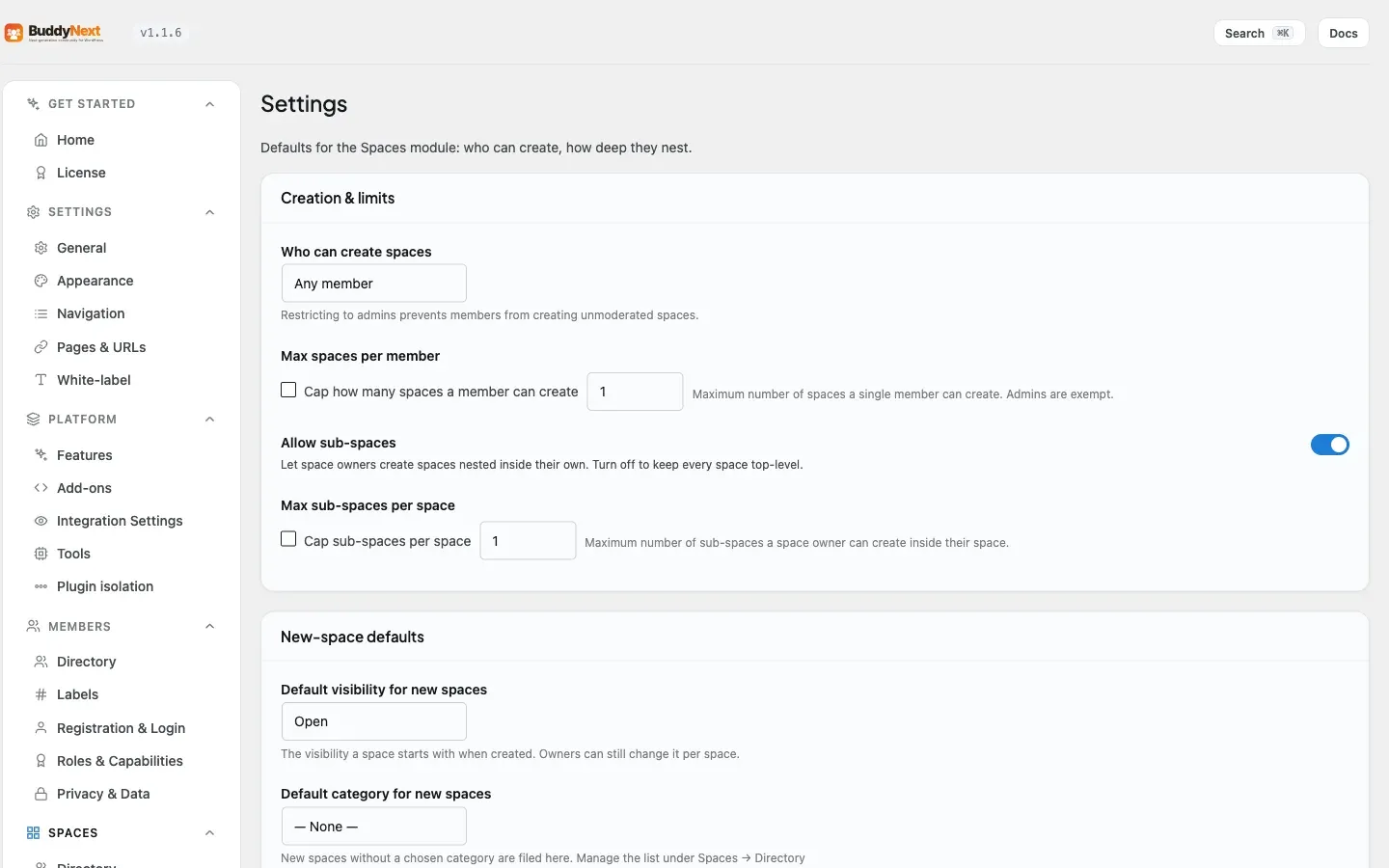
Section titled “Setting it up (for owners)”The privacy type is set per space on the space’s own settings page (Privacy panel). For the site-wide default applied to every newly created space, use the Spaces settings tab.
| Setting | What it does | Default |
|---|---|---|
| Default visibility for new spaces | The type a space starts with when it is created - Open, Private, or Secret. The space owner can change it afterward from the space’s Privacy settings. | Open |
Tip: Leave the default at Open if you want your community to grow easily, or set it to Private if most of your spaces should be vetted. Either way, owners can still override the type on each space.
Good to know
Section titled “Good to know”- Changing type after creation is allowed. An owner can switch a space between types from its Privacy settings. Moving a space to Secret removes it from the directory; moving it back to Open or Private lists it again.
- Secret spaces stay out of every listing. They are excluded from the directory, public space queries, and search results for people who are not members.
- Private content is genuinely gated - but its identity is not. A non-member of a private space can read the About tab (name, description, house rules, moderators) so they can judge whether to ask for a place. The feed and the member content stay locked until they are approved. The gate is about content, not about who runs the space.
- Require approval to join is an Open-space setting. It is shown only on Open spaces, where it turns instant joins into reviewed requests. Private and secret spaces do not offer it because their type already answers the question.
- The owner is always a member. Whoever creates a space is its owner and first member, regardless of type.
Free vs Pro
Section titled “Free vs Pro”The three types - Open, Private, and Secret - and all of their join, leave, and approval behavior are part of BuddyNext free.
BuddyNext Pro adds a fourth dimension on top of these types: membership-gated (paid) spaces. A gated space still uses one of the three privacy types, but it also requires the joining member to hold a specific paid entitlement before the join goes through. When a space is marked as gated, the join check verifies the member’s access and shows an upgrade prompt to anyone who lacks it; members who qualify join normally. This lets you sell access to a space as part of a membership plan. See the Gated Spaces documentation for how to configure paid access and connect it to your membership plans.
Related
Section titled “Related”- Managing Space Members - approvals, invites, and the Require-approval toggle
- Spaces - how the type shapes discovery and joining
- Gated Spaces - the Pro paid dimension on top of the three types