

My Applications
The My Applications tab in the Candidate Dashboard shows every job you have applied for and its current status.
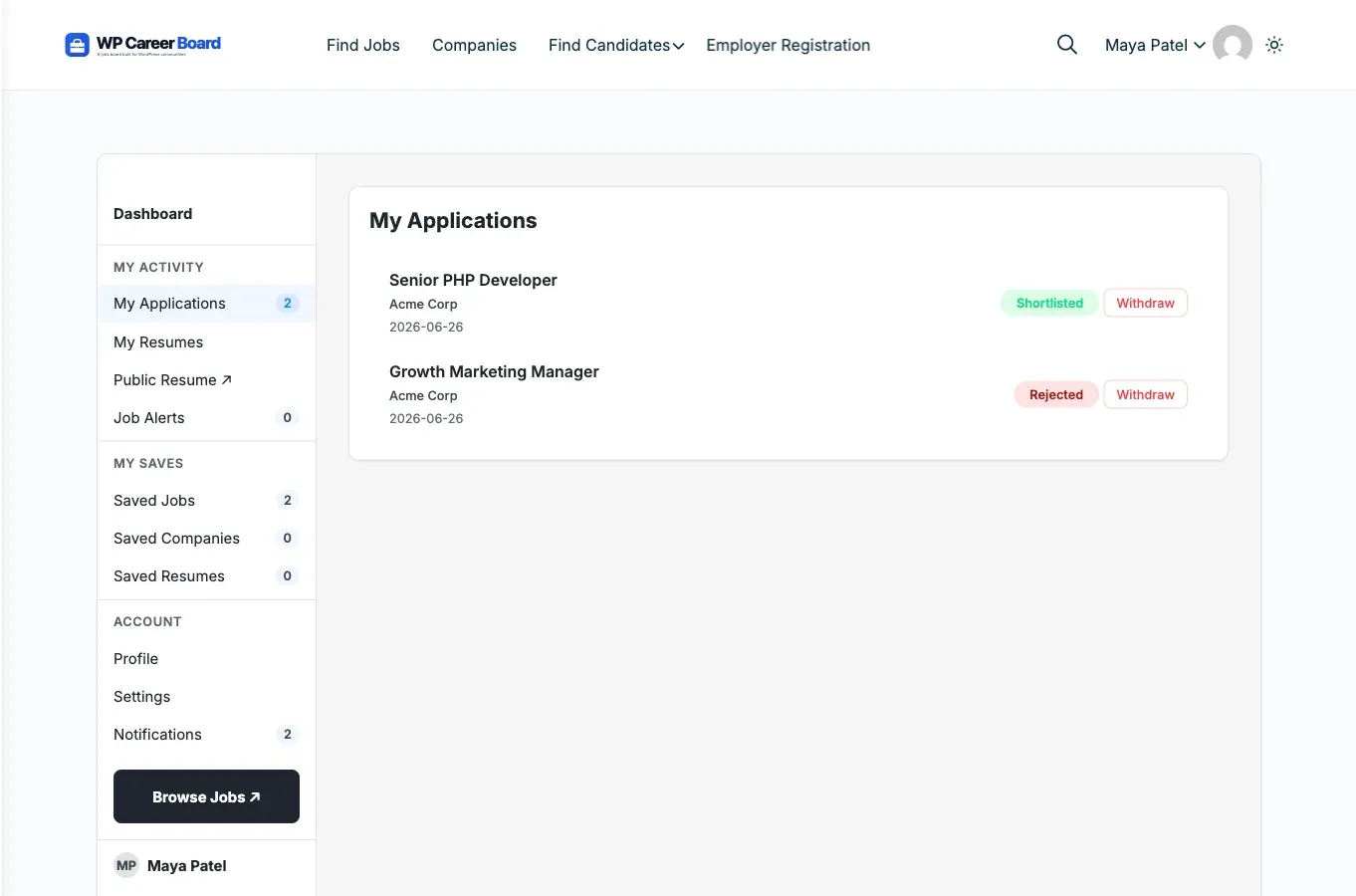
Accessing My Applications
Section titled “Accessing My Applications”- Go to the Candidate Dashboard page
- The My Applications tab is active by default
- You will see all your applications listed newest first
Table format
Section titled “Table format”The My Applications list renders as a semantic table with column headers, so the data is screen-reader friendly and copy/paste-able into a spreadsheet without losing structure. The list is part of the Candidate Dashboard block (shortcode [wcb_candidate_dashboard]); there is no separate applications-only shortcode.
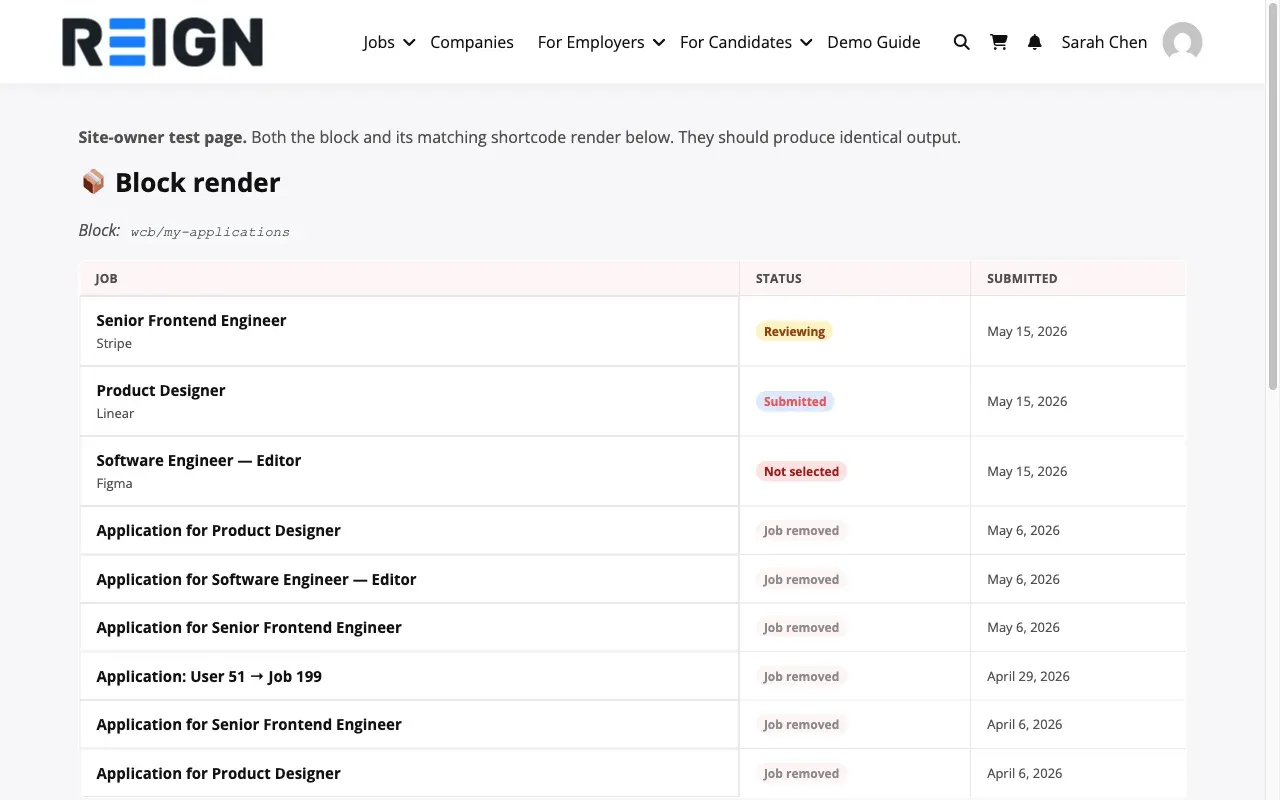
| Column | What it shows |
|---|---|
| Job | Job title (linked to the listing) and company name |
| Status | Coloured status badge - see the table below for each badge’s meaning |
| Submitted | Application date in your site’s date format |
On narrow viewports (under 480px container width) the table collapses to a card layout - each row’s cells stack vertically with their column label in-place, so phones get the same data without a horizontal scrollbar.
What You See per Application
Section titled “What You See per Application”Each row shows:
- Job title and company name
- Application date
- Current status - updated by the employer
- A link to view the original job listing
Application Statuses
Section titled “Application Statuses”| Status | What It Means |
|---|---|
| Submitted | Your application was received; the employer hasn’t reviewed it yet |
| Reviewing | The employer is actively looking at your application |
| Shortlisted | You’re being considered - the employer is interested |
| Rejected | The employer is no longer considering your application |
| Hired | Congratulations - you got the job |
| Withdrawn | You withdrew this application; it is no longer active |
| Job Removed | The job posting was taken down. Your application is preserved in your history, but no further action is expected. |
Status updates: You will receive an email notification whenever your application status changes.
Withdrawing an Application
Section titled “Withdrawing an Application”To withdraw from a role you are no longer interested in:
- Find the application in the list
- Click the Withdraw button
- Confirm in the prompt
Withdrawing permanently deletes the application. It is removed from both your dashboard and the employer’s view. You cannot resubmit after withdrawing.
The Withdraw button only appears when the site allows it. Site owners can disable withdrawals under Career Board → Settings → Listings → Allow Withdraw (on by default).
Overview Panel
Section titled “Overview Panel”The Overview tab at the top of the dashboard shows a summary of your recent activity:
- Total applications submitted
- Number of shortlisted applications
- Most recent applications
- Recently saved jobs
- Counts for Saved Jobs, and (with Pro) Resumes and Job Alerts, as clickable stat cards that jump to the matching tab
This gives you a quick snapshot without switching between tabs.