

Search
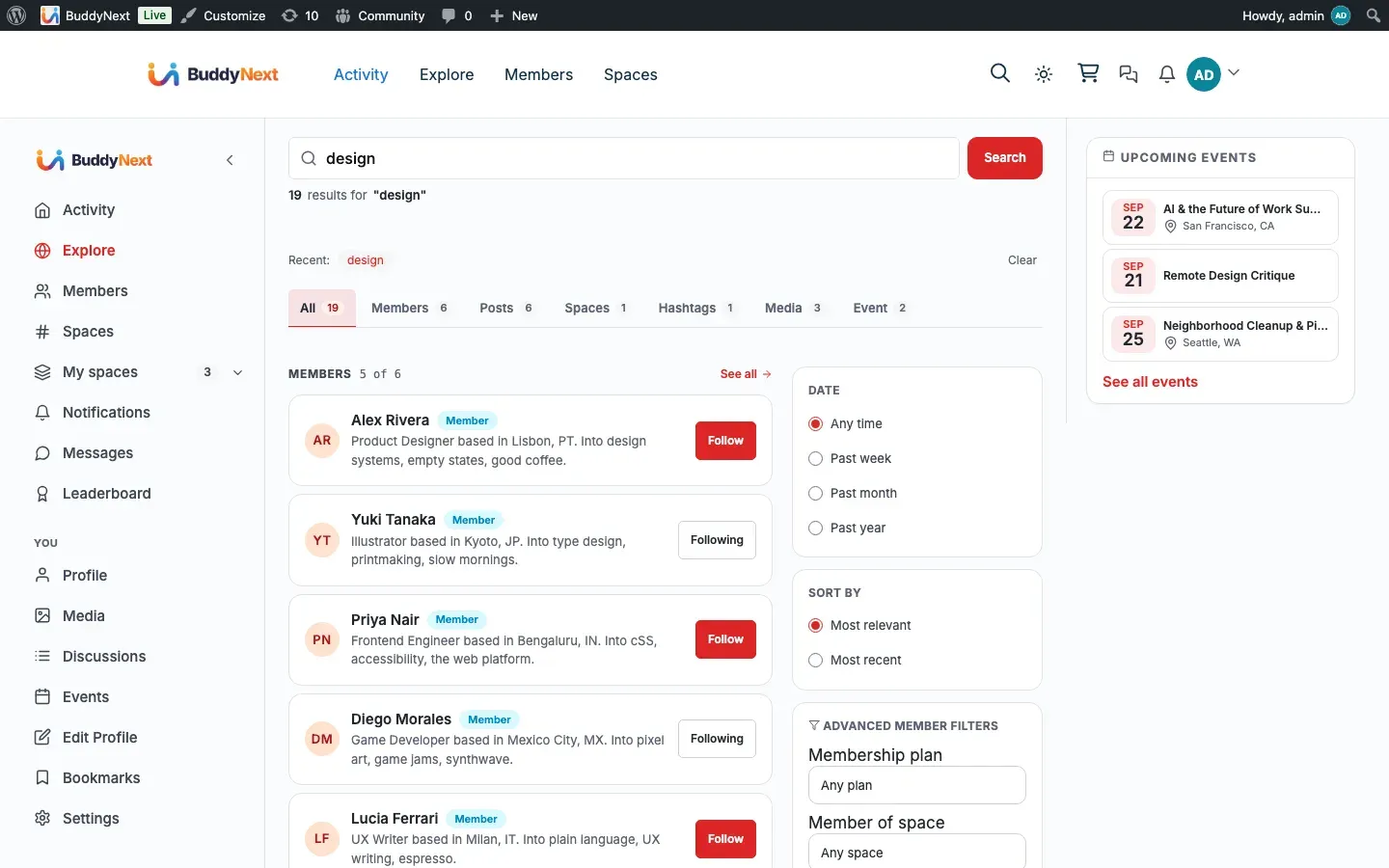
Search lets anyone find members, posts, spaces, and hashtags from one query. Type a word and BuddyNext returns grouped, viewer-aware results across the whole community.
Why use it
Section titled “Why use it”A growing community quickly holds thousands of posts, hundreds of members, and dozens of spaces. Without search, people give up looking and the community feels smaller than it is. Good search is how a new member finds the people they came for, how a long-time member re-finds a discussion from last month, and how anyone discovers a space they did not know existed.
Search returns results grouped by type - members, posts, spaces, hashtags, and media - so a person scanning the page can jump straight to the kind of thing they want. Because results are viewer-aware, every member sees a result set that is correct for them: nothing from people they have blocked, and nothing from suspended or shadow-banned authors. That keeps search trustworthy, which is what keeps people using it.
For the site owner, search needs no day-to-day attention. Content is indexed automatically as members post, and the index keeps itself current.
How it works (for members)
Section titled “How it works (for members)”Run a search
Section titled “Run a search”- Open the search page, which lives under your community’s activity area.
- Type a query into the search box and submit. The page reloads with grouped results.
- Results are split into sections: Members, Posts, Spaces, Hashtags, and Media.
You can also press the / key on any community page to open a quick-search box that suggests results as you type.
Filter results by type
Section titled “Filter results by type”Above the results, type tabs let you narrow to a single kind of result:
- All (the default - shows every section)
- Members
- Posts
- Spaces
- Hashtags
- Media
Selecting a tab shows only that section, which is faster when you already know what you are looking for.
Sort and date controls
Section titled “Sort and date controls”Results carry date and sort controls so you can order them by recency or relevance and limit them to a time window. Changing a control reloads the results with the new ordering.
What you will and will not see
Section titled “What you will and will not see”- Results are limited to what you are allowed to see. A logged-out visitor matches public content only. A signed-in member additionally matches profile details the owner marked searchable and set to “Members only”.
- Private posts and content from spaces you cannot see are never shown.
- Content from members you have blocked is excluded.
- Content from suspended or shadow-banned authors is excluded for everyone except admins.
Note: Search works without JavaScript. The query form and the type tabs submit as plain page loads, so results are reachable on any device or connection.
Search inside one space
Section titled “Search inside one space”Community-wide search answers “where in the community is this?”. Inside a busy space that is the wrong question - the answer is mostly other spaces. Since 1.1.5 a space’s Feed tab carries its own search box that returns only that space’s posts.
Type a term and press Search. The feed is replaced by the matches, shown as the same post cards, so you can react, comment and open them exactly as you would in the feed. Clear puts the feed back.
- Results are paged. Twenty per page, with Previous and Next. A space large enough to need search is large enough to have more than twenty matches, and all of them are reachable.
- The address bar keeps your search. The result page is an ordinary link, so you can bookmark it or send it to someone who can also see that space.
- It works without JavaScript, like the members search on the same space.
- Nothing is offered that cannot answer. In a space you are not allowed to read, the search box is not shown at all - and a hand-typed search address returns nothing rather than a count. A result count on a private space would itself say something about what is in it.
Privacy follows the space, not the search. You see exactly the posts you could already see by scrolling: a private space’s posts if you are an active member of it, and nothing from it if you are not.
Setting it up (for owners)
Section titled “Setting it up (for owners)”Search is on as soon as BuddyNext is active - there are no keys to enter and no provider to connect. Indexing runs automatically in the background as members create, edit, or delete content.
The Search Bar block
Section titled “The Search Bar block”You can place a search input anywhere on your site with the Search Bar block. Add it through the block editor, where it is named “Search Bar” in the BuddyNext block category. It renders a unified search input that opens the grouped results page. The block has one option:
| Setting | What it does | Default |
|---|---|---|
| Placeholder | The grey hint text shown inside the empty search field | Empty (uses the built-in default text) |
The block also supports the standard editor controls for background and text color, font size, padding, and margin, so it fits the design of whatever page you place it on.
Public explore and search visibility
Section titled “Public explore and search visibility”The search page is safe to expose to logged-out visitors: a signed-out search matches public content only, and it never reaches the members-only plan of the index. The related visibility control for guests is the public explore feed - see Explore for how to make discovery surfaces members-only.
Reindexing
Section titled “Reindexing”You do not normally need to reindex. The index is updated as content changes. A full rebuild runs automatically when needed (for example after activation), handled in the background so it never blocks a page load. On large communities the rebuild is queued and processed in batches rather than all at once.
Good to know
Section titled “Good to know”- Full-text matching. Search uses the database’s full-text engine to match words in titles and content, with a simpler word-match fallback in environments where full-text is unavailable. Members do not need to do anything different; results just work.
- People are found by their profile details. The Members section matches a person’s name and username as well as the profile details they have filled in - their bio, headline, and any fields the owner made searchable, such as skills or role. It is the same matching the member directory uses, so a search here and a search in the directory turn up the same people.
- A searchable field reaches as far as its visibility allows. A Public searchable field can be matched by anyone, including a logged-out visitor. A Members-only searchable field is matched only for signed-in members - a stranger never matches it. Fields set to Followers only, Connections only, or Only me are never put into the index at all, so they cannot be matched by anyone. See Custom Profile Fields.
- Choice fields are matched by the label you wrote. A dropdown, radio, or multi-select value is indexed under the label members actually see (“French Horn”), not an internal slug. Multi-word options and accented options (for example “Flügelhorn”) are found by typing them the way they are written. On sites in languages with accented characters this used to make some members permanently unfindable.
- Empty query. Submitting an empty query does not error. The page shows an empty state prompting you to type something.
- Secret spaces stay hidden. Spaces marked secret are indexed as private, so they never surface in public results.
- Newly posted content. Indexing is near-immediate, but on a very busy site a brand-new post may take a moment to appear in search while the background job runs.
- Discoverability. The main left-hand navigation does not include a dedicated Search link by default; members reach search through the on-page search box, the
/shortcut, the Search Bar block, or any search link your theme provides.
Free vs Pro
Section titled “Free vs Pro”Unified search across members, posts, spaces, hashtags, and media - with viewer-aware filtering and the Search Bar block - is included free.
Pro adds advanced member filters on the search page. When BuddyNext Pro is active, the results page shows an “Advanced member filters” card that lets members narrow people by:
- Membership plan
- Space they belong to
- Member label
- Joined after a chosen date
- Active within a chosen number of days
Pro also adds saved searches, so a member can save a filter combination and re-run it later. These filters apply when there is a query and do not change the free behavior - when Pro is inactive, the advanced card is hidden and core search keeps working. The space filter only ever offers spaces the viewer already belongs to, so the advanced filters stay privacy-aware.
Related
Section titled “Related”- Explore - the public discovery deck alongside search
- Custom Profile Fields - which fields search can match, and how far
- Hashtags - the hashtag results search returns
- Advanced Member Search (Pro) - the Pro filters on the results page