

Sending Emails to Students
The Email tab lets you send messages directly to your students from the LearnDash Dashboard — no external email tool needed. You can reach an individual student, everyone in a course, or all members of a group. Every email you send is logged, and the system retries delivery automatically if something goes wrong.
Find this feature at My Dashboard > Email in the sidebar.
Screenshots
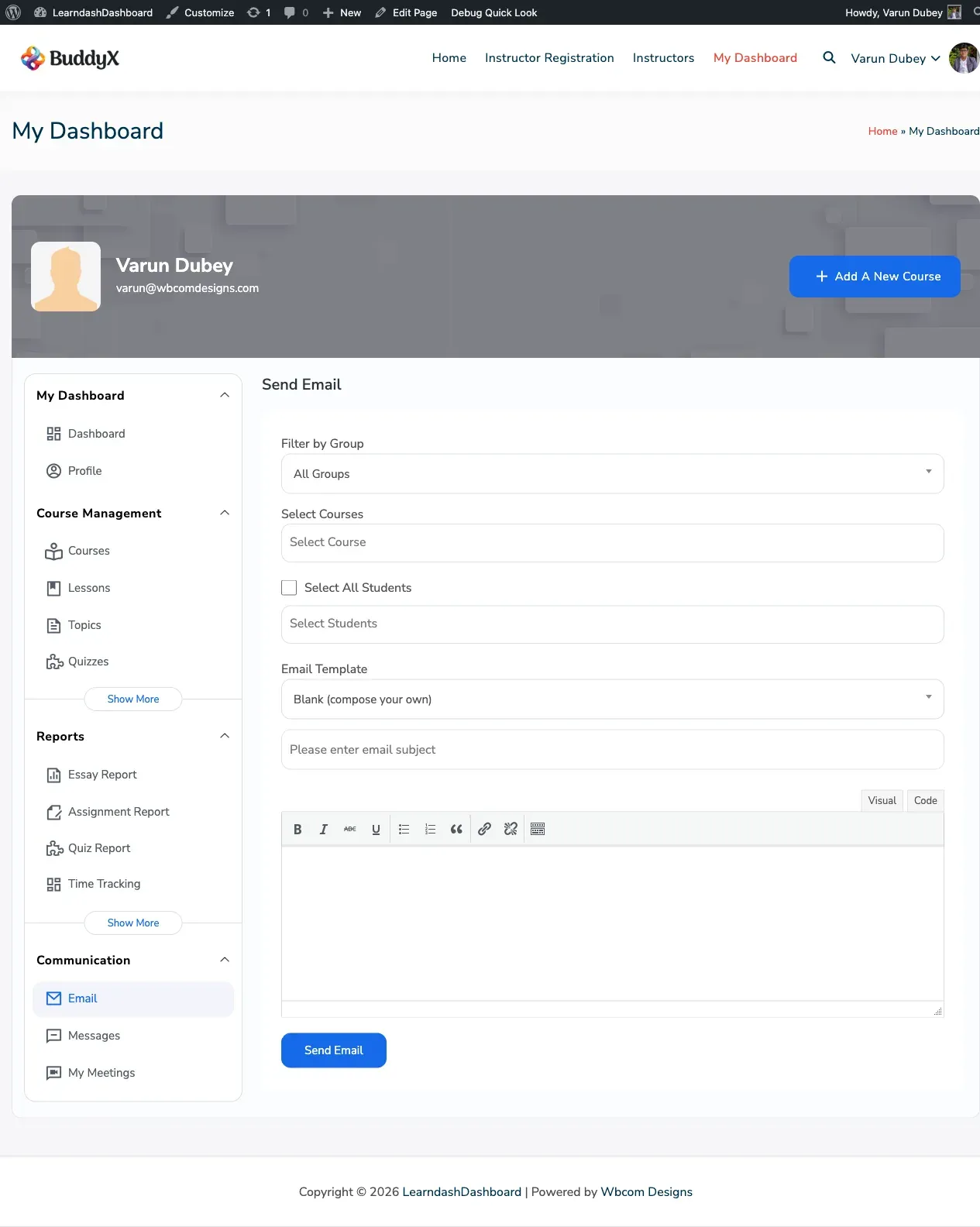
Section titled “Screenshots”Admin view
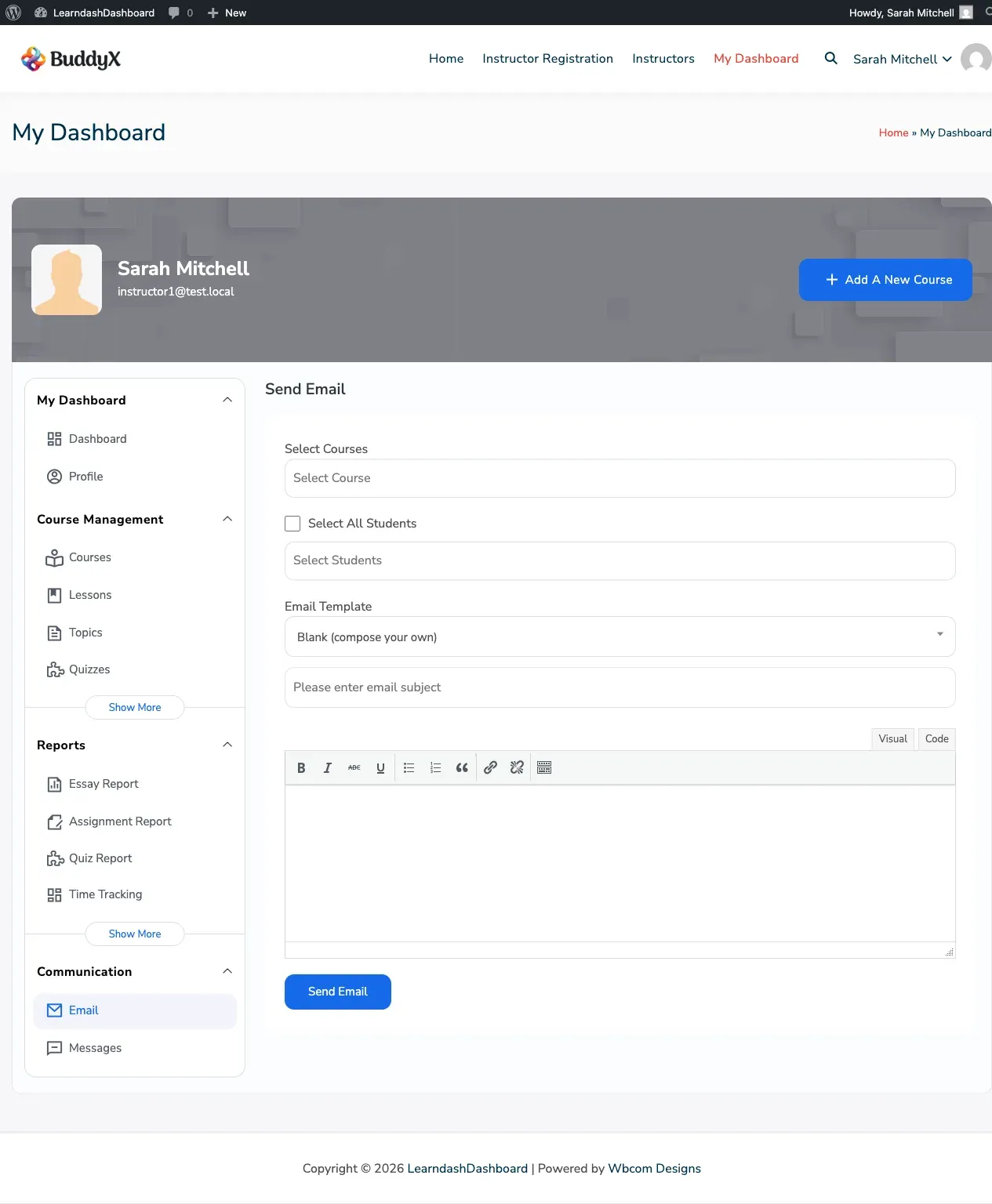
Instructor view
How to Send an Email
Section titled “How to Send an Email”Step 1: Open the Email Composer
Section titled “Step 1: Open the Email Composer”- Go to My Dashboard.
- Click Email in the sidebar.
- The email composer opens with fields for recipients, subject, and message.
Step 2: Choose Your Recipients
Section titled “Step 2: Choose Your Recipients”Select who should receive your email:
| Option | Who Receives It |
|---|---|
| Course | All students currently enrolled in a specific course |
| Group | All members of a specific group |
| Individual | A single student you search by name or email |
Your role determines which options are available:
| Your Role | Who You Can Email |
|---|---|
| Administrator | Any student, any course, any group |
| Instructor | Students enrolled in your own courses only |
| Group Leader | Members of your assigned groups only |
Step 3: Apply a Template (Optional)
Section titled “Step 3: Apply a Template (Optional)”Click Select Template to choose from a set of pre-written email templates. Selecting one fills in the subject line and message body for you. You can edit both before sending.
See Email Templates for the full list of templates and how personalization tags work.
Step 4: Write and Send
Section titled “Step 4: Write and Send”- Fill in the Subject field.
- Write your message in the Message body. You can use personalization tags to automatically insert each recipient’s name, course title, and other details. See Email Templates for the full list of available tags.
- Click Send Email.
The dashboard queues your email immediately and shows a confirmation. Delivery happens within about a minute.
Email Delivery and Logs
Section titled “Email Delivery and Logs”Emails are sent through a delivery queue — they do not go out the instant you click send, but they are delivered within approximately one minute. If a delivery fails, the system retries it automatically.
Every email you send is recorded in the logs. Administrators can review the full delivery history, including delivery status and any errors, under Admin > Email Logs.
Invite User Settings (Admin)
Section titled “Invite User Settings (Admin)”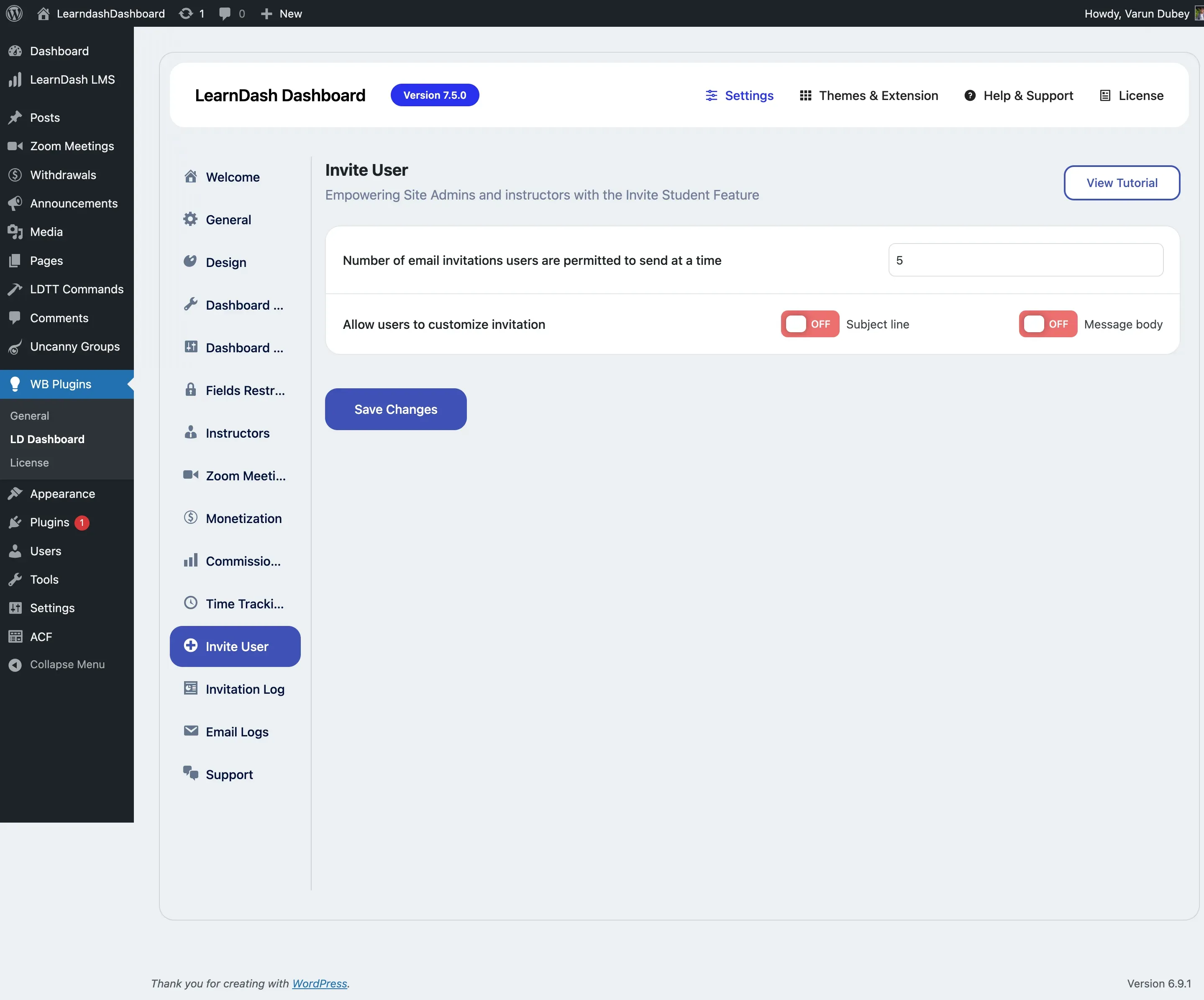
Administrators can configure how the student invitation feature works under WP Admin > LearnDash Dashboard > Invite User.
| Setting | Description | Default |
|---|---|---|
| Number of email invitations users are permitted to send at a time | Limits how many invitation emails an instructor or admin can send in a single batch. Set this to prevent bulk spam. | 5 |
| Allow users to customize invitation — Subject line | When enabled, instructors can edit the invitation email subject before sending. When off, the default subject is used. | Off |
| Allow users to customize invitation — Message body | When enabled, instructors can edit the invitation email body before sending. When off, the default message is used. | Off |
Invitation Log (Admin)
Section titled “Invitation Log (Admin)”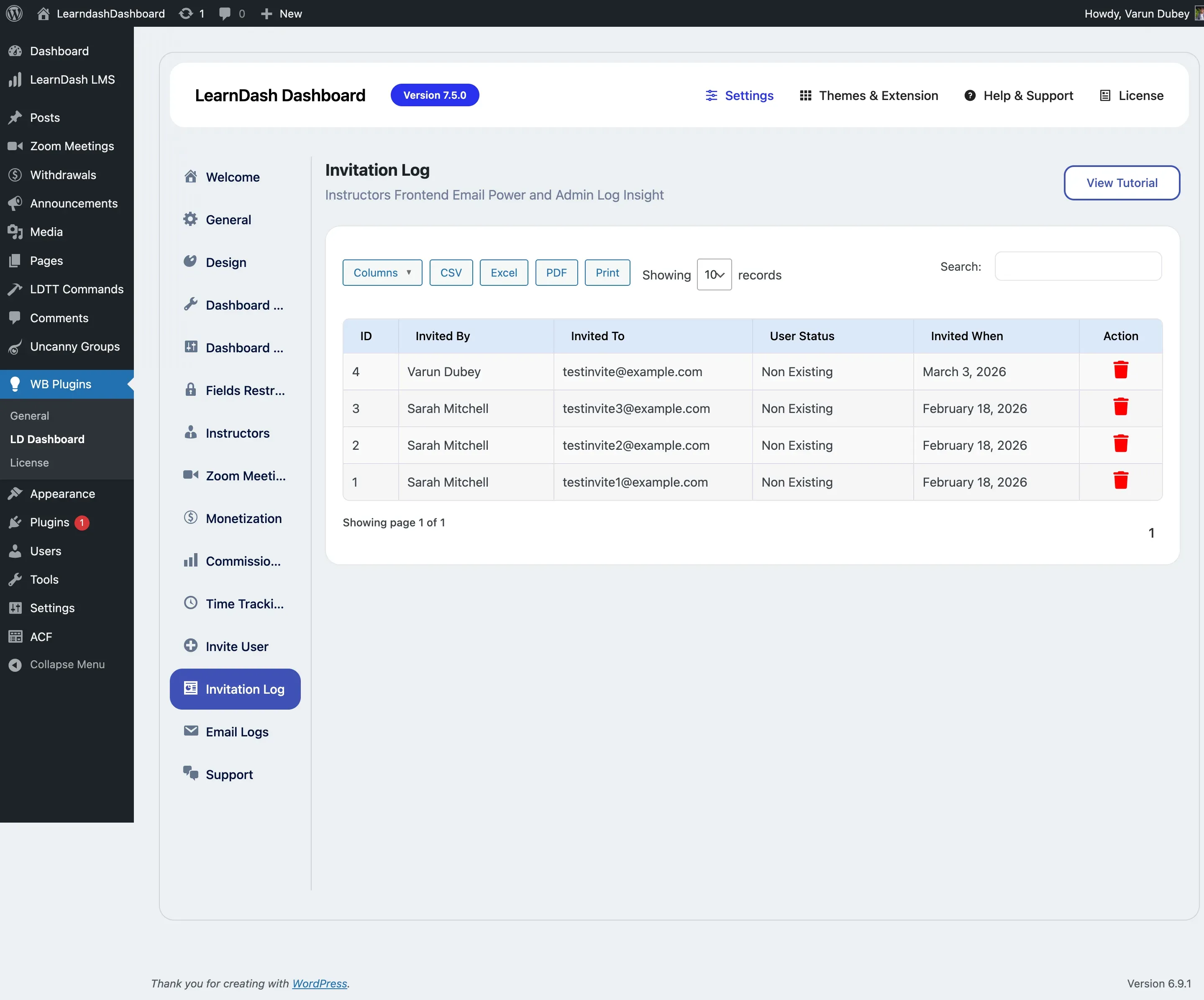
Administrators can view all invitation activity under WP Admin > LearnDash Dashboard > Invitation Log. This page shows a searchable table of every invitation sent from the dashboard.
| Column | What It Shows |
|---|---|
| ID | Unique invitation record number |
| Invited By | The instructor or admin who sent the invitation |
| Invited To | The email address or user who received the invitation |
| User Status | Whether the invited person has registered on the site |
| Invited When | Date and time the invitation was sent |
| Action | Options to resend or delete the invitation record |
Use this log to track which instructors are actively inviting students and to verify that invitations are being delivered.