

Custom Field Builder
Pro feature — Requires WP Career Board Pro.
The Field Builder lets you add custom fields to job listings, company profiles, and candidate profiles — no code required. Fields appear automatically in the relevant forms and public pages.
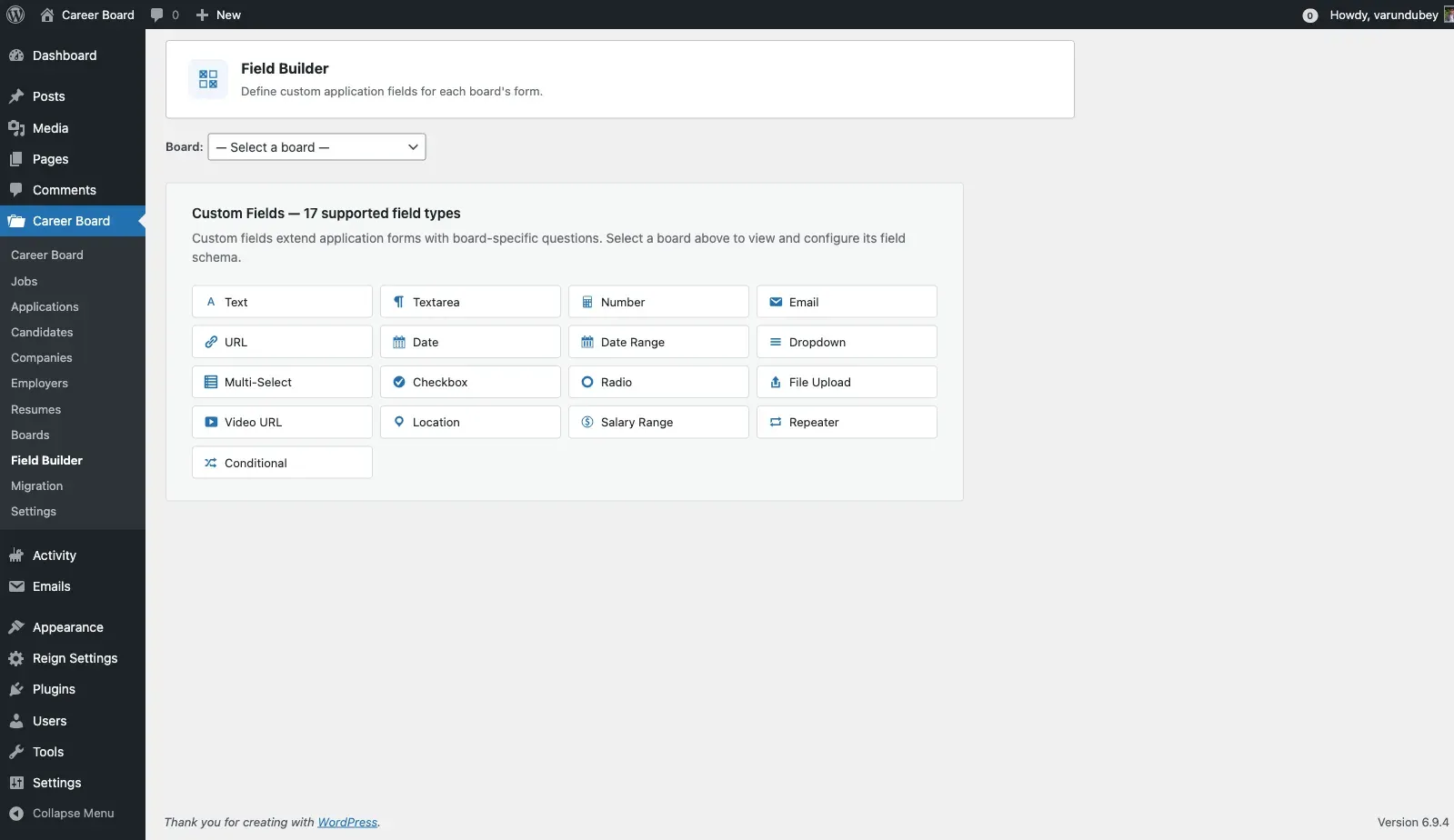
What You Can Add
Section titled “What You Can Add”- Fields to job listings — e.g., Remote Policy, Visa Sponsorship, Tech Stack
- Fields to company profiles — e.g., Funding Stage, Team Size, Benefits
- Fields to candidate profiles — e.g., Notice Period, Preferred Work Style, Portfolio URL
Accessing the Field Builder
Section titled “Accessing the Field Builder”Go to Career Board → Settings → Field Builder in wp-admin.
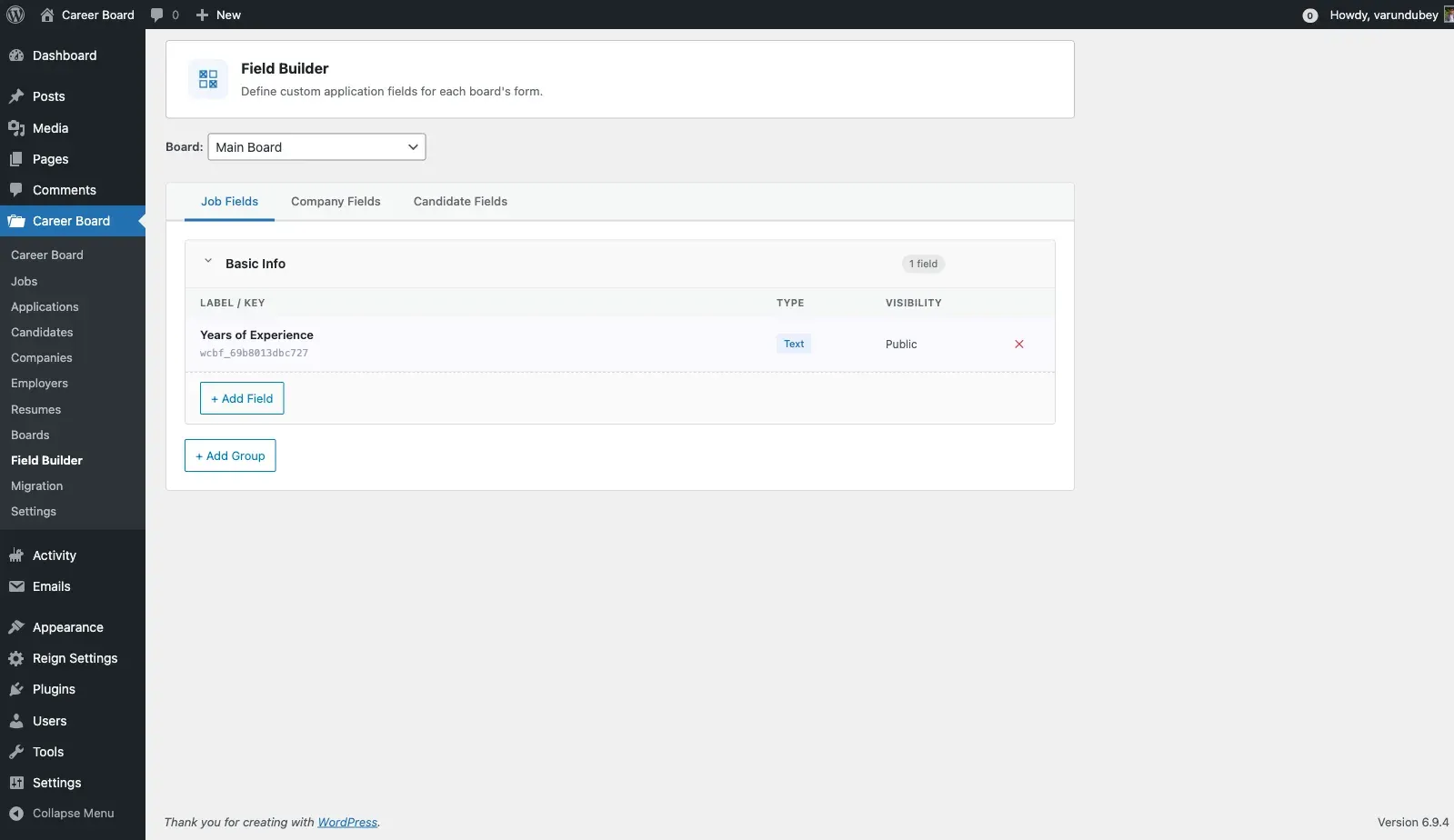
You will see three tabs:
- Job Fields — fields added to job listings
- Company Fields — fields added to company profiles
- Candidate Fields — fields added to candidate profiles
Creating a Field Group
Section titled “Creating a Field Group”Fields are organized into groups — collapsible sections with a label (e.g., “Compensation Details”).
- Click Add Group
- Enter a group label
- Click Save Group
You can create multiple groups to organize related fields.
Adding a Field
Section titled “Adding a Field”- Expand the group where you want to add the field
- Click + Add Field
- Configure the field:
| Setting | Description |
|---|---|
| Field Label | The label shown on the form and public page |
| Field Type | Text, Textarea, Number, Select, Checkbox, Date, URL, File Upload |
| Required | Whether the field must be filled in |
| Visibility | Public, Logged In Only, Employer Only, Candidate Only |
| Placeholder | Hint text shown inside the input |
| Options | The choices available (for Select and Checkbox fields) |
- Click Save Field
Field Types
Section titled “Field Types”| Type | Use for |
|---|---|
| Text | Short values — tech stack, notice period, LinkedIn URL |
| Textarea | Longer text — benefits overview, culture note |
| Number | Salary, team size, years of experience |
| Select | Single-choice dropdown — Remote Policy, Visa Sponsorship |
| Checkbox Group | Multiple choices — Benefits, required skills |
| Toggle | Single on/off — “Visa sponsorship available?” |
| Date | Application deadline, estimated start date |
| URL | Portfolio, GitHub, external job link |
| File Upload | Attach a PDF, document, or image |
Visibility Rules
Section titled “Visibility Rules”Each field can be set to:
- Public — visible to all visitors including guests
- Logged in only — visible to registered users only
- Employer only — visible only to employers (e.g., on the job form)
- Candidate only — visible only to candidates
Reordering
Section titled “Reordering”Drag and drop fields within a group to reorder them. Drag and drop groups to change their order. Changes save automatically.
Deleting a Field
Section titled “Deleting a Field”Click Delete on any field. This permanently removes the field and all stored values across all posts. This cannot be undone.
Where Fields Appear
Section titled “Where Fields Appear”| Field Type | Appears in | Displayed on |
|---|---|---|
| Job Fields | Multi-step Job Form | Job single page |
| Company Fields | Company Profile editor | Public company page |
| Candidate Fields | Candidate profile settings | Candidate profile |