

Course SEO and Sharing
Course SEO and Sharing
Section titled “Course SEO and Sharing”Every course page already produces a sensible search snippet and a rich link preview with nothing configured: the title comes from the course title, the description from the start of the course description, and the share image from the course thumbnail.
When you want to write those yourself, each course has a Search & Sharing section with five fields. Leave any of them empty and that value keeps deriving exactly as it did before, so turning this on for one course changes nothing about the rest.
What you can do
Section titled “What you can do”- Control the title and description a course shows in Google results, instead of letting the search engine pick from your page.
- Control the image and text that appear when someone pastes the course link into WhatsApp, Slack, LinkedIn or X.
- Hide a course from search engines while leaving it reachable by anyone with the link.
- Hand all of this to Yoast or Rank Math instead, if you already run one of them.
How to use it
Section titled “How to use it”Step 1 - open the course and find the SEO panel
Section titled “Step 1 - open the course and find the SEO panel”Edit the course and expand the SEO and sharing panel. It is collapsed by default, near the bottom of the settings.
Step 2 - write the search title and description
Section titled “Step 2 - write the search title and description”Write them for the person reading the search result, not for the search engine. The description is the two lines under your link in Google, so say what the learner will be able to do at the end of the course.
Leave a field blank and Learnomy falls back to the course title and short description, which is usually fine for most of your catalog. Fill these in for the courses you actually promote.
Step 3 - set the sharing image
Section titled “Step 3 - set the sharing image”The sharing image is what people see when your link is pasted into a chat. Without one, most platforms show a bare link or pick something arbitrary from the page. Use the course thumbnail if you have nothing better.
Step 4 - decide whether search engines should index it
Section titled “Step 4 - decide whether search engines should index it”Leave indexing on for anything you want found. Turn it off for a course that is only for people you send the link to - it stays reachable, it just stops appearing in results.
Step 5 - check it
Section titled “Step 5 - check it”Paste the course URL into a private chat with yourself and confirm the card shows the title, description and image you set. This is the only way to see what you have actually configured.
Where to find it
Section titled “Where to find it”Open a course for editing and expand Search & Sharing. It is on all three editors – the wp-admin course editor, the front-end course builder (Pro), and the REST API – so whichever way you author, the same five fields are there.
The fields
Section titled “The fields”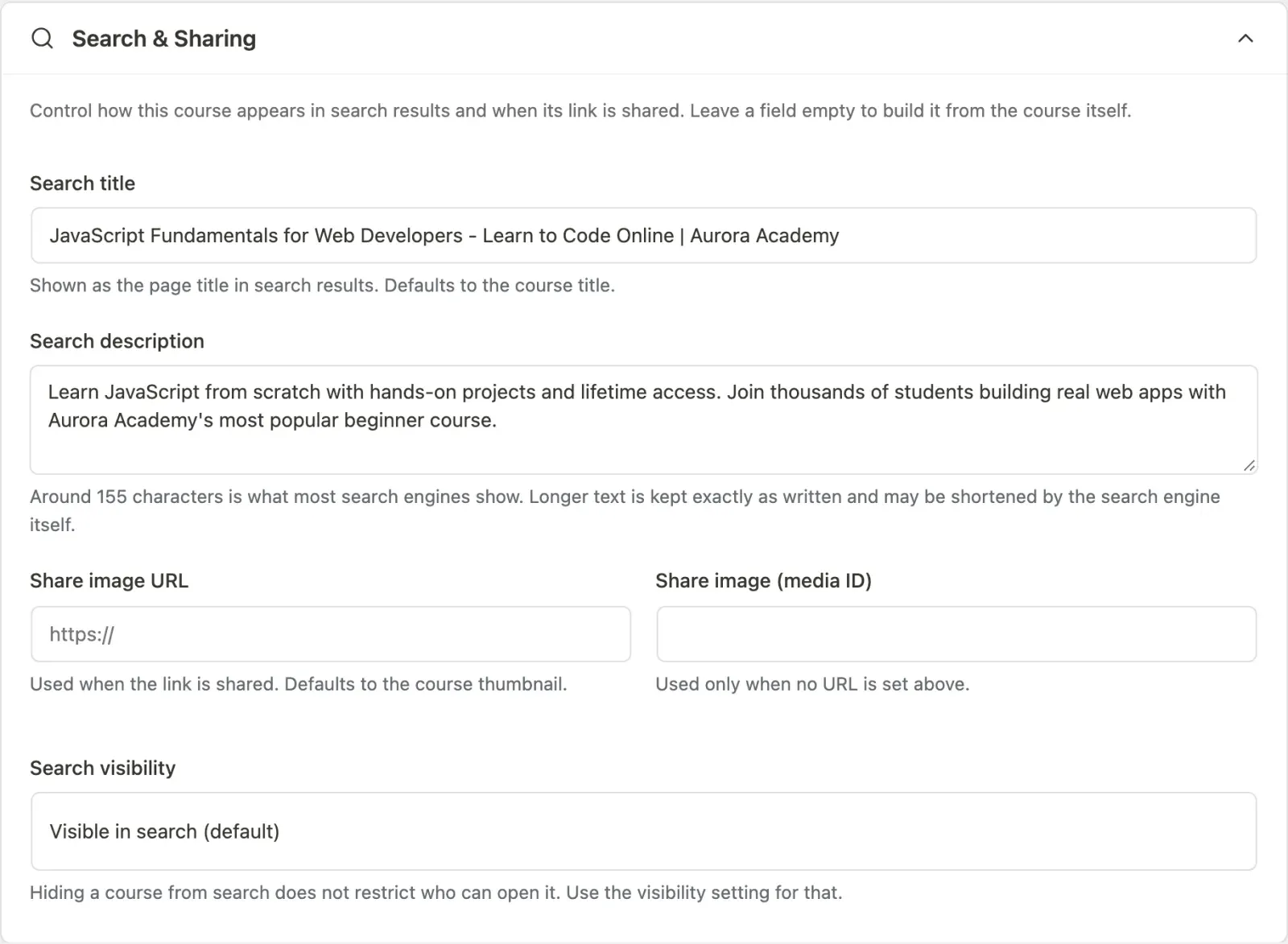
| Field | What it controls | When left empty |
|---|---|---|
| Search title | The <title> of the course page and the og:title in a shared link |
The course title |
| Search description | The meta description and og:description |
The first part of the course description |
| Share image URL | The image a shared link shows (og:image) |
The course thumbnail, then the site logo |
| Share image (media ID) | The same, picked from the media library | Used only when no Share image URL is set |
| Search visibility | Whether search engines may index the course | Visible in search |
A couple of details worth knowing:
- Search title also changes the page title, not just the social preview. If you set one, you are naming the page as search will show it.
- Search description is not truncated. Derived descriptions are capped at 155 characters so machines get a clean snippet, but a description you typed is printed in full – if you wrote 200 characters, you meant them.
- Share image URL wins over the media ID. This mirrors how the course thumbnail already resolves, so a course imported with an external image URL keeps working without an attachment in the library.
Search visibility
Section titled “Search visibility”Search visibility is a fixed list, not a free-text robots field:
- Visible in search (default) – no robots directive is printed.
- Hide from search – prints
noindex. - Hide from search and do not follow its links – prints
noindex,nofollow.
Free text is deliberately not offered. A typo such as no-index is silently
ignored by crawlers, so you would believe a course was hidden while it stayed
indexed.
Hiding a course from search is not access control. A noindex course is
still public to anyone with the link. To actually restrict who can open it, use
a pricing model that gates access – see
Pricing and Access Models and
Invite-Only Courses – or turn on Private site in
General Settings.
If you also run Yoast SEO or Rank Math
Section titled “If you also run Yoast SEO or Rank Math”These fields are still the ones that apply. Courses live in Learnomy’s own tables rather than as WordPress posts, so Yoast and Rank Math cannot see a course at all and offer no snippet editor for one. Learnomy keeps ownership of the head tags on its own pages for exactly that reason. See SEO Plugin Handoff for what each plugin owns where.
For developers
Section titled “For developers”The five values are columns on the course row – seo_title,
meta_description, og_image_url, og_image_id and meta_robots – and are
readable and writable through the course REST endpoints alongside every other
course field.
learnomy_meta_description_max_length– filter (int, default155) for the cap applied to derived descriptions. An authored Search description is never capped, regardless of this value.learnomy_seo_yield_to_plugin– filter (bool) controlling whether Learnomy suppresses its canonical and Open Graph tags in favour of another SEO plugin. See SEO Plugin Handoff.