

My Certificates
Overview
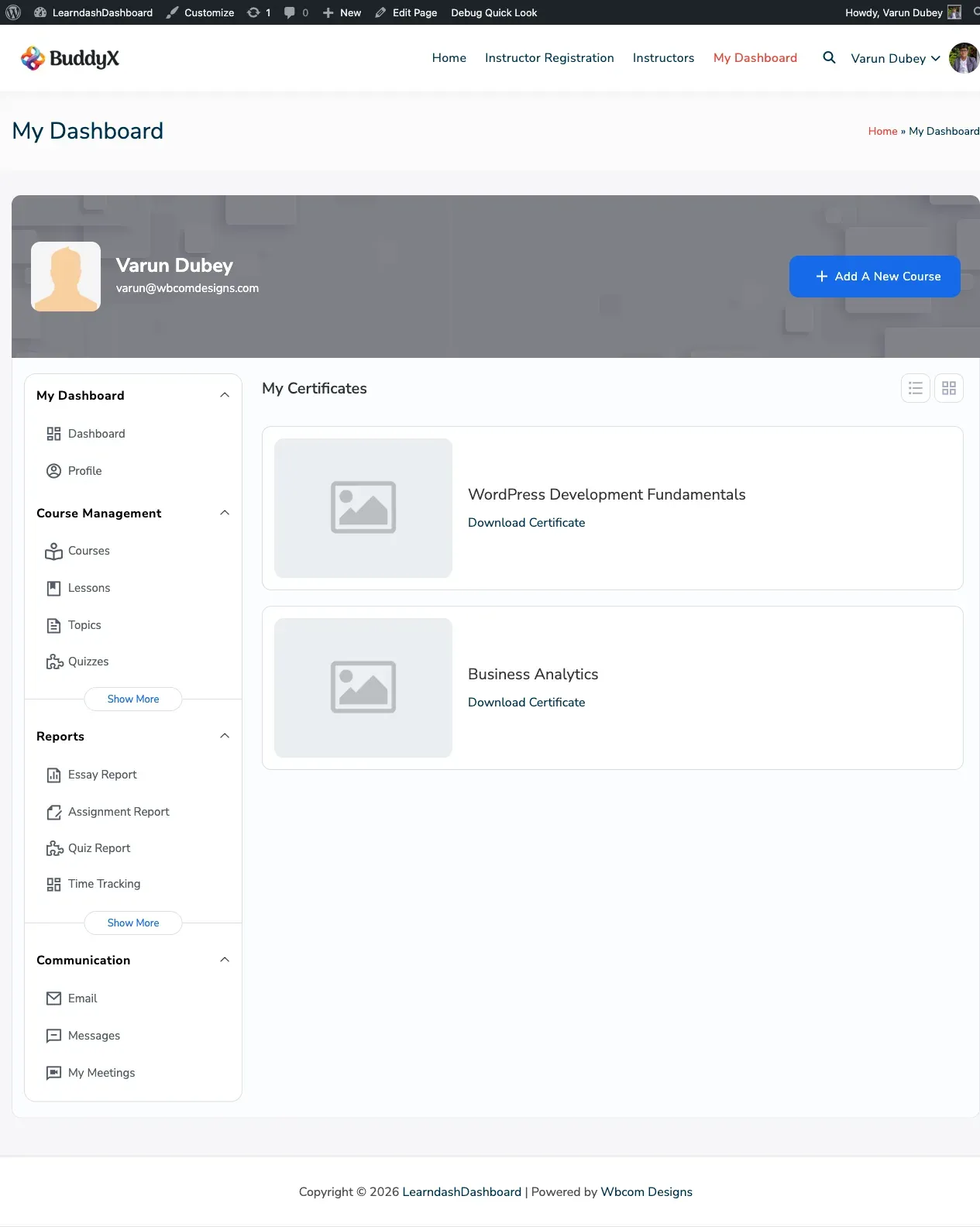
Section titled “Overview”The My Certificates section collects all the certificates you’ve earned in one place. You can view and download each certificate as a PDF directly from your dashboard.
Screenshots
Section titled “Screenshots”How It Looks
Section titled “How It Looks”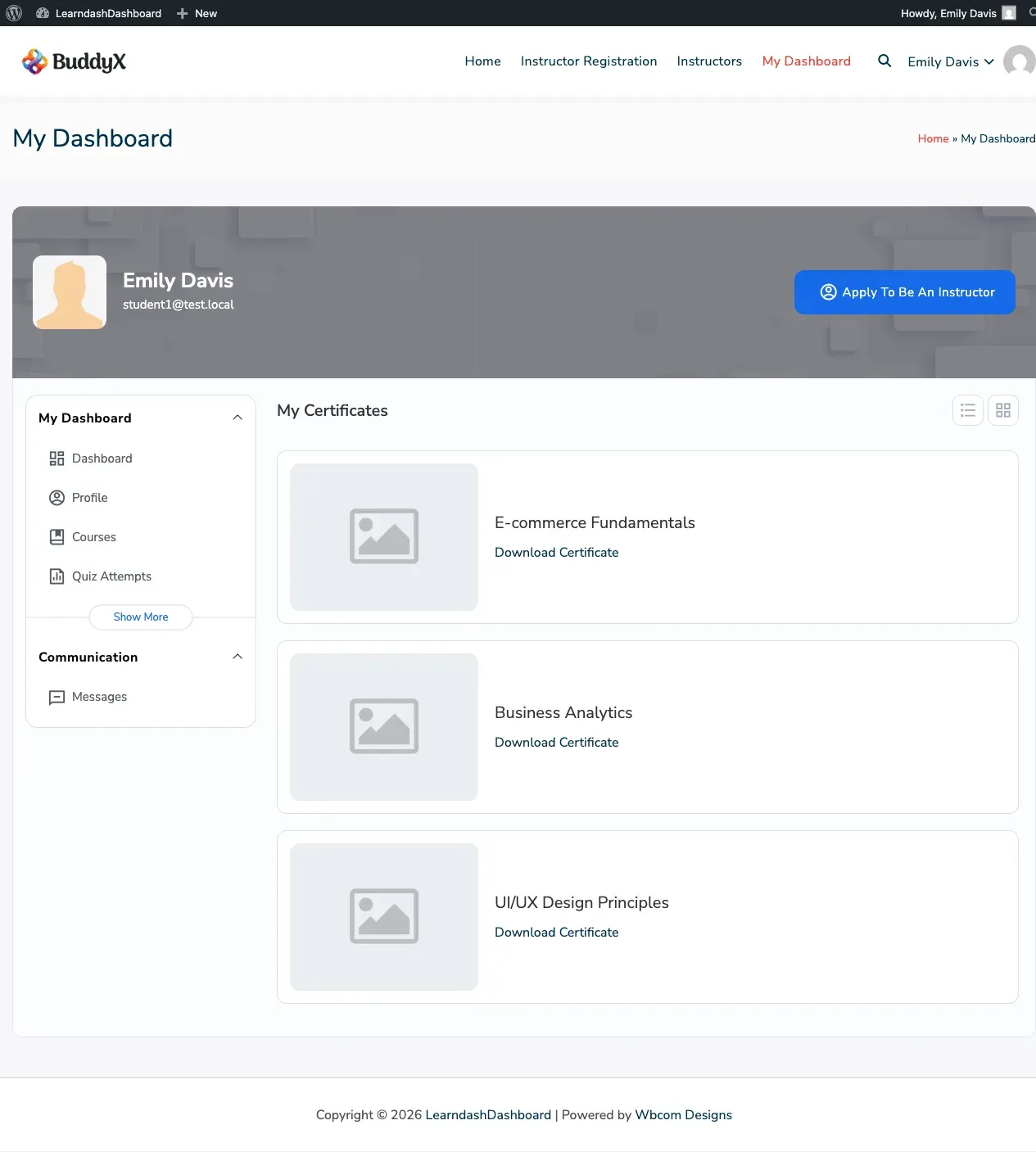
How to Access
Section titled “How to Access”Click My Certificates in your dashboard sidebar.
When Does a Certificate Appear?
Section titled “When Does a Certificate Appear?”A certificate shows up here when two things are true:
- The course or quiz has a certificate attached to it (set up by your instructor or site admin).
- You’ve fully completed that course or passed that quiz.
If you’ve completed a course but don’t see a certificate, the course may not have one assigned. Contact your instructor or site admin to confirm.
What You’ll See
Section titled “What You’ll See”Each certificate is shown as a card with:
- The course image
- The course name
- A Download Certificate button
Downloading a Certificate
Section titled “Downloading a Certificate”Click Download Certificate on any card. Your certificate opens as a PDF in a new browser tab, ready to save or print.
Switching Between List and Grid View
Section titled “Switching Between List and Grid View”Use the view toggles in the top right of the section to switch between:
- List view — one certificate per row
- Grid view — multiple certificates shown as cards side by side
No Certificates Yet?
Section titled “No Certificates Yet?”If you haven’t earned any certificates yet, the page will say “No certificates found.” Complete a course that has a certificate attached and it will appear here automatically.