

Candidate Overview
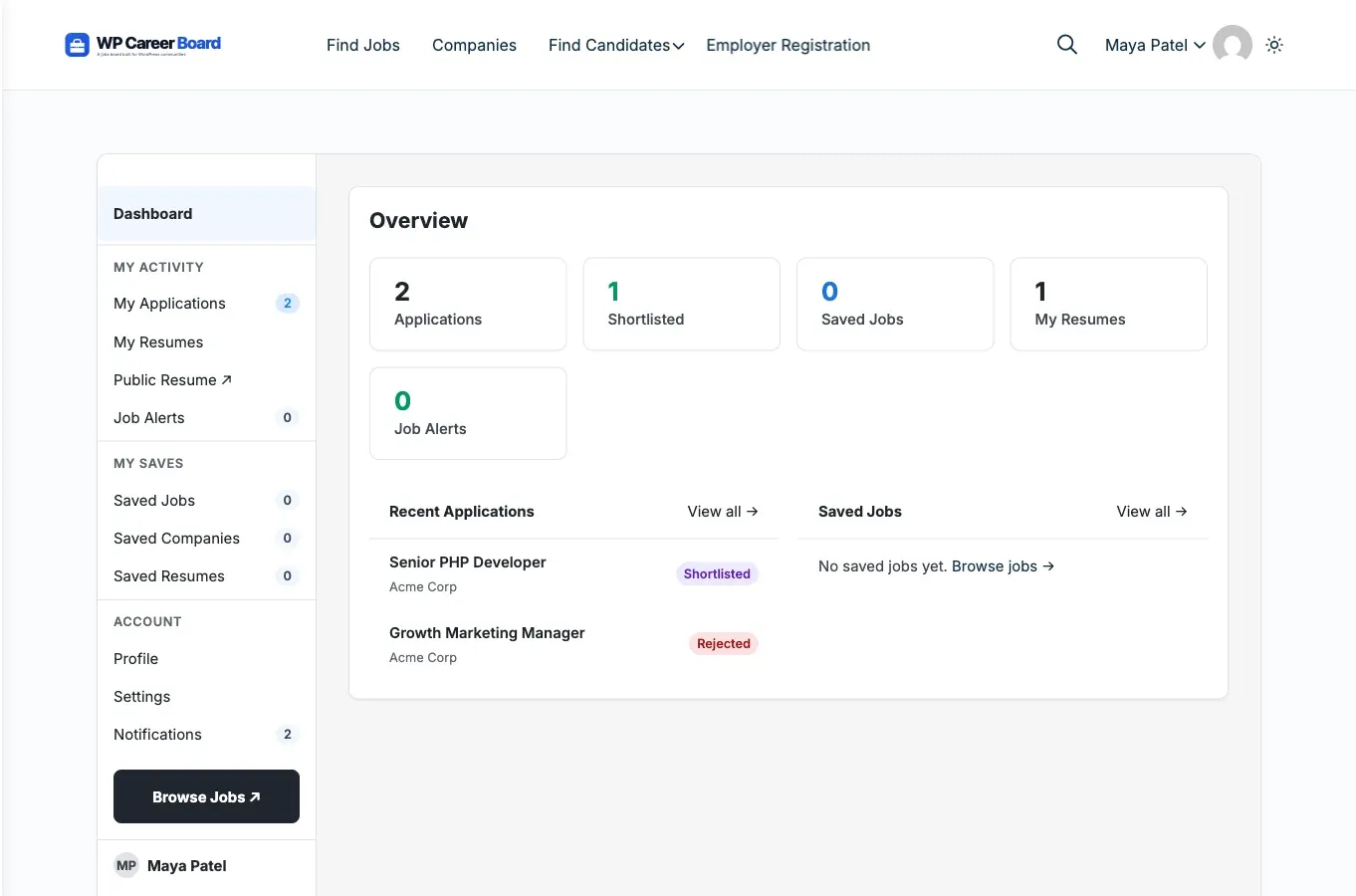
Candidates are job seekers who browse listings and apply on your job board. They get a personal dashboard to manage all their activity in one place.
What Candidates Can Do
Section titled “What Candidates Can Do”- Browse and search job listings
- Filter jobs by category, type, location, experience level, and salary range
- Bookmark jobs, companies, and (with Pro) candidate resumes to review later
- Apply for jobs with a cover letter and a resume upload (PDF, DOC, or DOCX)
- Track all applications and their statuses from a single dashboard
- Receive email notifications when their application status changes, plus an in-dashboard Notifications tab when the notification bell is enabled
- Edit a public profile, control its visibility, and update account details (name, email, password)
- See Recommended for you jobs matched to their resume (Pro)
- Build structured resumes with the Resume Builder (Pro)
- Set up job alerts to get notified when matching jobs are posted (Pro)
Registration
Section titled “Registration”Visit the Employer Registration page (which despite its name handles both roles) and choose “Find a Job” to register as a candidate. The heading on the registration block is “Join WP Career Board”. You’ll need:
- First name and last name
- Email address
- Password (minimum 8 characters)
After registration, you’re automatically logged in and redirected to your Candidate Dashboard.
Employers choose “Hire Talent” on the same page - one unified registration form for both roles.
Who Can Apply (Candidate Role Is Optional)
Section titled “Who Can Apply (Candidate Role Is Optional)”By default, any logged-in member can apply to jobs, save jobs, build a resume, and use the candidate dashboard - they do not need a dedicated Candidate role. This is ideal when the job board is part of a wider community or membership site where members already have accounts.
When a user registers through the “Find a Job” option, they are given the Candidate role as a convenience, but the candidate experience is available to every logged-in user regardless of role.
If you want stricter separation, turn on Require Candidate Role under Career Board → Settings → Listings. With it enabled, only users who hold the Candidate role (or an admin) can apply and use the candidate dashboard. Developers can override this per-site with the wcb_candidate_requires_role filter.
The candidate experience gives access to:
- The Candidate Dashboard - Overview, My Applications, Saved Jobs, Saved Companies, Profile, Account Settings, and (when enabled) Notifications
- The ability to apply for jobs and withdraw applications
- The saved jobs, saved companies, and (with Pro) saved resumes lists
- My Resumes, Resume Builder, and Job Alerts (Pro)
Admins can manually assign the Candidate role from Users → Edit User in wp-admin.
Guest Applications
Section titled “Guest Applications”Candidates can apply without creating an account. Guest applicants provide their name and email during the application. They receive email updates but do not have a dashboard.
Tip for your users: Creating an account gives candidates the ability to track all applications, save jobs, and build a profile. Encourage registration.
Section Contents
Section titled “Section Contents”- Finding Jobs - searching, filtering, and browsing listings
- Applying for Jobs - the application process step by step
- My Applications - tracking application statuses
- Saved Jobs - bookmarking jobs for later
- Resume Builder - creating and managing resumes (Pro)
- Job Alerts - getting notified about matching jobs (Pro)
- Salary Range Filter - narrowing listings by pay
- Apply as a Guest - applying without an account
- Troubleshooting - common candidate issues and fixes
- Profile, Account & Notifications - managing your profile, login details, privacy, and in-dashboard notifications