

Vendor Subscription Plans [PRO]
Charge vendors for the right to sell on your marketplace. Create plans that gate how many services a vendor can list, how many they can feature, and what commission rate they pay.
Billing runs through hosted Stripe Checkout, so card details never touch your site.
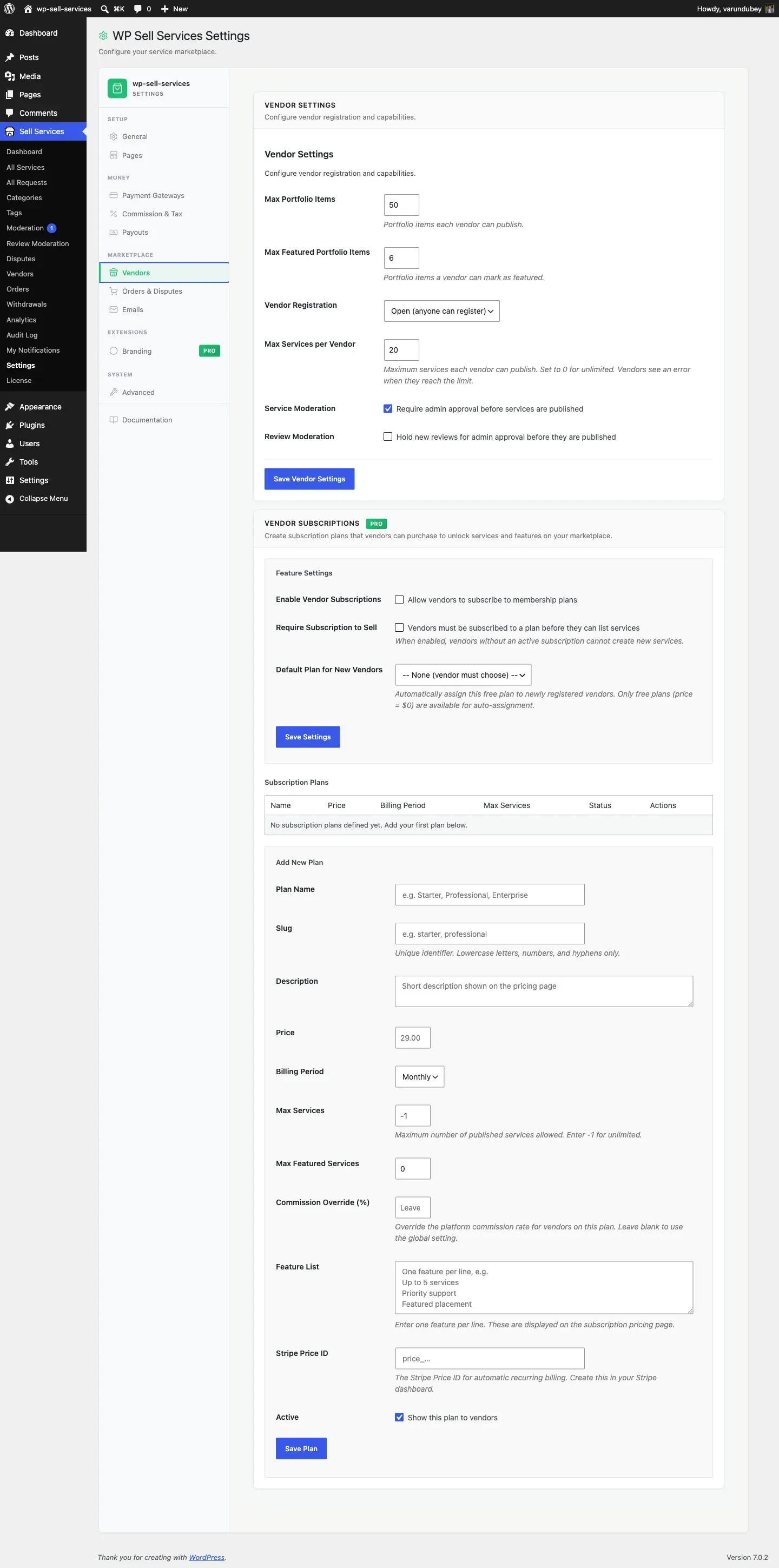
Setting up
Section titled “Setting up”- Add your Stripe keys under Sell Services > Settings > Payment Gateways.
- Go to Sell Services > Settings > Vendors and find the Vendor Subscriptions card.
- Turn the feature on, and decide whether a subscription is required to sell (see the matrix below).
- Create one or more plans.
What a plan holds
Section titled “What a plan holds”| Field | What it does |
|---|---|
| Name / slug / description | What vendors see when choosing |
| Price and billing period | Monthly or yearly |
| Max services | Active services allowed. -1 means unlimited |
| Max featured | Featured slots allowed |
| Commission override | Charge members a different platform rate |
| Stripe Price ID | The Stripe price this plan bills against |
| Active / sort order | Whether it is offered, and where it appears |
A paid plan must have a valid Stripe Price ID. A plan marked paid but missing its Price ID will not grant access. This guard is deliberate – without it, a misconfigured paid plan would silently hand out free membership.
How billing works
Section titled “How billing works”- A vendor chooses a plan and is sent to Stripe’s hosted Checkout page.
- The subscription is created only after payment succeeds, and its status comes from the real Stripe status – never forced to active.
- Access is granted while the subscription is
activeortrialing, and revoked otherwise. - Switching plans cancels the previous subscription, so the vendor is not double-billed.
Because the subscription is finalised from Stripe’s own return and webhook, a plan is never marked active before money actually moves.
What enforcement does
Section titled “What enforcement does”Enforcement hooks service creation. Whether a vendor can publish depends on three things: whether the feature is on, whether you require a subscription, and whether they are at their plan’s limit.
| Feature on | Subscription required | Vendor subscribed | At limit | Result |
|---|---|---|---|---|
| No | – | – | – | Can publish |
| Yes | No | No | – | Can publish |
| Yes | Yes | No | – | Blocked |
| Yes | Either | Yes (active) | No | Can publish |
| Yes | Either | Yes (active) | Yes | Blocked |
| Yes | Either | Yes (not active) | – | Blocked |
The practical read: with “require subscription” off, unsubscribed vendors carry on as normal and plans are an upsell. With it on, no plan means no selling.
A vendor on a 3-service plan who tries to publish a 4th is stopped in the wizard, with an explanation and a link to upgrade – not a silent failure.
Customer experience
Section titled “Customer experience”Vendors manage their membership from My Subscriptions in their dashboard: current plan, status, next billing date, and plan changes.
Combining with commission
Section titled “Combining with commission”Plans work alongside commission rather than replacing it. Common models:
- Lower commission on higher plans – set a commission override per plan.
- Free listings, commission only on the entry plan, flat fee on premium plans.
- Volume tiers – pair with Tiered Commission Rules for rates that also respond to category and seller level.
When a plan carries a commission override, it is applied to that vendor’s sales in place of the otherwise-resolved rate.