

Troubleshooting
Troubleshooting
Section titled “Troubleshooting”Most reports that reach support are one of three things: a module that is switched off, a role that is not the one you assumed, or a cached page. This page starts with those, then works through the symptoms people actually describe, and ends with an A-to-Z list of the error text Learnomy produces so you can paste a message in and find the cause.
Start here
Section titled “Start here”Run these three checks before anything else. They resolve the majority of “it does not work” reports.
1. Is the feature’s module enabled?
Section titled “1. Is the feature’s module enabled?”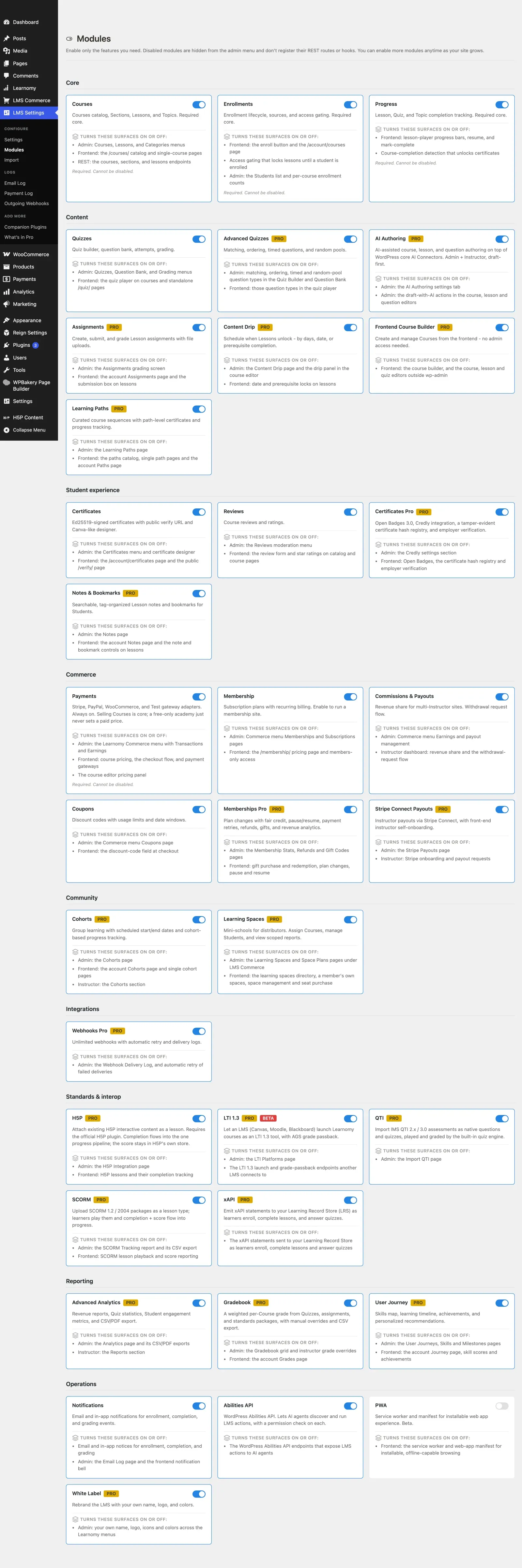
Go to LMS Settings > Modules. A disabled module is hidden from the admin sidebar, its REST routes stop accepting writes, and its templates do not render. From the outside that looks like a broken button, not a switch you turned off.
Two things make this the first check rather than the last:
- Certificates is not on by default. A fresh install enables Courses, Enrollments, Progress, Quizzes, Reviews, Notifications, Abilities and Payments. Certificates is deliberately excluded, because a brand-new academy has nothing to certify. Every setup wizard preset except Simple switches it on, so only an owner who skipped the wizard starts without it.
- Turning a module off affects writes, not reads. Existing content keeps rendering. So with Quizzes off, a student can still see a quiz referenced by a course page, but any attempt to create or start one returns “That feature is switched off for this site.”
See Enabling Features and Modules for the full module list and what each one controls.
2. Are you logged in as the role you think?
Section titled “2. Are you logged in as the role you think?”Learnomy runs every access decision through one permission check, and it is unforgiving about scope. An instructor sees only their own courses, students, grading queue and earnings. Administrators see everything.
Two role traps produce most of the “I cannot see it” reports:
- An instructor trying to manage a course they do not own gets a plain “You do not have permission to perform this action.” The message does not say the course belongs to someone else, because it does not tell an unauthorised caller what exists.
- The Certificate Designer screen is administrator-only. Instructors can pick an existing template on a course but cannot create one.
Log out and back in as the exact account that reported the problem before you investigate further. See Roles and Capabilities.
3. Have you cleared the page cache?
Section titled “3. Have you cleared the page cache?”Learnomy renders member-facing pages – the dashboard, the course player, the account area – at ordinary WordPress URLs. It sends no-cache headers only on error responses, so a full-page cache plugin or a CDN will happily cache a signed-in page and serve it to the next visitor. That shows up as stale progress, a stranger’s name in the header, or an enrol button that does nothing because the cached HTML carries a dead nonce.
Exclude the Learnomy page routes from full-page caching, then clear the cache.
Learnomy also caches some of its own reads. LMS Settings > Settings > Advanced > API & Performance > Cache TTL controls that, and defaults to 3600 seconds. If an admin change is slow to appear on the frontend and no page cache is in play, this is the delay you are seeing.
Common symptoms
Section titled “Common symptoms”A button or a whole screen does nothing
Section titled “A button or a whole screen does nothing”Almost always a disabled module. The API returns:
That feature is switched off for this site. Enable its module under Learnomy > Modules to use it again.
The message names “Learnomy > Modules”; the screen is at LMS Settings > Modules in the sidebar. Enable the module that owns the feature and reload.
Two other causes worth checking when the module is on:
- Custom URLs stopped resolving after a slug change. Course, lesson and certificate-verify URLs depend on WordPress rewrite rules. After changing a slug or a permalink structure, use LMS Settings > Settings > Advanced > Tools > Flush Rewrite Rules.
- A stale admin script bundle. Destructive admin actions require a confirmation flag in the request. If a button returns “Resetting demo data needs confirmation. Please retry the action from the button”, your browser is running an old copy of the admin JavaScript. Hard-reload the admin screen.
Students cannot enrol
Section titled “Students cannot enrol”The enrol endpoint refuses for several distinct reasons, and each one has its own message. Read the exact text before assuming it is a payment problem.
| What the student sees | Why |
|---|---|
| This course requires payment. Please complete checkout first. | Paid course, no completed transaction. Send them through checkout. |
| This course requires an active membership. | Membership-gated course and the student holds no covering plan. |
| This course requires payment or an active membership. | The course accepts either and the student has neither. |
| This course does not accept direct enrollments. Access is granted for you rather than requested. | The course uses the closed access model. Access is granted by an admin, a bulk enrol, or an incoming webhook. See Closed pricing model. |
| This course is not open for enrollment. | The course is not published. Admins and the course’s own instructors bypass this so they can preview. |
| This course is not accepting new enrollments right now. | The instructor’s account is suspended. New enrollments are blocked; existing students are unaffected. |
| Complete these courses first: … | Prerequisites. The message names the missing courses. See Course prerequisites. |
| Too many requests. Please try again later. | Rate limit. A student may enrol 5 times per day, leave 3 reviews, and start 10 quiz attempts. |
Enrolment also refuses when the request source does not match the course’s access model. A student cannot enrol as “free” on a paid course, and a webhook cannot enrol anyone without a completed transaction on file. Those are deliberate guards, not bugs.
A purchase completed but the student has no access
Section titled “A purchase completed but the student has no access”The payment provider took the money and Learnomy never created the enrollment. In almost every case the webhook is not configured, or its signing secret is wrong.
- Open LMS Settings > Payment Log. This screen lists every inbound Stripe and PayPal delivery, with the payload and the outcome (handled, duplicate, rejected, error, pending). If it is empty, the provider is not reaching your site at all.
- If deliveries are arriving and being rejected, the signing secret does not match. Stripe needs the webhook signing secret for the mode you are running (test or live). PayPal needs the webhook ID for its mode. PayPal fails closed: with no webhook ID saved, every delivery is rejected. Configure both in Payment gateways.
- Copy the endpoint URL exactly as the settings screen shows it:
/wp-json/learnomy/v1/webhooks/stripeor/wp-json/learnomy/v1/webhooks/paypal. - Use the Replay button on a failed row to re-run one delivery once the configuration is fixed. Note that replaying an event whose ID was already logged only increments its retry count; it does not reprocess.
Two backstops exist, and both are Stripe-only:
- A Stripe Payment Element return to the thank-you page reconciles the payment itself if no transaction row exists yet. The page polls for 90 seconds, then stops and shows a terminal message rather than spinning forever.
- An hourly cron job reconciles recent Stripe payments.
A PayPal purchase whose webhook never arrives is not fulfilled automatically. If PayPal deliveries are failing, fix the webhook ID first and expect to grant the affected students access by hand.
Certificates are not issuing
Section titled “Certificates are not issuing”A certificate is issued automatically when an enrollment reaches completed, and only then. Work down this list in order:
-
Is the Certificates module on? It is not enabled by default. LMS Settings > Modules.
-
Are certificates enabled for this course? Either the global default at LMS Settings > Settings > Certificate Defaults > Enable Certificates, or the per-course Award a certificate on completion checkbox in the course’s completion settings. The per-course flag wins; the global setting is the fallback.
-
Can the course actually complete? This is the most common cause. The completion rule is set per course:
- All lessons (the default) requires 100 percent progress.
- Percentage requires progress to reach the course’s threshold.
- Lessons and quiz requires 100 percent progress and a passed graded quiz. Practice and survey quizzes do not count toward this.
- Manual never completes on its own. An admin has to mark the enrollment complete, and until they do no certificate can be issued. If a course is set to Manual completion, this is your answer.
-
Is a lesson blocked? A drip-scheduled or sequence-locked lesson cannot be completed, so progress never reaches 100 percent. The student sees “This lesson has not unlocked yet” or “Finish the earlier lessons first”. See Content drip.
-
Does the student already hold one? A student with an existing active certificate for that course is skipped silently.
A template is not required. If no template is assigned, the certificate is still issued and renders with the default.
Separately: if certificates issue but the PDF download falls back to browser printing, the admin notice “Learnomy: PDF library files are missing” means the plugin was installed without its vendor files. Reinstall from the latest plugin zip. See Issuing and verifying.
Emails are not arriving
Section titled “Emails are not arriving”WordPress cannot reliably send mail on its own. wp_mail() hands the message to PHP’s mail() unless something else takes over, and most hosts either do not run a mail transport or send from an address that fails SPF and DKIM checks at the recipient’s end. Learnomy ships no SMTP settings of its own and does not work around this. Install and configure an SMTP plugin before you treat missing email as a Learnomy problem.
To find out which half is broken, use Send test email. It appears in two places and does the same thing from both:
- LMS Settings > Settings > Emails > Email Sender > Test delivery
- LMS Settings > Settings > Advanced > Tools
It sends to the address on your own admin account – the recipient is not configurable – and logs the attempt.
Read the result:
- The test arrives. Mail works. The problem is a per-notification setting, below.
- “Could not send the test email. Check the Email Log and your SMTP configuration.” The mailer refused the message. This is SMTP or host configuration, not Learnomy.
- The test is reported as sent but never lands. The message left your server and was dropped downstream. Check the sender address at LMS Settings > Settings > Emails > Email Sender – an address on a domain your server is not authorised to send for is the usual cause.
If mail works but one notification type never arrives, open LMS Settings > Email Log. Every attempt is recorded there as Sent, Failed, or Skipped, and the distinction matters:
- Failed means the mailer rejected it. The log records the reason where one was given; when it was not, you see “The mailer reported a failure but gave no reason. Check your SMTP / email delivery configuration.”
- Skipped (in-app only) means the email was never attempted. Something suppressed it. Two things can: the per-type toggle at LMS Settings > Settings > Emails > Email Notifications, or the recipient’s own notification preferences in their account. A student who unticked course-completion notifications gets no certificate email, and that is working as designed.
Two more causes worth knowing:
- The Email Log screen disappears when the Notifications module is off. Turning that module off hides the Emails settings tab, the Email Log and Announcements, but it does not stop mail going out. If emails are still arriving and you cannot find the screen to change them, check the module.
- Emails are queued, not sent inline. Delivery runs through the background job queue by default. A stalled queue means mail is generated and never sent, with nothing in the log to explain it.
A quiz will not start
Section titled “A quiz will not start”The quiz start endpoint has a specific refusal for each cause. The message tells you which:
| Message | Cause | Fix |
|---|---|---|
| This quiz has no questions yet. | The quiz has no slots. This blocks everyone, including an instructor previewing. | Add questions. |
| You must be enrolled in this course to attempt this quiz. | A course-attached quiz requires an active enrollment. Standalone quizzes stay open on purpose. | Enrol the student. Admins and the course author can preview without enrolling. |
| This quiz is not open yet. / This quiz has closed. | The quiz has an open or close date and now is outside it. | Change the window on the quiz. |
| This quiz unlocks with its lesson, which is not available yet. | The quiz is bound to a lesson that is drip-locked or sequence-locked. | The quiz opens when the lesson does. |
| Incorrect access code. | The quiz has an access code and the one supplied does not match. | Give the student the code. |
| You can retake this quiz in N seconds. | A cooldown is set between attempts. | Wait. The response says how long. |
| You have exhausted the allowed failed attempts for this quiz. | The failed-attempt ceiling was reached. Only an instructor can reopen it. | Reset the student’s attempts. Practice quizzes are exempt from this ceiling. |
| You have reached the maximum number of attempts (N) for this quiz. | Every allowed attempt has been graded. | Grant that student an extra attempt. The cap is resolved per student, so a grant lifts it for them alone. |
| Too many requests. Please try again later. | 10 quiz starts per day per student. | Wait, or raise the limit. |
The three attempt refusals are deliberately distinct: a cooldown means wait, a lockout means ask an instructor, and an attempt limit means the attempts are spent. See Taking a quiz.
The app will not connect
Section titled “The app will not connect”The mobile app is gated twice, and both gates must pass.
- Learnomy Pro must be installed with a valid license. Free hardcodes the app gate to off. This is not a soft limit – without Pro and a valid license the app cannot connect at all.
- The owner toggle must be on: LMS Settings > Settings > General > Access Control > Mobile app, labelled “Allow the Learnomy mobile app to connect to this site”. It is on by default.
The trap here is that /wp-json/learnomy/v1/app/config returns HTTP 200 with app_enabled: false when either gate fails. Testing the endpoint with curl makes a blocked site look healthy. Read the value, not the status code.
If the gates pass and sign-in still fails, the message identifies which step:
- “This site cannot issue app passwords. It needs a secure (https) connection.” WordPress core refuses to issue Application Passwords without TLS, and Learnomy does not override that. The only exception is a local development environment. Install a certificate.
- “App sign-in is not available for this account.” Application Passwords are disabled for that one user, usually by a security plugin.
- “This site has turned off app sign-in. Ask the site owner to enable it.” The mobile app toggle is off.
- “This site needs another step to sign you in. Use the WordPress approval screen instead.” A two-factor plugin is active. Connect through the WordPress authorisation screen instead of username and password.
- “Please verify your email address before signing in.” Email verification gates app credentials even though it does not gate ordinary web login. A fresh verification link is sent automatically each time this fires – which means it depends on email working, so read the emails section above first.
- “Too many sign-in attempts. Please wait a few minutes and try again.” Ten failed password attempts in fifteen minutes, counted per IP and per username. Only genuine failures count, so signing in on several devices never triggers it.
See REST API and app.
Error messages, A to Z
Section titled “Error messages, A to Z”Every Learnomy API error carries a machine-readable code and a request_id that looks like req_a1b2c3d4e5f6. Quote both when you report a problem.
Two things to know before you search this table:
- Messages use your labels. If you renamed Course to Class, the message reads “Class not found.” rather than “Course not found.” The table shows the default labels. Search on the part of the sentence that does not change.
- A code with no HTTP status attached defaults to 500. A handful of configuration problems – an unreachable licensing store, an unwritable uploads directory – surface as a server error rather than a 4xx. A 500 does not always mean the site is broken.
| Message you see | Error code | What it means | What to do |
|---|---|---|---|
| A subject or instructions are required. | learnomy_ai_no_topic |
AI authoring was asked to generate with nothing to work from. | Type a subject or some instructions in the prompt box before generating. |
| Add a subject or some instructions to continue. | learnomy_ai_no_topic |
Same gate, from the course-outline wizard. | Describe what the course should cover, then generate. |
| Add your billing details to continue. | learnomy_billing_details_required |
Checkout requires a billing profile and at least one required field is empty: first name, last name, country, address line 1, city, postcode. | Complete the billing details on the account screen. See Certificates and billing. |
| All N seats are in use (you plus N members). Remove a member or invite, or buy more seats. | learnomy_seat_limit_reached |
The learning space has hit its seat cap. The owner occupies one seat. | Remove a member, or buy more seats. See Spaces. |
| An account with this email address already exists. | learnomy_email_exists |
Registration collision. | Sign in instead, or reset the password. |
| App sign-in is not available for this account. | learnomy_app_passwords_off |
WordPress Application Passwords are disabled for this one user. | Check for a security plugin restricting app passwords. |
| Complete these courses first: X, Y. | learnomy_prerequisites_not_met |
The course has prerequisites the student has not completed. The message names them. | Complete the named courses, or remove the prerequisite. |
| Completion requirements are not yet met for this lesson. | completion_rules_not_met |
The lesson has completion rules (watch time, scroll to end, video percentage) that are not satisfied. The response lists which. | Finish the required activity. |
| Could not reach the store to activate the license. Please try again. | learnomy_store_unreachable |
Your site could not reach the licensing store. Usually the server blocking outbound HTTP, or the store being briefly down. | Retry. If it persists, ask your host whether outbound requests are blocked. Your Pro features keep working meanwhile; only updates and the app are affected. |
| Could not send the test email. Check the Email Log and your SMTP configuration. | learnomy_validation |
The mailer refused the test message. | Configure an SMTP plugin. See the emails section above. |
| Course not found. | learnomy_not_found |
The record does not exist, or the caller is not allowed to know that it does. The noun changes with the resource: quiz, lesson, certificate, enrollment, and so on. | Check the ID. A deleted or unpublished record answers the same way to an unauthorised caller. |
| Finish the earlier lessons first. | lesson_not_reachable |
Sequential progression is on and an earlier lesson is incomplete. | Complete the earlier lessons. |
| Give the learning path a title. | learnomy_path_title_required |
A path was saved with an empty title. | Enter a title. Whitespace alone does not count. |
| Incorrect access code. | invalid_access_code |
The quiz has an access code and the supplied one does not match. | Get the code from the instructor. |
| Membership-gated paths are not yet supported. Contact the site owner. | learnomy_path_membership_unsupported |
A learner tried to enrol in a path whose access type is set to membership, which the current release does not implement. | Set the path to Free or Paid instead. See Learning Paths. |
| No active membership covers this course. Please subscribe first. | learnomy_enroll_membership_required |
Enrolment was attempted with a membership source but no plan covers the course. | Subscribe, or grant access another way. |
| No completed payment was found for this course. Please complete checkout first. | learnomy_enroll_transaction_missing |
Enrolment was attempted as a purchase with no completed transaction on record. | Check the Payment Log. This is the fingerprint of a missing webhook. |
| No PayPal credentials saved for this mode. Enter a Client ID and Secret and save settings first. | learnomy_paypal_no_credentials |
The gateway is being used in a mode (sandbox or live) whose credentials are empty. | Save the credentials for the mode you are running. |
| No QTI file was uploaded. | no_file |
The QTI import ran with no file attached. | Choose a .xml or .zip QTI export and upload it again. |
| No Stripe secret key is saved for this mode. Enter a key and save settings first. | learnomy_stripe_no_key |
Same, for Stripe. | See Payment gateways. |
| No uploaded file was received. | upload_error |
The SCORM upload did not arrive. Usually the file exceeded the server’s upload limit and was dropped before Learnomy saw it. | Check upload_max_filesize and post_max_size on your host. SCORM packages are often larger than the default 2 MB. |
| Only SCORM 1.2 and SCORM 2004 packages are supported. | unsupported_version |
The package’s manifest declares a version Learnomy does not run. | Re-export from your authoring tool as SCORM 1.2 or 2004. See SCORM Packages. |
| Please verify your email address before connecting an app. Check your inbox for the verification link. | learnomy_email_unverified |
Verification gates app credentials, including Application Passwords minted by WordPress core. | Click the link. If it never arrives, fix email first. |
| Please verify your email address before signing in. We just sent you a fresh verification link. | learnomy_email_unverified |
Same gate, on the token and app-password sign-in routes. A new link is sent each time. | Click the link. |
| Refresh token has expired. Please sign in again. | token_expired |
An app session sat unused past its refresh window. | Sign in again in the app. Nothing is wrong with the account. |
| Stripe secret key is not configured. | missing_secret_key |
A Stripe Connect payout was attempted before the platform’s Stripe credentials were saved. | Add the platform keys. See Stripe Connect Payouts. |
| That answer was not right. Please try the anti-spam question again. | learnomy_captcha_failed |
Registration anti-spam answer was wrong. | Answer again. |
| That feature is switched off for this site. Enable its module under Learnomy > Modules to use it again. | learnomy_module_disabled |
The module that owns this feature is disabled. Reads still work; writes are refused. | Enable it at LMS Settings > Modules. |
| That file is not a valid .zip archive. | not_a_zip |
The uploaded SCORM file is not a zip, or was corrupted in transit. | Re-download the package from your authoring tool and upload it again without unzipping it first. |
| That request has already been answered. | learnomy_request_resolve_failed |
Two managers actioned the same join request. | Reload. Someone else already handled it. |
| The AI returned an outline we could not read. Try again. | learnomy_ai_bad_output |
The provider replied with something that did not parse as an outline. Usually a transient model failure. | Generate again. If it repeats, shorten the prompt or switch provider model. |
| The mailer reported a failure but gave no reason. Check your SMTP / email delivery configuration. | (Email Log reason) | Shown in the Email Log against a failed send when the mailer returned no error text. | Configure SMTP. |
| The package contains an unsafe file path. | traversal |
A file inside the zip points outside the extraction directory. This is what a malicious package looks like. | Do not retry. Get the package from a source you trust, or re-export it yourself. |
| The package has too many files. | zip_bomb |
The archive expands far beyond a reasonable size, so extraction was refused. | Re-export the package. If it is genuinely enormous, split the course across lessons. |
| The package storage directory could not be created. | extract_failed |
Learnomy could not write to the uploads directory. | A filesystem permission problem, not a package problem. Check that wp-content/uploads is writable. |
| The private file store could not be created, so the file was not attached. Check that wp-content/uploads is writable. | learnomy_protected_store_unavailable |
The private uploads directory could not be created. Surfaces as a 500. | Fix filesystem permissions on wp-content/uploads. |
| The QTI file could not be read. | qti_unreadable |
The file uploaded but its XML did not parse. | Re-export from the source system. A QTI file edited by hand is the usual cause. |
| The question abilities are unavailable. | learnomy_ai_no_ability |
AI authoring depends on the Abilities module, which is switched off. | Enable Abilities API at LMS Settings > Modules. |
| The username or password you entered is incorrect. | learnomy_login_failed |
Deliberately uniform. It never says which half was wrong. | Reset the password. |
| This code has already been redeemed. | learnomy_gift_already_claimed |
A gift code can only be claimed once. | Cancel the membership it created instead. Cancelling the code would not take back the access. |
| This cohort has reached its maximum capacity of N members. | learnomy_cohort_full |
Cohort seat cap hit. | Remove a member or raise the limit. See Cohorts. |
| This course cannot be left from here. Only a free course you joined yourself can be left. | learnomy_leave_not_allowed |
Self-unenrol is limited to free enrollments. Paid and membership access stays with the account. | An admin can remove the enrollment. |
| This course does not accept direct enrollments. Access is granted for you rather than requested. | learnomy_enroll_closed_course |
The course uses the closed access model. | Grant access from the admin, a bulk enrol, or an incoming webhook. |
| This course is included with a membership rather than sold on its own. | learnomy_membership_required |
Checkout was attempted for a course that is only sold inside a plan. | Buy the plan. See Memberships. |
| This course is not accepting new enrollments right now. | learnomy_instructor_suspended |
The course’s instructor is suspended. Existing students keep access. | Reinstate the instructor. |
| This course is not open for enrollment. | learnomy_course_not_available |
The course is not published. Admins and its own instructors bypass this for preview. | Publish the course. |
| This course requires an active membership. | learnomy_enroll_membership_required |
Membership-gated course, no covering plan. | Subscribe. |
| This course requires payment or an active membership. | learnomy_enroll_payment_or_membership_required |
The course accepts either and the student has neither. | Buy the course or a plan. |
| This course requires payment. Please complete checkout first. | learnomy_enroll_payment_required |
Paid course, no completed transaction. | Complete checkout. |
| This form has been open for a while. Please reload the page and try again. | learnomy_captcha_expired |
The registration anti-spam token expired. A page cache holding the form too long is the usual cause. | Reload. If it recurs, exclude the registration page from caching. |
| This lesson has not unlocked yet. | lesson_not_reachable |
A drip schedule has not released the lesson. | Wait for the release date, or change the schedule. |
| This notification has no deliverable recipient - the user was deleted or has no email address. | learnomy_validation |
An Email Log resend was attempted against a row whose recipient no longer exists. | Nothing to fix. The record is historical. |
| This quiz has closed. / This quiz is not open yet. | learnomy_validation |
Now is outside the quiz’s open and close window. | Change the window. |
| This quiz has no questions yet. | learnomy_validation |
The quiz has no question slots. Blocks everyone, including preview. | Add questions. |
| This quiz unlocks with its lesson, which is not available yet. | learnomy_validation |
A lesson-bound quiz inherits its lesson’s drip or sequence lock. | The quiz opens with the lesson. |
| This site cannot issue app passwords. It needs a secure (https) connection. | learnomy_app_passwords_off |
WordPress core will not mint Application Passwords over plain HTTP. Local development is the only exception. | Install a TLS certificate. |
| This site has turned off app sign-in. Ask the site owner to enable it. | learnomy_app_passwords_off |
The mobile app toggle is off. | Enable it at LMS Settings > Settings > General > Access Control. |
| This site needs another step to sign you in. Use the WordPress approval screen instead. | learnomy_second_factor |
A two-factor plugin is active, so a plain password exchange cannot complete. | Connect through the WordPress authorisation screen. |
| This space is full, so nobody new can be added. | learnomy_space_full |
A join request was approved against a space with no free seats. The request stays pending. | Add seats or remove a member, then approve again. |
| This token has been revoked. | token_revoked |
The application password behind an app session was deleted. | Issue a new application password and sign in again. |
| This username is already taken. | learnomy_username_exists |
Registration collision. | Choose another. |
| Too many requests. Please try again later. | learnomy_rate_limited |
Either the global per-minute API cap, or a per-action daily quota: 5 enrollments, 3 reviews, 10 quiz starts per student per day. | Wait. The global cap is at LMS Settings > Settings > Advanced > API & Performance, default 60 per minute, 0 to disable. |
| Too many sign-in attempts. Please wait a few minutes and try again. | learnomy_too_many_attempts |
Ten failed password attempts within fifteen minutes, counted per IP and per username. | Wait fifteen minutes. Only genuine failures count. |
| Transfer amount must be greater than zero. | invalid_amount |
A payout or reversal was submitted with a zero or negative amount. | Enter a positive amount. |
| Webhook rejected. | webhook_signature_invalid |
An inbound payment webhook failed signature verification. Returned as a 400 on purpose so the provider stops retrying. | Fix the signing secret. See the purchase section above. |
| Withdrawal request failed. Check that the amount does not exceed your available balance. | withdrawal_failed |
An instructor asked to withdraw more than they have earned and not yet withdrawn. | Check the Earnings screen for the available figure. |
| You already have an active certificate for this course. | learnomy_validation |
Manual issuance was attempted for a student who already holds one. | Revoke the existing certificate first if you need to reissue. |
| You can retake this quiz in N seconds. | quiz_cooldown_active |
A cooldown between attempts has not elapsed. | Wait. The response carries the exact seconds remaining. |
| You do not have permission to perform this action. | learnomy_forbidden |
The generic authorisation refusal, used across the whole API. It never says what you were missing. | Confirm the role, and for course-scoped actions confirm the account owns or is assigned to that course. |
| You have exhausted the allowed failed attempts for this quiz. Please contact your instructor. | quiz_locked_out |
The failed-attempt ceiling was reached. Only an instructor reset reopens it. | Reset the attempts. Practice quizzes never lock out. |
| You have reached the maximum number of attempts (N) for this quiz. | quiz_attempt_limit_reached |
Every graded attempt is spent. | Grant an extra attempt. The cap resolves per student. |
| You must be enrolled in this course to attempt this quiz. | learnomy_validation |
A course-attached quiz requires an active enrollment. | Enrol the student. Standalone quizzes stay open by design. |
| You must be enrolled in this course to receive a certificate. | learnomy_not_enrolled |
Certificate issuance was requested with no enrollment record. | Enrol the student first. |
| You must be logged in. | learnomy_unauthorized |
No authenticated user on a route that requires one. | Sign in. From the app, check the token has not expired. |
| You must complete this course before a certificate can be issued. | learnomy_course_not_completed |
The enrollment has not reached completed. | See the certificates section above, especially the Manual completion rule. |
| Your account has no email address on file. | learnomy_validation |
Send test email has nowhere to send to. | Add an email address to your WordPress user profile. |
Getting help
Section titled “Getting help”Include all of the following. Every one of them changes the answer, and a report missing any of them costs a round trip.
- WordPress version, and whether the site is multisite.
- Learnomy version, and the Learnomy Pro version if Pro is installed. If the two are not from the same release, say so.
- The exact error text, copied rather than described. If you have the API response, include the
codeand therequest_id. - The screen and the role. Which URL, and which role the account holds – administrator, instructor, student, or a custom role. “It fails for a user” and “it fails for an instructor on another instructor’s course” are different bugs.
- Whether it reproduces with other plugins disabled and a default theme. Caching, security, membership and SMTP plugins all intercept things Learnomy relies on.
- What you already checked from the Start here section above.
For payment problems, add a screenshot of the relevant row in LMS Settings > Payment Log. For email problems, add the row from LMS Settings > Email Log and say whether it reads Sent, Failed, or Skipped.