

Finding Jobs
The job board gives candidates a fast, reactive way to browse and narrow down listings - no page reloads, no waiting.
Browsing the Job Board
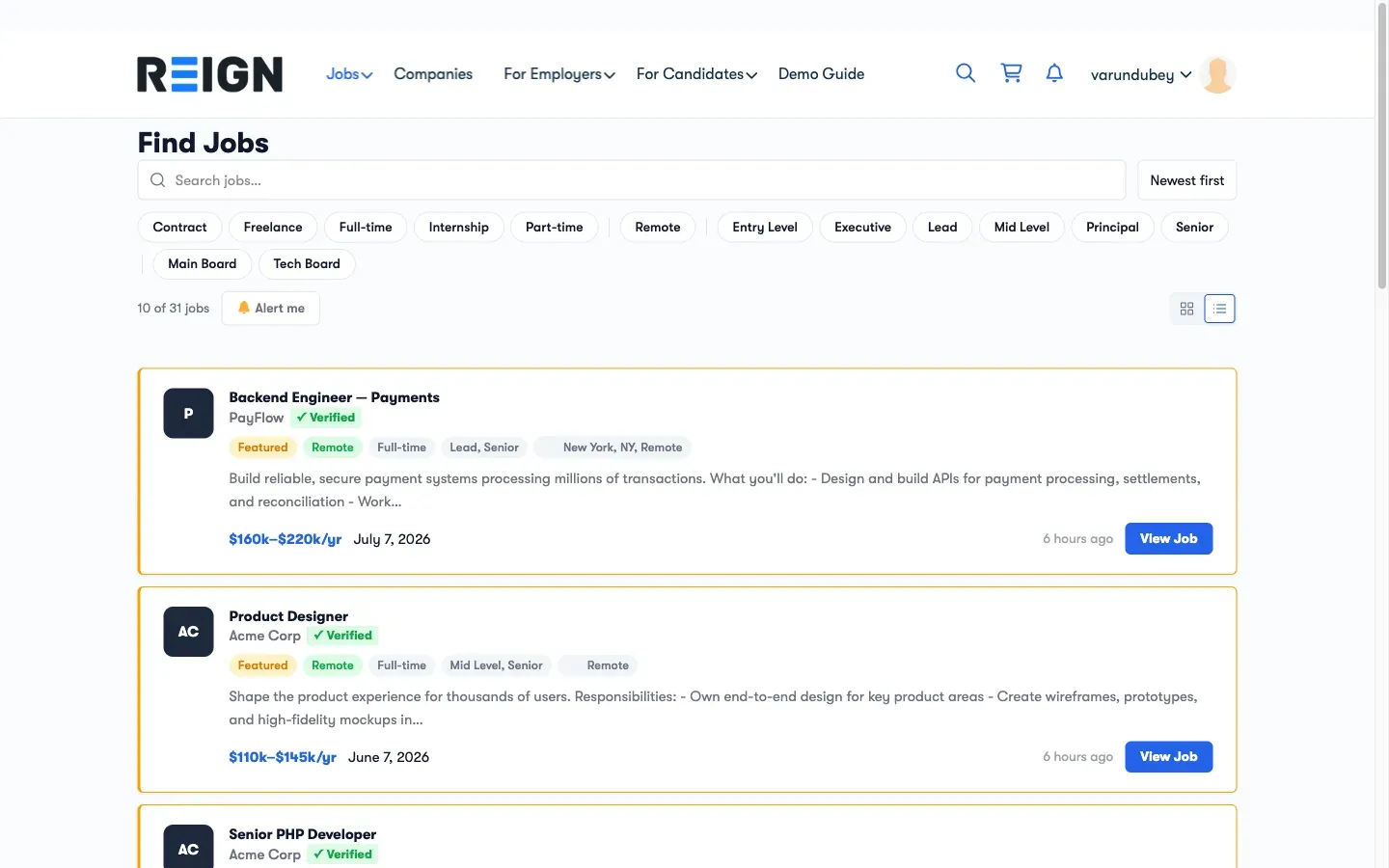
Section titled “Browsing the Job Board”Visit the Jobs page on your site. You will see a grid of all currently active job listings, each showing:
- Job title
- Company name and logo
- Location
- Job type (Full-time, Part-time, etc.)
- Posted date
- Salary (if provided by the employer)
Click any card to open the full job detail page.
Searching by Keyword
Section titled “Searching by Keyword”Use the Search bar at the top of the job board to find jobs by keyword. The search looks through job titles and descriptions. Results update as you type.

Filtering Jobs
Section titled “Filtering Jobs”Use the Filter dropdowns to narrow results by:
| Filter | Options |
|---|---|
| Category | Industry or function (e.g., Engineering, Marketing, Design) |
| Job Type | Full-time, Part-time, Contract, Freelance, Internship |
| Location | Country, state, or city |
| Experience Level | Entry, Mid, Senior, Lead, Executive |
| Salary Range | A dual-handle slider to set a minimum and maximum pay. See Salary Range Filter. |
You can combine multiple filters. Results update instantly after each selection.
To remove all filters at once, click Clear all in the filter bar.
Loading More Jobs
Section titled “Loading More Jobs”The job board loads a set number of jobs at a time (set by your admin). When you reach the bottom, click Load more to see additional listings.
Viewing a Job
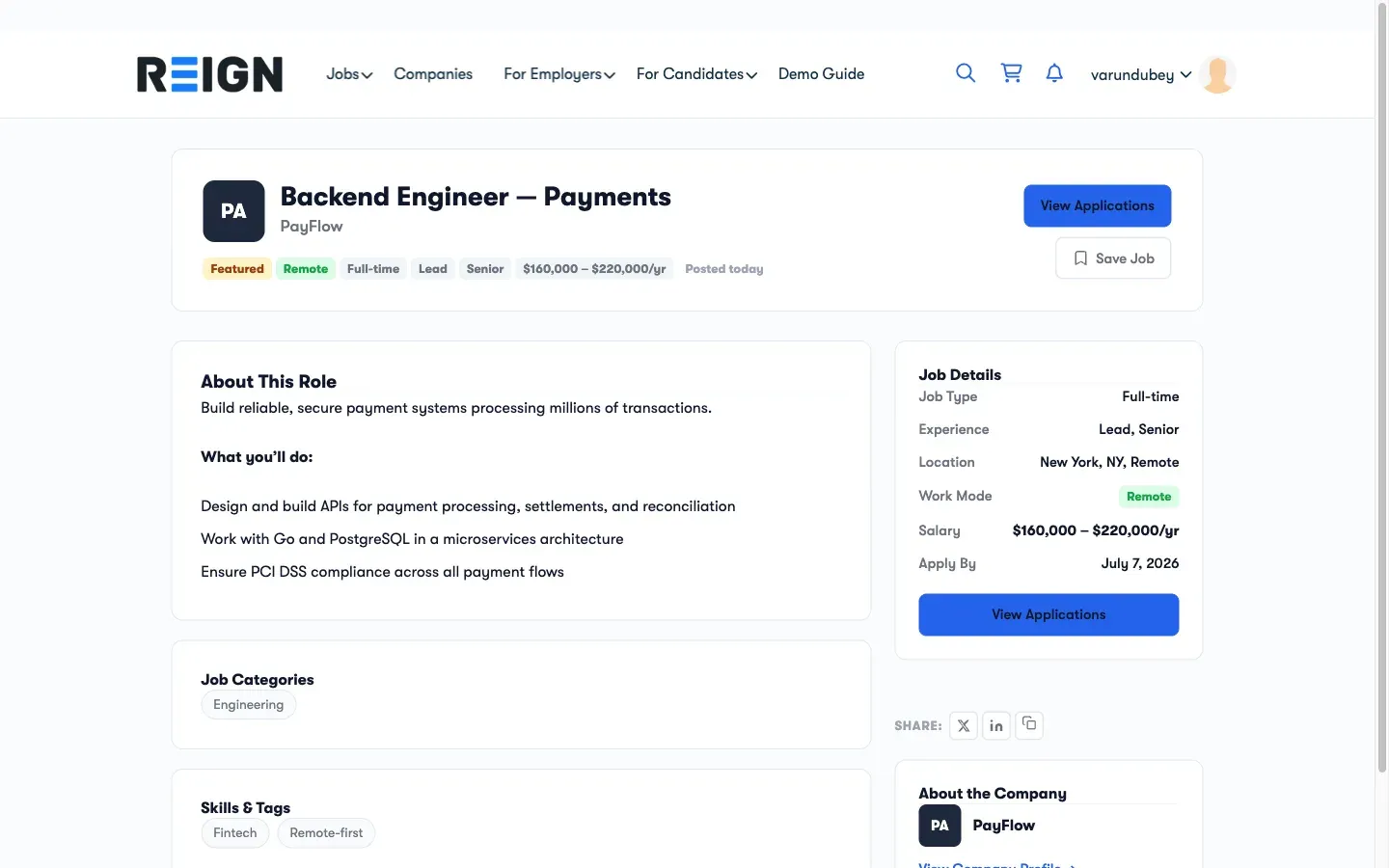
Section titled “Viewing a Job”Click any job card to open the full detail page. You will see:
- Full job description
- Company information with a link to the company profile
- Application deadline (if set)
- Salary range
- Job type, location, and experience level
- An Apply Now button to start the application
Recommended for You (Pro)
Section titled “Recommended for You (Pro)”When the site runs WP Career Board Pro with AI matching enabled, your Candidate Dashboard → Overview shows a Recommended for you list - jobs matched to the resume on your profile, labelled “AI-matched to your resume”. This is in addition to browsing and searching the full board. The recommendations are hidden on Free-only installs and when AI matching is not configured.
Saving a Job for Later
Section titled “Saving a Job for Later”Click the bookmark icon on any job card or job detail page to save it. Saved jobs appear in your Candidate Dashboard → Saved Jobs tab. Bookmarking works for any logged-in user (a dedicated Candidate role is not required).
You can remove a saved job at any time from the dashboard. You can also bookmark companies - those appear under Candidate Dashboard → Saved Companies.