

Manage Your Jobs
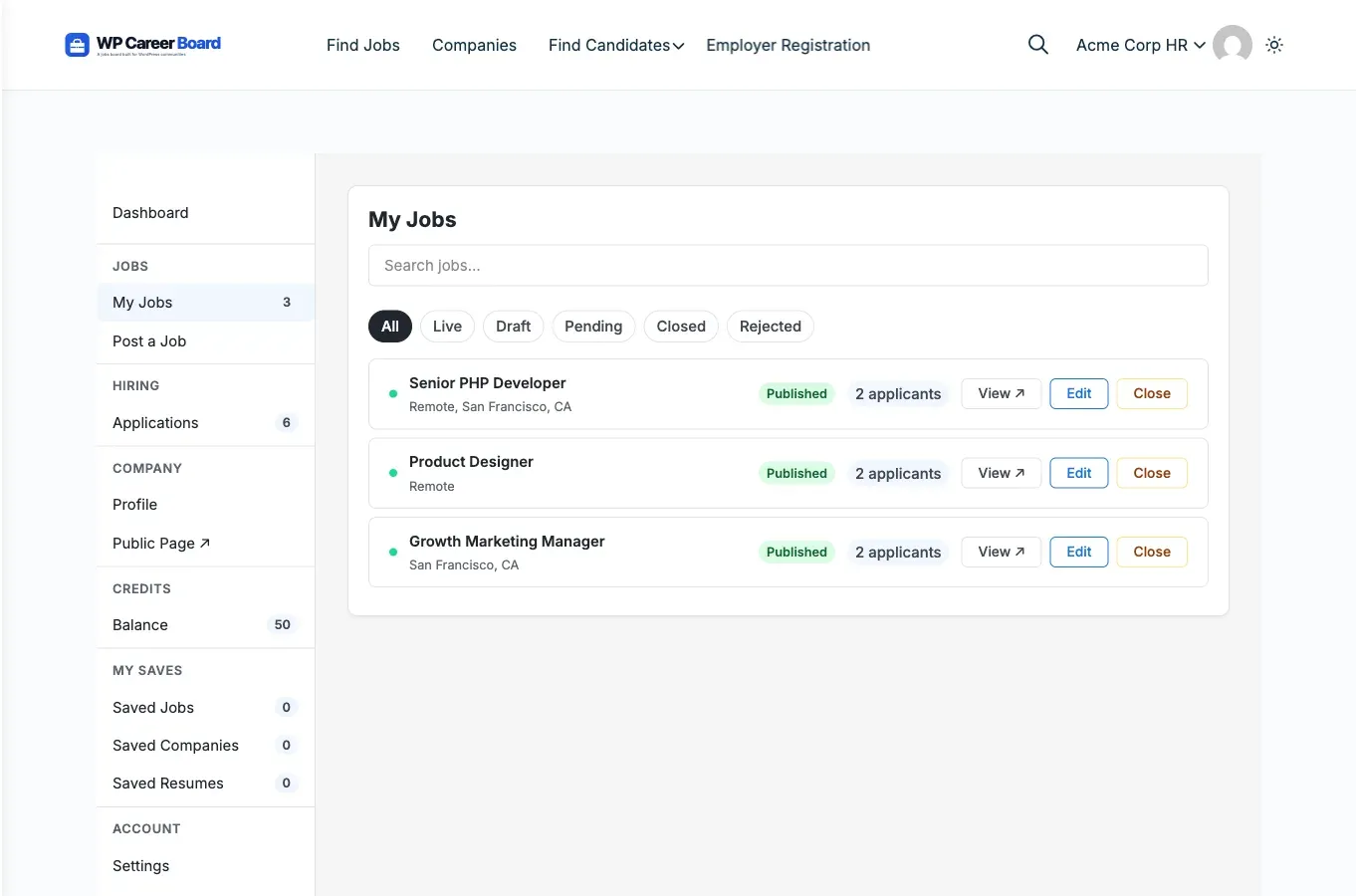
The My Jobs tab in the Employer Dashboard shows all the jobs you have posted, with quick actions to manage each one.
Accessing Your Jobs
Section titled “Accessing Your Jobs”- Go to the Employer Dashboard page (created by the Setup Wizard)
- Click My Jobs in the sidebar (under the JOBS section). Its badge shows your total job count.
- You will see a list of all your jobs with their current status
Filtering by Status
Section titled “Filtering by Status”A row of filter pills at the top of My Jobs lets you narrow the list:
All, Live, Draft, Pending, Closed, Rejected
Job Statuses
Section titled “Job Statuses”| Status | Meaning |
|---|---|
| Published (Live) | Live on the job board, visible to candidates |
| Draft | Saved but not yet submitted for review |
| Pending | Submitted, waiting for admin approval |
| Rejected | The admin declined the job; you can edit and resubmit it |
| Closed | No longer accepting applications; hidden from the board |
| Expired | Passed the expiry date; same as Closed |
Actions per Job
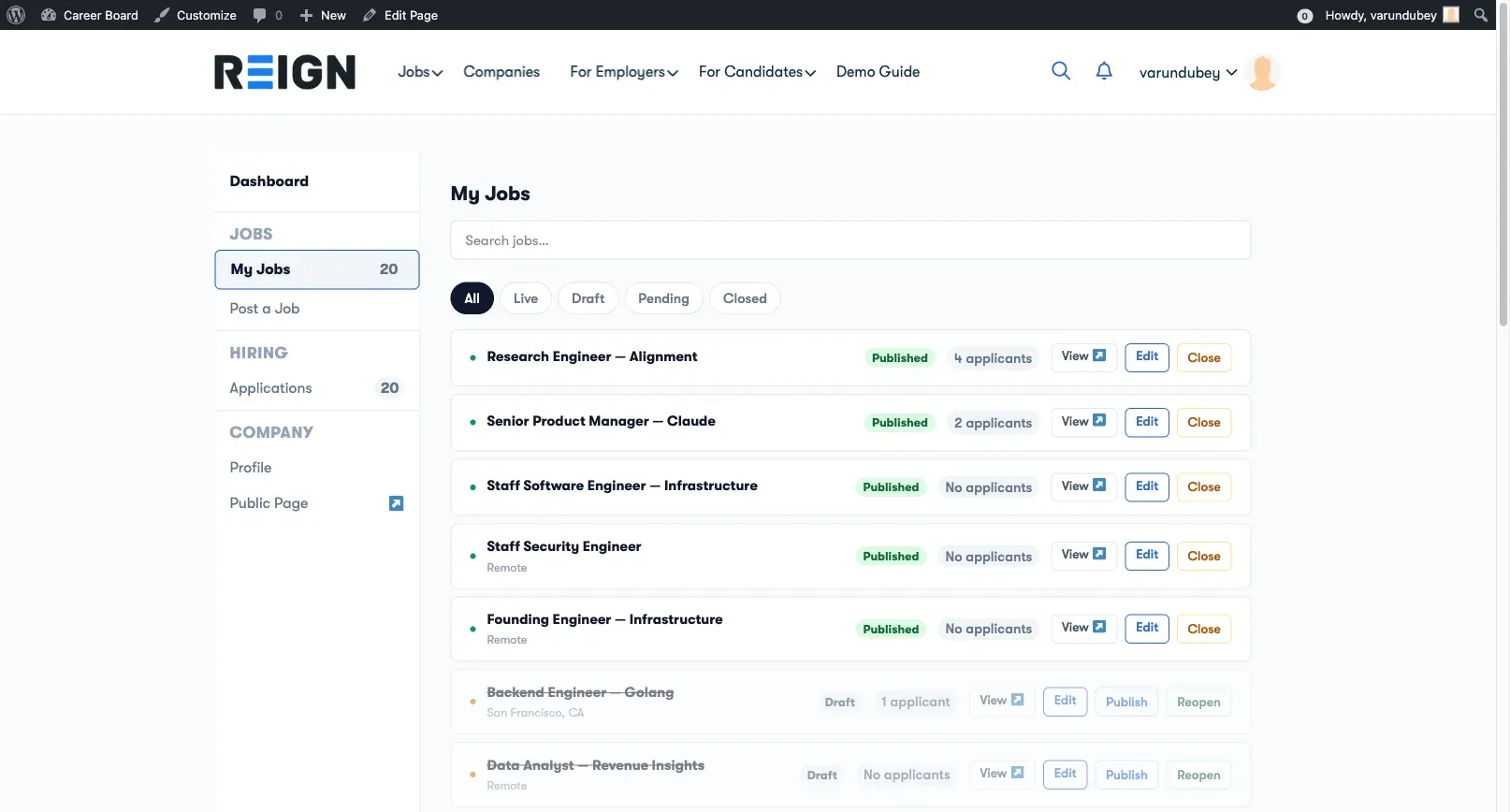
Section titled “Actions per Job”Each job row shows quick-action buttons that change based on the job’s status:
- View ↗ - opens the public job listing in a new tab
- Edit - opens the job for editing in the job form
- Close - closes the job and stops accepting applications (active jobs only)
- Publish - submits a saved draft for approval (draft jobs only)
- Resubmit - sends a rejected job back for admin approval (rejected jobs only). It does not publish directly; it returns to Pending.
- Reopen - puts a closed or expired job back on the board (inactive jobs only)
Editing a Job
Section titled “Editing a Job”- Click Edit on any job
- The multi-step Job Form opens pre-filled with the current data
- Make your changes and click Update Job
Note: If moderation is enabled, edits to a published job may require re-approval. The job stays live while under review.
Closing a Job
Section titled “Closing a Job”Click Close to stop accepting new applications. The job is removed from the job board listing but the data is preserved. You can reopen it later.
Use this when:
- You have filled the position
- You want to temporarily pause applications
Application Count
Section titled “Application Count”Each job card shows the number of applications received. Click the count to jump directly to the Applications view for that job.