

Presets Settings
Presets Settings
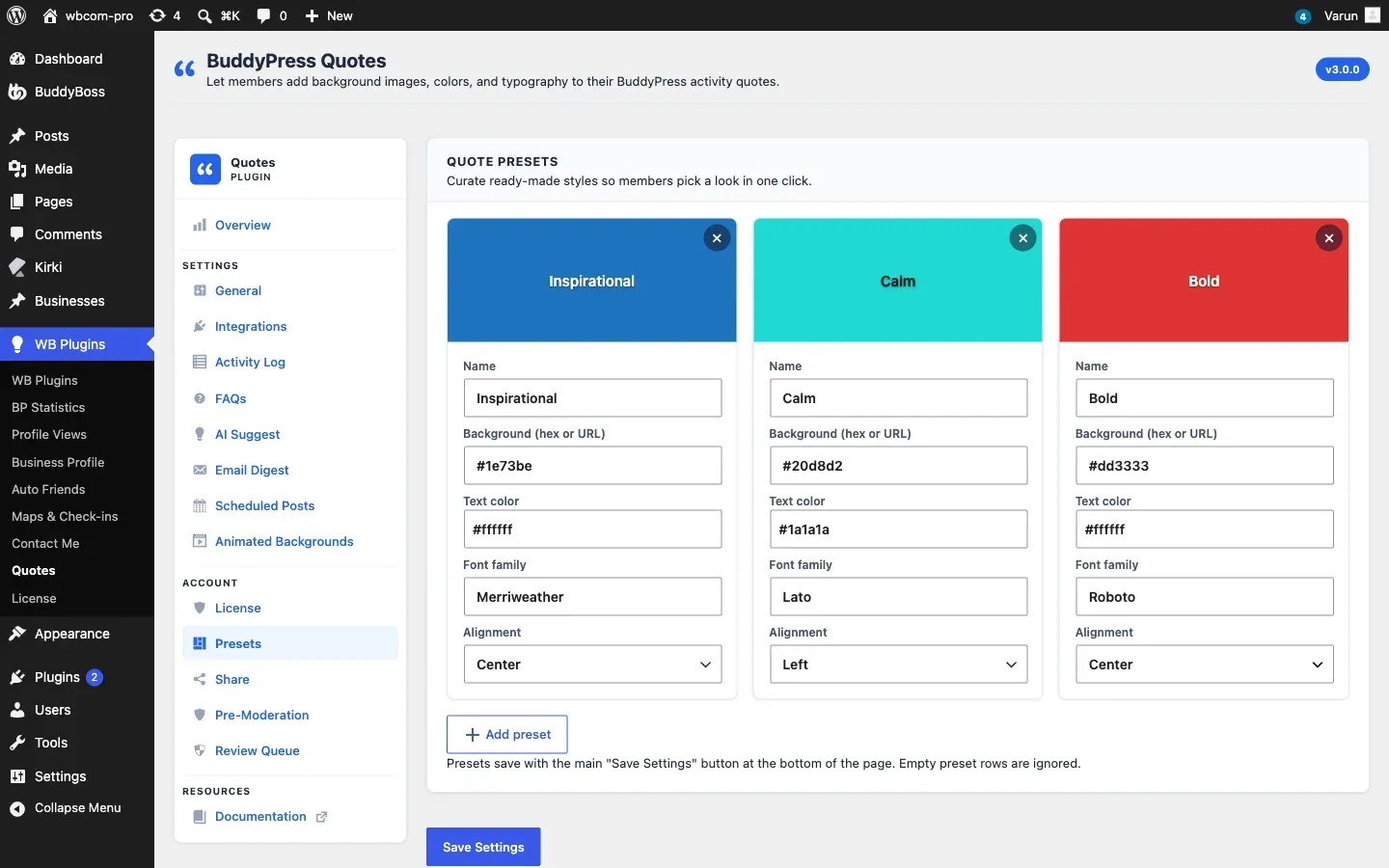
Section titled “Presets Settings”Go to WP Admin → BuddyPress Quotes → Presets to manage presets.
What Are Presets?
Section titled “What Are Presets?”A preset is a saved combination of a background, text color, and optional font override. Members see a Presets tab in the background picker. Clicking a preset applies its full style — background and text color — in one click, without having to browse the full library.
Presets are ideal for branded quote styles (company colors, seasonal themes, event designs) that you want members to use consistently.
Creating a Preset
Section titled “Creating a Preset”- Click Add Preset.
- Fill in the preset card:
| Field | Purpose | Notes |
|---|---|---|
| Name | The label members see in the picker | Keep it short: “Spring Theme”, “Company Blue” |
| Background | The background to use | Select from your existing image or color backgrounds |
| Text color | Override the default text color for this preset | Optional; leave blank to use the background’s own text-color setting |
- Drag the card handles to reorder presets. The picker shows them in the same order.
- Click Save Settings.
Editing or Removing a Preset
Section titled “Editing or Removing a Preset”- To edit, update any field on the preset card and save.
- To remove, click the × button on the card and save.
Removing a preset does not affect backgrounds or quotes that were already posted using it.
How Members Use Presets
Section titled “How Members Use Presets”In the activity composer, members click the quote icon, then switch to the Presets tab in the picker. Each preset is shown as a small preview tile. Clicking a tile applies the style immediately and the composer shows the preview.
Presets are a faster path than browsing the full background library, so they work well when you want to guide members toward specific styles without removing their ability to choose freely.
Resolving Presets in Custom Code
Section titled “Resolving Presets in Custom Code”If you build custom rendering logic, use the bpquotes_resolve_preset filter to intercept the preset lookup before the plugin resolves it from the database. See the Hooks Reference for details.