

Posting a Quote
Posting a Quote
Section titled “Posting a Quote”This page explains what a member sees and does when they post a styled quote in the activity feed, and how to share or download a quote after it is posted.
Composing a Quote
Section titled “Composing a Quote”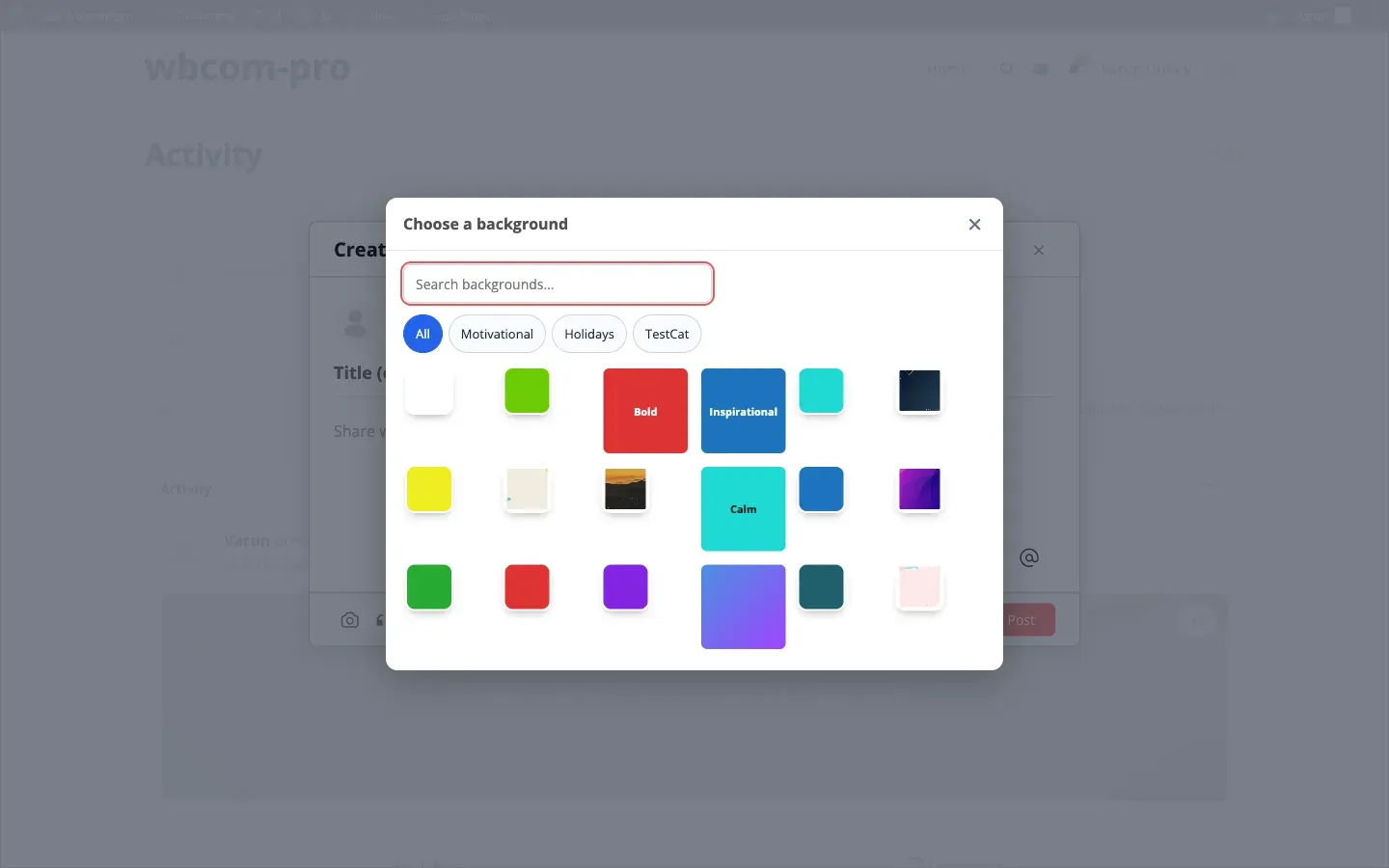
- Open the activity composer on the BuddyPress feed (the “What’s new?” box).
- Click the quote icon (speech-bubble icon) in the composer toolbar. The background picker modal opens over the composer.
- Browse, search, or filter backgrounds:
- Type in the search field to find a background by name or tag.
- Click a category tab to narrow the list to one category (tabs appear when two or more categories are configured).
- Switch to the Presets tab to pick a saved style in one click.
- Click the background you want. The composer immediately previews your text on that background.
- Type or paste your quote text in the composer’s text area.
- If AI suggestions are enabled, click Suggest and enter a short prompt. The plugin returns up to five quote options — click one to insert it.
- Click Post (or Share on BuddyBoss Platform) to publish.
Scheduling a Quote
Section titled “Scheduling a Quote”If you want to post the quote at a future time instead of immediately:
- Follow steps 1–6 above.
- Click the Schedule option (a clock icon next to the Post button, if enabled by your administrator).
- Pick a date and time.
- Click Schedule. The quote will appear in the feed at the chosen time.
Sharing or Downloading a Posted Quote
Section titled “Sharing or Downloading a Posted Quote”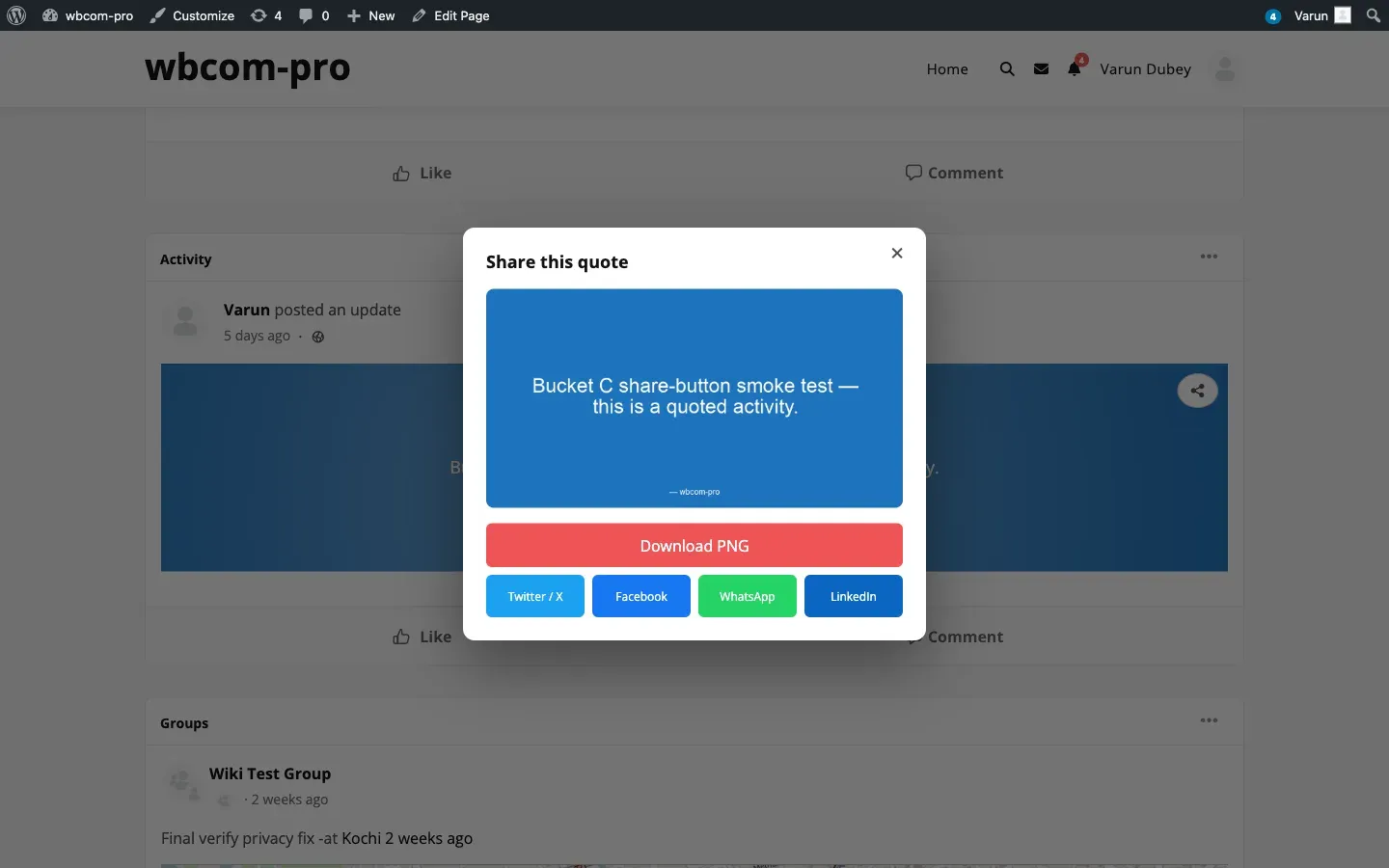
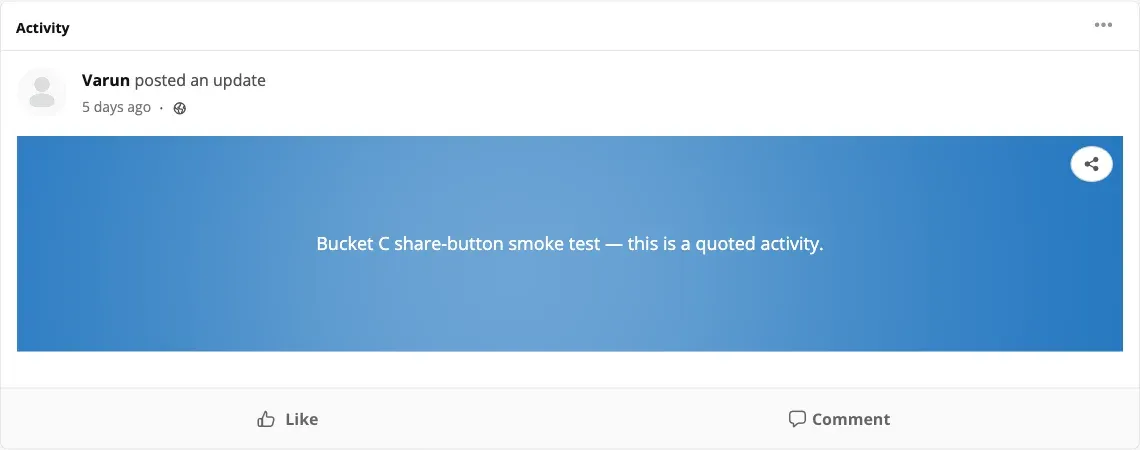
- Hover over any quote card in the feed and click the share icon (arrow icon) that appears in the top-right corner of the card. The share modal opens. The plugin renders the quote as a PNG image in the background.
- Click any social network button to open a pre-filled share post for that network. The PNG URL is attached automatically.
- To save the image locally, right-click the PNG preview and choose Save image as…, or click the Download button if one is shown.
- The rendered PNG is cached for one hour. If you click the share icon again within that window, the same image is reused and the modal opens instantly.
- The social networks that appear in the modal depend on which share targets the admin has enabled in Settings → Share.
- A watermark (if configured) is baked into the exported PNG.
- On BuddyBoss Platform the composer toolbar layout is slightly different, but the quote icon and workflow are identical.