

Verification Badges
Availability: Pro only. Requires WB Listora Pro. Free sites can approve claims but cannot award verification badges.
What it does
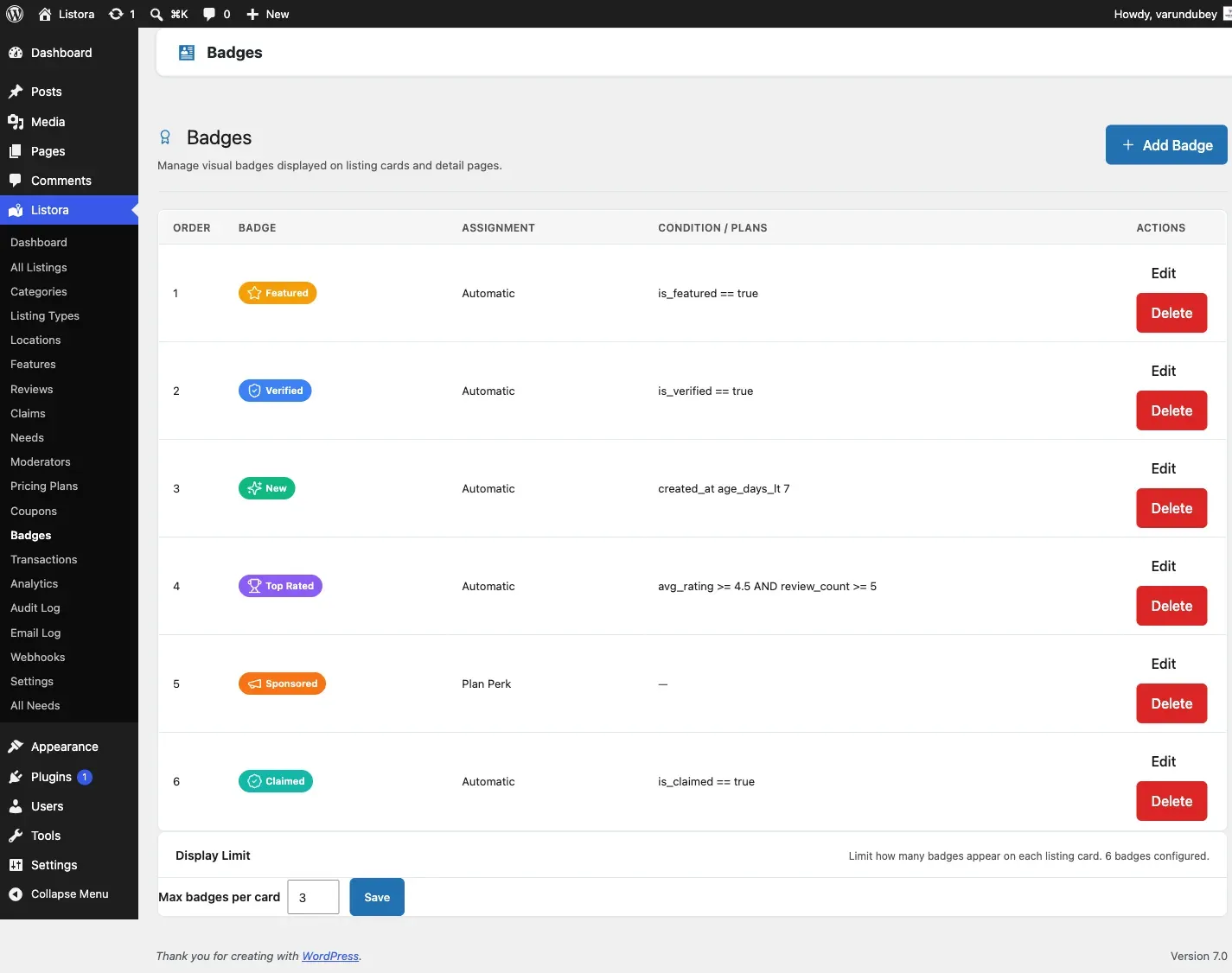
Section titled “What it does”Verification badges let you mark individual listings as verified businesses. A badge appears on the listing card in search results and on the listing detail page. Visitors see at a glance that this business has been vetted by the directory.
Why you’d use it
Section titled “Why you’d use it”- Verified badges build trust with visitors making decisions about which business to contact.
- Listings with badges stand out in the search grid, increasing click-through.
- Awarding badges gives business owners an incentive to keep their listing information accurate.
- You control which listings earn a badge - verification is always a manual, admin decision.
How to use it
Section titled “How to use it”For site owners (admin steps)
Section titled “For site owners (admin steps)”Verification badges are managed from the WordPress admin listing edit screen.
Awarding a verification badge:
- Go to Listora → All Listings (or Posts → All Posts filtered by Listora Listing).
- Click on the listing you want to verify.
- In the right sidebar, find the Verification metabox.
- Check Verified Business to award the badge.
- Optionally check Claimed to mark the listing as owner-claimed (separate from the claims workflow).
- Click Update to save.
The badge appears immediately on the listing card and detail page.
Removing a badge:
- Open the listing in the admin.
- Uncheck Verified Business in the Verification metabox.
- Click Update.
Search filter: Visitors can filter search results to show only verified listings. The verified_only=true parameter is supported in the search REST API.
For end users (visitor/user-facing)
Section titled “For end users (visitor/user-facing)”Verification is managed entirely by the site owner - there is no self-service verification flow. Visitors see the badge on:
- Listing cards in the search grid.
- Listing detail pages near the listing title.
Good to know
Section titled “Good to know”Badge pill icons are rendered on the server. They used to be drawn in the browser by a script that did not run on the front end, so a correctly configured badge showed its label with a blank space where the icon belonged. If you configured badges before 1.6.0 and gave up on the icons, they work now with no change on your side.
- Establish a verification policy before awarding badges. For example: “We verify businesses that have been claimed and have a physical address confirmed by the owner.”
- Batch-verify listings after a claims approval workflow: approve a claim, then go to that listing and award the badge in the same session.
- The verification badge and the claimed status are two separate checkboxes - a listing can be claimed without being verified, and verified without being claimed.
- To filter search results to verified listings only via URL, append
?verified_only=1to your directory page URL (requires the search block to respect this parameter). - For large directories, use the Listora → All Listings admin table with column sorting to review which listings are verified.
Common issues
Section titled “Common issues”| Symptom | Fix |
|---|---|
| Verification metabox not visible | Confirm WB Listora Pro is active |
| Badge not appearing on listing card | Clear your site and page cache after saving |
| “Verified only” search filter not working | Confirm the verified_only parameter is supported in your version - check the REST API docs |