

Time Tracking
Overview
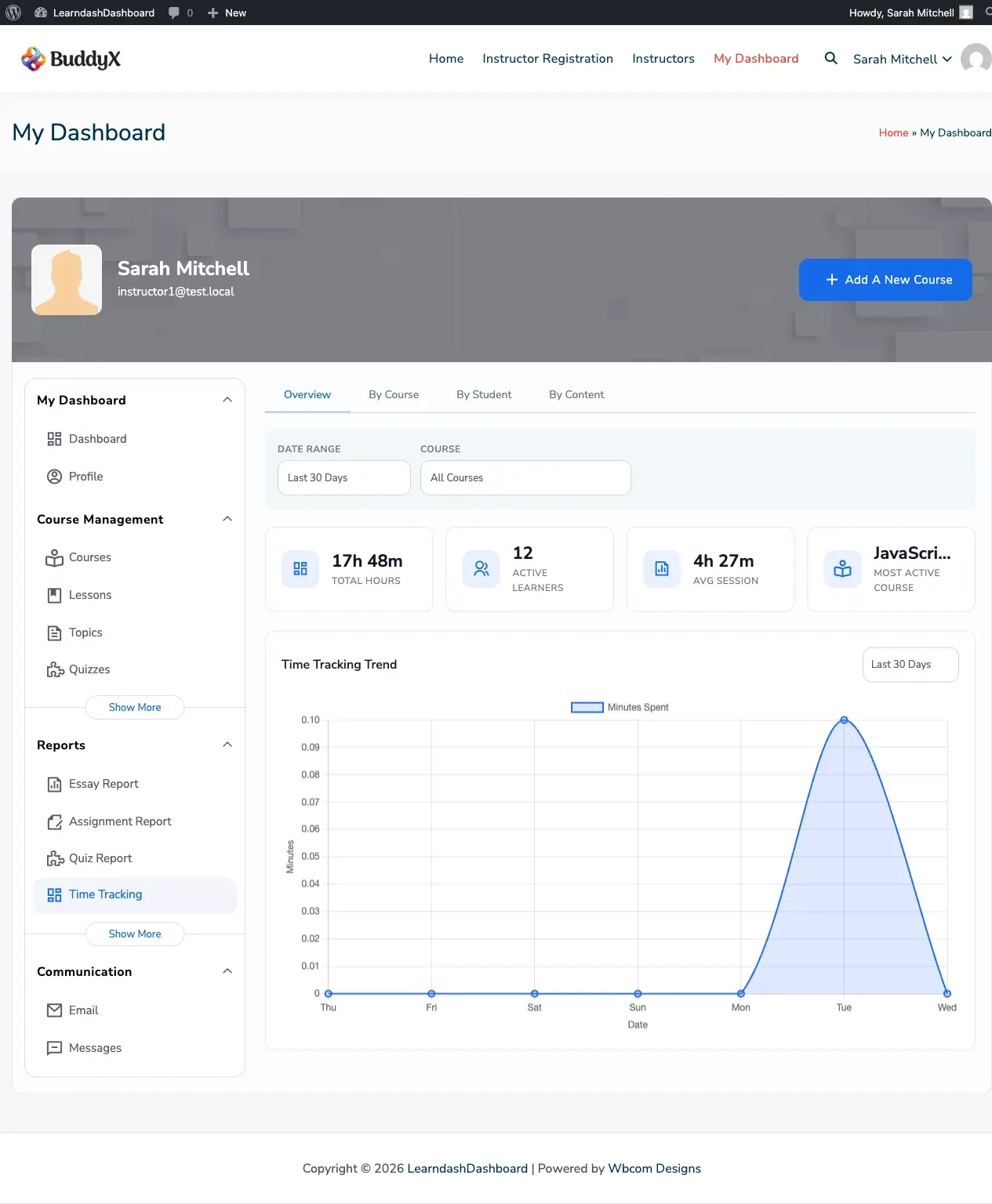
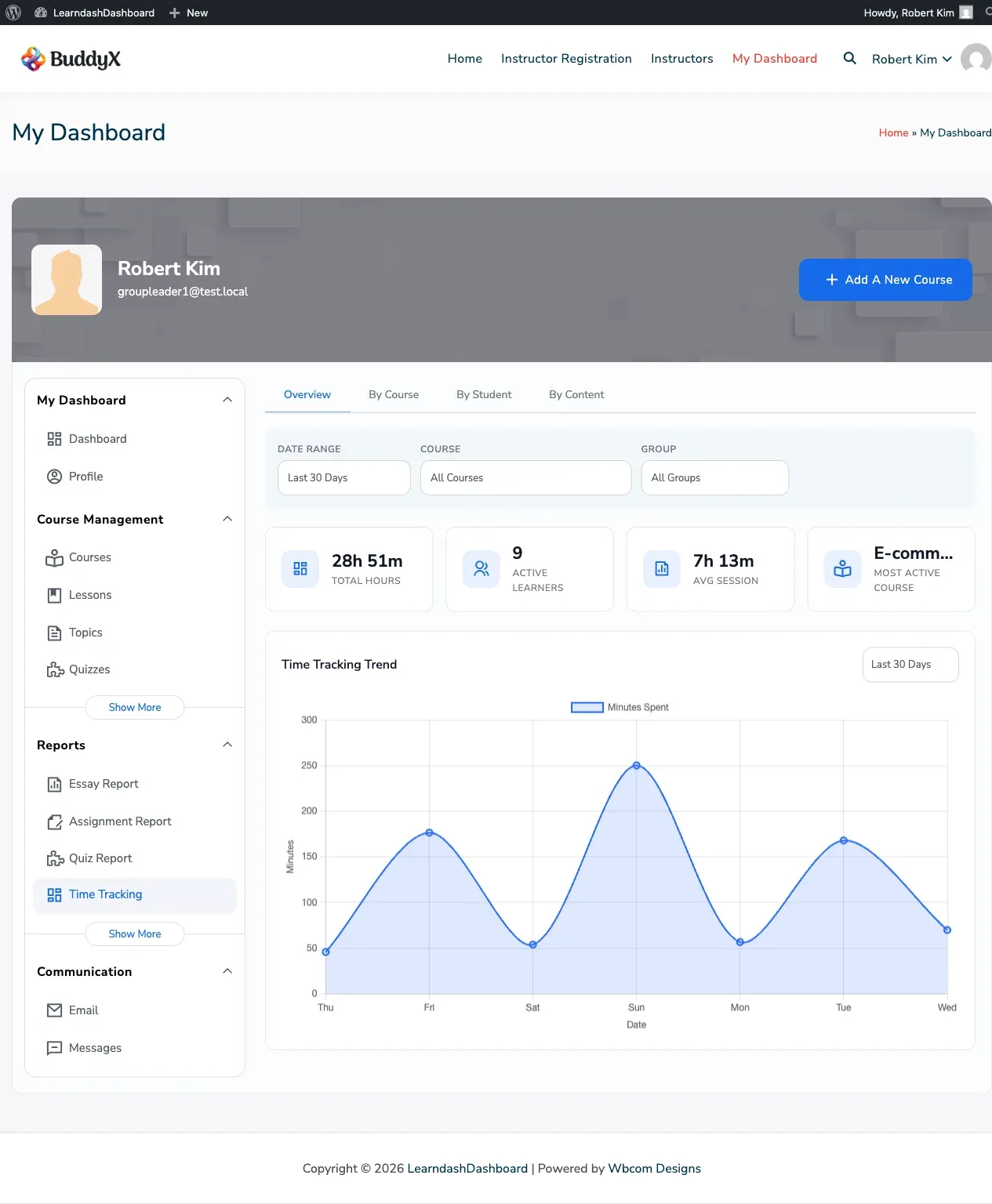
Section titled “Overview”The Time Tracking section shows you exactly how much time you’ve spent learning. See your total study hours, trends over time, and a breakdown by course — so you can understand your learning habits and stay motivated.
Note: Time Tracking must be enabled by your site administrator before this section appears in your dashboard.
Screenshots
Section titled “Screenshots”Student View
Section titled “Student View”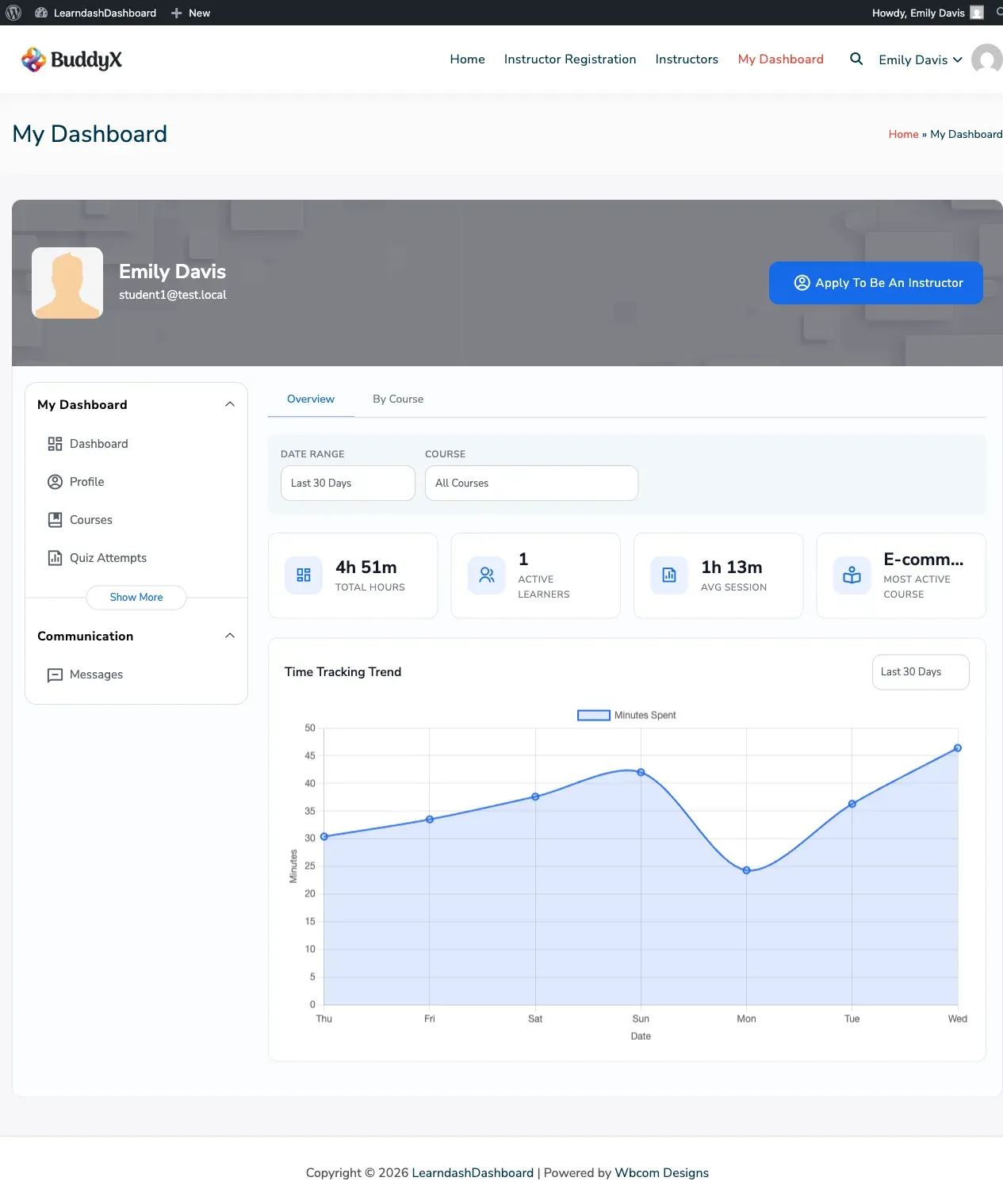
Report Views
Section titled “Report Views”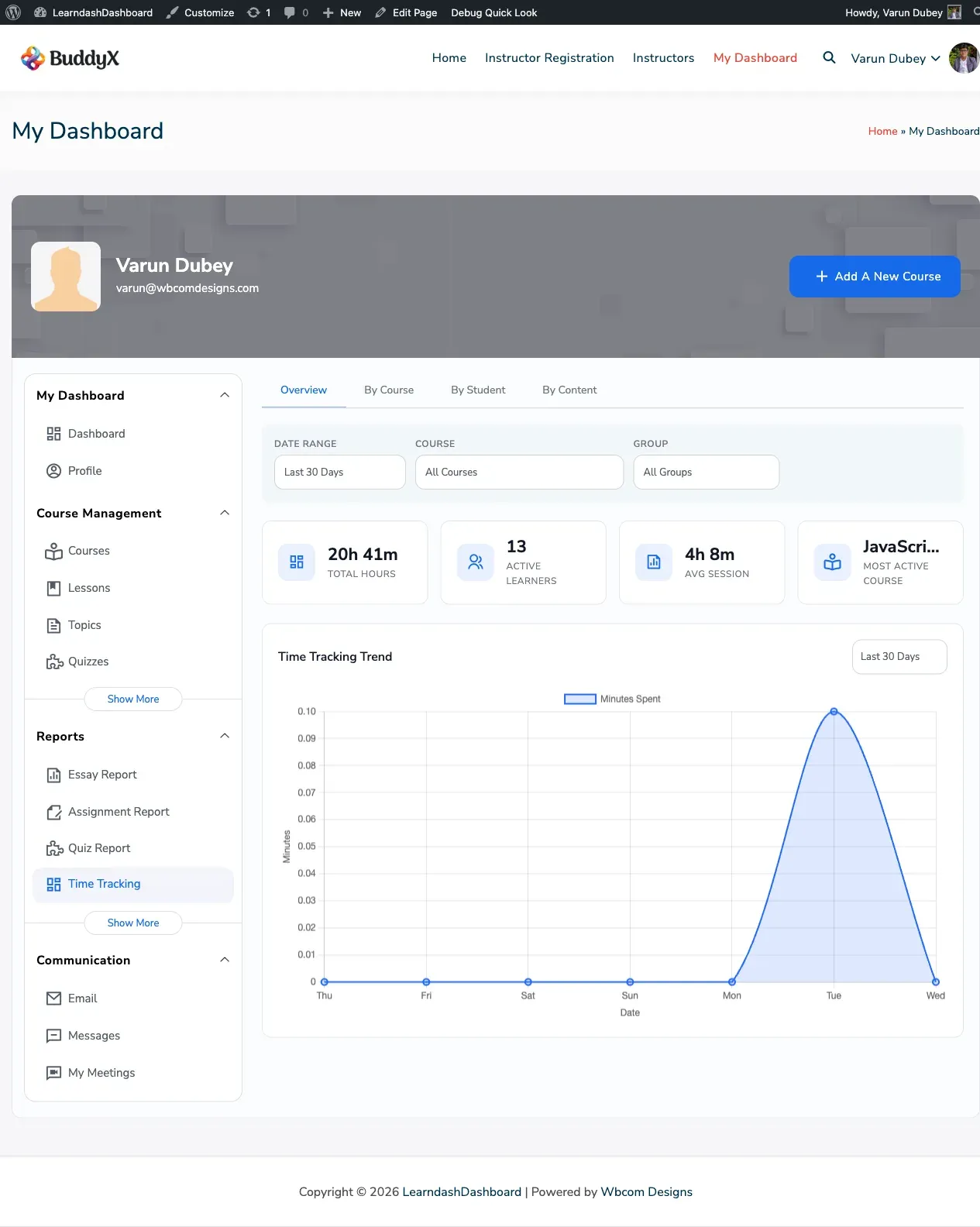
How to Access
Section titled “How to Access”Click Time Tracking in your dashboard sidebar.
How Your Time Is Recorded
Section titled “How Your Time Is Recorded”The dashboard automatically starts a timer when you open a lesson, topic, or quiz. It runs quietly in the background and saves your time at regular intervals. You don’t need to do anything — just learn, and your time is recorded.
What You’ll See
Section titled “What You’ll See”Summary Cards
Section titled “Summary Cards”At the top of the page, four cards give you a quick overview:
| Card | What It Shows |
|---|---|
| Total Hours | Your total learning time |
| Avg Session | Your average session length |
| Most Active Course | The course you’ve spent the most time on |
| Active Learners | How many students have active sessions (instructors and admins only) |
All cards update when you change the date filter.
Filtering by Date
Section titled “Filtering by Date”Use the Date Range dropdown to focus on a specific period:
- All Time
- Today
- This Week
- This Month
- Last 30 Days (default)
- Custom Range — pick your own start and end dates
Filtering by Course
Section titled “Filtering by Course”A course dropdown sits next to the date filter. Choose a specific course to see only the time you’ve spent in that course.
The Trend Chart
Section titled “The Trend Chart”The Overview view includes a bar chart showing your learning time over the selected period. Switch between Last 7 Days, Last 30 Days, and Last 12 Months using the chart controls.
By Course Breakdown
Section titled “By Course Breakdown”Click the By Course tab to see a table showing your total learning time broken down by each course. You can export this data as a spreadsheet using the Export CSV button.
For Instructors and Admins
Section titled “For Instructors and Admins”Instructors, group leaders, and admins have additional views:
- By Student — See how much time each student has spent learning
- By Content — See which lessons, topics, and quizzes students spend the most time on
These views help you identify engaged learners and spot content that might need improvement.
Admin Configuration
Section titled “Admin Configuration”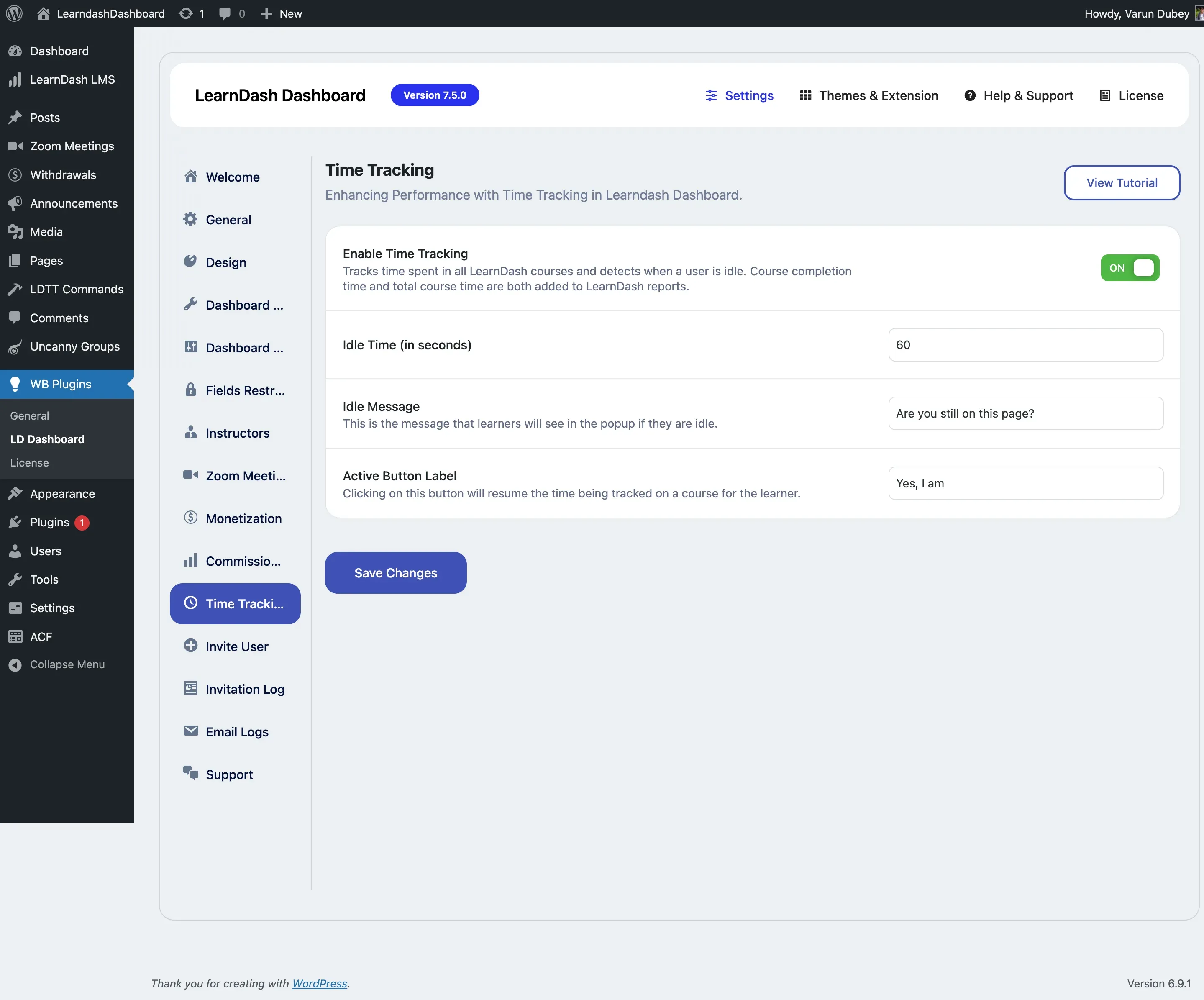
Site administrators configure Time Tracking under WP Admin > LearnDash Dashboard > Time Tracking.
| Setting | Description | Default |
|---|---|---|
| Enable Time Tracking | Turns the time tracker on or off site-wide. When enabled, the dashboard automatically records time spent on lessons, topics, and quizzes. Course completion time and total course time are both added to LearnDash reports. | Off |
| Idle Time (seconds) | How many seconds of inactivity before the tracker pauses and shows an idle popup. Increase this value for users who read slowly; decrease it for shorter attention spans. | 60 |
| Idle Message | The text displayed in the idle popup. Customize this to match your site’s tone. | “Are you still on this page?” |
| Active Button Label | The button text in the idle popup. Clicking it resumes the timer. | “Yes, I am” |
The idle detection settings only appear after you enable Time Tracking. Click Save Changes to apply.