

Notifications Tab — Recipient & Copy Settings
The Notifications tab decides what happens after a message is submitted: who gets notified, by which channel, and whether copies fan out to admins or the sender.
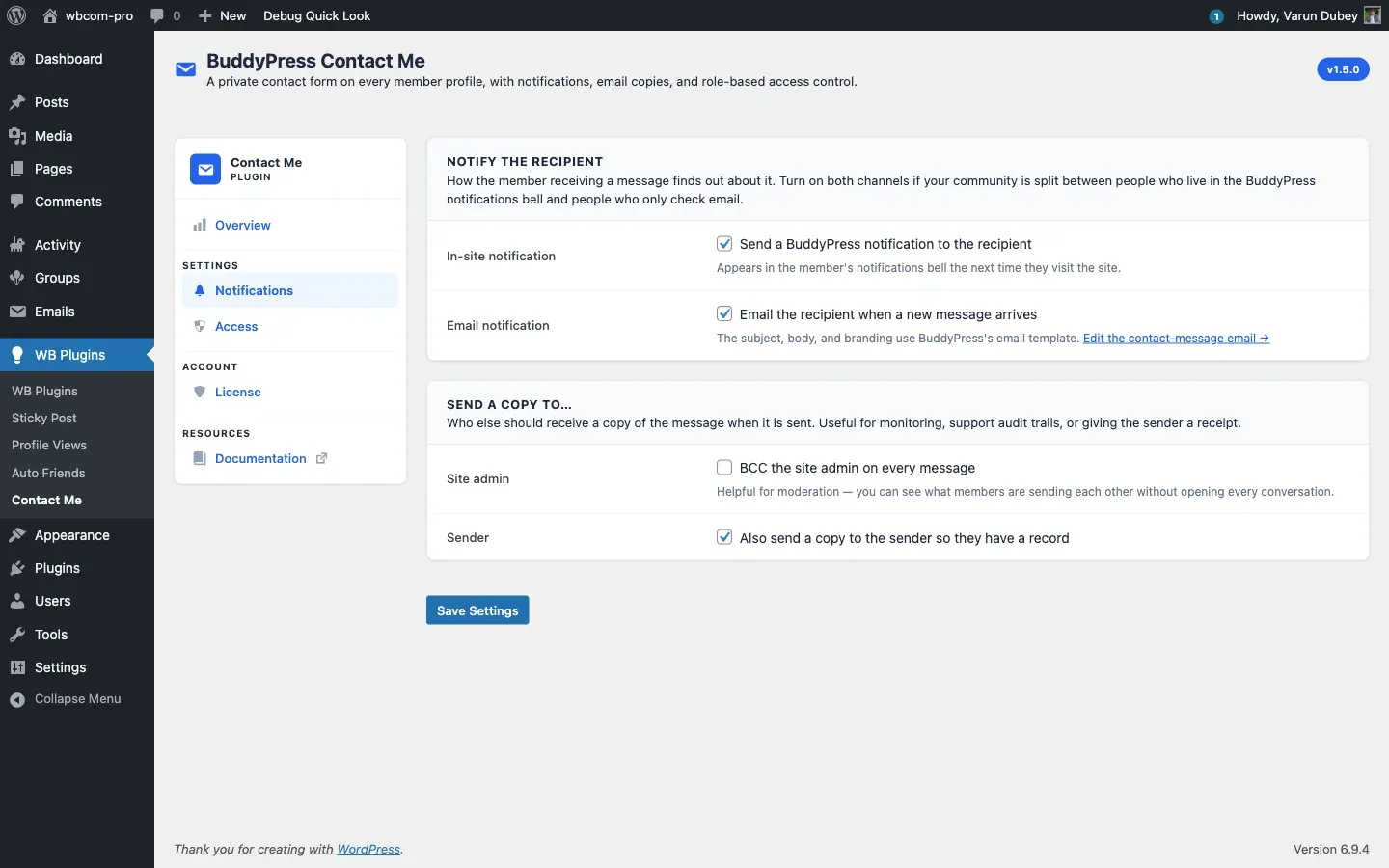
Notify the recipient
Section titled “Notify the recipient”Two channels for the person receiving the message — both can be on at the same time:
- In-site notification — sends a BuddyPress notification bell entry. Appears the next time the recipient visits the site, links straight to the single-message view at
/contact/inbox/{id}/. Requires the BuddyPress Notifications component to be active. - Email notification — sends an email through the BuddyPress email template (subject, body, header, footer, unsubscribe). Edit the template content at Dashboard → Emails under “A member received a contact message”.
If both are off, the message is still saved to the database — it just sits in the recipient’s inbox until they happen to visit the Contact tab. Most communities should leave at least one channel on.
Send a copy to…
Section titled “Send a copy to…”Two extra recipient toggles:
- Site admin — BCC every message to every user with the
administratorrole. Useful for community moderation: admins keep their inbox visible without logging in as each member. - Sender — send the sender a copy of what they submitted. Acts as a “we got your message” receipt, reduces “did my message go through?” support tickets, and gives the sender a paper trail.
The sender-copy applies to both members (delivered to their account email) and guests (delivered to the email address they typed into the form).
Edit the email template
Section titled “Edit the email template”Above the Email notification toggle there is an inline link: Edit the contact-message email →. Clicking it opens Dashboard → Emails filtered to the email post type term bcm-contact-message, so you can tweak subject and body without hunting through every BP email.
The five tokens you can use in the template are:
{{sender.name}}— display name of the sender (or guest name).{{recipient.name}}— recipient’s display name.{{contact.subject}}— the message subject.{{{contact.message}}}— the message body (auto-paragraphed; triple braces because it contains HTML).{{{inbox.url}}}— deep link to the message in the recipient’s inbox.
Plus every BP-native token like {{{site.name}}} and the unsubscribe link.
Independent saves
Section titled “Independent saves”The Notifications tab and the Access tab are independent. Saving the Notifications tab only touches the notification-related options — your role allow-lists are untouched. This is enforced via per-tab “rendered keys” sentinels so an Access save can never accidentally reset notification preferences (or vice versa).
What’s next
Section titled “What’s next”Notifications cover how members find out. The Access tab controls who can send and receive in the first place.