

Managing Topics
The Topics tab lets instructors and admins create and manage LearnDash topics from the frontend dashboard. Topics are sub-sections within lessons — ideal for breaking a lesson into smaller, focused steps.
Screenshots
Section titled “Screenshots”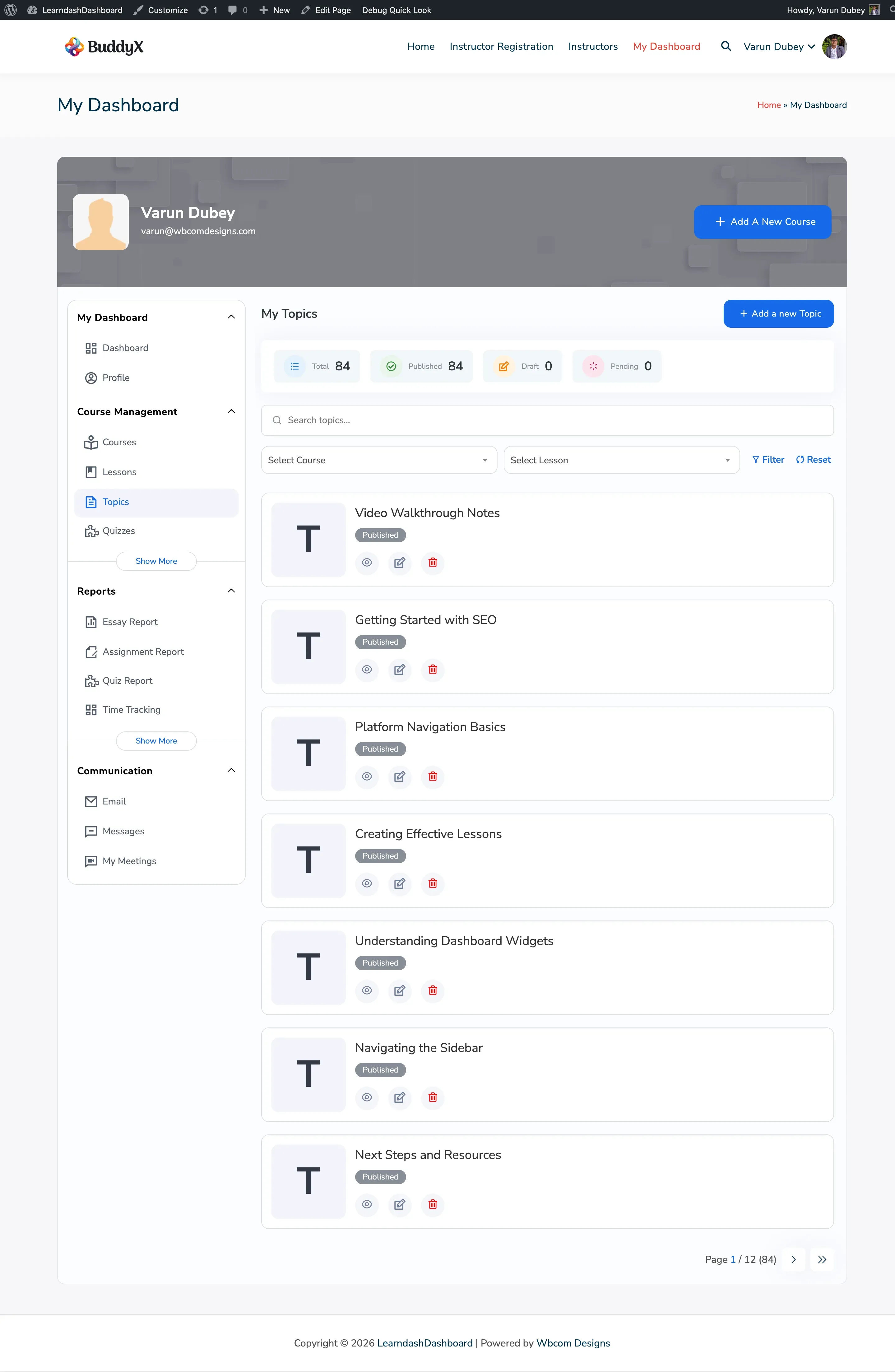
Who Can Do What
Section titled “Who Can Do What”| Action | Admin | Instructor | Group Leader |
|---|---|---|---|
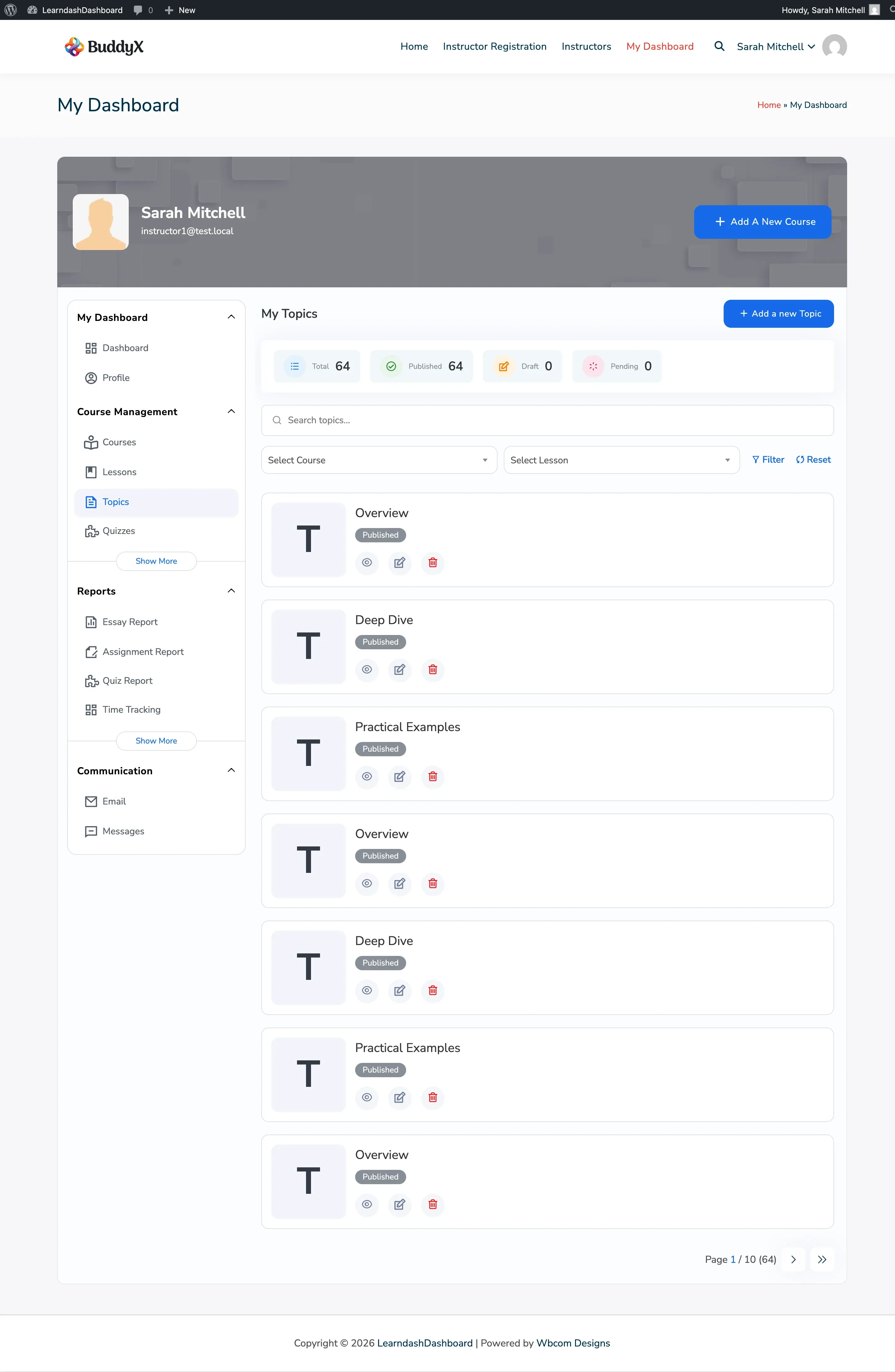
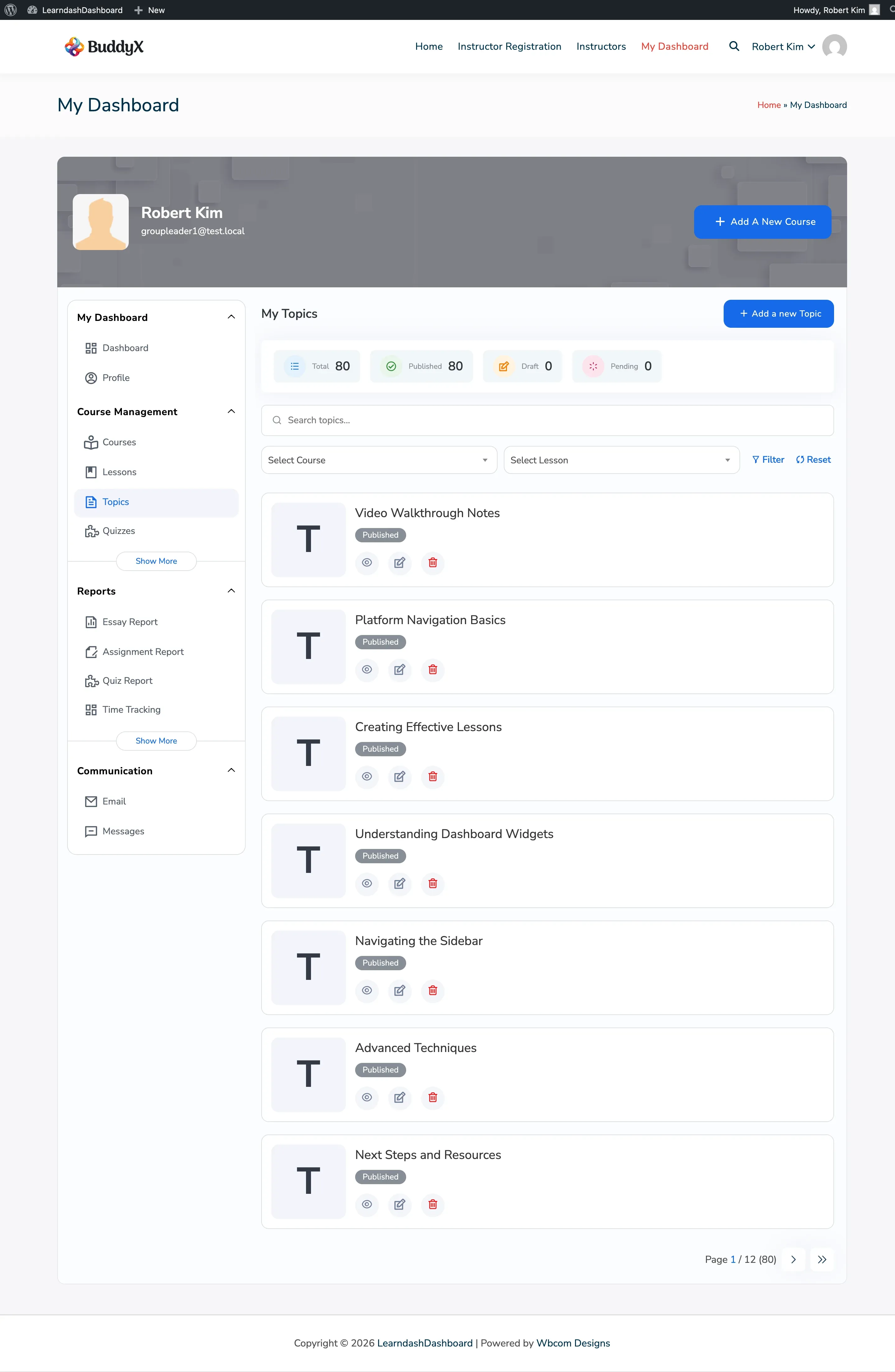
| View topics | All topics | Own topics only | Assigned topics (read-only) |
| Create topic | Yes | Yes | No |
| Edit topic | Yes | Own topics only | No |
| Delete topic | Yes | Own topics only | No |
Each topic card shows an access badge: Your Content, Shared, or View Only.
Viewing Your Topics
Section titled “Viewing Your Topics”Go to My Dashboard > Topics. Each topic card shows:
- Topic title
- Publication status: Published, Draft, or Pending
- Action buttons: View, Edit, Delete, and Edit with Elementor (if active)
Use the course filter to show topics from a specific course. Select a lesson from the dropdown that appears to narrow further. Use the search bar to find topics by title. The list shows 7 topics per page.
Creating a Topic
Section titled “Creating a Topic”-
Go to My Dashboard > Topics.
-
Click Add New Topic.
-
Fill in the Post Data tab:
Field Required Description Topic Title Yes The name of your topic Status No Published, Pending, or Draft Topic Content No The main topic content Featured Image No The topic thumbnail -
Switch to the Settings tab and configure:
Field Description Topic Materials Add downloadable resources for students Video Progression Require students to watch a video before they can continue Video URL The URL of the required video Display Timing Show the video before or after sub-steps are complete Topic Auto-Completion Mark the topic complete automatically when the video ends Autostart Play the video automatically (muted) when the topic loads Video Controls Allow students to pause or skip through the video Assignment Upload Let students submit a file as an assignment Forced Timer Require students to spend a minimum amount of time before completing Sample Topic Make this topic visible to anyone, even non-enrolled visitors Drip Schedule Set a delay (in days after enrollment) before this topic becomes available External Topic Link to a virtual or in-person session -
Click Save Topic.
Arranging Topic Order
Section titled “Arranging Topic Order”Topic order within a lesson is set using the Course Builder on the Courses tab — not from the topic form itself. See Managing Courses for instructions.
When you filter topics by lesson, they appear in the order defined in the Course Builder.
Editing a Topic
Section titled “Editing a Topic”- Use the course and lesson filters to locate the topic.
- Click the Edit icon on the topic card.
- Make your changes in the Post Data or Settings tab.
- Click Save Topic.
Deleting a Topic
Section titled “Deleting a Topic”- Click the Delete icon on the topic card.
- Confirm the deletion.
The topic moves to the trash. Student progress records are kept and are not deleted.