

Applying for Jobs
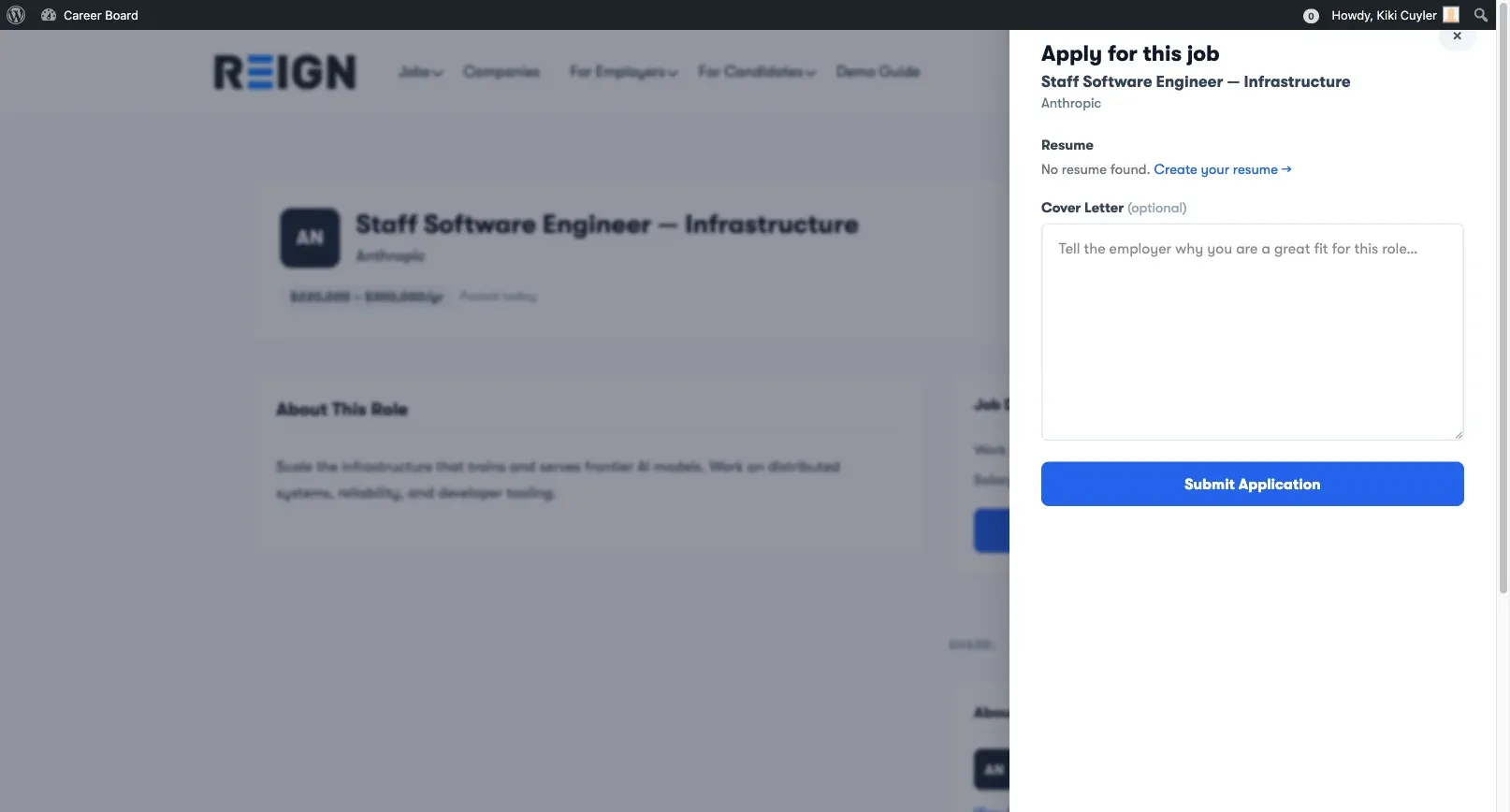
Applying is quick - candidates fill out a short form that slides in from the right side of the job listing page. No redirects, no new pages.
Before You Apply
Section titled “Before You Apply”You can apply as a guest (no account required) or as a logged-in member. By default any logged-in user can apply - a dedicated Candidate role is not required unless the site admin turns on Require Candidate Role.
Logged-in members get:
- A dashboard to track all their applications
- Saved application history
- Email updates on every status change
How to Apply
Section titled “How to Apply”- Open a job listing page
- Click Apply Now - an application panel slides in from the right
- Fill in the form fields
- Click Submit Application
Application Form Fields
Section titled “Application Form Fields”| Field | Requirement |
|---|---|
| Full Name | Required (pre-filled if logged in) |
| Email Address | Required (pre-filled if logged in) |
| Cover Letter | Optional by default - but strongly recommended |
| Select Resume | Choose from your saved resumes (Pro) |
| Upload Resume | Upload a PDF, DOC, or DOCX file. Default size limit is 5 MB; the site admin can raise it up to 20 MB. A resume is required to apply unless the admin turns that off. |
When Pro is active, you’ll see both options: pick an existing resume from your profile or upload a file directly. The “ - or upload a file - “ divider separates the two methods. If you pick a resume that was built in the Resume Builder and has no uploaded PDF, Pro generates and attaches a PDF for you automatically on submit.
Write your cover letter with AI (Pro)
Section titled “Write your cover letter with AI (Pro)”When the site runs WP Career Board Pro with AI enabled, a Write with AI button appears next to the Cover Letter field. Click it to have the assistant draft a cover letter based on the job and your profile, then edit the text before submitting. The button is hidden on Free-only installs and when AI is not configured.
With WP Career Board Pro: employers can also add custom screening questions to each job.
What Happens After You Apply
Section titled “What Happens After You Apply”- You receive a confirmation email with the job title and company name
- The employer receives a notification email about your application
- Your application appears in your Candidate Dashboard → My Applications with status Submitted
- Get notified about similar jobs - after submitting, you’ll see a prompt to create a job alert based on this job’s category, type, and location (Pro feature)
Withdrawing an Application
Section titled “Withdrawing an Application”If you change your mind:
- Go to your Candidate Dashboard → My Applications
- Find the application you want to withdraw
- Click Withdraw
Withdrawing permanently deletes the application. It is removed from both your dashboard and the employer’s view. You cannot resubmit after withdrawing.
Note for site owners: the Withdraw control is on by default and can be turned off under Career Board → Settings → Listings → Allow Withdraw. When it is off, candidates can no longer withdraw their own applications.
Application Limits
Section titled “Application Limits”There is no limit to how many jobs a candidate can apply for on the free version.
Applying Without an Account
Section titled “Applying Without an Account”Guest applicants (no account):
- Enter their name and email in the application form
- Receive email confirmation
- Cannot track their application status (no dashboard access)
- Cannot withdraw their application
To track your application status, register as a candidate before applying.