

Editing Your Profile
Overview
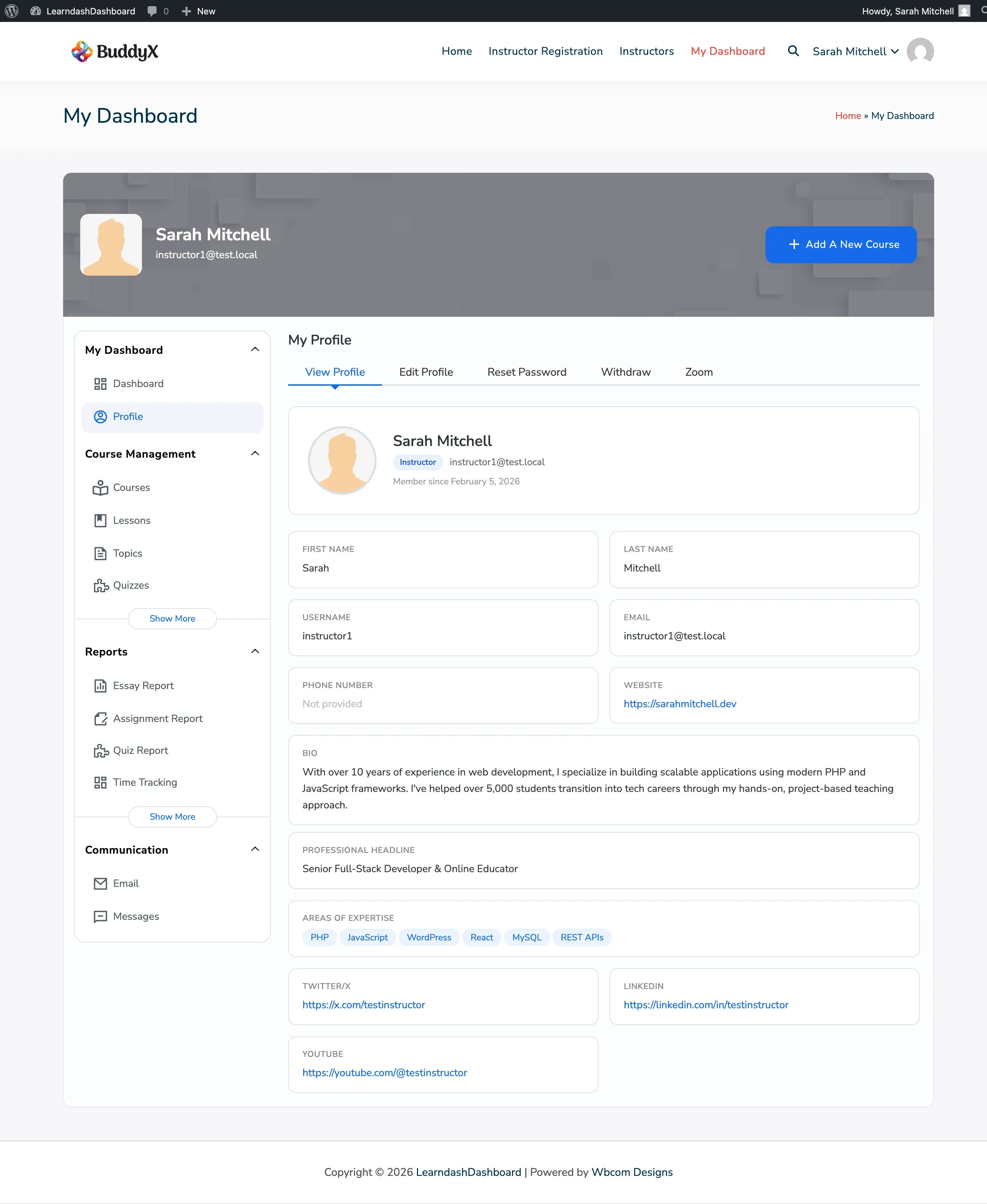
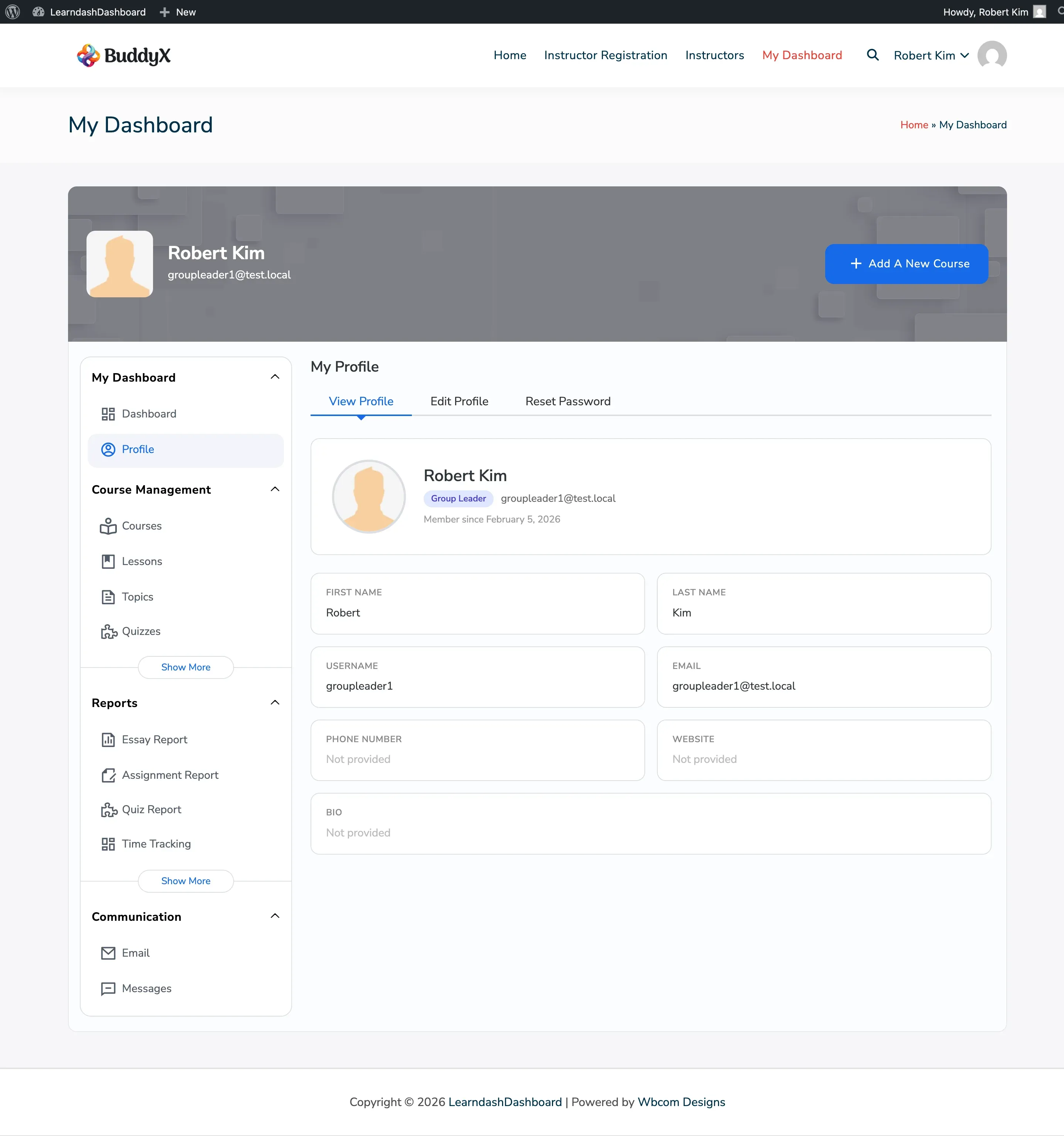
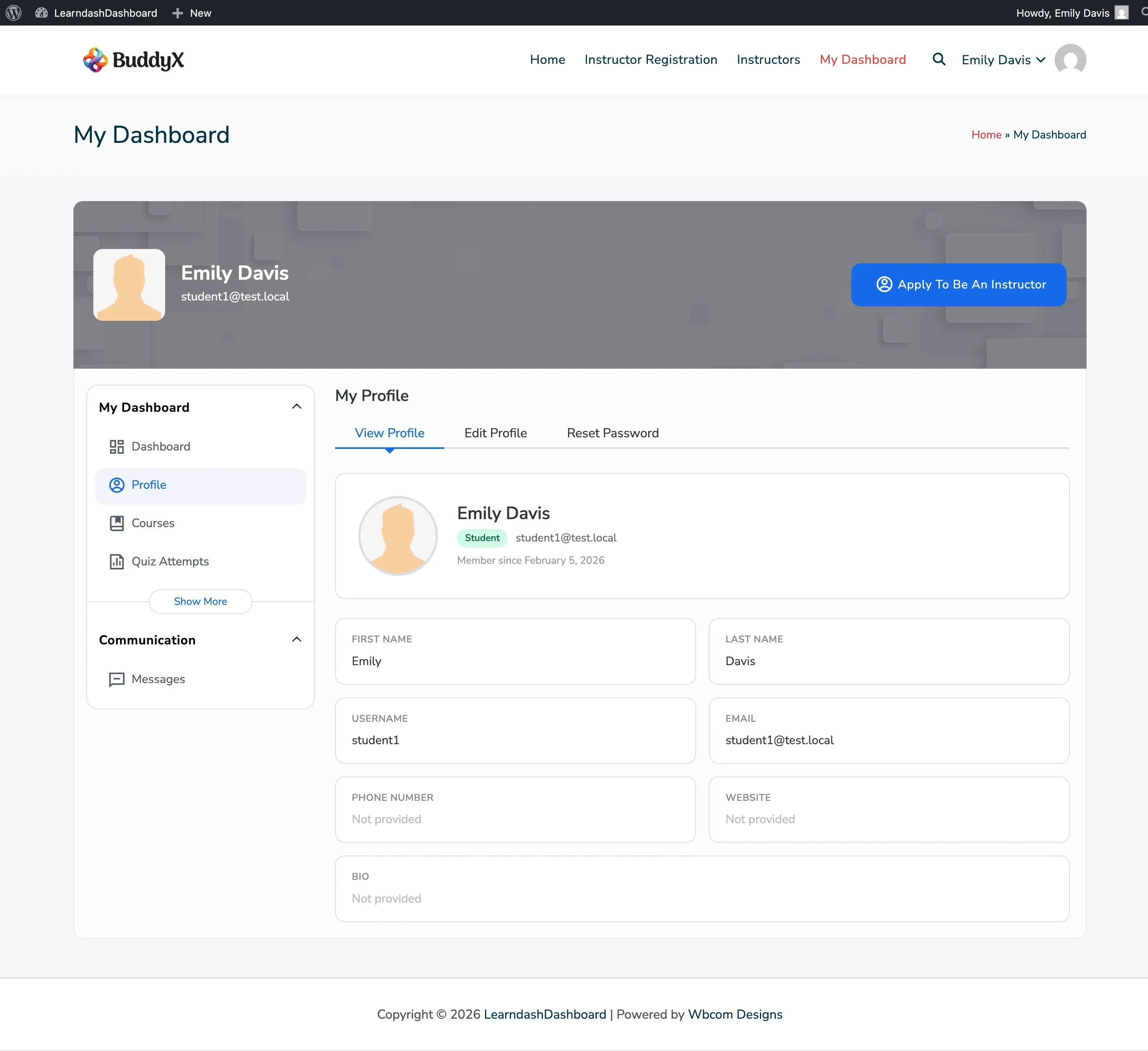
Section titled “Overview”The Edit Profile page lets you update your personal information, contact details, bio, and profile photo. Instructors can also update their professional headline, areas of expertise, and social media links.
Screenshots
Section titled “Screenshots”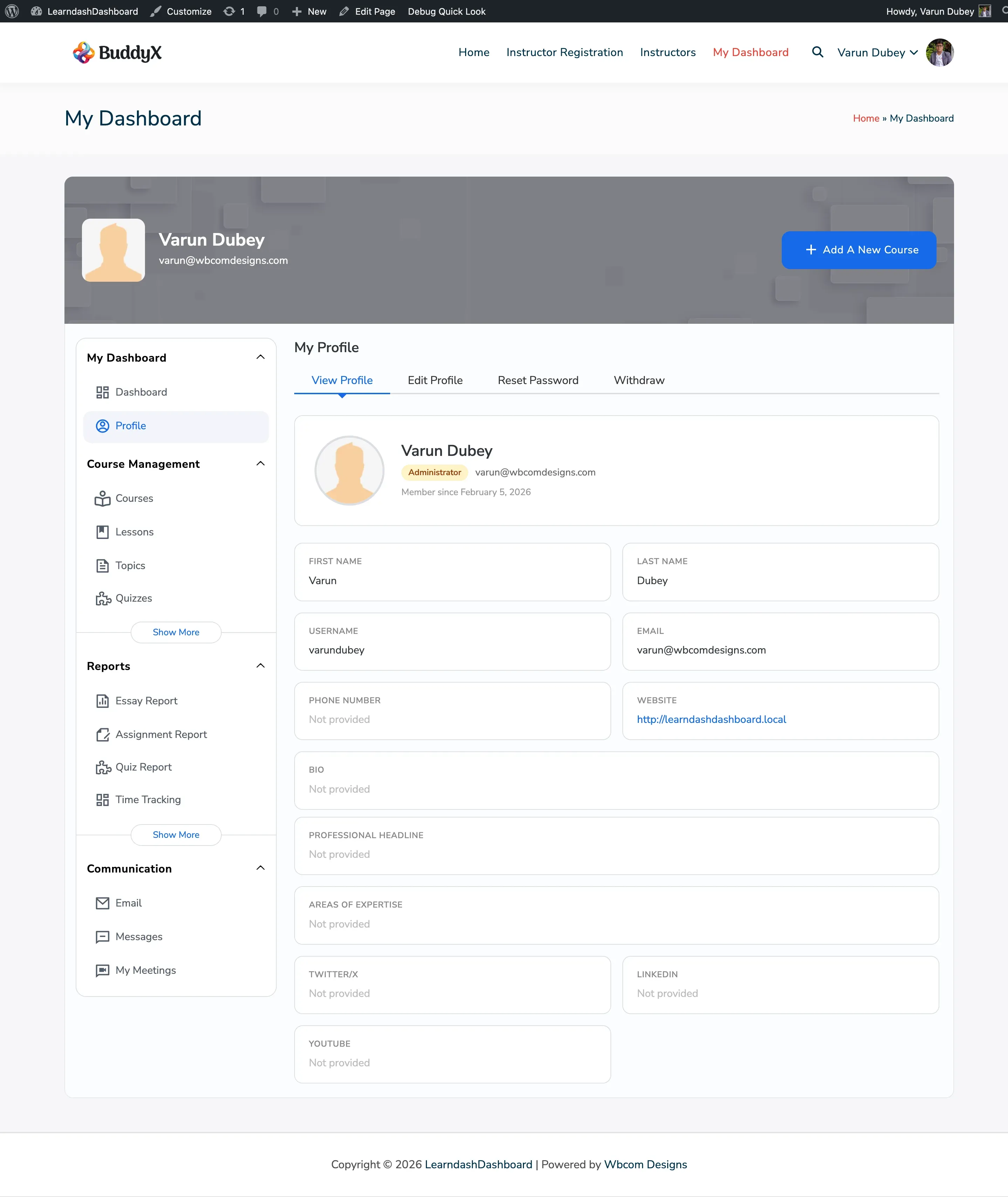
How to Access
Section titled “How to Access”Go to Dashboard > Profile, then click the Edit Profile tab. You must be logged in to see this page.
Updating Your Information
Section titled “Updating Your Information”Personal Information
Section titled “Personal Information”| Field | Description |
|---|---|
| First Name | Your first name |
| Last Name | Your last name |
| Display Name | Choose how your name appears to others — you can pick from combinations of your username, first name, last name, or nickname |
Contact Information
Section titled “Contact Information”| Field | Description |
|---|---|
| Phone Number | Your phone number |
| Website URL | Your personal or business website |
| Field | Description |
|---|---|
| Bio | A short description about yourself |
Instructor Profile
Section titled “Instructor Profile”If you are an instructor or administrator, you’ll also see:
| Field | Description |
|---|---|
| Professional Headline | A short tagline shown on your public instructor profile |
| Areas of Expertise | Your specialties, separated by commas — displayed as tags |
| Twitter/X | Link to your Twitter/X profile |
| Link to your LinkedIn profile | |
| YouTube | Link to your YouTube channel |
Updating Your Profile Photo
Section titled “Updating Your Profile Photo”Uploading a New Photo
Section titled “Uploading a New Photo”- Click Change Avatar below your current photo.
- Select an image from your media library or upload a new file.
- Click Update Profile to save.
Removing Your Photo
Section titled “Removing Your Photo”- Click Remove next to your photo.
- Click Update Profile to save.
After removal, your profile shows a default avatar image.
If You Use BuddyPress
Section titled “If You Use BuddyPress”If your site uses BuddyPress and the BuddyPress avatar setting is turned on, the photo upload option is hidden here. Manage your profile photo through your BuddyPress profile instead.
Saving Your Changes
Section titled “Saving Your Changes”Click Update Profile at the bottom of the form. Your changes save immediately. Click View Profile to see how your profile looks to others.