

Brand Your App
Brand Your App
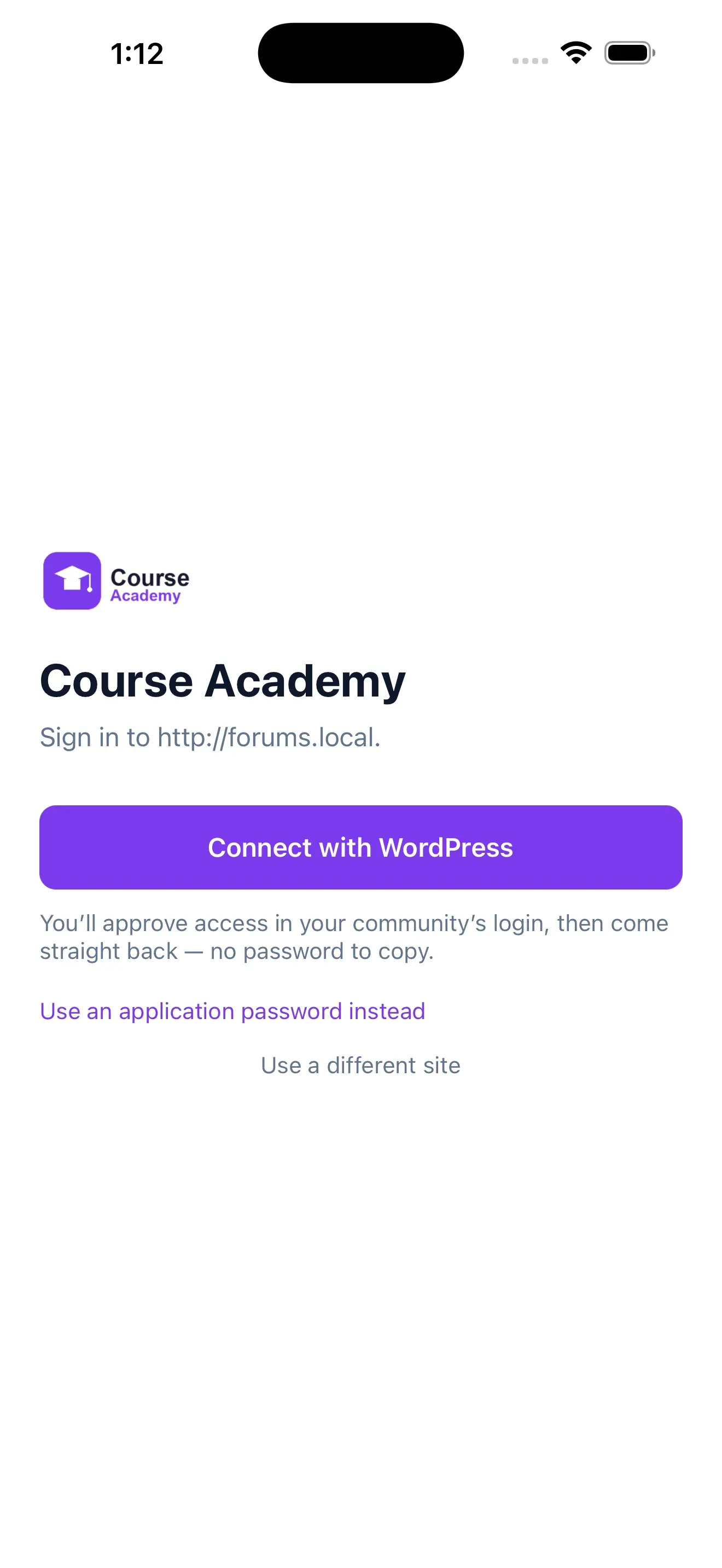
Section titled “Brand Your App”The mobile app reads your branding straight from your WordPress settings, so you change it in wp-admin and the app updates itself - no rebuild needed. You control three things: your community name, your accent color, and your logo.
Requires Jetonomy 1.6.0 or newer. On older versions the app falls back to its default styling.
What You Will Learn
Section titled “What You Will Learn”- Where to set the community name, accent color, and logo
- How the app reads them and what each one affects
- The difference between in-app branding and the phone home-screen icon
Set your community name
Section titled “Set your community name”- Go to Jetonomy -> Settings -> General
- In Community Title, enter your community’s name (for example, Course Academy)
- Click Save Changes
This becomes the community name shown in the app, including on the sign-in screen.
Set your accent color
Section titled “Set your accent color”- Go to Jetonomy -> Settings -> Appearance
- Under Color Palette, open Accent and pick your brand color
- Click Save Changes
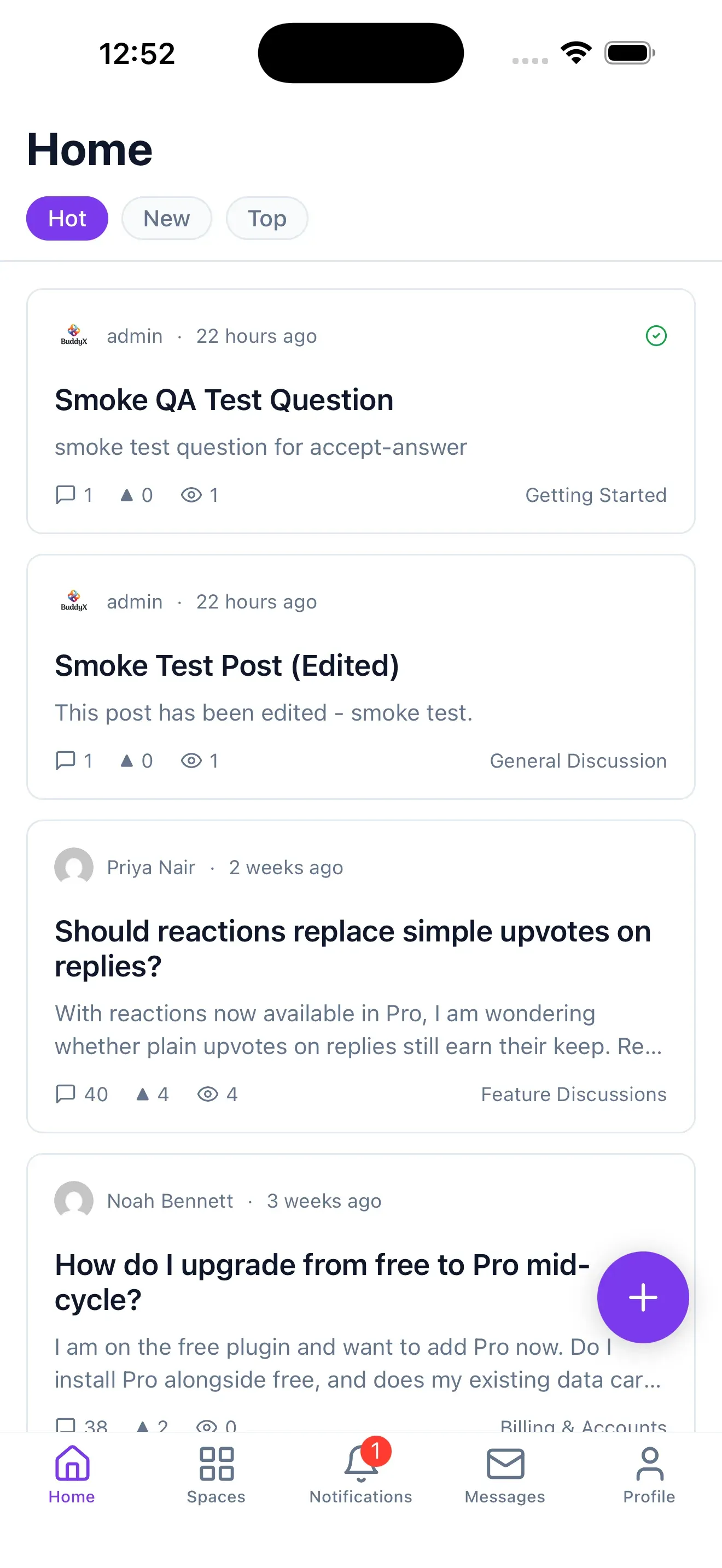
The accent color themes the whole app - buttons, the active feed tab, links, and the compose button.
Add your logo
Section titled “Add your logo”- Still on Jetonomy -> Settings -> Appearance, find the Logo field
- Paste the URL of your logo image
- Tip: upload your logo under Media -> Add New, open it, and copy the File URL.
- Best results: a transparent PNG at least 512px on its longest side
- Click Save Changes
The logo appears on the app’s sign-in screen.
How the app reads it
Section titled “How the app reads it”The app fetches these values from the public endpoint:
GET /wp-json/jetonomy/v1/app/configwhich returns your app_name (Community Title), accent_color, and logo_url. The app re-reads it whenever it connects, so updates appear without shipping a new build.
In-app branding vs the home-screen icon
Section titled “In-app branding vs the home-screen icon”- In-app branding (logo, color, name) is what these settings control. It themes the inside of the app, and every community’s branding is read from its own site.
- The phone home-screen icon and app name are baked into the app binary. They only change when you publish your own branded app - see Get the App.
Next steps
Section titled “Next steps”- Connect Members - how members sign in
- Get the App - how to get a branded app of your own