

Poll Dashboard
The Poll Dashboard is your central hub for managing all standalone polls. View statistics, filter by status, and take quick actions on any poll from a single interface.
Accessing the Dashboard
Section titled “Accessing the Dashboard”Navigate to your Poll Dashboard page to see all polls you have created.
Dashboard Overview
Section titled “Dashboard Overview”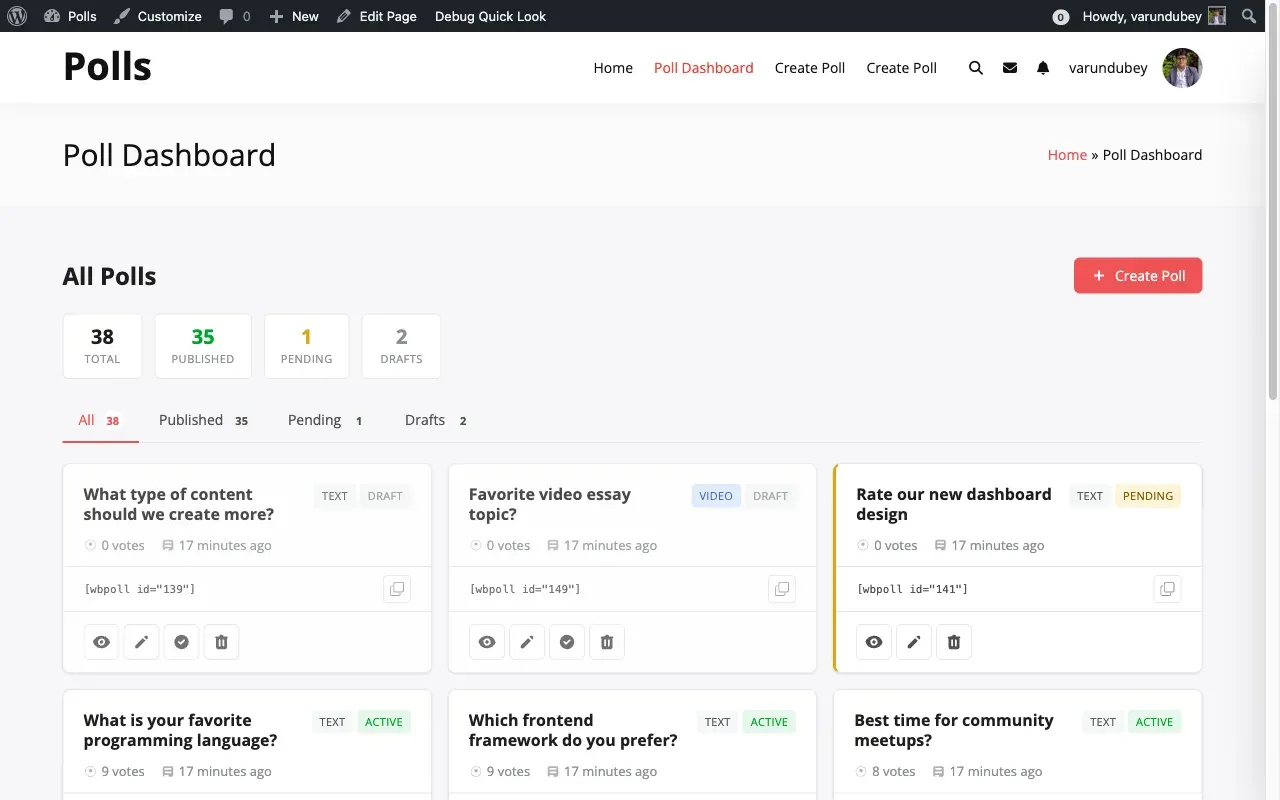
The dashboard displays stat cards at the top showing total, published, pending, and draft poll counts. Filter tabs let you switch between poll statuses. Each poll card shows the title, type badge, status indicator, vote count, shortcode for embedding, and action buttons.
Managing Your Polls
Section titled “Managing Your Polls”| Action | What It Does |
|---|---|
| View | Open the poll’s public page |
| Edit | Change title, description, or options (only before votes are cast) |
| Pause | Stop accepting votes temporarily |
| Resume | Start accepting votes again after pausing |
| Unpublish | Move the poll back to draft status |
| Publish | Make a draft poll live |
| Delete | Remove the poll permanently |
Poll States
Section titled “Poll States”| State | Description | Voting | Visible |
|---|---|---|---|
| Draft | Saved but not published | No | No |
| Pending | Awaiting admin approval | No | No |
| Scheduled | Start date not yet reached | No | No |
| Active | Live and accepting votes | Yes | Yes |
| Paused | Temporarily stopped | No | Yes |
| Expired | Past the end date | No | Yes (results shown) |
Sharing Your Polls
Section titled “Sharing Your Polls”Direct Link: Copy the poll URL from your browser address bar and share it anywhere.
Embed with Shortcode: Find the shortcode on your dashboard under each poll card:
[wbpoll id="36"]Paste this shortcode in any post, page, or widget area to embed the poll.
Admin Poll Management
Section titled “Admin Poll Management”Administrators can manage all polls from the WordPress admin area at WB Polls > WB Polls.
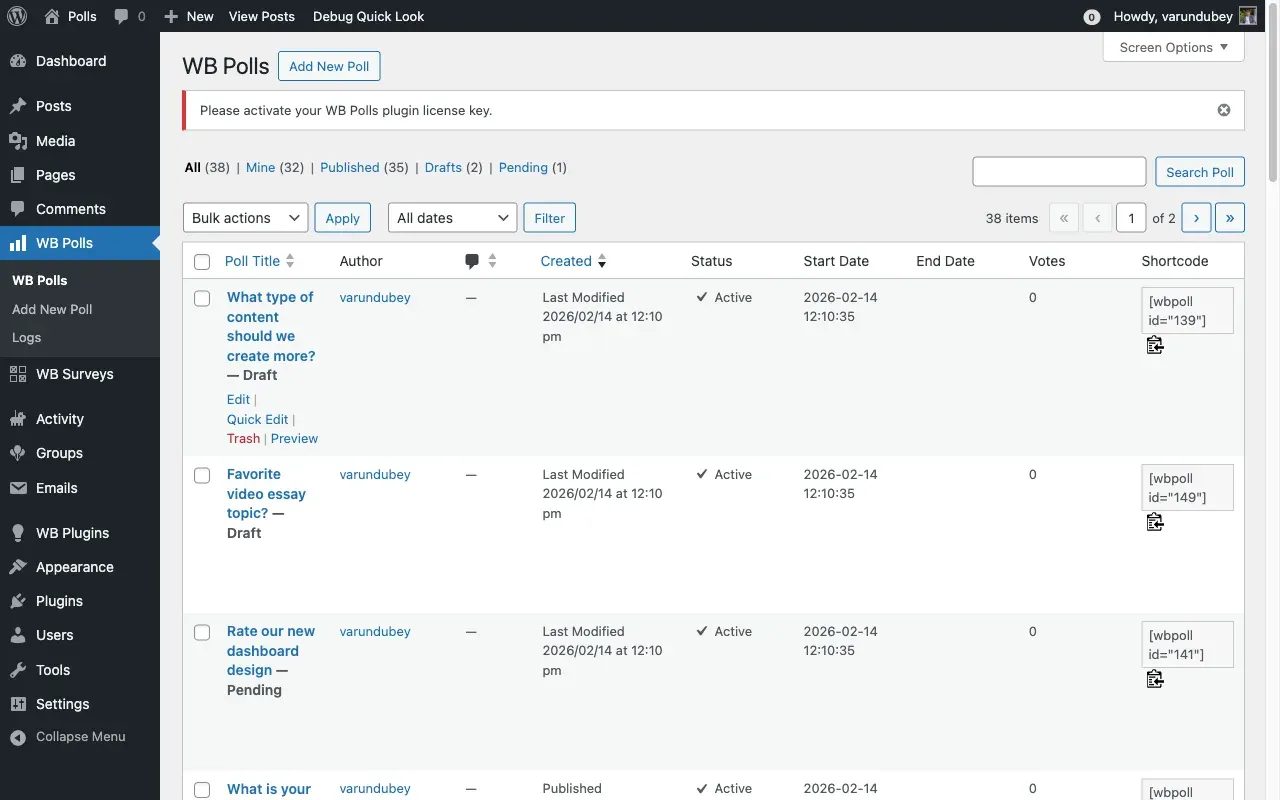
The admin list shows all polls with columns for title, author, status, start date, end date, vote count, and shortcode. Use the status filter tabs (All, Published, Drafts, Pending) to find specific polls. Hover over any poll to access Edit, Quick Edit, Trash, and Preview actions.
Admin capabilities:
| Action | How |
|---|---|
| Edit any poll | Click the poll title or Edit link |
| Change status | Use Quick Edit to change between Published, Draft, and Pending |
| View votes | Check the Votes column for each poll |
| Copy shortcode | Click the copy icon next to the shortcode |
| Bulk actions | Select multiple polls and apply Trash or status changes |
| Search polls | Use the Search Poll box in the top right |
Single Poll Page
Section titled “Single Poll Page”When viewing a standalone poll on its dedicated page, you see:
- Poll Header with the title, type badge, status badge, and navigation links
- Poll Information showing vote count, multi-choice indicator, and creation date
- Poll Content with the question, description, answer options, and results
- Comments Section for discussion (if comments are enabled)