

Review Applications
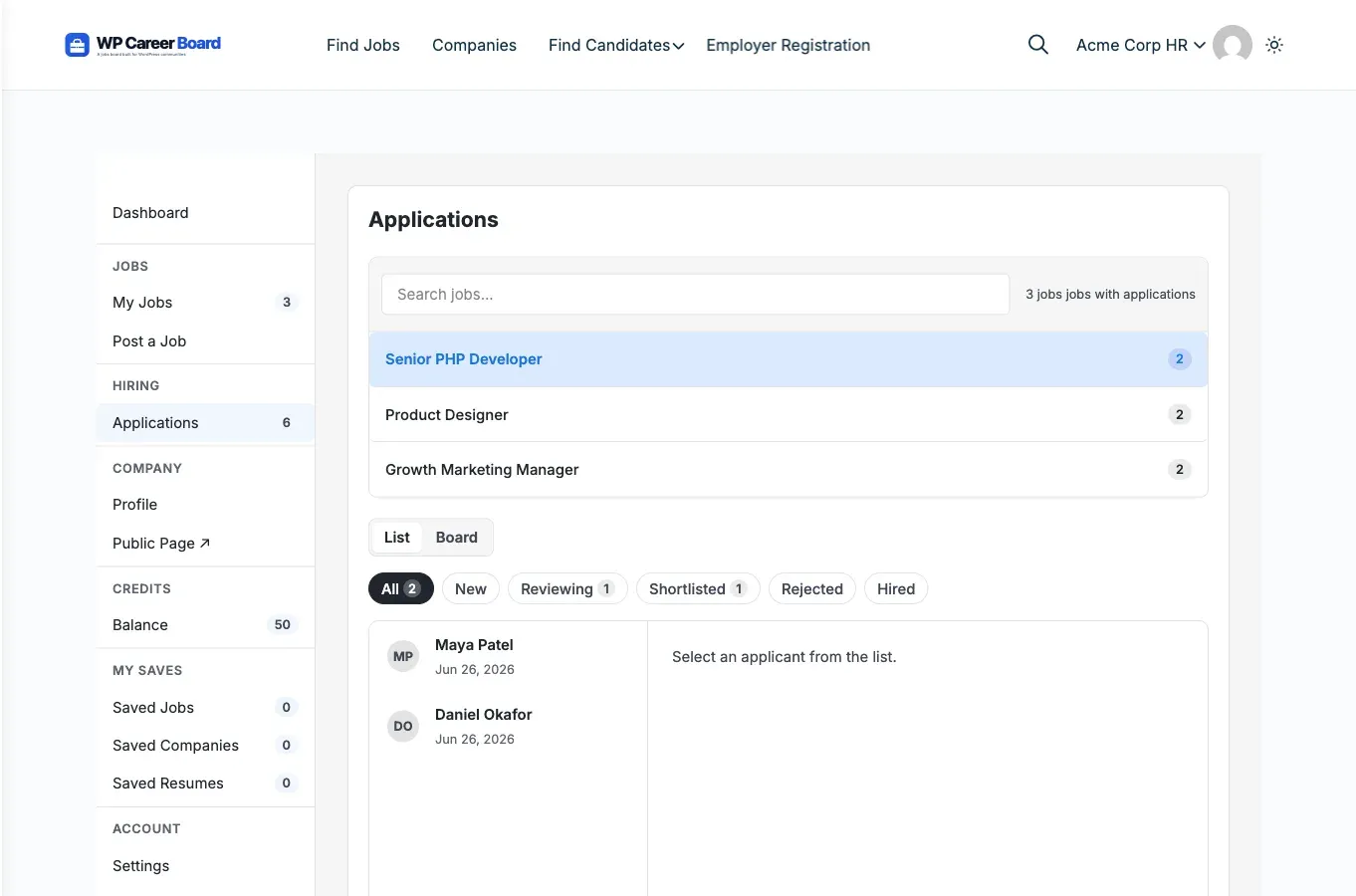
The Applications view in the Employer Dashboard lets you work through the applicants for each of your jobs. You pick a job, then review its applicants in either a List or a Board (Kanban) view and update each applicant’s status.
Accessing Applications
Section titled “Accessing Applications”- Open the Employer Dashboard
- Click Applications in the sidebar (under the HIRING section). Its badge shows your total applicant count.
- Select a job from the job selector at the top. Until you select a job, the view prompts you to choose one.
List view vs Board view
Section titled “List view vs Board view”A List / Board toggle sits above the applicants:
- List - a split panel: applicants on the left, the selected applicant’s full detail (cover letter, resume, status) on the right.
- Board - a Kanban board with one column per status (Submitted, Reviewing, Shortlisted, Hired, Rejected). Drag an applicant card from one column to another to change their status. The board, the list, and the status emails all stay in sync.
Both views are included in the free version.
What You See per Applicant
Section titled “What You See per Applicant”Each applicant row or card shows:
- Applicant name and initials avatar
- Email address (in the detail panel)
- Which job they applied to
- Application date
- Current status - see statuses below
Filtering by Status
Section titled “Filtering by Status”Status filter pills above the list let you narrow the applicants for the selected job:
All, New, Reviewing, Shortlisted, Rejected, Hired (each pill shows a live count).
Application Statuses
Section titled “Application Statuses”| Status | When to use |
|---|---|
| Submitted | Application received - not yet reviewed |
| Reviewing | You are actively reviewing this candidate |
| Shortlisted | Candidate is worth moving forward |
| Rejected | No longer considering this applicant |
| Hired | Offer accepted - position filled |
Updating Application Status
Section titled “Updating Application Status”In List view, change an applicant’s status from the status control in the detail panel. In Board view, drag the card to a different column. Either way the change is saved immediately - no page reload - and the candidate is notified (“Status updated. The candidate has been notified.”).
Ranking applicants by AI fit (Pro)
Section titled “Ranking applicants by AI fit (Pro)”When WP Career Board Pro is active and an AI provider is configured, a Rank by AI fit button appears above the applicant list. It scores each applicant against the job, sorts the list best-first, shows a fit-score badge on each applicant, and surfaces a one-line TL;DR summary plus the reasoning in the detail panel. Without Pro and a provider this button does not appear.
With WP Career Board Pro: the fixed five-status system is replaced by a fully customizable stage pipeline (for example Screening - Interview - Offer - Hired/Rejected). The free List and Board views still apply; Pro lets you define the stages those columns represent. See Application Pipeline.
Reviewing the resume
Section titled “Reviewing the resume”The detail panel shows the applicant’s cover letter and, when a resume was attached, View Resume and Download Resume links. If the applicant is a registered candidate with a public profile, you can also open their full profile to read their experience and education on the site.
Contacting Applicants
Section titled “Contacting Applicants”Use the applicant’s email address to reach out from your mail client. All communication happens outside the plugin - WP Career Board does not have a built-in messaging system in the free version.
When Candidates Withdraw
Section titled “When Candidates Withdraw”If a candidate withdraws their application, it is permanently deleted and will no longer appear in your application list.