

Privacy and Data
BuddyNext gives members real control over their personal information and gives site owners the tools to run a community that respects that control. Members can download a copy of their data or delete their account at any time. Owners decide whether a cookie consent banner appears, how long inactive data is kept, whether search engines may index the community, and whether the self-service export and deletion tools are available.
These tools exist so your community can be trustworthy by default and so you can meet privacy obligations such as the GDPR without bolting on a separate plugin.
Why it matters
Section titled “Why it matters”People share more freely when they trust that they can get their data back and walk away cleanly. Privacy regulations such as the GDPR treat that as a right, not a courtesy: the right to access your data and the right to be forgotten. By wiring export and deletion into the member experience - and giving owners a single place to set retention and consent - BuddyNext keeps your community compliant and your members confident.
Owner settings
Section titled “Owner settings”These live in the admin area under BuddyNext > Members > Privacy & Data.
| Setting | What it controls | Default |
|---|---|---|
| Cookie consent banner | Shows a cookie consent notice to visitors so your community asks for consent before non-essential cookies. Turn on where local law requires a consent prompt. | Off |
| Data retention (days) | How many days member data is kept before it is eligible for cleanup. Use this to enforce a retention policy rather than holding data forever. | 365 |
| Allow data export | Lets members download a copy of their own data from their settings. Turning this off removes the Export control for members. | On |
| Allow account deletion | Lets members permanently delete their own account from their settings. Turning this off removes the Delete account control for members. | On |
| Search-engine indexing | Controls whether search engines may index community content. Choose the policy that matches how public you want the community to be. | Public posts |
Note: Export and deletion are member rights under privacy law. Leave them on unless you have a specific reason and an alternative process for handling member requests. If you turn them off, make sure members know how else to reach you with a data request.
Note: Members can also set their own profile to skip search engines from the Privacy section of their profile editor. The owner indexing setting is the community-wide policy; the per-member toggle is the individual override.
Private Community
Section titled “Private Community”Some communities are not meant to be seen by the public - an internal team space, a paid community, or a group that should only be visible to its own members. The Private Community setting puts your whole community behind a login screen.
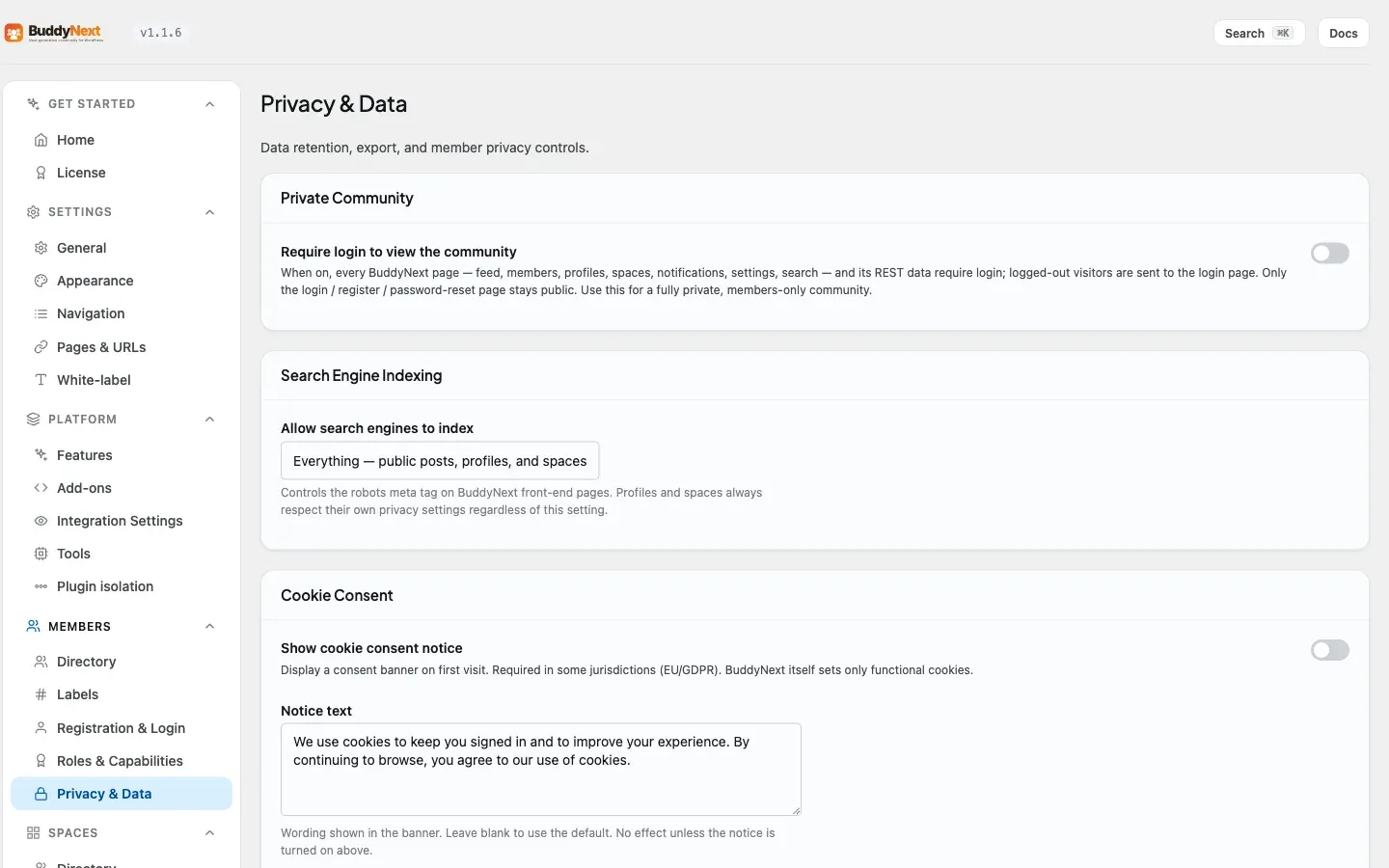
Where to find it: in the admin area, open BuddyNext, then Members, then the Privacy & Data tab, and look under Private Community. Turn on “Require login to view the community.”
What happens when it is on: a visitor who is not signed in is sent to your login page instead of seeing the feed, member directory, spaces, or any other community page. The login, registration, password-reset, and email-verification screens stay reachable, so a new visitor can still sign up or sign in. Once someone logs in, they see the community normally.
When to use it: turn this on if you are running a members-only or invite-only community and do not want any content visible to logged-out visitors, including search engines and people following a shared link. Leave it off for a community that is open to the public, where visitors can browse before deciding to join.
Note: This setting is off by default, so your community stays public unless you turn it on.
Cookie consent banner
Section titled “Cookie consent banner”If your community needs to ask visitors for cookie consent - for example under EU or GDPR rules - BuddyNext can show a small cookie notice at the bottom of the screen on a visitor’s first visit.
Where to find the cookie banner setting: in the admin area, open BuddyNext, then Members, then the Privacy & Data tab, and look under Cookie Consent. Turn on “Show cookie consent notice.”
Change the cookie notice text: once the banner is on, a “Notice text” box appears right below the toggle. Type your own wording there and save. Leave it blank to use the built-in message. If your site has a Privacy Policy page set (under the WordPress Settings, Privacy screen), the banner links to it automatically.
Change the button and link labels: below “Notice text” you can also set the “Accept button label” (the text on the dismiss button - default “Got it”) and the “Privacy-policy link label” (the text of the link to your privacy policy - default “Privacy policy”). Leave either blank to keep its default. Every part of the banner’s wording is editable from admin - no translation plugin needed.
How the notice behaves: it appears once. When a visitor clicks the accept button, their choice is remembered and the banner is not shown again. BuddyNext itself only sets essential cookies, such as the one that keeps members signed in.
Tip: can’t find it from a search? The cookie banner lives on the Privacy & Data tab. You can also press Cmd/Ctrl + K anywhere in the BuddyNext admin and type “cookie” to jump straight to it.
Export my data
Section titled “Export my data”Members can download their own information at any time when the owner has left export enabled.
- Open your account and go to the Privacy or Your data section.
- Choose Export under “Export my data”.
- A file downloads with a copy of your profile, activity, and connections.
The file is a portable copy you can keep or move elsewhere. Exporting does not change or remove anything in the community - it is read-only.
Delete my account
Section titled “Delete my account”Members can permanently close their own account when the owner has left deletion enabled.
- Open your account and go to the Privacy or Your data section.
- Choose Delete account under “Delete my account”.
- Confirm. This cannot be undone.
When you delete your account, BuddyNext erases your community data - your follows, connections, blocks, preferences, posts, and comments - and then removes your account. You are signed out and returned to the home page.
Note: Deleting your account is permanent. If you only want to step away, consider making your account private or muting people instead of deleting.
What deleting an account removes
Section titled “What deleting an account removes”Deleting a member account is a full erasure - there is no “keep my content” option:
- Your personal profile data, preferences, follows, connections, and blocks are erased.
- Your posts and comments are permanently deleted along with the account - genuinely removed, not just hidden from view. Once the deletion runs, they are gone.
This matches the standard expectation that deleting an account removes the person and their content, rather than keeping it under another name.
Good to know
Section titled “Good to know”- GDPR alignment. The export tool supports the right of access (members get a copy of their data), and the deletion tool supports the right to erasure (members can be forgotten). Retention and consent give owners the policy controls that privacy regimes expect.
- What gets removed. Deletion erases everything tied to the member: profile, preferences, follows, connections, blocks, and their own posts and comments. It is a complete erasure, not a hide, with no option to retain the content.
- Administrators are protected. A site administrator cannot delete their own account through the member-facing tool, so you cannot accidentally lock yourself out of your own community. Administrator accounts are managed through WordPress.
- Consent and indexing are community-wide. The cookie banner and the search-engine indexing policy apply to the whole community. Individual members can still choose to hide their own profile from search engines in their Privacy settings.
Related
Section titled “Related”- The Guest Experience - what a logged-out visitor sees, and Private Community
- Account Settings - the login and access side of a member’s account
- Post Privacy and Visibility - how per-post audience is enforced