

Moderators
Availability: Pro only. Requires WB Listora Pro. Free sites manage moderation entirely through the admin role.
What it does
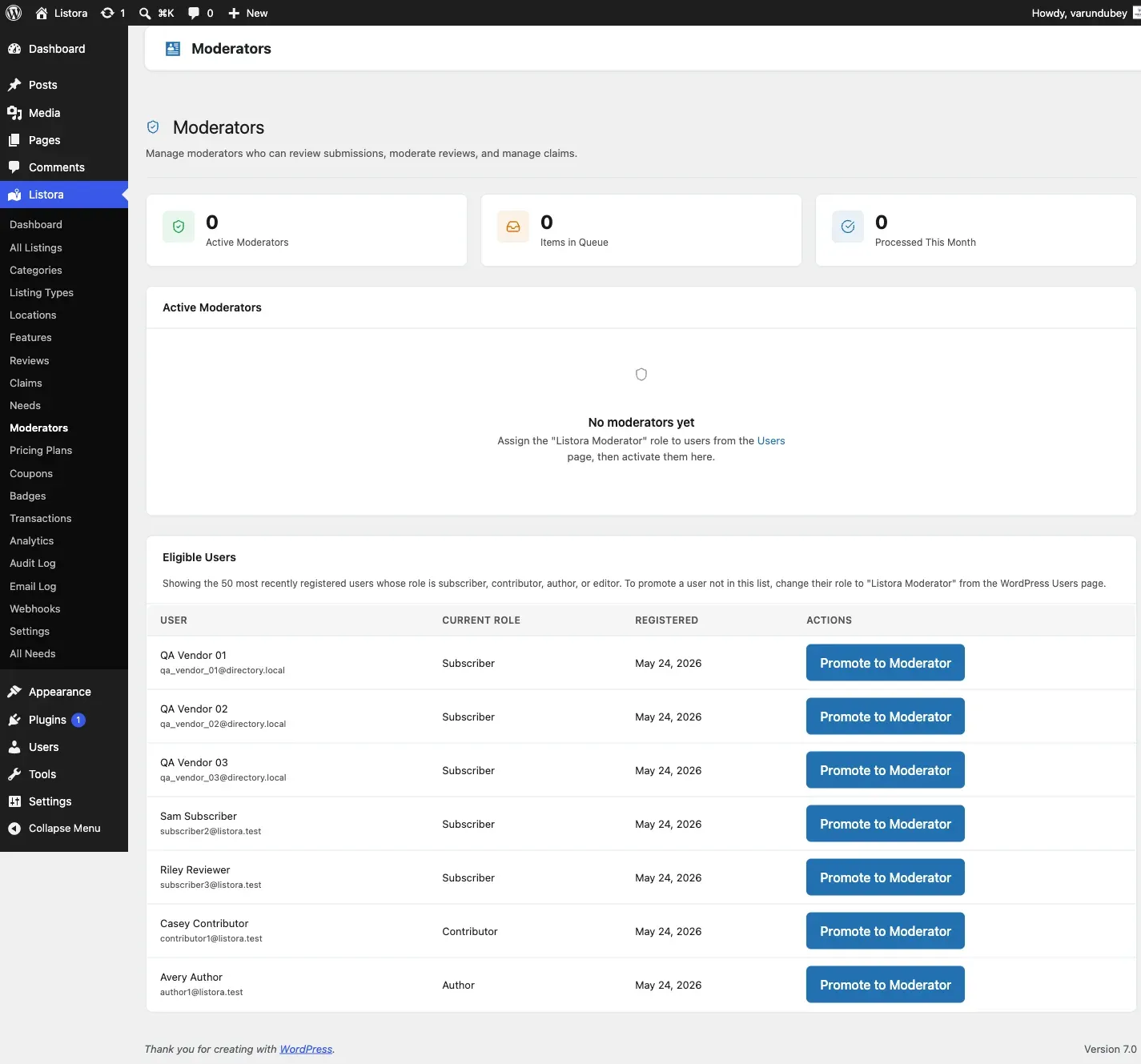
Section titled “What it does”The Moderators feature creates a dedicated Listora Moderator WordPress role. Users assigned this role can approve listings, moderate reviews, and manage claims - without having full admin access to your site. New listing submissions can be assigned to moderators automatically using round-robin distribution.
Why you’d use it
Section titled “Why you’d use it”- Delegate content moderation to trusted team members without giving them full WordPress admin access.
- Scale your directory’s content review process across multiple moderators.
- Moderators can’t change settings, delete listings, or manage listing types - the role is scoped specifically to moderation tasks.
- Round-robin auto-assignment distributes the review workload evenly.
How to use it
Section titled “How to use it”For site owners (admin steps)
Section titled “For site owners (admin steps)”Assigning the Moderator role:
- Go to Users → All Users.
- Click on the user you want to make a moderator.
- Change their Role to Listora Moderator.
- Click Update User.
What moderators can do:
| Permission | Moderator |
|---|---|
| View all listings | Yes |
| Edit listings (not delete) | Yes |
| Approve/reject listings | Yes |
| Moderate reviews | Yes |
| Manage claims | Yes |
| View reports | Yes |
| Delete listings | No |
| Change settings | No |
| Manage listing types | No |
| View analytics | No |
| Manage other moderators | No |
Round-robin assignment: When a new listing is submitted, it is automatically assigned to the next moderator in the rotation. Moderators receive an email notification for their assigned submission.
Managing moderators: Go to Listora → Moderators to see all users with the moderator role and their assignment counts.
For end users (visitor/user-facing)
Section titled “For end users (visitor/user-facing)”The Moderator role is admin-only - visitors and regular users do not interact with moderators directly. Moderators log in to the WordPress admin to perform their tasks.
Managing a large moderator team
Section titled “Managing a large moderator team”The Moderators screen paginates, offers bulk actions, and searches across all users. Before 1.6.0 it listed the first fifty users and nothing else, so on a site with more members than that, most people were simply unreachable from the screen - including, sometimes, the person you were trying to promote.
Queue sizes are also accurate above 500 items and load in a single query rather than one per moderator, so the screen stays usable as the team and the backlog grow.
- Assign at least two moderators so submissions are covered if one is unavailable.
- Moderators see only the listings assigned to them in round-robin mode - this prevents duplicate review effort on the same listing.
- Brief your moderators on your content standards before assigning the role. The plugin provides the tools; your team provides the judgment.
- If a moderator is on leave, temporarily change their role to Subscriber to pause their round-robin assignments. Re-assign to Listora Moderator when they return.
- Administrators have the
manage_listora_moderatorscapability added by Pro - use this to control which admins can assign and manage moderators.
Common issues
Section titled “Common issues”| Symptom | Fix |
|---|---|
| Moderator can’t see the Listora menu | The role should automatically have access - deactivate and reactivate Pro to re-register capabilities |
| Round-robin not distributing evenly | Check the moderator list in Listora → Moderators; inactive users in the role may be receiving assignments |
| Moderator accidentally deleted a listing | The Moderator role does not have delete capabilities - if this occurred, the user may have a secondary role (e.g., Editor) that grants delete access |