

WB Member Blog
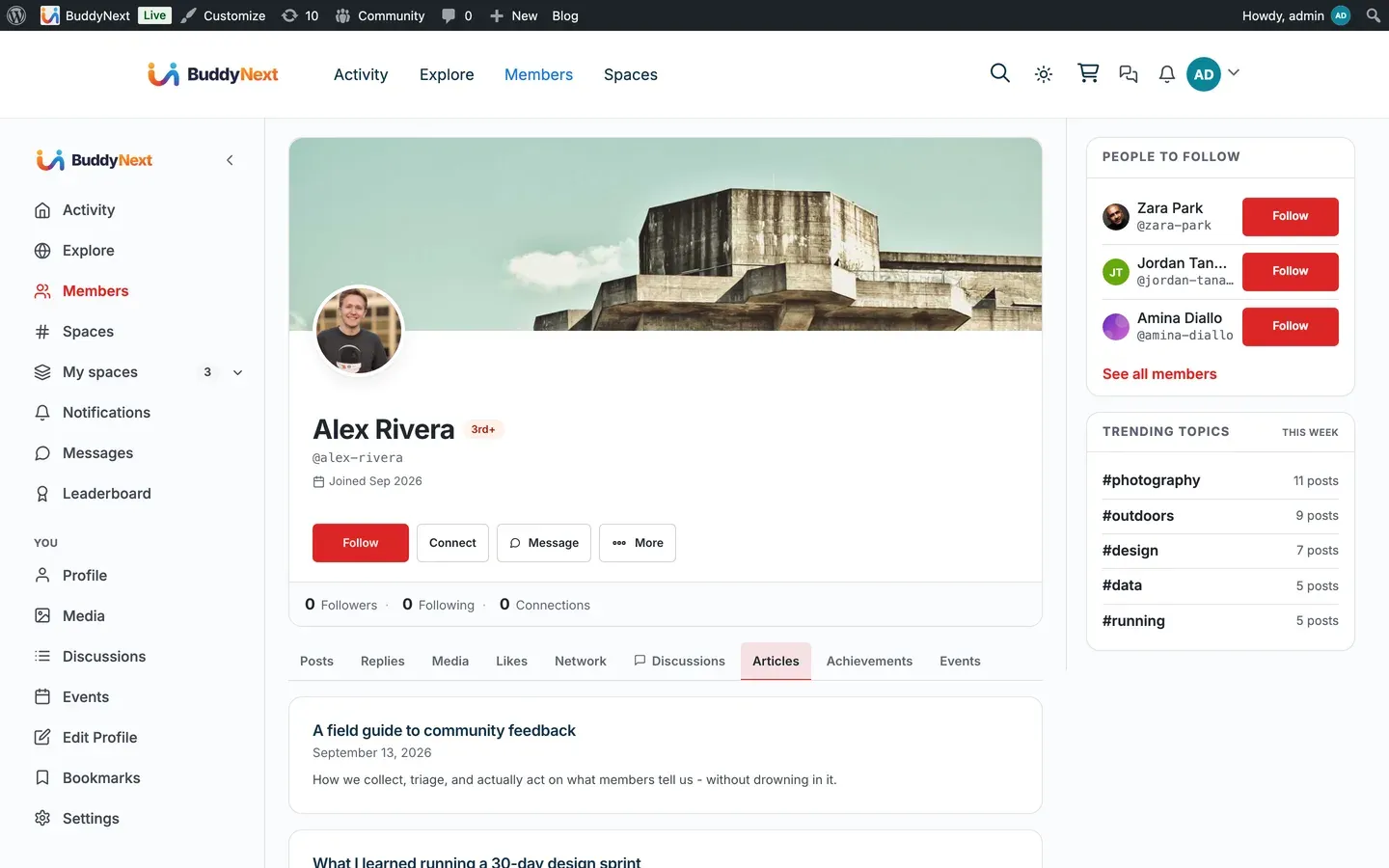
WB Member Blog lets your members write and manage WordPress posts from the front end, without ever seeing wp-admin. When it is active, BuddyNext adds an Articles tab to every member profile listing what that member has published, and gives the member a route back to the dashboard where they write.
Why use it
Section titled “Why use it”A community where members only comment is a community with one publisher. Letting members write long-form gives them somewhere to put the thing that does not fit in a post - a tutorial, a trip report, a case study - and gives everyone else a reason to look at their profile.
BuddyNext already carries a published post into the community feed as an article card. What it could not do before was show a member’s body of work in one place. The Articles tab is that place: a member’s writing, on their profile, next to their discussions and their media.
What BuddyNext adds
Section titled “What BuddyNext adds”BuddyNext’s side of this integration is deliberately small, and deliberately generic.
- An Articles tab on each member profile, listing that member’s published posts - title, date, excerpt and featured image - each linking out to the post itself.
- An owner route back to writing. When you are looking at your own Articles tab, you also get Write a new article and Manage articles, plus an Edit link on each row. All of them go to Member Blog’s dashboard.
- Drafts and pending posts, for you only. Your own tab shows work in progress with a status badge so an unfinished draft never reads as published. Nobody else sees them.
Everything else stays where it belongs. BuddyNext does not render an editor, does not own a posting form, and does not duplicate Member Blog’s dashboard. All writing, editing and submission happens in Member Blog.
What BuddyNext already did without this
Section titled “What BuddyNext already did without this”The feed side needs no integration at all. BuddyNext’s site tracking publishes an article card whenever a member publishes a post, so member writing has always reached the community feed. That is generic too - it does not know or care whether the post was written through Member Blog, through wp-admin, or through anything else.
Setting it up
Section titled “Setting it up”- Install and activate WB Member Blog.
- In Member Blog’s settings, map its dashboard page - the front-end page where members write and manage their posts. BuddyNext reads this to build the “Write a new article” link.
- That is all. The Articles tab appears on member profiles automatically.
To hide the tab across the site, turn off the nav aspect of the Blog posts integration under BuddyNext > Platform > Integration Settings. That control also governs the article cards in the feed, because both surfaces show the same thing: the member’s WordPress posts.
Note: The tab appears only when Member Blog is active. Without it, members have no front-end way to write, so the tab would be empty for everyone except administrators - and the “Write a new article” link would have nowhere to point.
What appears on the tab
Section titled “What appears on the tab”The tab lists the member’s posts in the standard WordPress post type, newest first, paginated. If your site teaches BuddyNext about additional post types through the buddynext_site_tracking_post_types filter, those appear on the tab and in the feed together - one change, both surfaces.
Visitors and other members see published posts only. You see your own drafts, pending review and scheduled posts as well, each labelled.
Neither BuddyNext Pro nor WB Member Blog Pro is required. The Articles tab works with BuddyNext free and Member Blog free. Both Pro plugins add their own features on their own surfaces; none of them are involved in this tab.
Related
Section titled “Related”- Integrations Overview
- Activity Feed - where article cards appear
- Member Profiles - the profile tabs this joins